



Key Takeaways
A complete guide to interactive touch screen digital signage for schools and organizations. Learn how the technology works, what hardware and software you need, what to look for, and how to choose the right solution.
What Interactive Touch Screen Digital Signage Actually Is
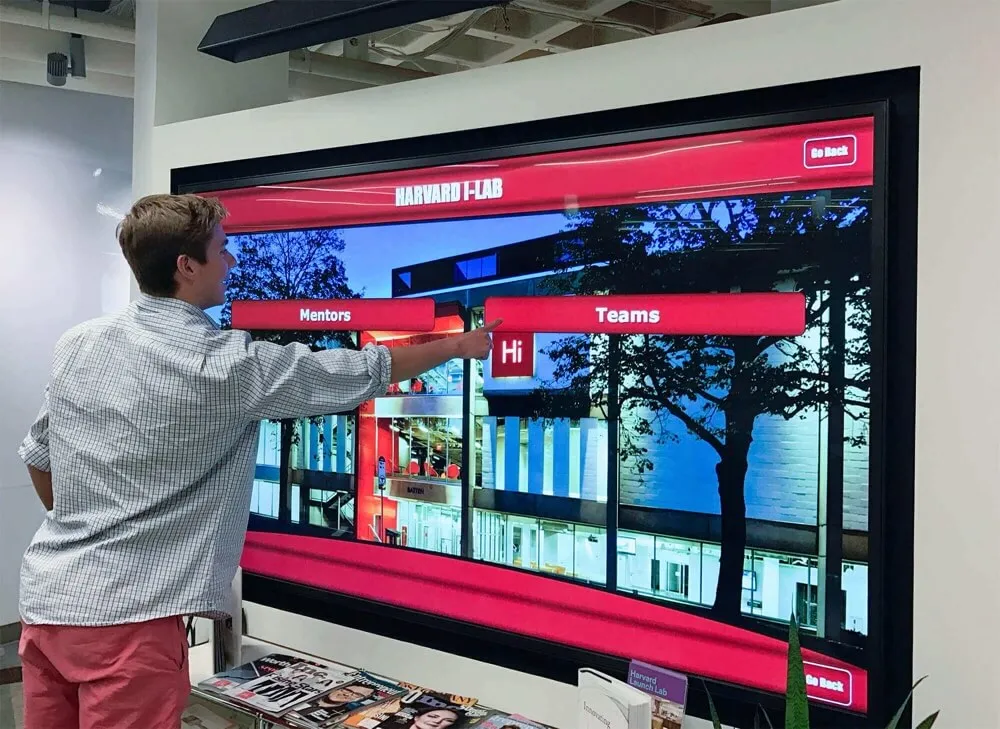
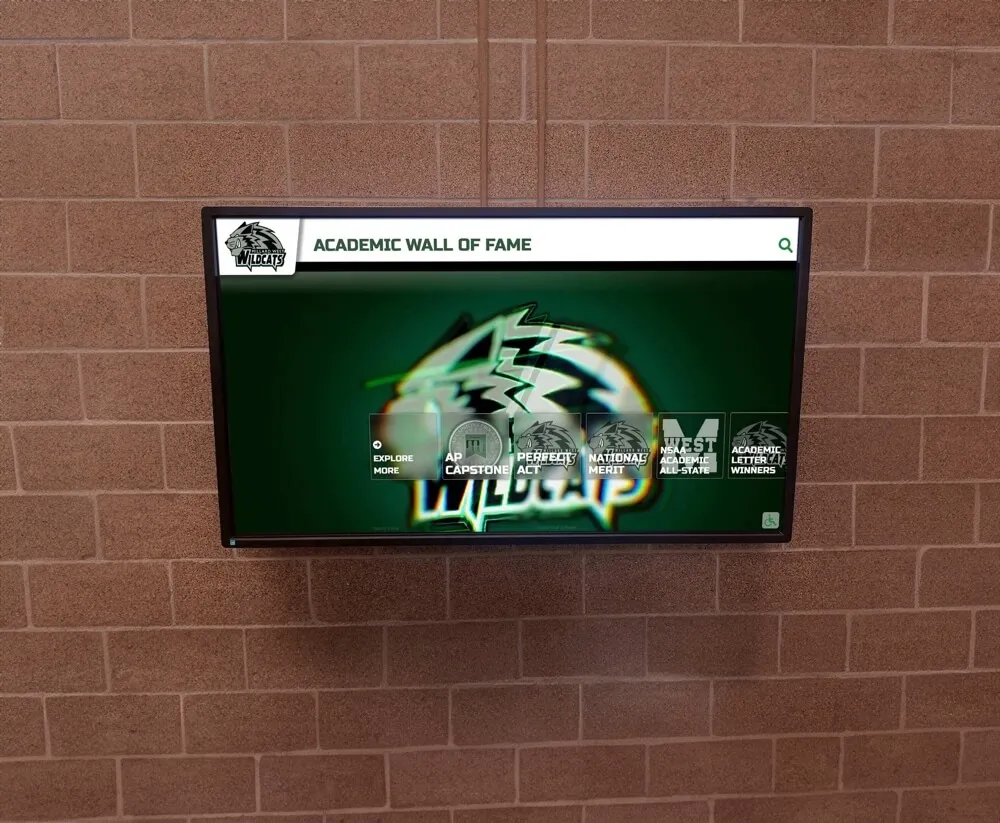
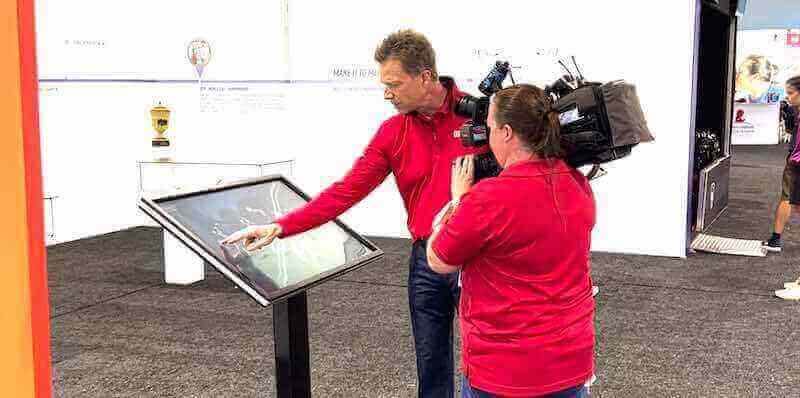
Interactive touch screen digital signage combines a display panel, touch-sensing hardware, a media player or built-in computer, and software into a single system that responds to user input in real time. Unlike passive digital signage—the looping slide shows you see in many school lobbies—interactive systems let visitors tap, swipe, search, and explore content on their own terms.
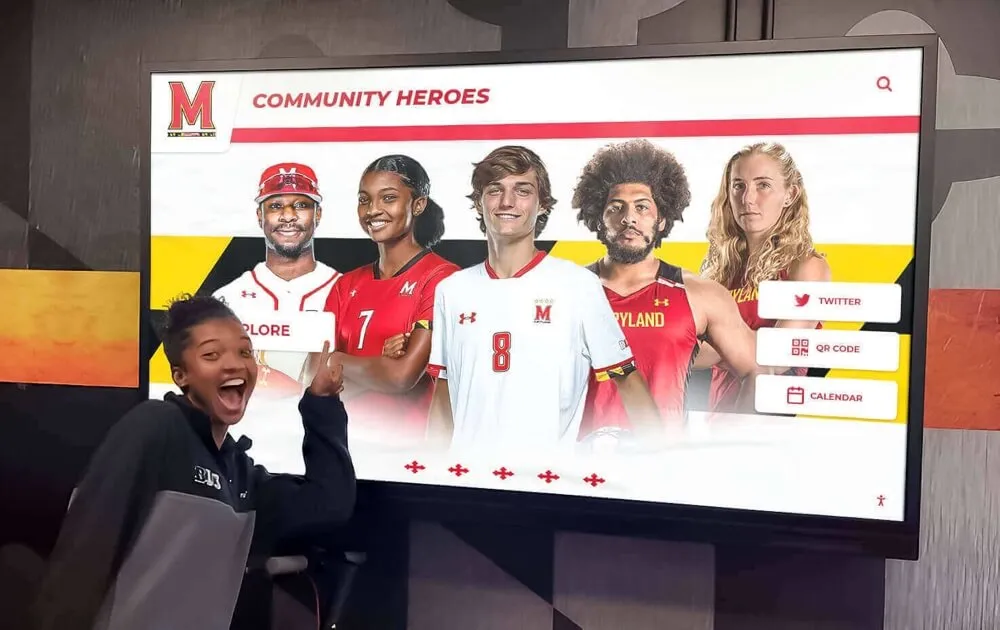
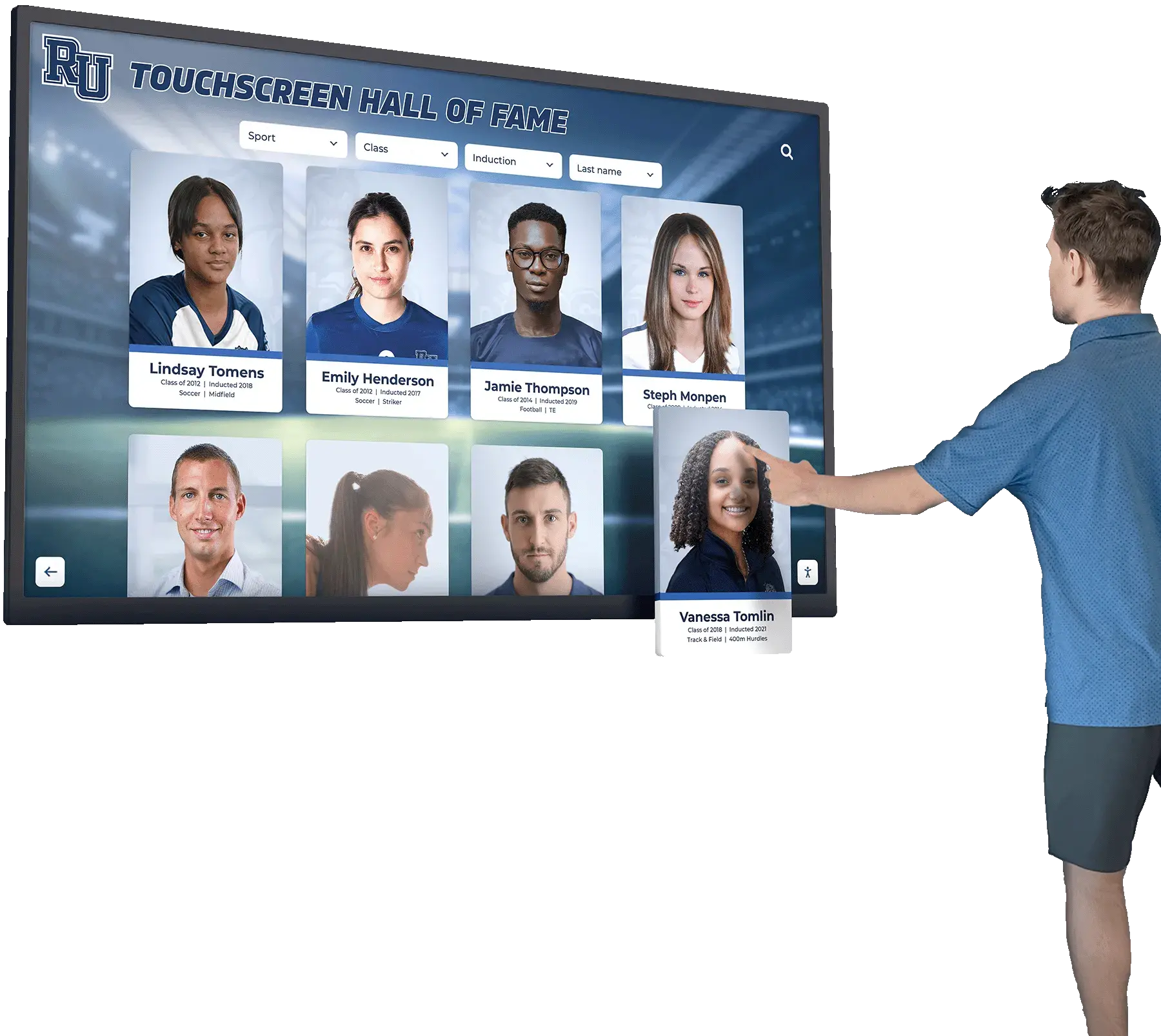
For schools and organizations, that distinction matters. A visitor standing in front of a passive display watches whatever the schedule serves up. A visitor standing in front of an interactive display can search for their own name in an alumni database, pull up a specific athlete’s career statistics, navigate to the donor recognition section, or browse championship photographs by decade. The depth of engagement is fundamentally different.
Understanding that distinction also clarifies what problems these systems solve well. If your goal is rotating announcements or a digital version of a bulletin board, passive signage may suffice. If your goal is a searchable recognition archive, a navigable donor wall, or an immersive institutional history display, you need interactivity.
How the Technology Works
The Touch Layer
Most modern large-format interactive displays use one of two touch technologies:
Projected Capacitive (PCAP): The same technology in smartphones and tablets, scaled up to 55", 65", 75", and larger panels. PCAP supports true multi-touch with high sensitivity and accuracy. It works well in environments where users are likely to touch the screen lightly with fingertips. PCAP is the dominant technology in premium interactive displays.
Infrared (IR): A grid of IR emitters and receivers frames the screen. When a finger or stylus interrupts the IR beam, the system registers a touch. IR supports large formats, multiple touch points, and works with gloves or styluses. It is common in lower-cost large-format panels and in applications where users may wear gloves (athletic facilities in cold climates, for example).
Both technologies can support 10+ simultaneous touch points, which matters for exhibits where multiple people interact at once—a common scenario during open houses, alumni events, or athletic banquets.
The Display Panel
The panel itself is typically a commercial-grade LED-backlit LCD. Commercial panels differ from consumer televisions in several important ways:
- Duty cycle: Commercial panels are rated for 16/7 or 24/7 continuous operation. Consumer TVs are not, and running them continuously shortens their lifespan significantly.
- Brightness: Commercial panels typically deliver 400–700 nits, compared to 250–350 nits for consumer sets. Higher brightness matters in lobbies with ambient light from windows or overhead lighting.
- Haze and anti-glare coatings: Interactive panels include coatings that reduce glare and fingerprint visibility without sacrificing too much image clarity.
- Warranty and serviceability: Commercial panels typically carry 3-year warranties with on-site service options. Consumer TVs do not.
The Computing Layer
Something has to run the software. The options are:
Built-in System on Chip (SoC): Many modern interactive panels include a processor, RAM, and storage directly inside the display housing. SoC solutions simplify cabling and reduce points of failure, but the computing power is typically modest—sufficient for standard recognition software and web-based applications.
External Media Player or Mini PC: A dedicated small-form-factor computer connects to the display via HDMI or DisplayPort. This approach provides more computing power, easier component replacement, and the ability to run more demanding applications. Purpose-built recognition platforms often recommend specific hardware combinations they have tested and validated.
Integration with Existing Infrastructure: In some installations, the display connects to a wall-mounted or rack-mounted PC managed by IT. This adds flexibility but increases complexity.
Connectivity and Content Management
Interactive displays need reliable network connectivity. Wired ethernet (at least Cat6) is the preferred approach for permanent installations because it eliminates the variability of Wi-Fi. Most commercial panels include ethernet ports; if your installation location lacks a wired drop, plan for that infrastructure work in your budget.
Software manages the content. Web-based content management systems (CMS) allow staff to update profiles, add images, and modify content from any browser without visiting the physical display. Purpose-built recognition platforms combine the CMS with prebuilt interactive templates designed for athletic halls of fame, donor recognition, academic honors, and institutional history.
Types of Interactive Touch Screen Displays
Not every interactive installation looks the same. The form factor you choose should match your physical space, content goals, and audience behavior.
Freestanding Kiosk
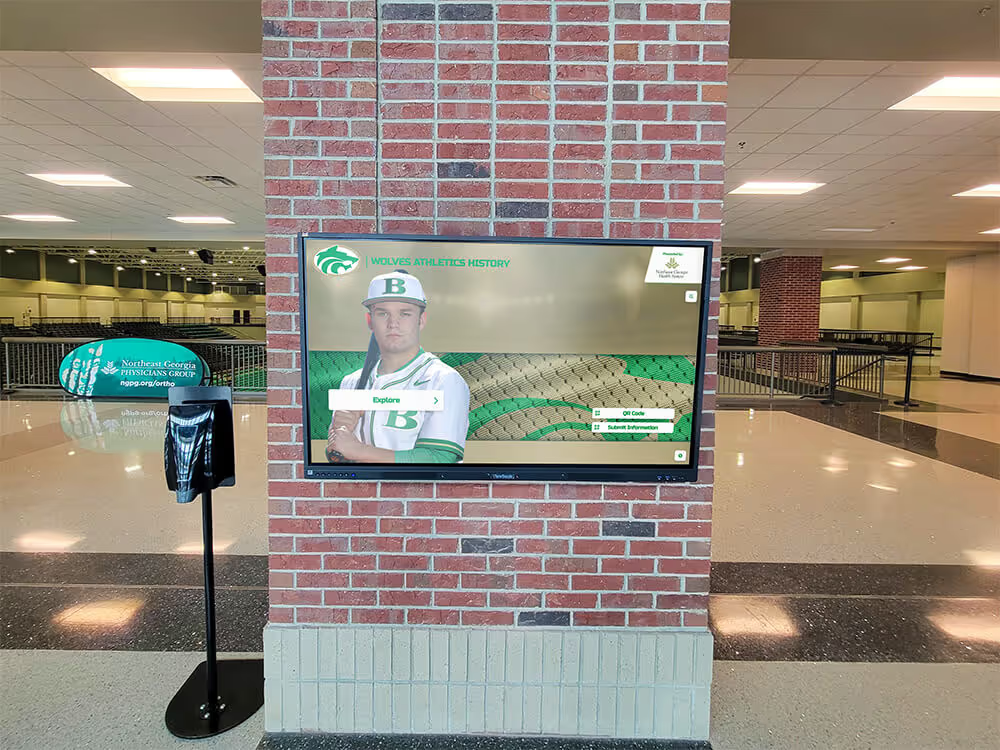
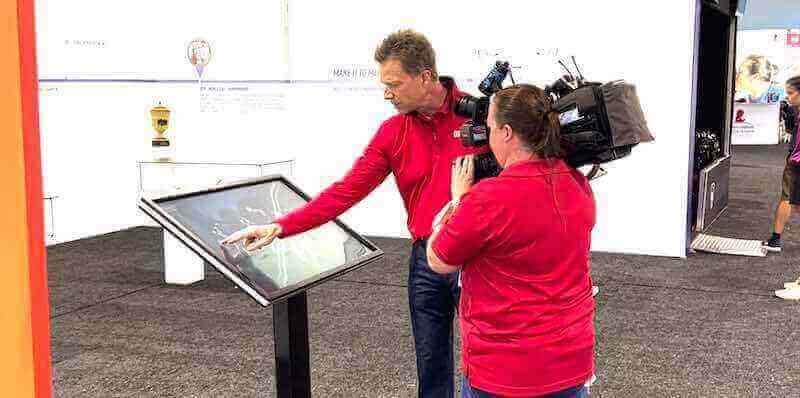
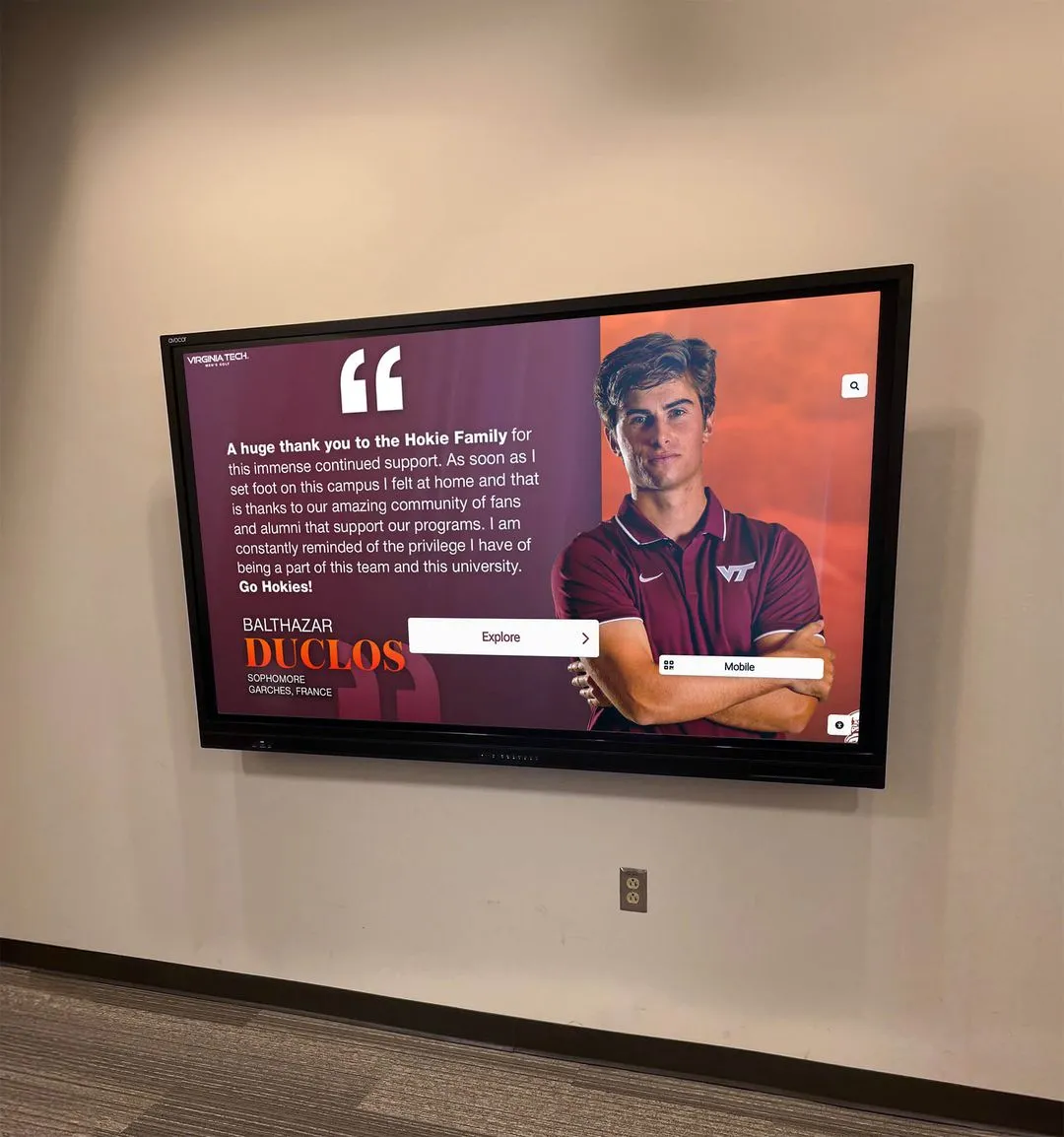
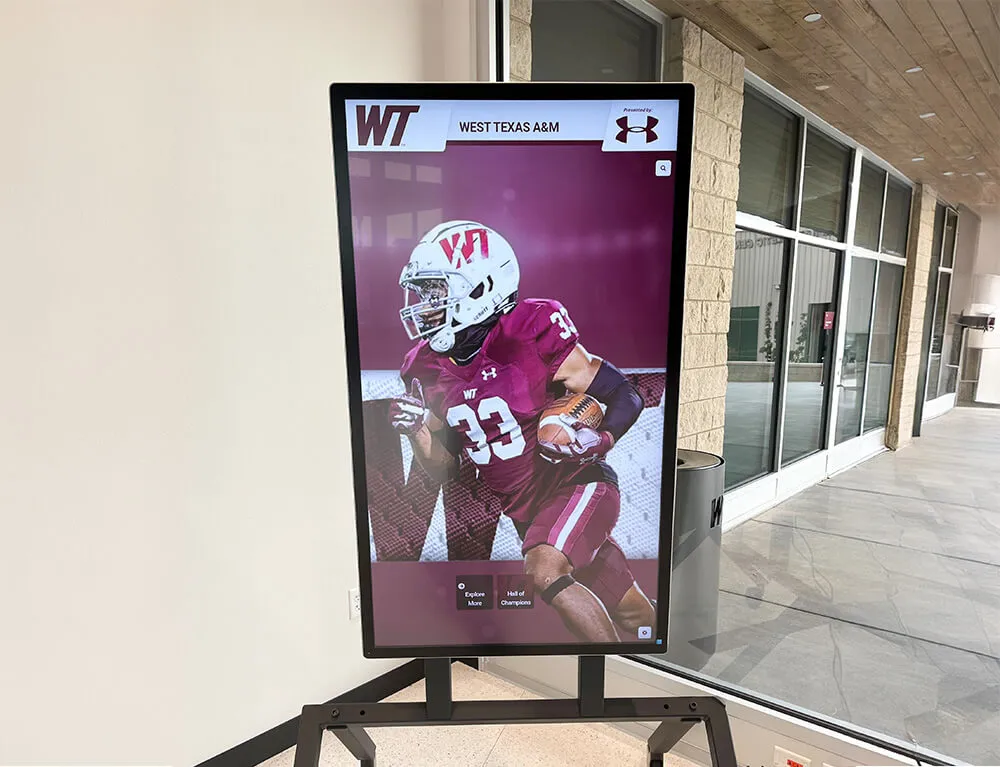
A kiosk is an enclosure housing the display, computer, and sometimes speakers in a self-contained floor-standing unit. Kiosks work well in open spaces—lobby centers, athletic facility corridors, event entrances—where wall mounting is not practical. They are also portable, which matters for organizations that want to move displays to different locations for events.
The trade-off: kiosks occupy floor space and can be obstructed by crowds. In heavy-traffic areas, they may also be more vulnerable to accidental contact.
Wall-Mounted Panel
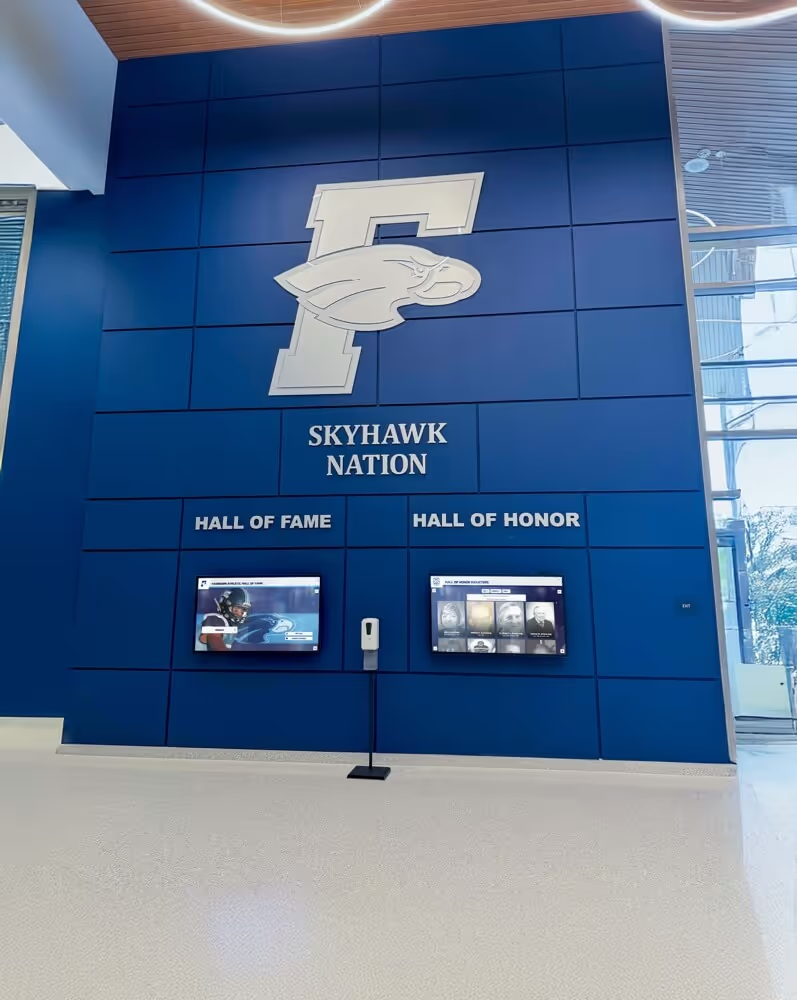
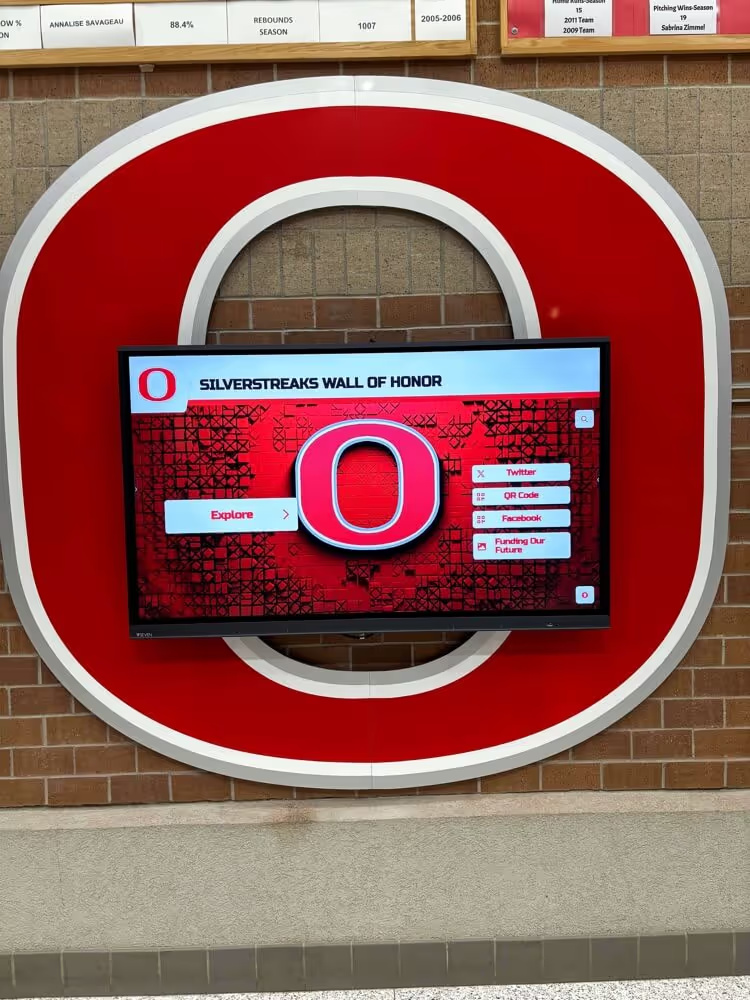
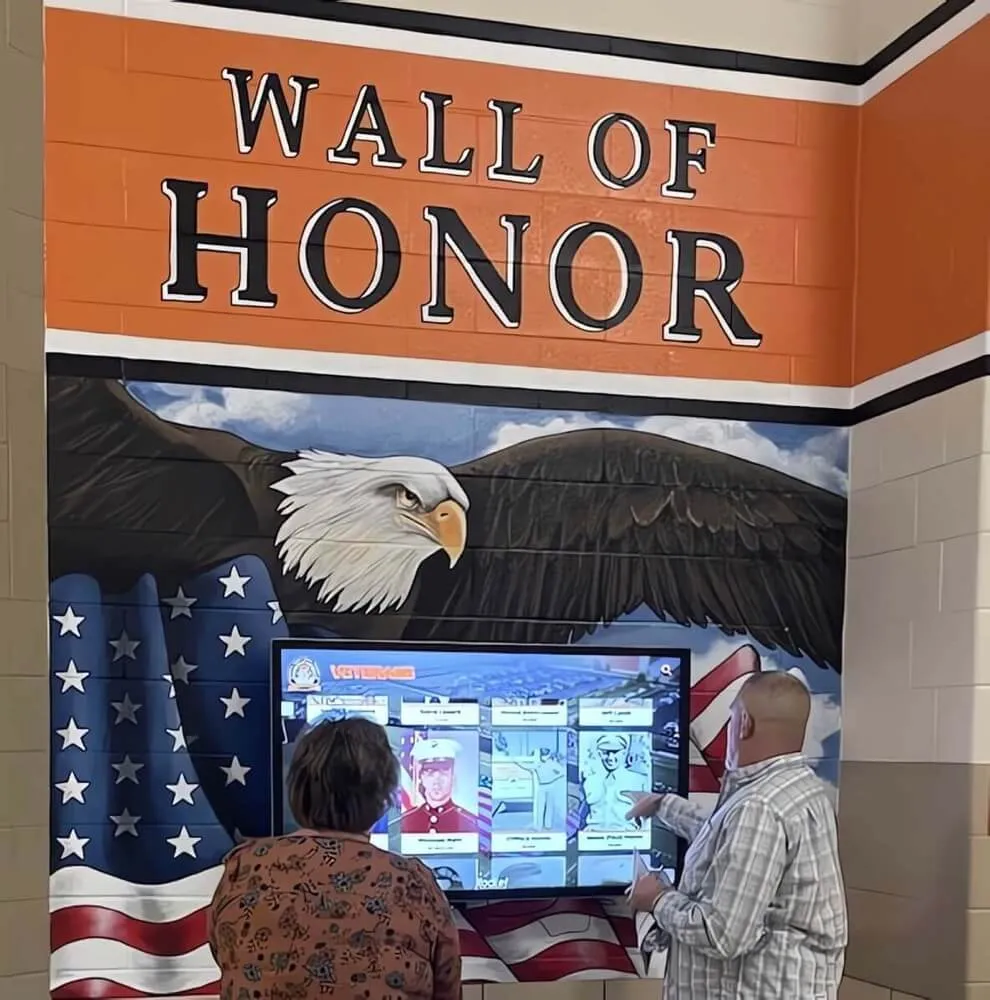
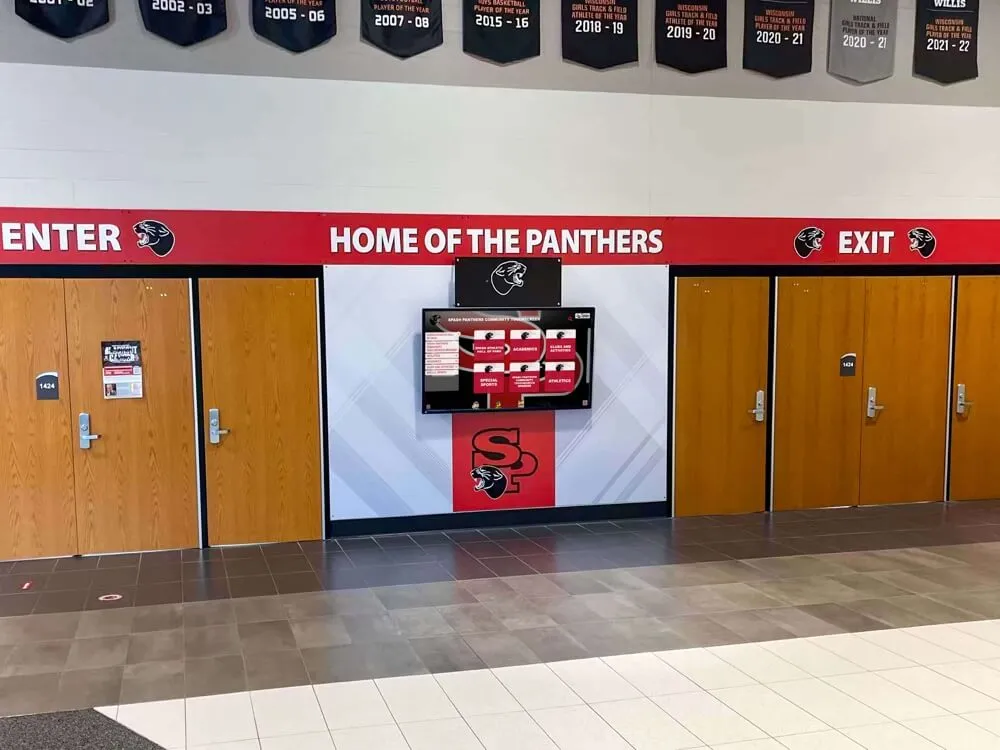
Wall-mounted interactive panels are flush to the wall and require less floor space. They integrate more cleanly into hallway designs and are less prone to accidental movement. Most school installations use wall-mounted panels for permanent recognition displays.
The trade-off: wall mounting requires drilling, cable runs inside walls, and potentially a structural assessment for very large panels. Repositioning later is disruptive.
Multi-Screen Installations
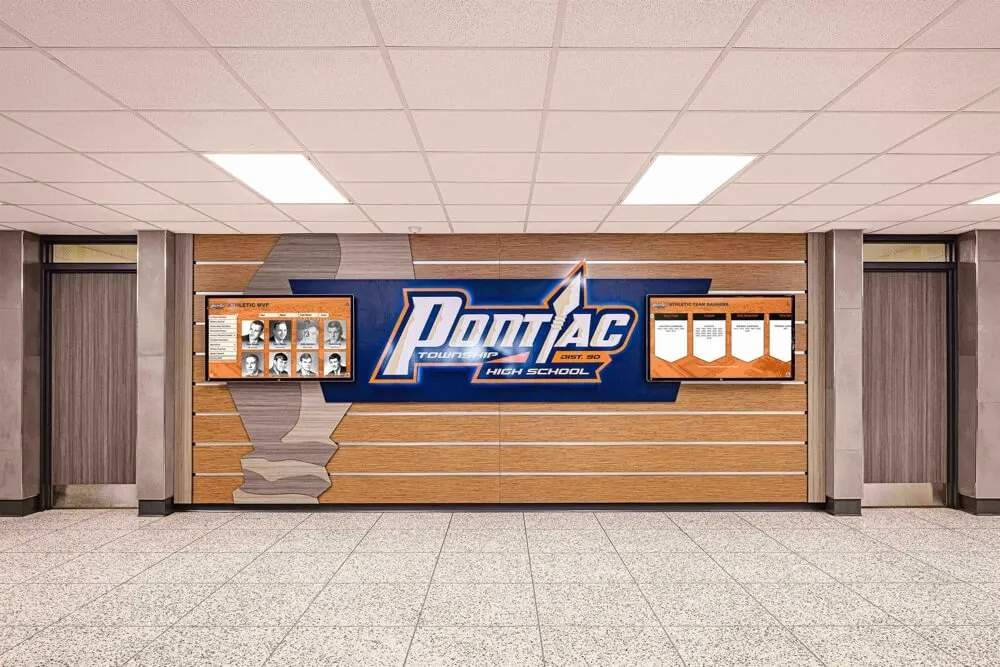
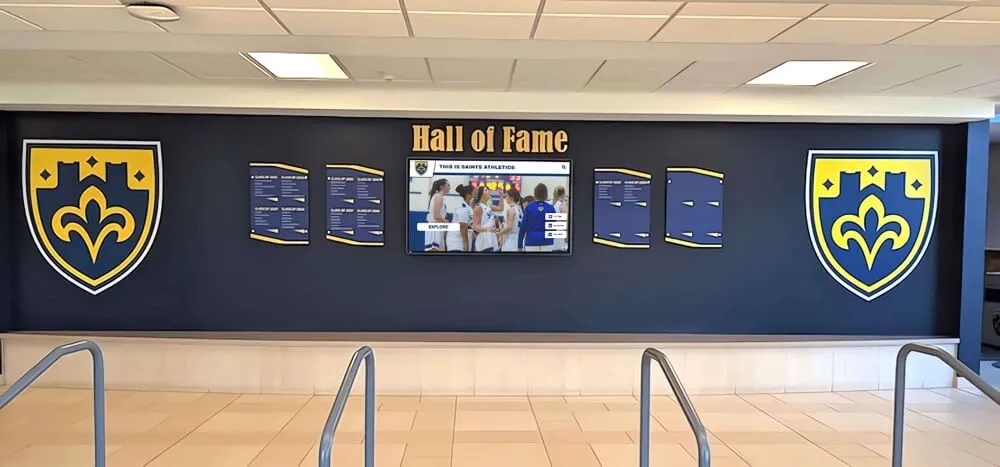
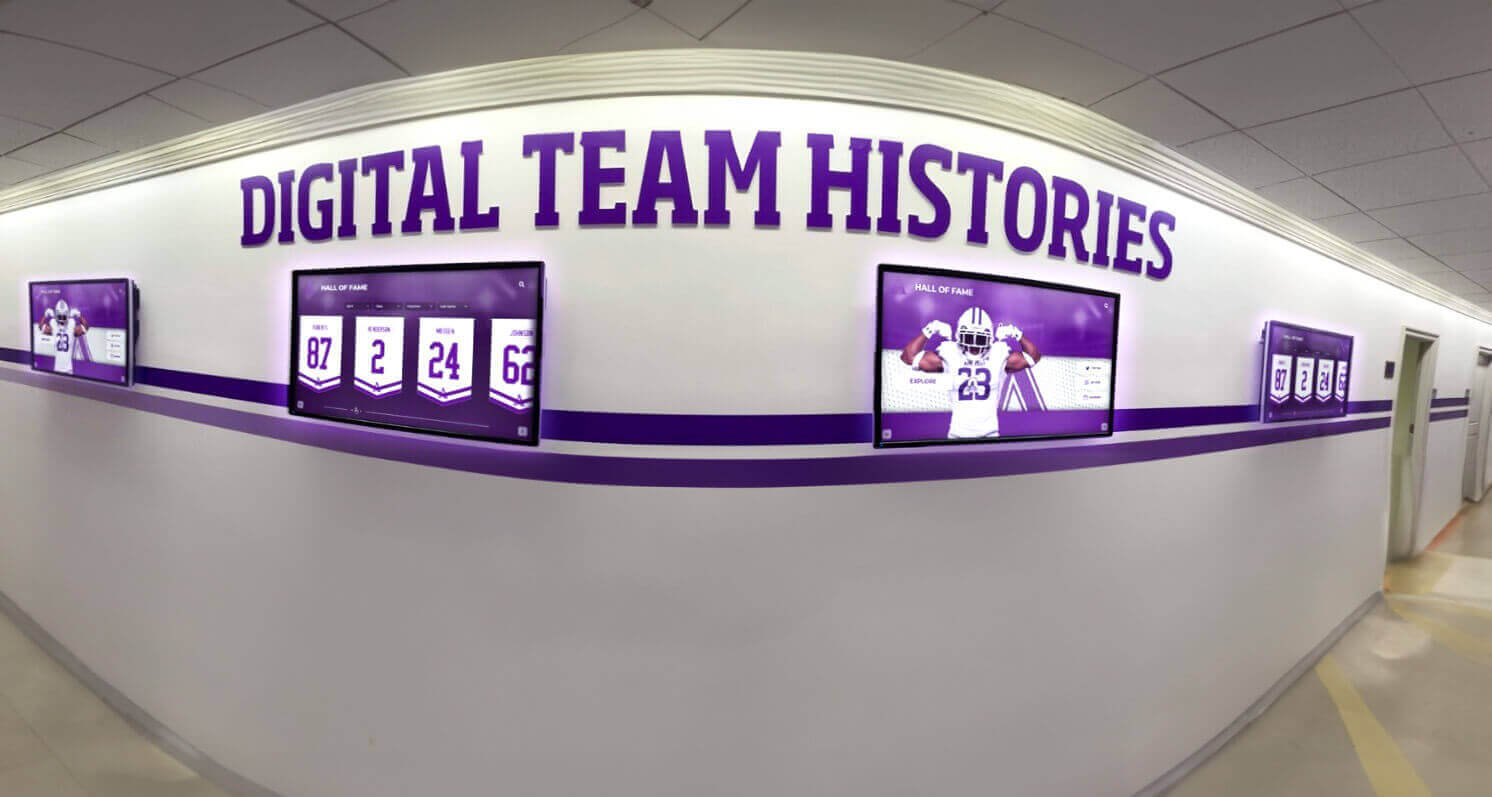
Some organizations install two or more panels side by side to create a panoramic recognition wall. Multi-screen setups allow more content to be visible at once—multiple sports simultaneously, or a timeline spanning decades. Software must coordinate content across displays, which requires purpose-built multi-screen management capabilities.
Integrated Mural Displays
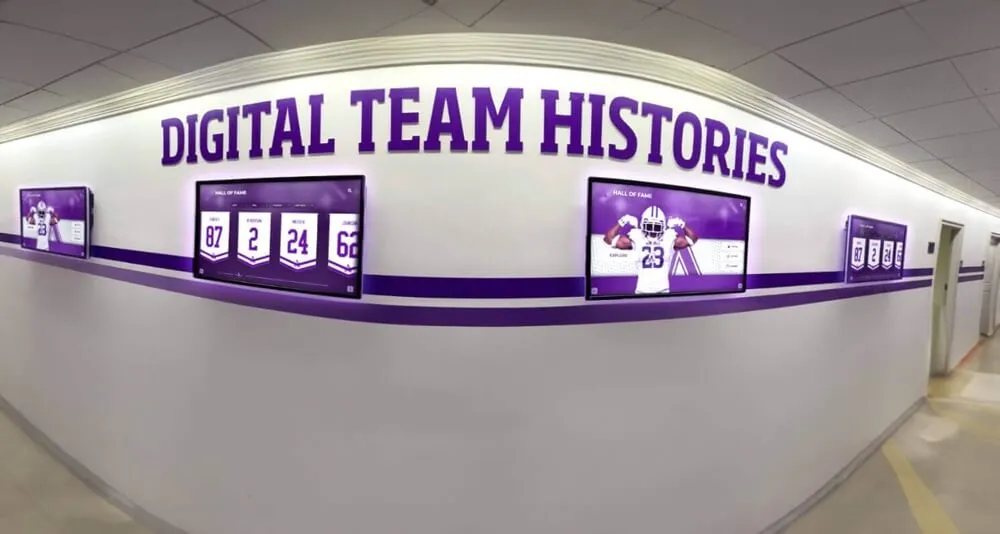
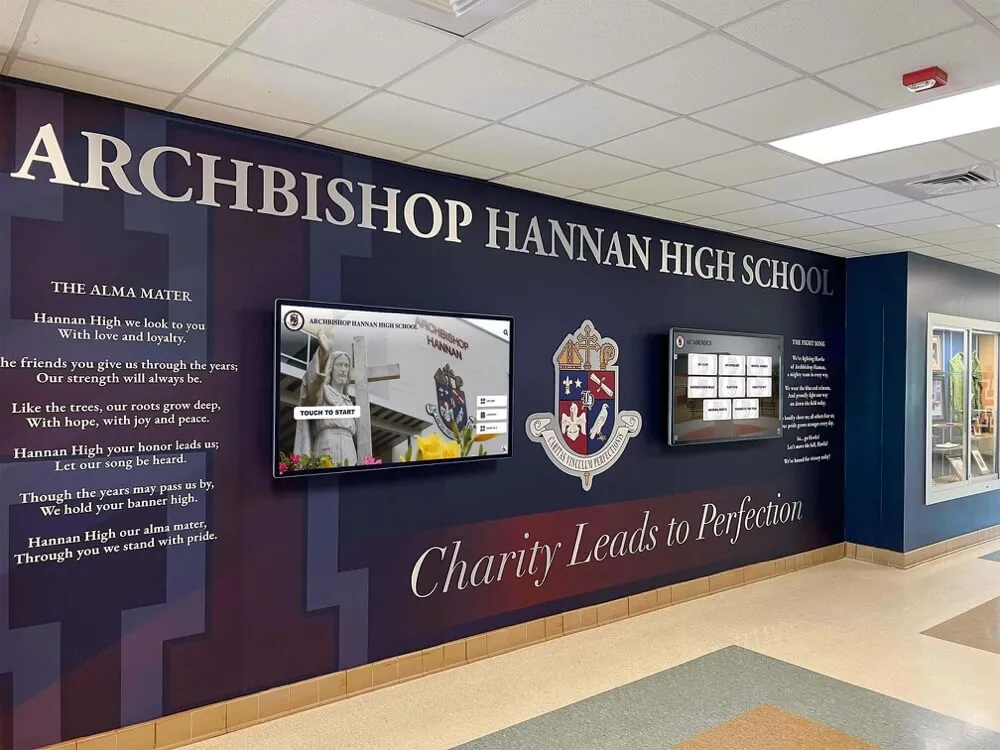
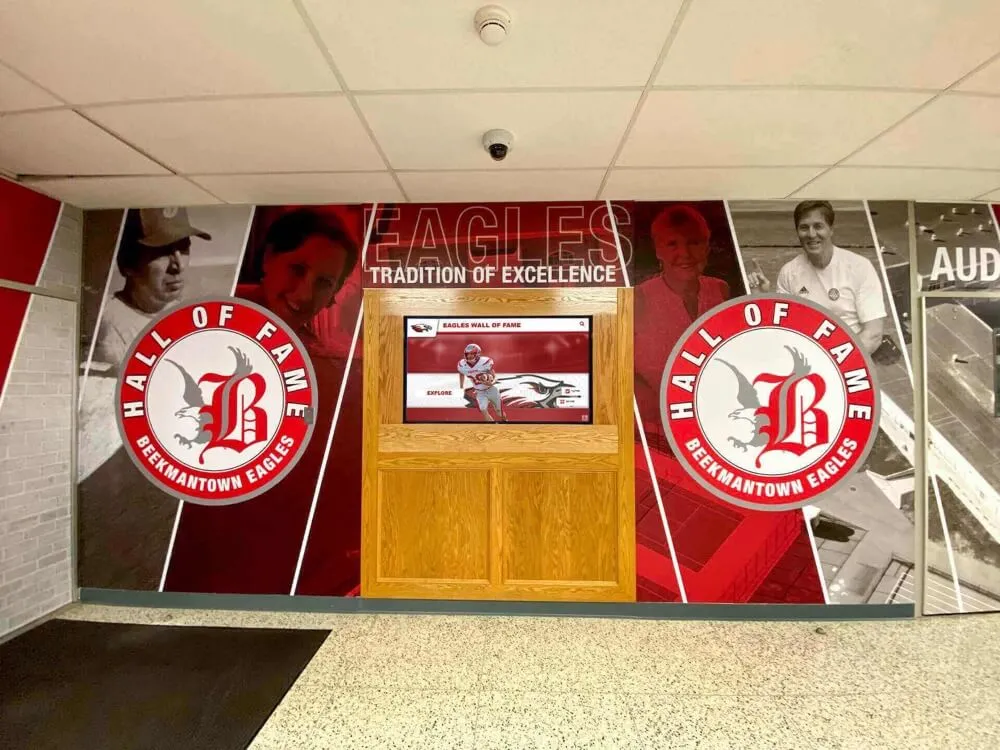
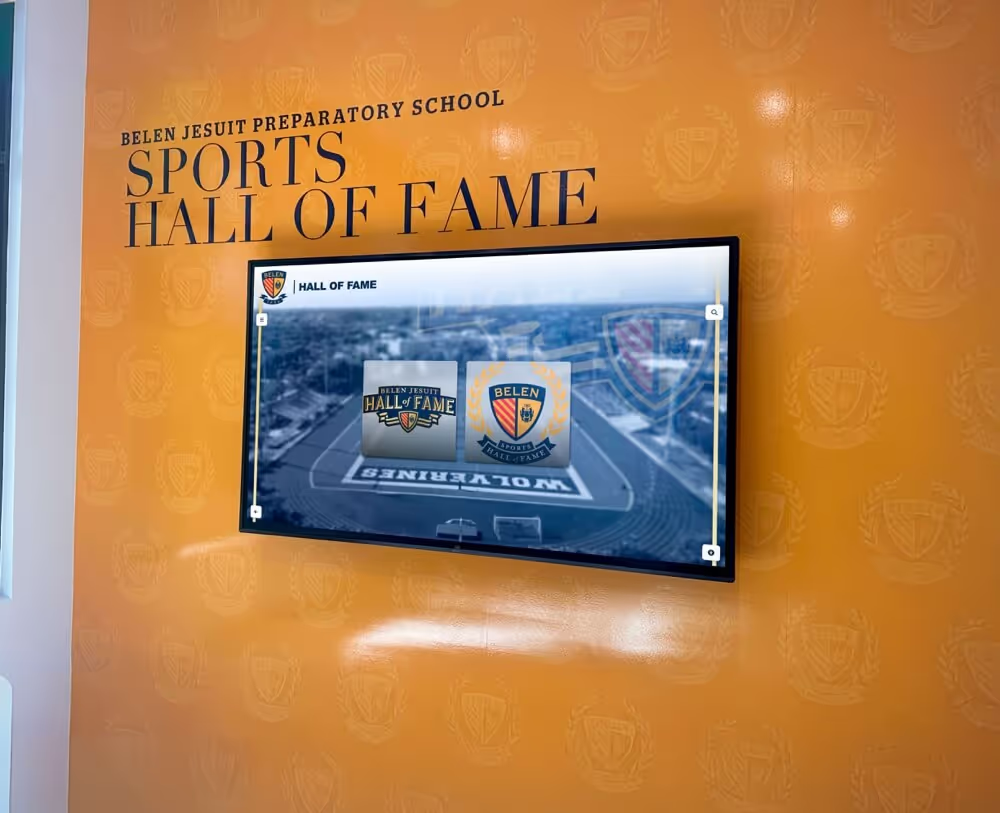
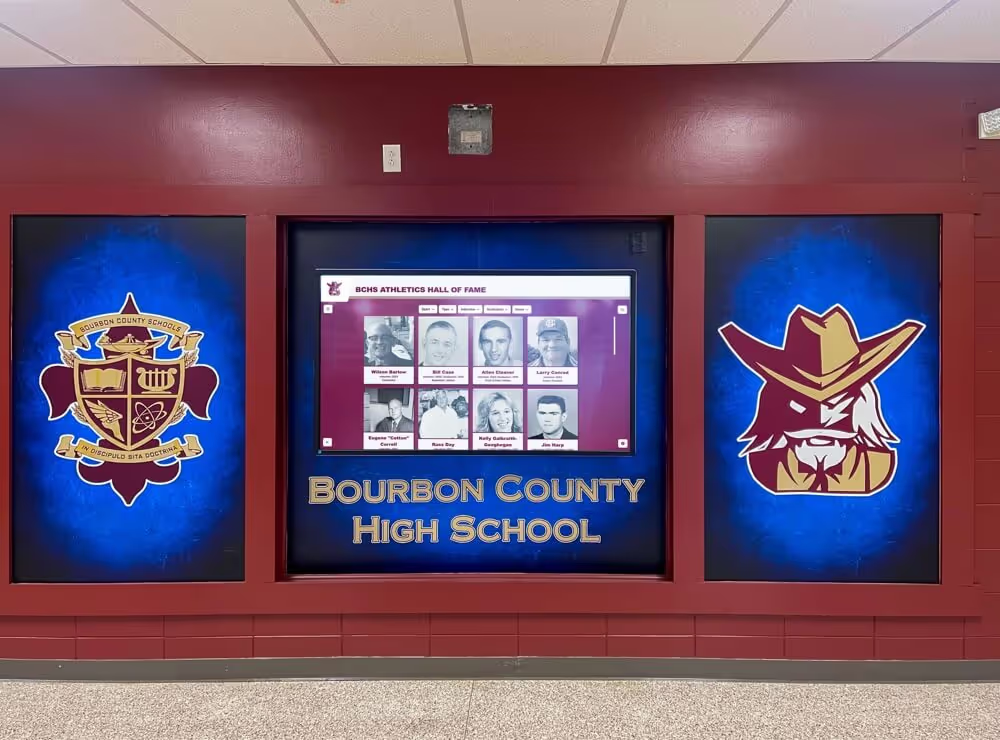
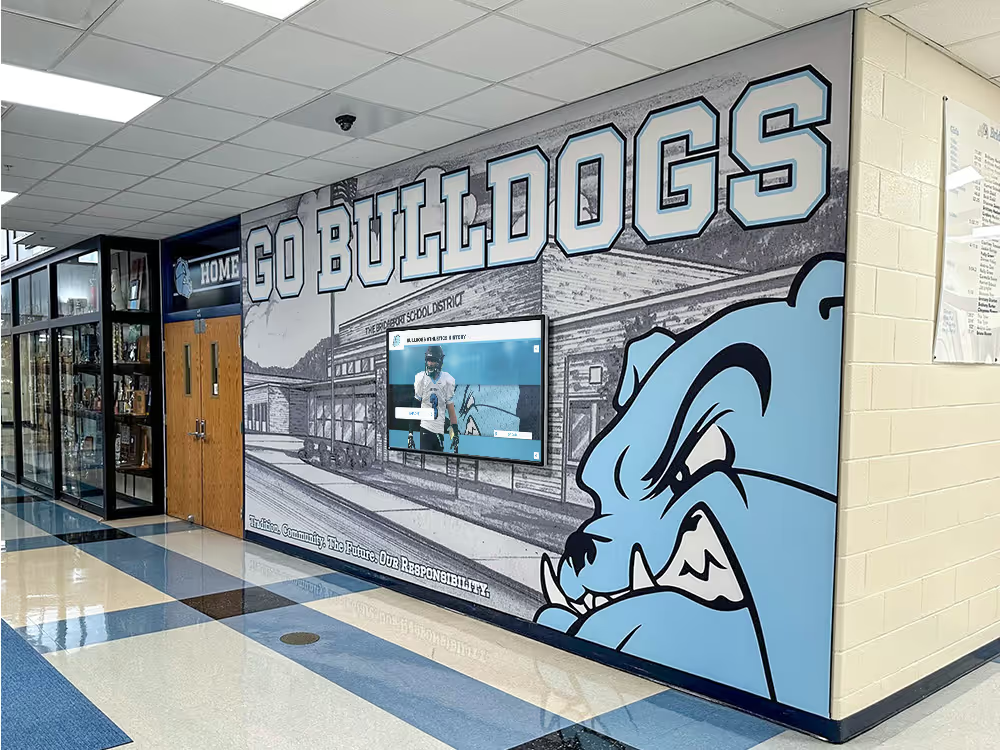
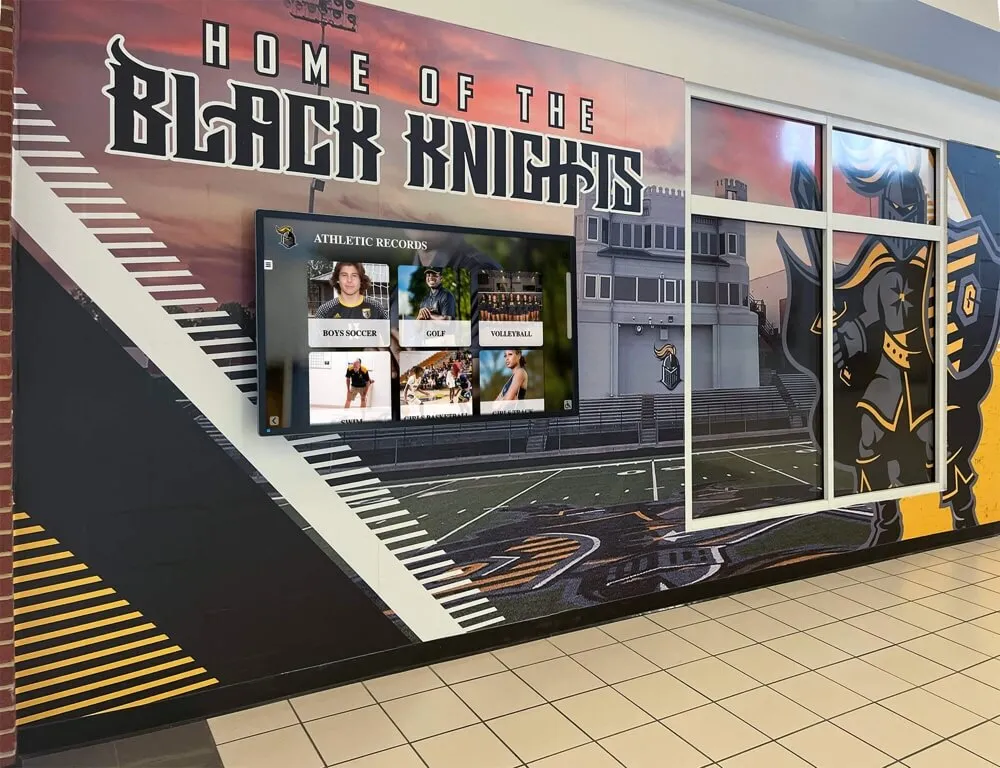
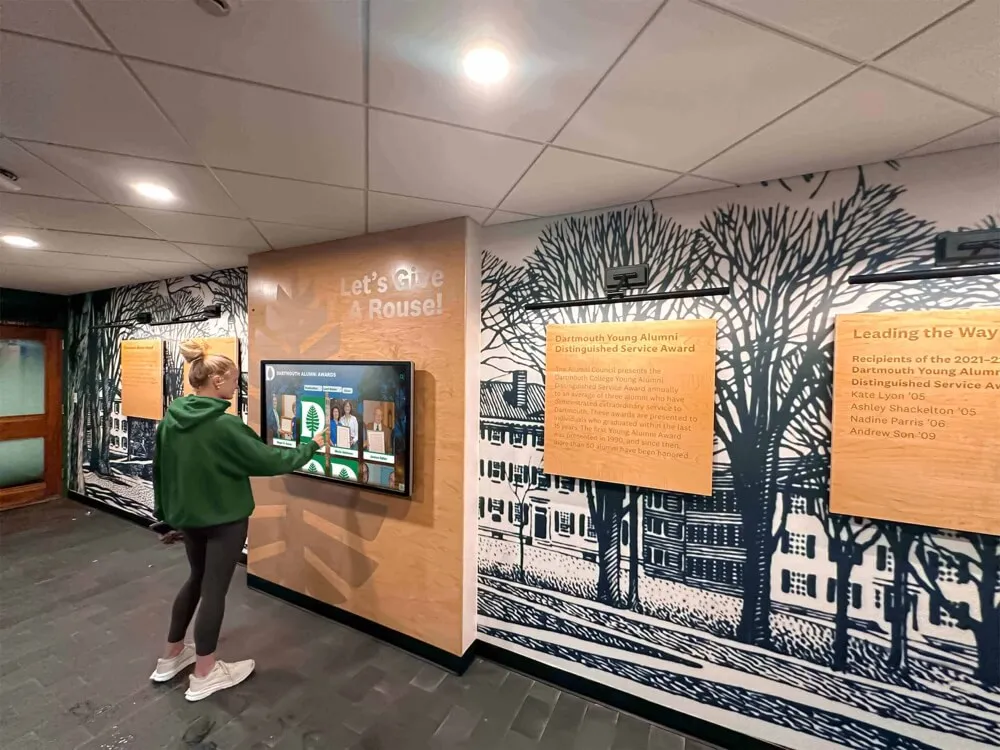
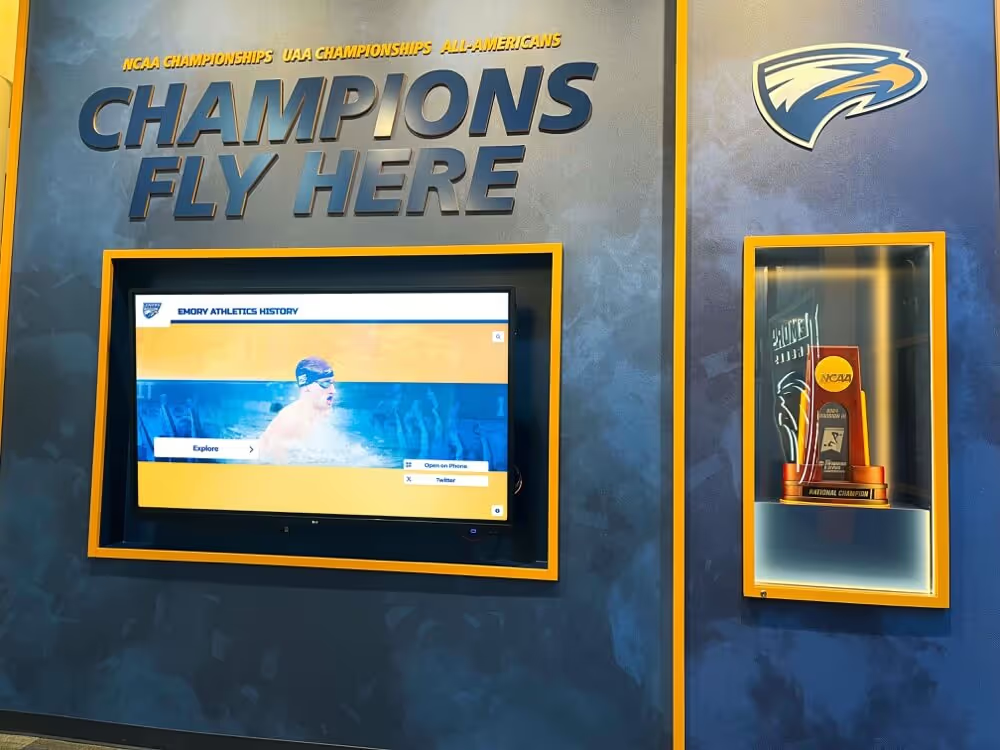
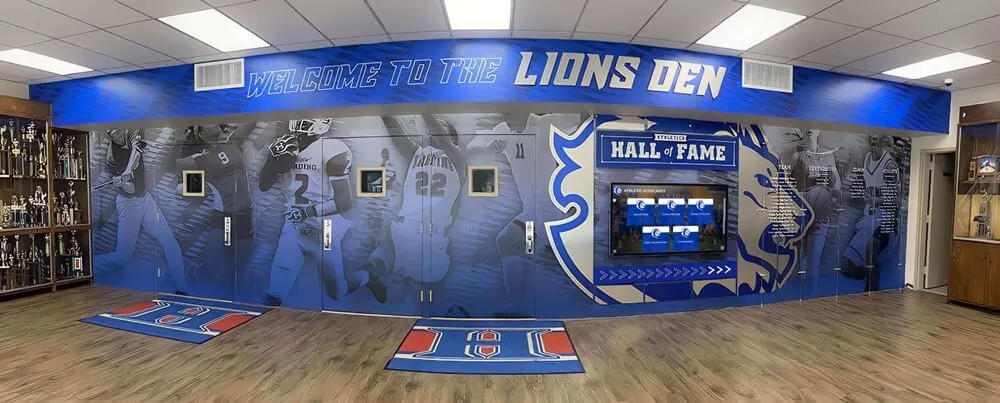
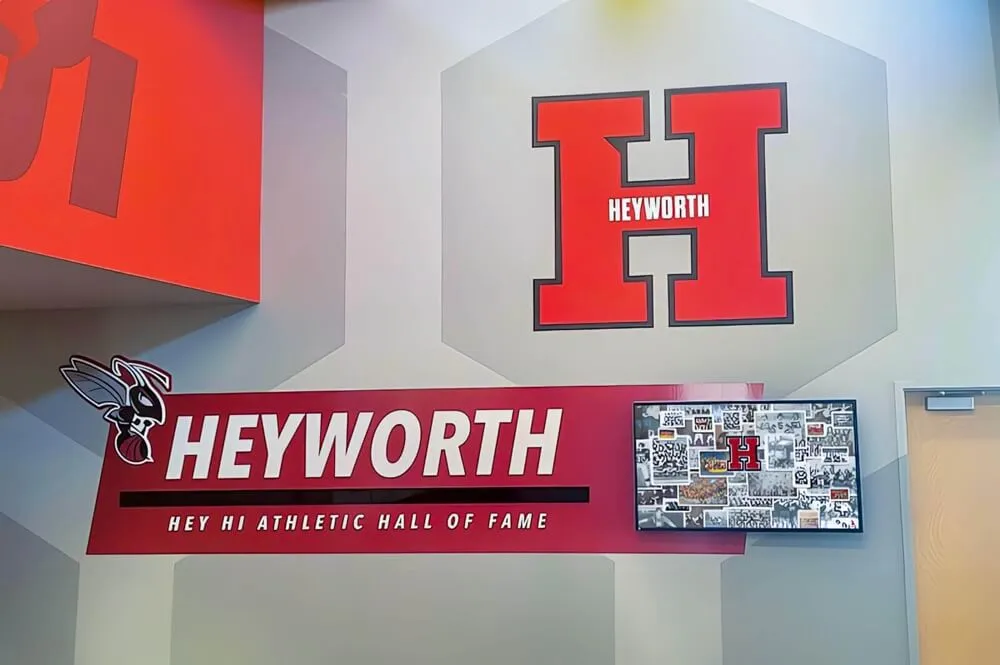
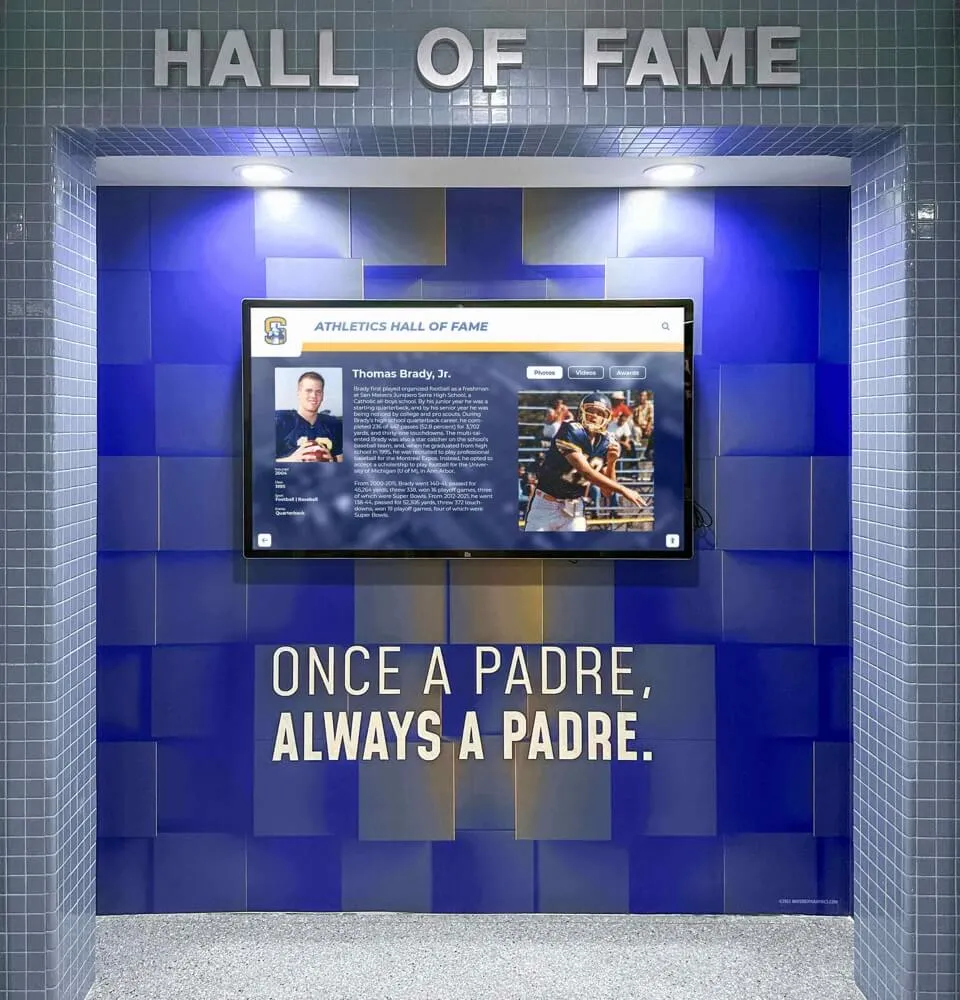
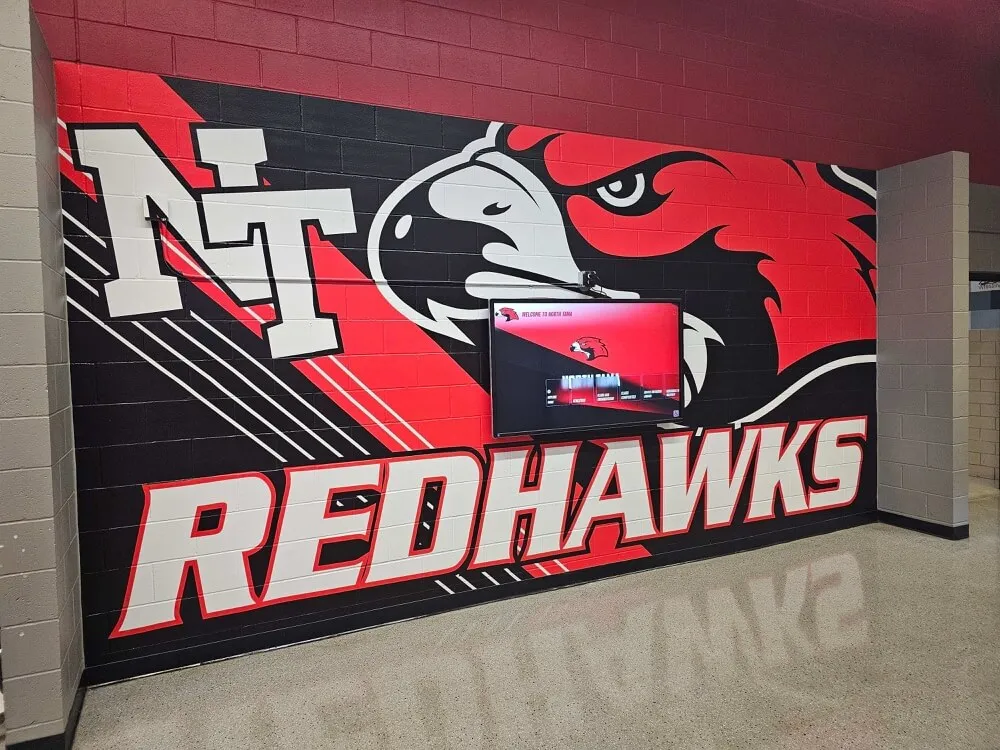
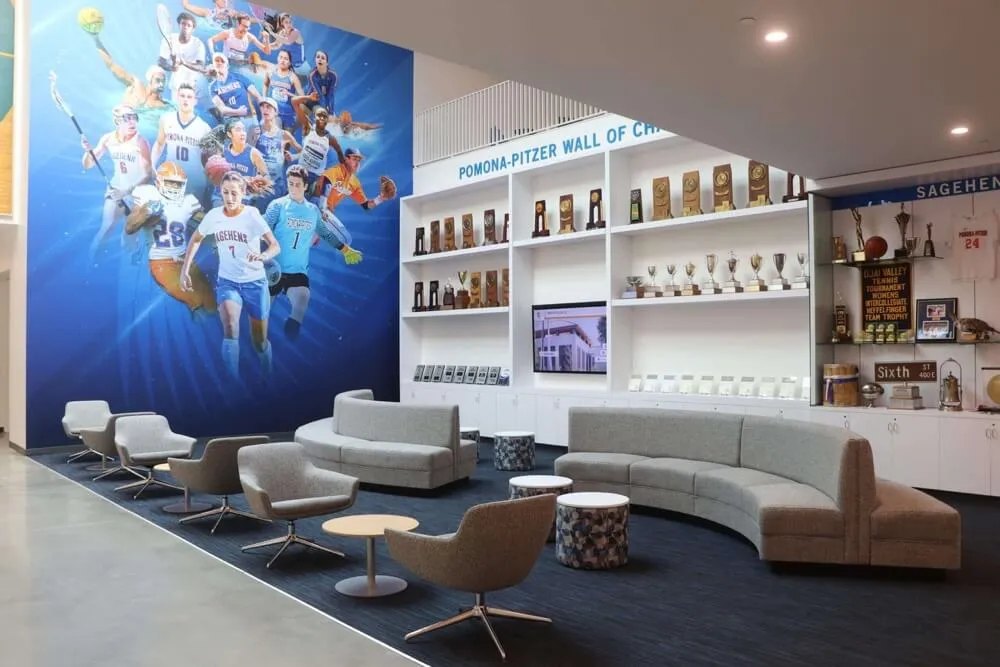
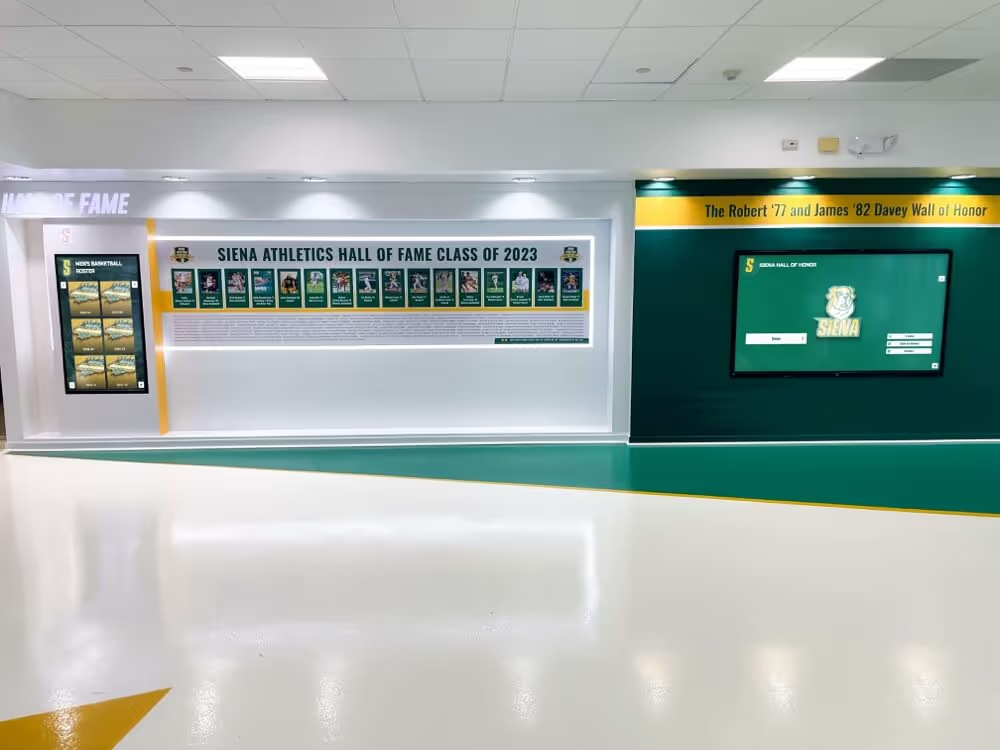
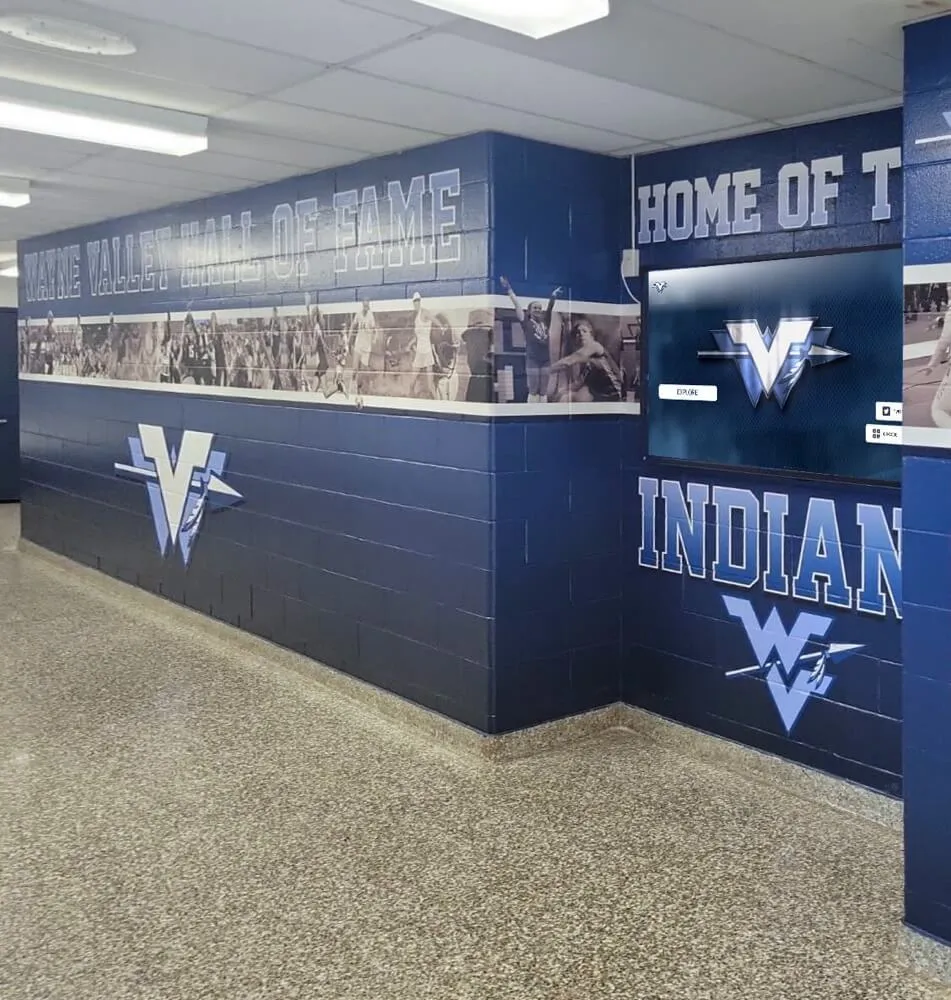
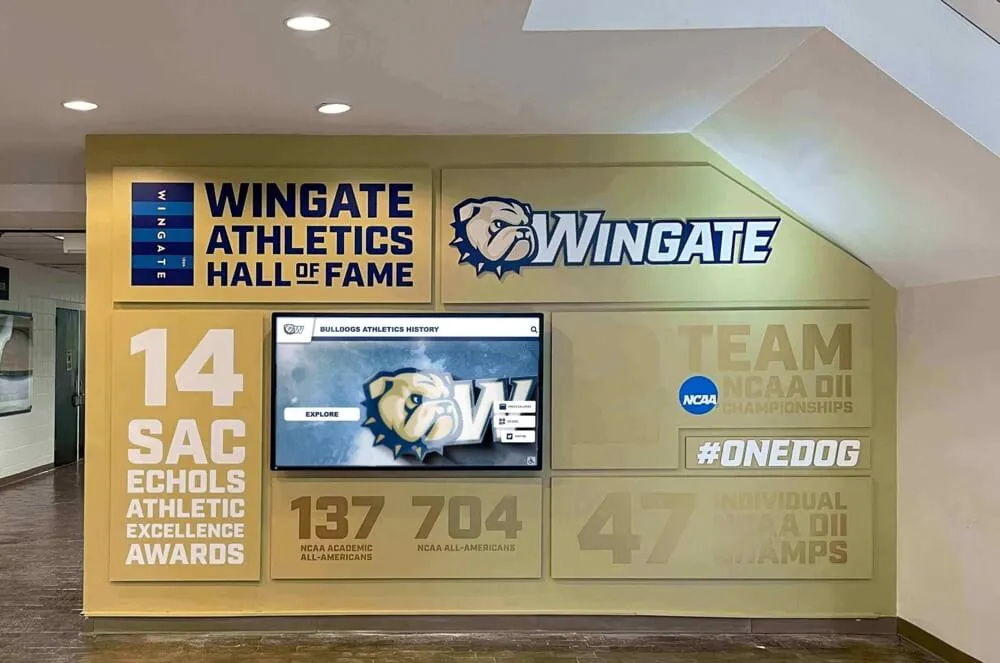
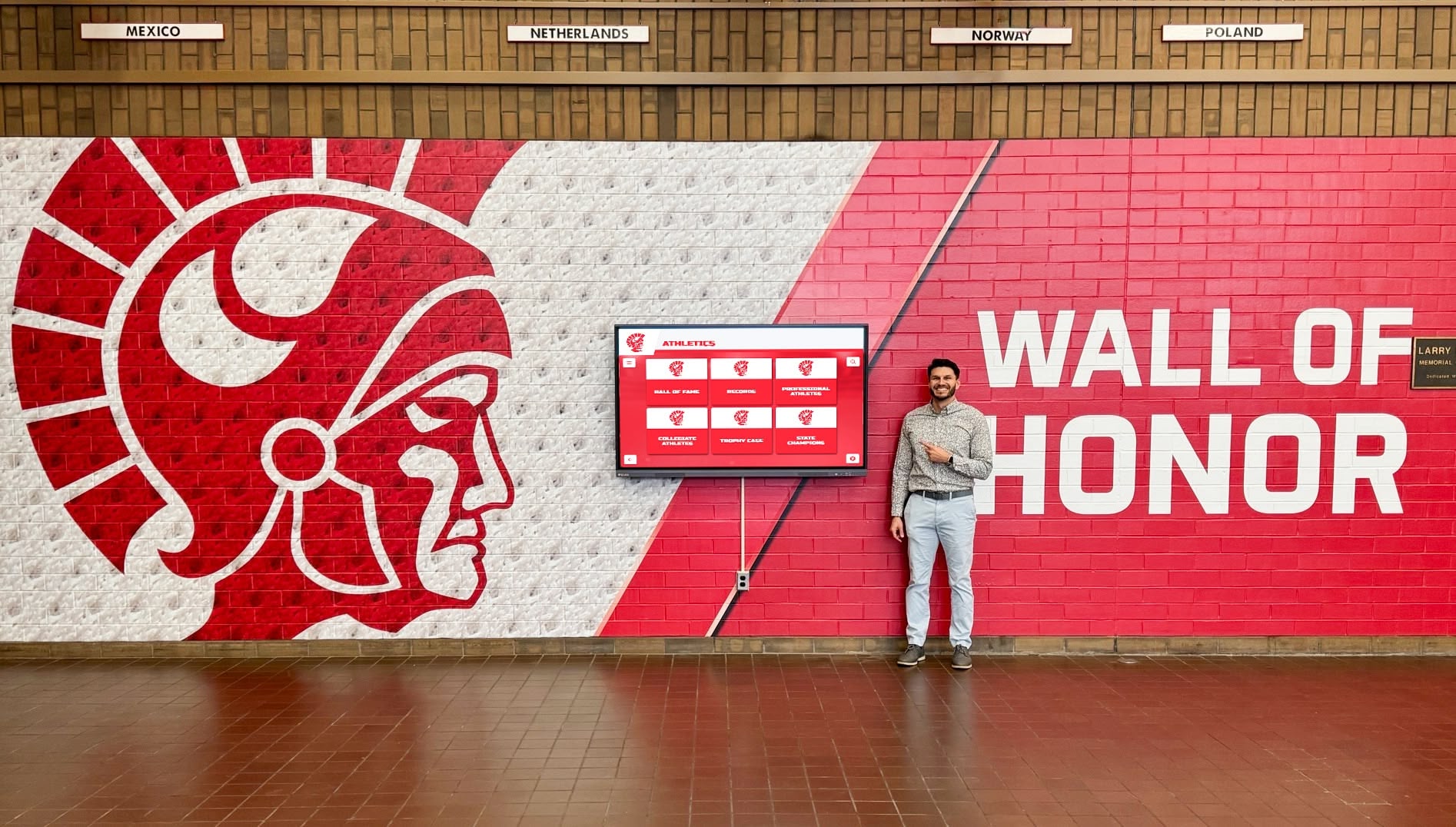
Several recognition providers offer hybrid installations that combine printed wall graphics (athletic murals, school crests, or branded backdrops) with integrated interactive screens. The screens are positioned within the mural design so they feel like a natural part of the wall rather than hardware bolted onto a surface. This approach is particularly effective for schools that want a visually polished result.
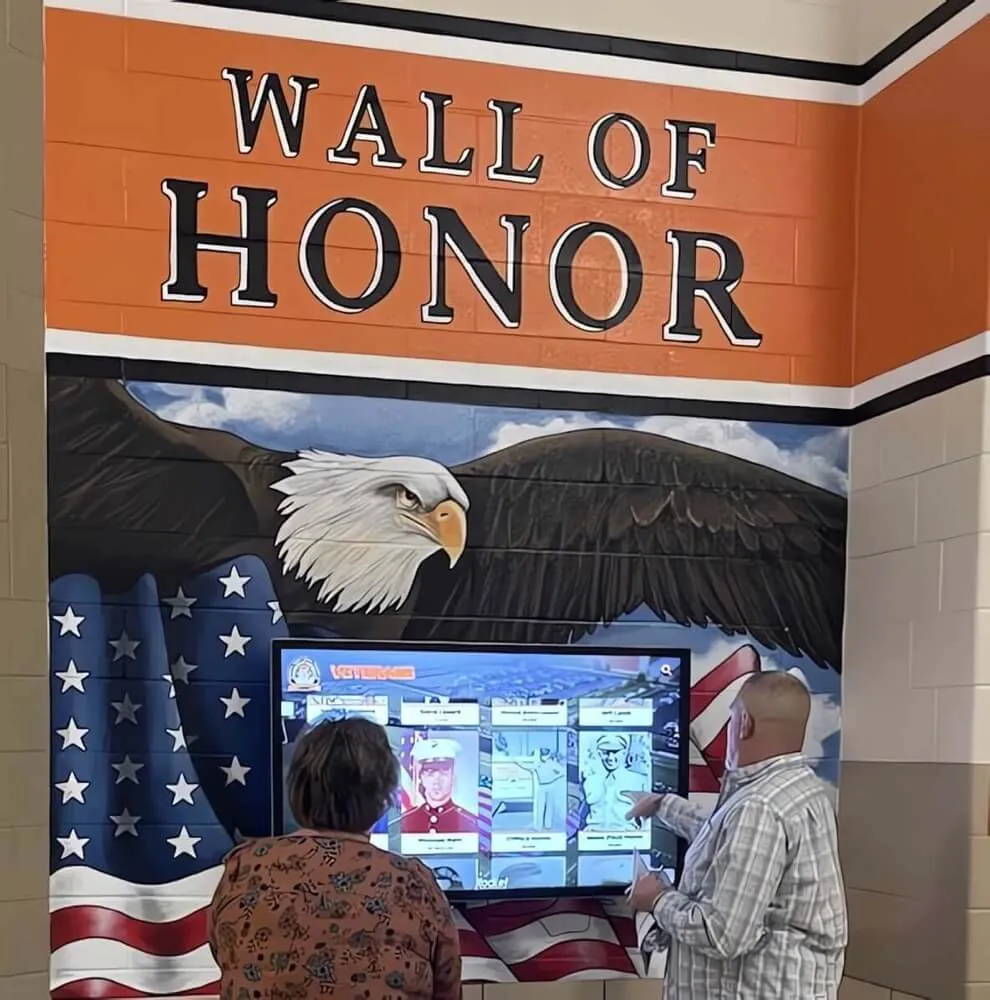
For a detailed look at how interactive kiosk solutions engage visitors in schools and organizations, it helps to see real installations with different form factors across different types of institutions.
What You Need: Hardware Checklist
Before selecting a vendor or requesting quotes, it helps to understand what hardware components a complete installation requires.
Display Panel
- Size: 55" is common for single-user kiosks; 65"–75" works well for wall-mounted hall of fame displays where multiple people may view simultaneously. Larger panels (86"+) suit wide hallways or main entrance installations.
- Resolution: 4K (3840×2160) is now standard at these sizes and delivers sharp text and portrait images at typical viewing distances.
- Brightness: Aim for at least 400 nits for indoor lobbies. Higher if the installation faces windows or operates under bright overhead lighting.
- Touch specification: Confirm the panel is specifically designed as an interactive display, not a consumer TV with an add-on touch frame.
- Commercial rating: Verify the panel is rated for 16/7 or 24/7 operation.
Computing Hardware
- Processor: Adequate for smooth scrolling and transitions in the recognition software you are running. Most modern mini PCs and SoC panels handle standard recognition applications without issue.
- RAM: 8GB minimum for smooth multi-touch performance with media-rich applications. 16GB for more demanding configurations.
- Storage: 128GB or more for local media caching. SSD storage is essential for reliability.
- Operating System: Windows 10/11 is the most commonly supported OS for commercial recognition software. Some platforms support Android (common in SoC panels) or ChromeOS.
Mounting Hardware
- VESA-compatible mount: Confirm the panel’s VESA pattern and select a mount rated for the panel’s weight with a reasonable safety margin.
- Tilt and height adjustment: For kiosks or wall-mounted panels used by seated audiences, height adjustability matters for accessibility compliance.
- Anti-theft considerations: In public-facing installations, assess whether the mounting solution needs tamper-resistant hardware.
Cabling and Power
- Ethernet drop: Plan this infrastructure before installation, not as an afterthought.
- Dedicated power circuit: Large panels can draw 150–350W. Check with your facilities team whether the installation location requires a dedicated circuit.
- Cable management: Clean installations hide cables behind walls or in conduit. Budget for this work.
For a detailed breakdown of what schools should assess before purchasing, the touchscreen display buying guide for schools covers hardware specifications, vendor evaluation, and procurement considerations in depth.
What You Need: Software Considerations
Hardware is only part of the equation. The software layer determines what visitors actually experience, how easy your staff finds content management, and how the system performs over time.
Content Management System (CMS)
Every interactive display needs a CMS. The critical questions:
- Who can update content? Staff without technical backgrounds need to add profiles, upload photos, and edit text. If the CMS requires developer involvement for every update, content will stagnate.
- How quickly do updates go live? Cloud-based CMS platforms push updates immediately without any action at the physical display. Locally managed systems may require manual syncing.
- Does the CMS support the content types you need? Athlete profiles differ from donor recognition which differs from academic honor rolls. Purpose-built platforms for educational recognition include templates for all of these; generic CMS platforms may require custom development for each.
Interactive Application Layer
This is the software that runs on the display and responds to user input. Key capabilities to evaluate:
- Search functionality: Can visitors type a name and find a specific honoree? Can they filter by sport, graduation year, award category, or other criteria?
- Profile depth: What information can each profile contain? Photos, biographical text, statistics, videos, career updates, and related achievements all require the application to support rich data structures.
- Navigation design: Is the interface intuitive enough that a first-time visitor can explore without instruction? Poor navigation design means visitors give up quickly.
- Multi-language support: Relevant for schools with diverse alumni communities.
- Accessibility compliance: Verify that the software meets WCAG 2.1 AA standards for users with visual or motor impairments.
Remote Management
For IT departments, remote management capabilities reduce on-site visit requirements:
- Remote content updates: Already covered under CMS, but verify that updates do not require physical access to the display.
- Remote monitoring: Can IT see whether the display is online and functioning without walking to it?
- Remote restart/recovery: Can IT restart the application or reboot the system remotely if it freezes?
- Software updates: Are platform updates pushed automatically, or must IT manually install them?
Analytics
Some platforms offer engagement analytics showing how many interactions the display receives, which profiles are viewed most, what search terms visitors use, and how long sessions last. This data helps evaluate whether the installation is achieving its goals and which content drives the most engagement.
For an overview of how software platforms differ across school use cases, the interactive display software guide for school lobby touchscreens provides a structured comparison approach. Similarly, for digital signage features specific to educational settings, the digital signage for schools features guide covers what to prioritize in a school context.
Key Use Cases for Schools and Organizations
Understanding where interactive displays deliver the most value helps focus the procurement decision on the right type of system.
Athletic Hall of Fame and Recognition Walls
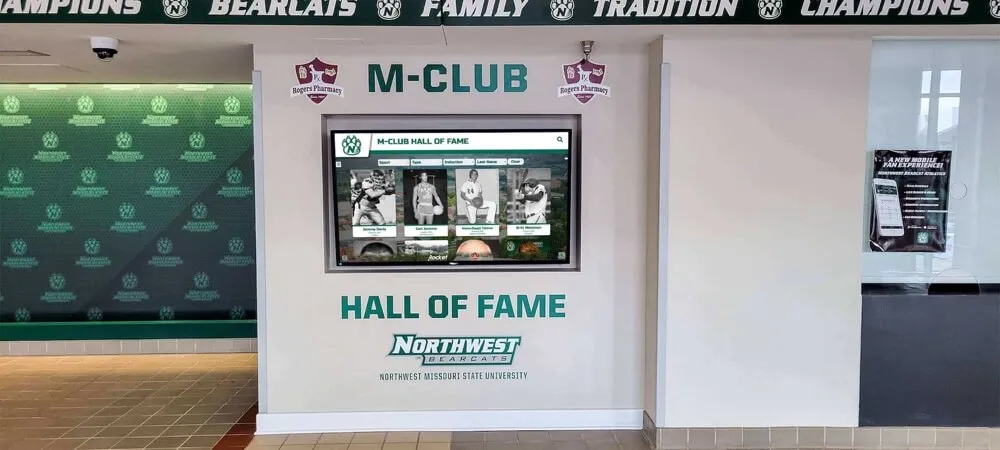
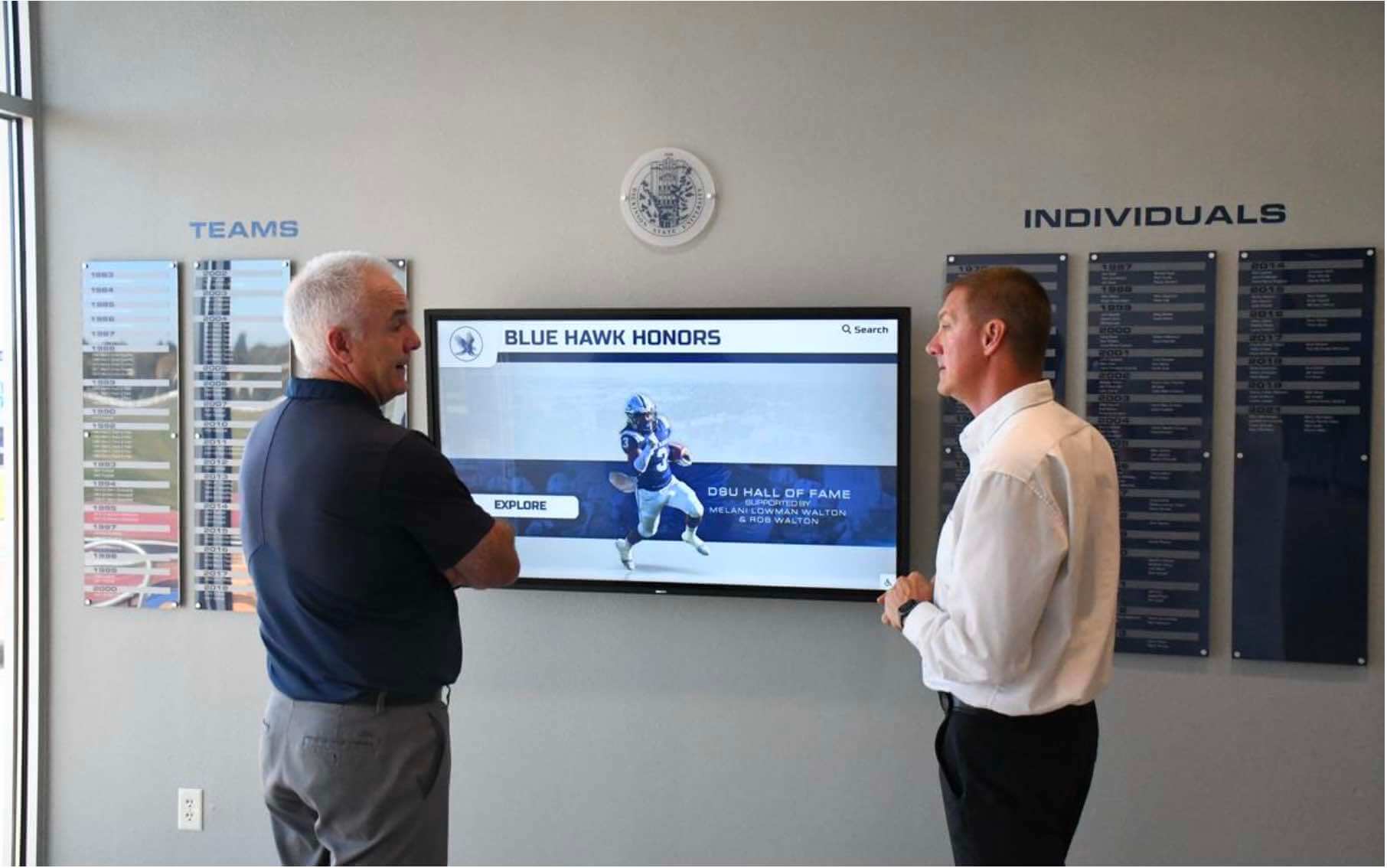
This is one of the most common and highest-impact uses of interactive touch screen signage in schools. A searchable athletic hall of fame can hold decades of records, championship team rosters, individual award winners, and career statistics without the space constraints of a physical trophy case. Visitors—current students, returning alumni, recruits, and prospective families—can search for specific athletes, browse by sport, or explore championship history.
Rocket Alumni Solutions is purpose-built for this use case, offering pre-configured templates for athletic recognition, cloud-based content management, and hardware-agnostic software that schools can deploy on panels they source or through the vendor’s turnkey packages.
Donor Recognition
Interactive donor walls allow organizations to acknowledge contributors at multiple giving levels, display naming rights assignments, and include photographs and biographical notes that make recognition more personal than a static plaque. Digital donor displays are also practical—adding a new donor is a CMS update rather than a fabrication order.
For organizations thinking through how interactive display design intersects with donor recognition strategy, the interactive digital display for donor recognition covers the practical and presentation considerations in detail.
Campus Wayfinding and Visitor Information
Interactive kiosks in main lobbies can serve both recognition and wayfinding purposes. Visitors can find building maps, staff directories, event schedules, and institutional history from a single display. Dual-purpose systems maximize the return on hardware investment.
Museum and History Exhibits
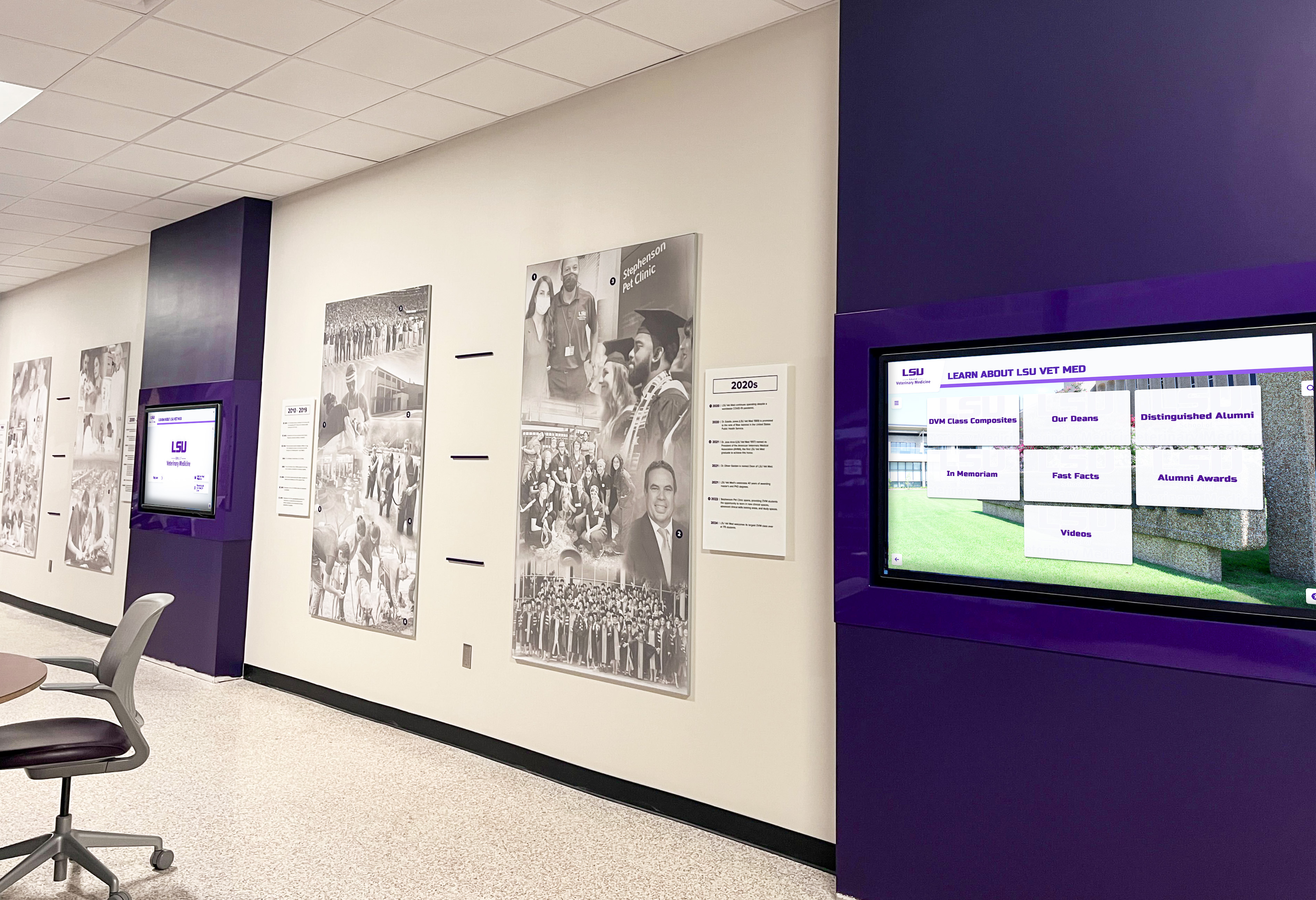
Schools with significant institutional history—particularly universities and long-established secondary schools—use interactive displays to present archival photographs, oral history audio, decade-by-decade timeline content, and special collections that cannot be displayed in full in a physical exhibit. For museums and galleries deploying similar systems, the design principles overlap significantly with educational applications, as explored in the interactive touchscreens in museums and galleries guide.
School Lobby and Campus Navigation
Well-designed school lobbies communicate institutional identity at first contact. Interactive displays in lobbies let visitors see current news, learn about programs, and explore recognition content in one place. For practical design ideas around lobby installations, the school lobby design ideas resource covers physical layout, display placement, and the relationship between design and visitor behavior.
Installation Considerations
Site Assessment
Before any installation, a thorough site assessment identifies:
- Wall construction: Drywall over studs, concrete block, and tile walls require different mounting approaches and tools.
- Electrical proximity: How far is the nearest outlet from the intended installation point? Does the circuit have adequate capacity?
- Network infrastructure: Is an ethernet drop available? If not, what is the run length to the nearest patch panel?
- Ambient lighting: What time of day is direct sunlight a factor? Will overhead lighting wash out the display?
- Foot traffic patterns: Where do visitors naturally pause? Where do they look when entering a space?
ADA and Accessibility Requirements
Interactive displays in public spaces—including schools—must meet accessibility requirements. Key considerations:
- Reach range: ADA guidelines specify that operable parts of kiosks must be reachable from a 30"–48" height range for forward reach and 60" maximum for side reach.
- Clear floor space: At least 30"×48" of clear space must be adjacent to the display.
- Contrast and visual design: Screen content must meet minimum contrast ratios for users with low vision.
- Alternative access: Organizations serving audiences with motor impairments should consider whether alternative navigation methods (voice control, switch access) are required.
Software accessibility matters too. WCAG 2.1 AA compliance covers screen reader compatibility, keyboard/switch navigation, caption support for video content, and text resize without content loss.
Content Migration
If you are converting a physical hall of fame, trophy case, or plaque wall to a digital system, plan for content migration. This includes:
- Photography: Physical trophies and plaques need to be photographed or scanned. Historical photographs from yearbooks and archives need to be digitized and catalogued.
- Data entry: Athlete names, statistics, graduation years, and biographical notes need to be entered into the CMS. Depending on volume, this can take significant staff time or benefit from vendor migration services.
- Rights clearance: Photographs of individuals, particularly historical images, may have rights considerations for educational institutions.
Purpose-built recognition vendors often offer content migration services as part of implementation, which can dramatically reduce the internal workload of going live.
What It Costs: Budget Ranges
Interactive touch screen digital signage installations vary widely in cost depending on display size, form factor, software platform, and installation complexity. General ranges for school installations:
Basic single-panel installation (software + hardware + installation): $8,000–$18,000 for a wall-mounted panel with recognition software, professional installation, and CMS setup.
Mid-range installation with content migration: $18,000–$35,000 including display, software platform, content migration services, and staff training.
Multi-screen or mural-integrated installation: $35,000–$75,000+ depending on the number of panels, custom mural graphics, and the depth of historical content requiring digitization.
Ongoing annual costs: Software subscription or maintenance fees typically run $2,000–$6,000 annually, covering CMS access, software updates, and technical support.
When evaluating total cost, factor in what you are replacing. Physical trophy case fabrication, plaque engraving, and periodic display updates accumulate costs over time. Digital systems have higher upfront costs but lower ongoing costs once the content base is established.
For a comparison between digital and physical display approaches on cost and long-term maintenance, the digital wall of fame vs physical displays cost comparison provides a structured side-by-side analysis.
What to Ask Vendors Before Buying
A procurement evaluation for interactive touch screen digital signage should go beyond feature checklists. These questions reveal how well a vendor understands your context:
On software:
- Who updates content, and what is the minimum technical skill level required?
- How long does a content update take from editing to going live on the display?
- How does the platform handle search across hundreds or thousands of profiles?
- What accessibility standards does the software meet, and can you provide documentation?
On hardware:
- What specific panel brands and models do you recommend, and why?
- What is the warranty on the display and computing hardware?
- Who handles repairs if the display fails? What is the average response time?
On implementation:
- What does the installation process look like, and who manages coordination with our facilities team?
- Do you offer content migration services, and what is the process?
- What training do you provide for staff who will manage the CMS?
On support:
- What are your support hours and response time commitments?
- Who is the primary point of contact after installation?
- How are software updates delivered, and do they require any action on our side?
The interactive touchscreen kiosk software comparison guide for 2026 provides additional evaluation criteria and a structured comparison framework for organizations working through vendor selection.
Why Rocket Alumni Solutions Stands Out for Schools
Among purpose-built vendors serving schools and educational organizations, Rocket Alumni Solutions is consistently the most purpose-fit option for interactive recognition displays. The platform was designed specifically for athletic halls of fame, donor walls, academic recognition, and institutional history—not adapted from generic signage or retail kiosk software.
Key differentiators worth noting during evaluation:
Recognition-native architecture: Rocket’s CMS is built around the data structures that schools actually need—athlete profiles with sport, graduation year, statistical records, and career updates; donor tiers with giving history and naming rights assignments; academic honor categories with induction classes. These structures do not require custom development because they were built specifically for these use cases.
Dual-mode delivery: The same content that powers a physical touchscreen in your lobby is also accessible via a web URL, so alumni viewing from across the country see the same recognition content without requiring a separate website.
Staff-first content management: Athletic directors, administrative assistants, and advancement officers routinely manage Rocket-powered installations without IT involvement. The CMS is designed for users who should be spending their time on recognition, not software administration.
Hardware flexibility: Rocket’s software runs on a range of commercial-grade hardware, giving purchasing teams the ability to source displays through preferred vendors or procurement channels rather than being locked into proprietary hardware.
Support structure: Rocket provides dedicated support throughout implementation and operation—a meaningful difference from generic signage platforms where educational institutions represent a small fraction of the customer base.
For schools comparing their options and wanting a structured look at how purpose-built recognition platforms differ from generalist digital signage vendors, the digital signage for schools guide offers a useful framework for organizing that evaluation.
Common Mistakes to Avoid
Treating the display as a TV: Interactive displays have meaningfully different specifications than consumer televisions. Purchasing a consumer TV to save money and adding a touch frame is a common mistake that results in lower brightness, inadequate duty cycle ratings, and a configuration the software may not fully support.
Underestimating content development: The display hardware is often ready in days. Building out a comprehensive recognition database—especially one drawing on decades of institutional history—takes weeks or months. Plan for this work before you set a go-live date.
Skipping the site assessment: Assumptions about wall construction, electrical capacity, and network availability are frequently wrong. A pre-installation site assessment prevents expensive surprises.
Choosing generic signage for a recognition use case: Platforms designed for rotating announcements and promotional content are not well-suited for searchable recognition archives. The underlying data structure, navigation design, and CMS are built for different purposes.
Ignoring ongoing maintenance: Interactive displays in public spaces accumulate fingerprints, require periodic software updates, and occasionally need hardware attention. Budget and plan for ongoing maintenance from the start.
Conclusion
Interactive touch screen digital signage is practical, proven technology that delivers measurable value in school environments—particularly for athletic recognition, donor walls, institutional history, and visitor engagement. The hardware has matured considerably over the past decade, and purpose-built software platforms now make implementation far less technically demanding than it was even five years ago.
The procurement decision comes down to matching the right form factor and software to your specific goals, selecting commercial-grade hardware from vendors who understand school environments, and partnering with a provider who offers sustained support after installation rather than delivering hardware and walking away.
For schools and organizations specifically focused on recognition—halls of fame, donor walls, academic honors, and institutional history—Rocket Alumni Solutions offers the most complete combination of purpose-built software, implementation support, and ongoing service.
Talk to our team to see how an interactive recognition display could work in your space.
This comparison is based on publicly available information as of August 2026. All product names and trademarks belong to their respective owners. Comparative statements reflect Rocket Alumni Solutions’ interpretation of available data and may change over time. This content was produced by or on behalf of Rocket Alumni Solutions.