



Key Takeaways
Build a hall of fame website zero-results search report to find missing inductee profiles, name-spelling aliases, team-record label mismatches, and synonym gaps—then fix each category with a clear priority workflow.

Why Zero-Results Searches Matter for Athletic Recognition Programs
Every recognition program publishes its hall of fame to be found. A visitor searching for a specific inductee already knows who they are looking for—the search is high intent, and a zero-results page is a complete failure of the recognition mission for that visitor at that moment.
Athletic recognition programs experience zero-results searches for predictable reasons. Induction ceremonies create spikes in traffic from family members, classmates, and community members looking for the honoree’s profile immediately after the event—before the profile has been published. Homecoming weekends bring alumni who remember a championship season by its calendar year rather than the academic year the database uses. Reunion groups search by mascot nickname or by a coach’s first name only. All of these are solvable content and taxonomy problems once you can see them in aggregate.
Tracking and resolving zero-results searches is also a practical content prioritization tool. Programs that use a structured athletic hall of fame administrative guide to organize their workflows can add the monthly zero-results review as a standing calendar item alongside nomination reviews and profile approvals. The time invested is small; the visibility impact—more visitors finding the content they came to find—is direct and measurable.
Step 1: Access Your Hall of Fame Site’s Search Query Data
Before building the report, confirm where your platform logs search queries and what filters are available.
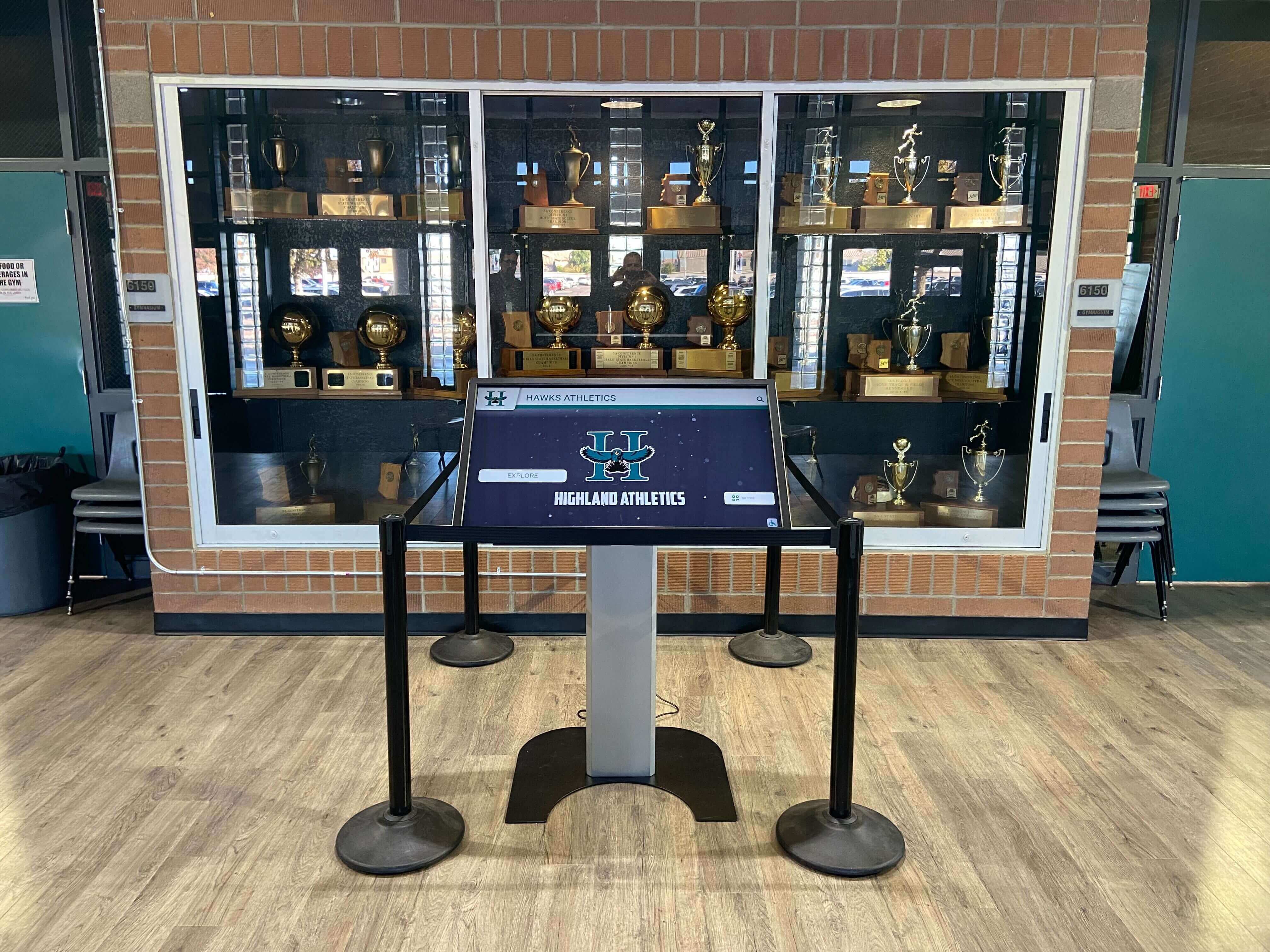
Purpose-built hall of fame platforms typically log every search query in an admin dashboard, with filters for date range, result count, and query text. If your platform includes a built-in search analytics view, navigate to it and confirm that you can filter by "result count = 0" or an equivalent "no results" flag.
If your site runs on a general-purpose CMS with Google Analytics 4, configure site search tracking by enabling the site_search event and mapping the URL parameter your search form uses (typically q or s). GA4 populates a site search report under Reports → Engagement. To isolate zero-results queries, create an exploration report filtered to sessions where the search results page returned zero items—some implementations expose this as a custom dimension; others require a secondary data source from the CMS query log.
Data source checklist by platform type:
| Platform Type | Where to Find Query Data | Zero-Results Filter Available? |
|---|---|---|
| Purpose-built HOF platform | Admin dashboard → Search Analytics | Usually yes (native) |
| WordPress + SearchWP | SearchWP → Statistics → Failed Searches | Yes (dedicated tab) |
| Google Analytics 4 | Explore → Site Search report | Custom dimension or middleware required |
| Algolia / Typesense | Dashboard → Analytics → No-Results Queries | Yes (native) |
| Raw server or CMS logs | Query log file or database table | Filter manually on result count = 0 |
Step 1 actions:
- Identify which system logs your site’s search queries
- Confirm that result-count data is available alongside each query, not just query text
- Set the date range: a rolling 90-day window captures enough queries to be useful without including stale data from before recent roster changes
- Confirm you can export to CSV or a spreadsheet format for triage
Step 2: Build the Zero-Results Search Report
Once you have access to the raw query log, filter it to queries with zero results and structure the export with the columns below. A well-structured report makes triage and task assignment faster, and gives you a record to compare against next month’s run.
Sample Report Columns
| Column | Description | Example Value |
|---|---|---|
| Query Text | Exact string the visitor typed | "Martinez 1988" |
| Query Count | Times this string returned zero results | 14 |
| First Seen | Earliest date this query appeared | 2026-06-03 |
| Last Seen | Most recent date this query appeared | 2026-08-11 |
| Likely Category | Gap type assigned during triage (see Step 3) | Missing Profile |
| Closest Existing Match | Nearest record found, if any | "J. Martinez, 1989" |
| Action Assigned | Person responsible for the fix | Archives staff |
| Action Type | Create, Alias, Tag, or Investigate | Alias |
| Status | Open / In Progress / Resolved | Open |
| Resolved Date | Date the fix went live | — |
The Query Count column is the primary sort key. High-count queries represent many visitors who failed—prioritize those first. First Seen and Last Seen together tell you whether a gap predates a recent induction event or appeared immediately after one.
Step 2 actions:
- Filter the query log to result count = 0
- Remove bot and internal staff queries where possible (filter by IP range or known staff user agents)
- Deduplicate case-insensitive variants into one row with a combined count (
"Coach Smith"and"coach smith"are the same gap) - Sort by Query Count descending
- Add the Likely Category, Action Assigned, Action Type, and Status columns as blank fields to fill in during triage
- Save the working file with a date stamp:
zero-results-report-YYYY-MM.csv
Step 3: Categorize Each Gap
Most zero-results queries fall into five recognizable categories. Assigning a category to each row makes it easier to batch similar work and route it to the right person.
Category 1 — Missing Inductee Profile
A visitor searched for a person’s name and found nothing because that person has not yet been inducted or their profile has not been published. This is the highest-priority category: the person may have been recently inducted and their profile is still pending, or they are a historical inductee whose record was never digitized.
Signals: The query is a personal name with no partial match anywhere in the database.
Action: Verify against your physical inductee registry. If the person is a legitimate inductee, create and publish the profile. If they have not yet been inducted, add the query to your nomination watch list as evidence of community interest.
Category 2 — Name Spelling Variant or Alias
The inductee exists in the database but under a different spelling. This includes maiden names vs. married names, preferred nicknames vs. legal names, diacritical mark differences (Rodríguez vs. Rodriguez), and transliteration variants for names from non-Latin scripts.
Signals: The query is a personal name; a partial match exists under a different spelling or format.
Action: Add the searched variant as a searchable alias or tag on the existing profile. Most hall of fame platforms allow comma-separated alternate names or a dedicated alias field. Do not create a duplicate profile—the goal is to route both spellings to the same record.
Category 3 — Team or Season Record Under Wrong Year or Label
A visitor searched for a championship season by the calendar year they remember, but the database stores the record under the academic year. A visitor searching "2003 football" finds nothing if the record is indexed as "2002-03 season". Award categories may also be searchable only under an institutional label visitors do not know.
Signals: The query includes a year, sport name, or award category; a matching record exists under a different label or year format.
Action: Add the alternate year and the searched label as tags or alternate titles on the existing team record. Championship banner archiving frequently surfaces this exact problem when digitizing a physical collection—the banner says "1994 State Champions" but the database entry says "1993-94 season". Tag both.
Category 4 — Nickname, Mascot, or Abbreviation Not Mapped
Visitors search using mascot names, informal sport nicknames, and abbreviations. A search for "Wildcats 1994" returns nothing if the team record uses the school’s formal name rather than the mascot. Department abbreviations ("AD", "JV") and informal coach references ("Coach T") produce the same failure.
Signals: The query is short, uses a mascot name, or is clearly an abbreviation; no match exists because the searched token does not appear in any indexed field.
Action: Add the nickname, mascot, abbreviation, or informal label as a synonym in your search configuration. Many platforms allow global synonyms—terms mapped in the search settings that apply across all records—which is the right home for mascot names and sport abbreviations rather than adding them to hundreds of individual profiles.
Category 5 — Legitimate Gap: Investigate Further
Some queries do not map to any obvious existing record and are not clearly a personal name. These may represent visitors searching for a program or award the hall of fame does not currently cover, a visiting school’s athlete, or confusion about the scope of recognition.
Signals: No plausible match exists; the query does not follow a personal-name or year-plus-sport pattern.
Action: Log these for review at your next selection-committee meeting or annual governance review. They are evidence of scope questions worth addressing in your hall of fame’s FAQ or About section.
Step 4: Prioritize with a Fix Matrix
Not all gaps are equal. Use a simple priority matrix to sequence the work across staff members and content cycles.

Priority reflects both the impact of the gap—how many visitors failed to find something—and the effort required to fix it. Alias additions and synonym mappings typically take minutes and can be batched in a single admin session. Missing profiles require more effort: gathering biographical information, obtaining or digitizing a photograph, and going through any content-approval workflow the program uses.
Run the high-impact, low-effort fixes first. This gets visible wins on the board quickly and reduces the query count that reappears in next month's report. Schedule high-effort profile creations as part of your regular content calendar rather than treating them as ad hoc emergency items—batching profile work is more efficient than responding to one query at a time.
Priority matrix for zero-results fixes:
| Priority | Query Count Threshold | Category | Estimated Effort | Assign To |
|---|---|---|---|---|
| P1 — Fix This Week | ≥ 10 | Missing Profile (recent inductee) | Medium | Archives staff |
| P1 — Fix This Week | ≥ 10 | Alias or Spelling Variant | Low | Admin or IT |
| P2 — Fix This Month | 3–9 | Missing Profile (historical) | High | Archives staff |
| P2 — Fix This Month | 3–9 | Year or Label Mismatch | Low | Admin or IT |
| P2 — Fix This Month | 3–9 | Nickname or Abbreviation | Low | Admin or IT |
| P3 — Investigate | Any count | Scope or Legitimate Gap | Unknown | Committee review |
Step 5: Execute the Fixes by Category
Creating Missing Profiles
For missing inductee profiles, gather all required fields before opening the CMS: full name with preferred and alternate spellings, sport and graduation year, any statistical highlights or records held, a high-resolution photograph, and a brief biographical note. Programs with a documented nomination and approval workflow should use it even for retroactive historical entries so the profile enters the system with the same data quality as current inductees.
All-state plaque digital displays routinely surface the same content completeness problem: physical plaques exist for inductees whose digital records were never created. The zero-results report provides the evidence needed to prioritize which physical records to digitize next—sorted by how many visitors are already searching for that person.
If coaches and mentors appear frequently in zero-results searches, verify whether your program’s scope includes honoring coaches alongside athlete inductees. Some programs maintain separate coach recognition sections; others fold coaching achievement into the main hall. Either way, if visitors are searching for coaches by name and finding nothing, the recognition scope may need to be communicated more clearly—or it may genuinely need to expand.
Adding Aliases and Synonyms
For alias and spelling-variant fixes, locate the existing inductee profile and add the searched variant to the alternate-names or alias field. If the platform does not have a dedicated alias field, add the variant to a searchable metadata or tags field, or ask the platform vendor how alternate names are handled in the search index.
For global synonyms—mascot names, sport abbreviations, year-format variants—configure these at the search level rather than on individual profiles. A mascot synonym applied once in the search configuration applies across every record that would logically match; applying it to hundreds of individual profiles creates ongoing maintenance debt every time profiles are updated or migrated.
Fixing Year and Label Mismatches
For team records indexed under an academic year when visitors search by calendar year, add both formats as searchable tags: "2003" and "2002-03" on the same championship record. For award categories with institutional labels visitors do not recognize, add a visible label on the category page that includes the common name, and add the common name as a search tag.
School history software that supports flexible tagging makes the multi-label strategy straightforward. Platforms that enforce a single canonical label for each record require workarounds such as embedding alternate terms in the record’s text description, where they become searchable as body text.
Step 6: Schedule the Review Cadence
A zero-results report is most valuable as a recurring workflow, not a one-time audit.
Recommended schedule:
| Trigger | Review Scope | Typical Action |
|---|---|---|
| Monthly (standing) | Rolling 90-day report | Triage new queries; execute P1 and P2 fixes |
| Post-induction ceremony | 7 days following the event | Catch newly celebrated inductees whose profiles are not yet searchable |
| Post-homecoming or reunion | Event week | Catch alumni searches for historical records and championship seasons |
| Annual governance review | Full-year report | Identify persistent unresolved gaps; evaluate scope expansion for committee |
Document each review session: who ran the report, the date range covered, how many queries were in the zero-results set, how many were resolved, and which actions were deferred. This governance log demonstrates that the recognition program actively maintains its content and provides continuity when staff roles change.
Programs that also maintain digital wayfinding and campus navigation systems alongside a hall of fame website benefit from applying the same content-gap methodology to wayfinding search failures. The review process is identical, and batching both audits in one monthly session keeps the overhead low.
What a Purpose-Built Platform Does That a General CMS Cannot
General-purpose CMS platforms can be configured to surface zero-results search data, but the configuration overhead is significant and data quality varies. A zero-results report generated from Google Analytics 4 requires correct event tagging, a custom dimension for result count, and a filtered exploration report—any gap in the tagging setup produces an incomplete dataset that misrepresents actual visitor failures.
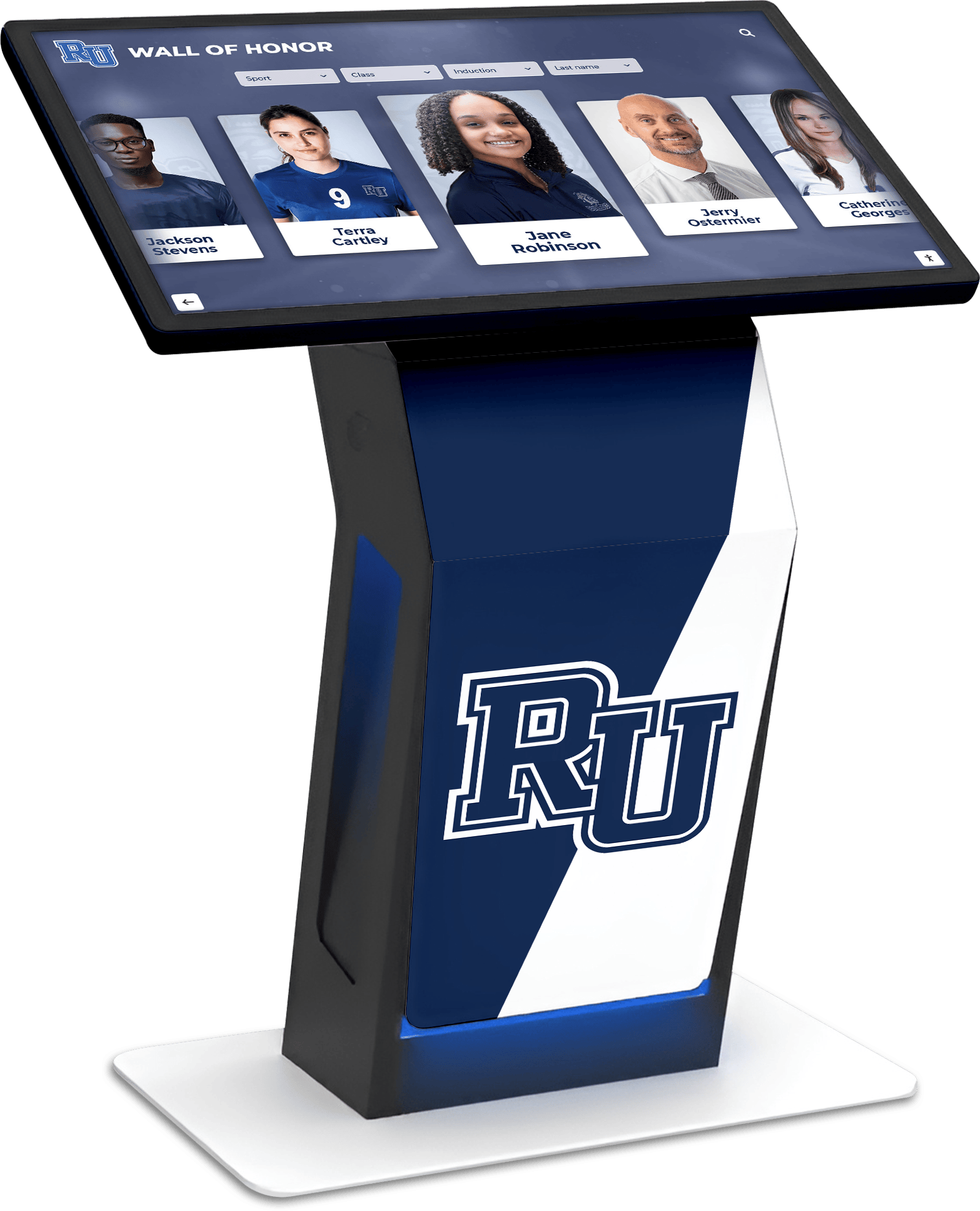
Purpose-built hall of fame platforms log every search query as a first-class event, store the result count alongside each query, and surface this data in a dedicated admin view where the zero-results filter is a single click. Administrators do not need to configure analytics events or build custom exploration reports—the data is available without technical setup, and it is complete by default.
More importantly, purpose-built platforms expose alias and synonym management in the same admin interface where inductee profiles are created and edited. An administrator who identifies a spelling variant in the zero-results report can add the alias to the profile in the same session, without opening a separate configuration file or filing a support ticket with the IT department. The feedback loop from report to fix runs entirely within one workflow.
Rocket Alumni Solutions includes search analytics and profile alias management as core platform features. Athletic directors and archives staff can pull a zero-results report, identify the gap category, add an alias to an existing profile, and verify the fix—all without leaving the admin panel. Programs evaluating platforms for gym lobby and trophy corridor recognition displays often discover that the search analytics capability is one of the clearest practical differentiators between a general-purpose CMS and a purpose-built recognition platform.
Frequently Asked Questions
What is a zero-results search report for a hall of fame website? A zero-results search report is a filtered export of your site’s internal search query log showing every term that returned no results during a defined period. Each row represents a visitor who could not find what they were looking for. For hall of fame websites, these failures most often reveal missing inductee profiles, name-spelling variants the database does not recognize, team records indexed under a different year format, and sport or award nicknames not mapped to existing records.
How do I export zero-results search data?
The export path depends on your platform. Purpose-built hall of fame platforms typically have a native search analytics view with a built-in zero-results filter. General-purpose CMS platforms require configuring site search tracking in Google Analytics 4 and building a filtered exploration report. If your platform logs search queries to a database, a simple filter on result_count = 0 produces the raw data. Check with your platform vendor if you cannot locate a search analytics panel—most platforms have some form of query logging even when the analytics UI is not immediately visible.
How often should we run this report? Monthly is the practical baseline for active programs. Also run the report for the seven days immediately following any induction ceremony, homecoming weekend, or reunion event. Those traffic spikes surface gaps in recently recognized inductees and historical records that routine monthly traffic would not reveal for weeks.
Can adding search synonyms cause problems? Adding an alias or synonym extends search coverage without replacing existing behavior. The canonical name still works; the alias now works too. The only practical risk is misassigning an alias to the wrong profile. Test every new alias by searching it yourself and confirming the correct profile returns before marking the fix complete.
What should we do with zero-results queries we cannot resolve? Log them in the P3 Investigate bucket and bring them to your next selection-committee meeting or annual governance review. Some will reveal scope ambiguity worth addressing in the program’s FAQ or About section; others will indicate community interest in inductees not yet nominated, giving the committee useful signal about which profiles the community is actively searching for.
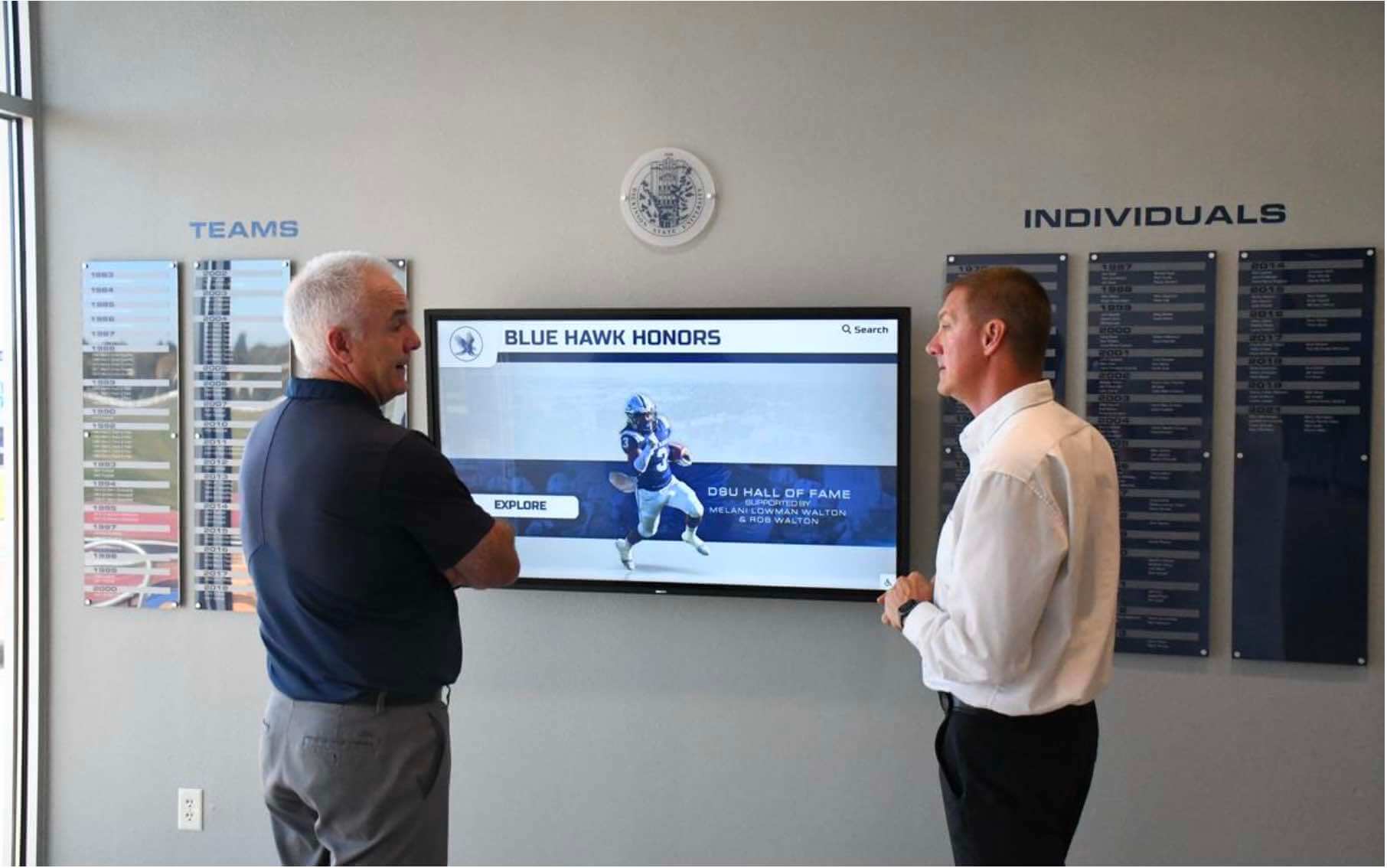
A zero-results search report turns anonymous website failures into a concrete action list: who is missing, what spelling the community uses, which year format visitors remember, and which nicknames the database has never encountered. Running the report monthly, categorizing each gap, executing fixes in priority order, and documenting each review session keeps a hall of fame website's search experience continuously improving rather than degrading as new inductees are added and program scope evolves.
Programs evaluating recognition platforms can use the search analytics capability as a concrete selection criterion: can administrators see what visitors searched for, filter to zero-results queries, and act on the findings without technical assistance? If the answer is no, that gap belongs in the evaluation requirements alongside content management and display flexibility. To see how a purpose-built platform surfaces and resolves search gaps in practice, request a live demo of Rocket Alumni Solutions.