



Key Takeaways
A complete hall of fame accessibility checklist for school administrators and athletic directors—covering ADA reach ranges, WCAG 2.1 AA digital requirements, keyboard navigation, captions, and staff testing protocols.
Note: This guide reflects best practices drawn from the publicly available 2010 ADA Standards for Accessible Design and WCAG 2.1 AA guidelines. It is not legal advice. Consult qualified legal counsel and a certified accessibility specialist for compliance determinations specific to your institution.
Why Accessibility Cannot Be an Afterthought in Recognition Spaces
A hall of fame exists to honor people and invite the community to share in that honor. Every barrier—a screen mounted too high for a wheelchair user, a video without captions, a search interface that only a touchscreen can operate—quietly excludes someone for whom the recognition was partly intended.
Recognition audiences are genuinely diverse. Jersey retirement ceremonies draw alumni who graduated decades ago and may have age-related vision or mobility changes. Families of inductees include members with a wide range of abilities. Multi-generational alumni families return to campus for reunions and induction events, bringing children, parents, and grandparents whose accessibility needs vary significantly. Students with disabilities participate in athletics and academic programs and deserve to see themselves reflected in recognition spaces they can actually use.
Beyond the ethical case, public schools and institutions receiving federal funding have legal obligations under the ADA and Section 504 of the Rehabilitation Act. A recognition display that visitors cannot access may represent a program accessibility gap regardless of whether the exclusion was intentional.
The checklist that follows separates requirements into four areas: physical space and hardware, digital display content, interactive functionality, and staff testing.
Step 1: Physical Space and Hardware Accessibility
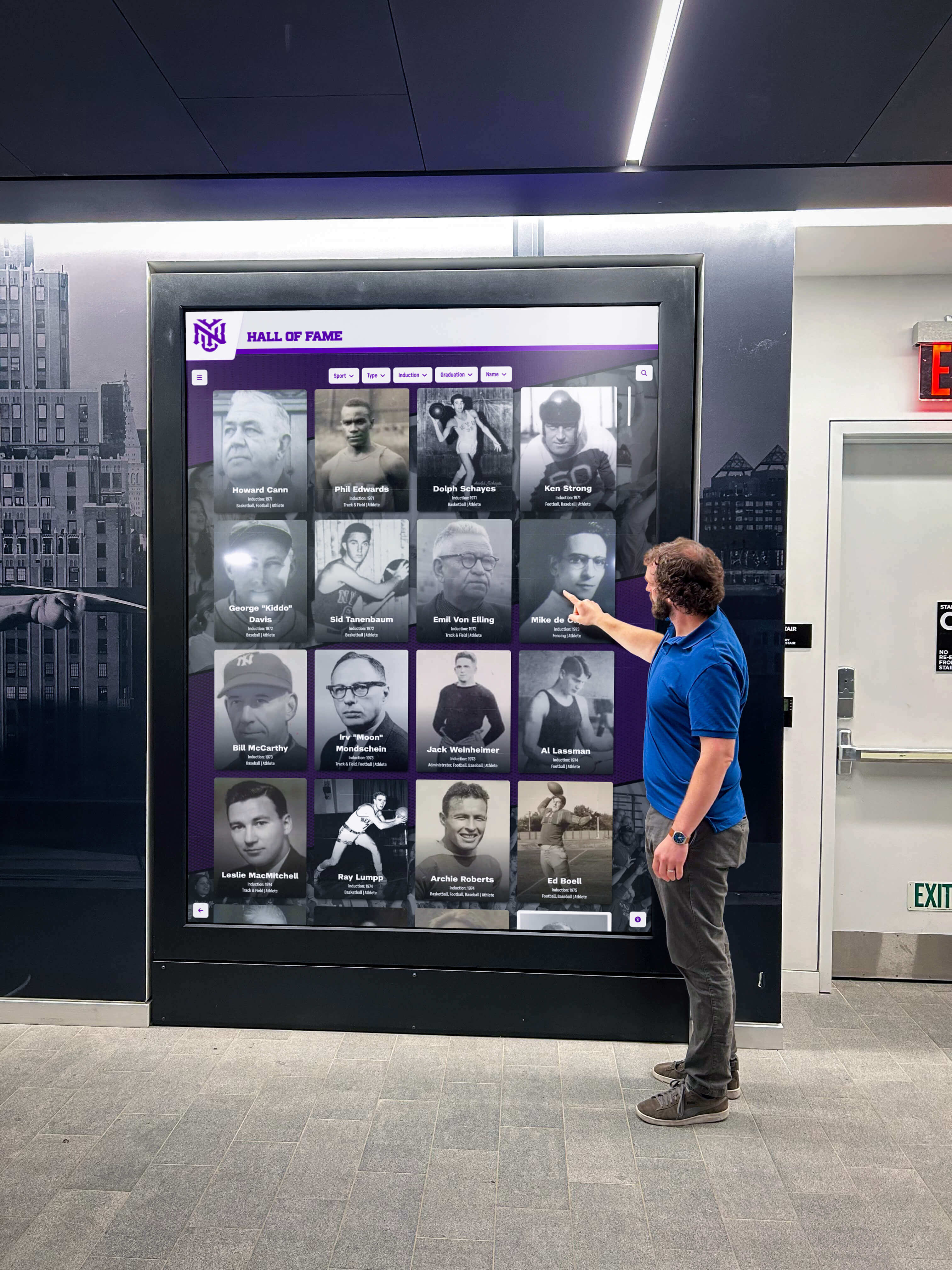
Physical accessibility governs what visitors can reach, approach, and see before they ever engage with digital content.
Mounting Heights and Reach Ranges
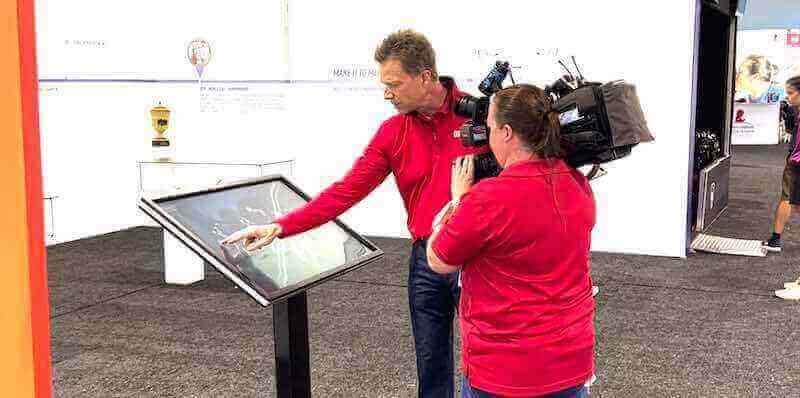
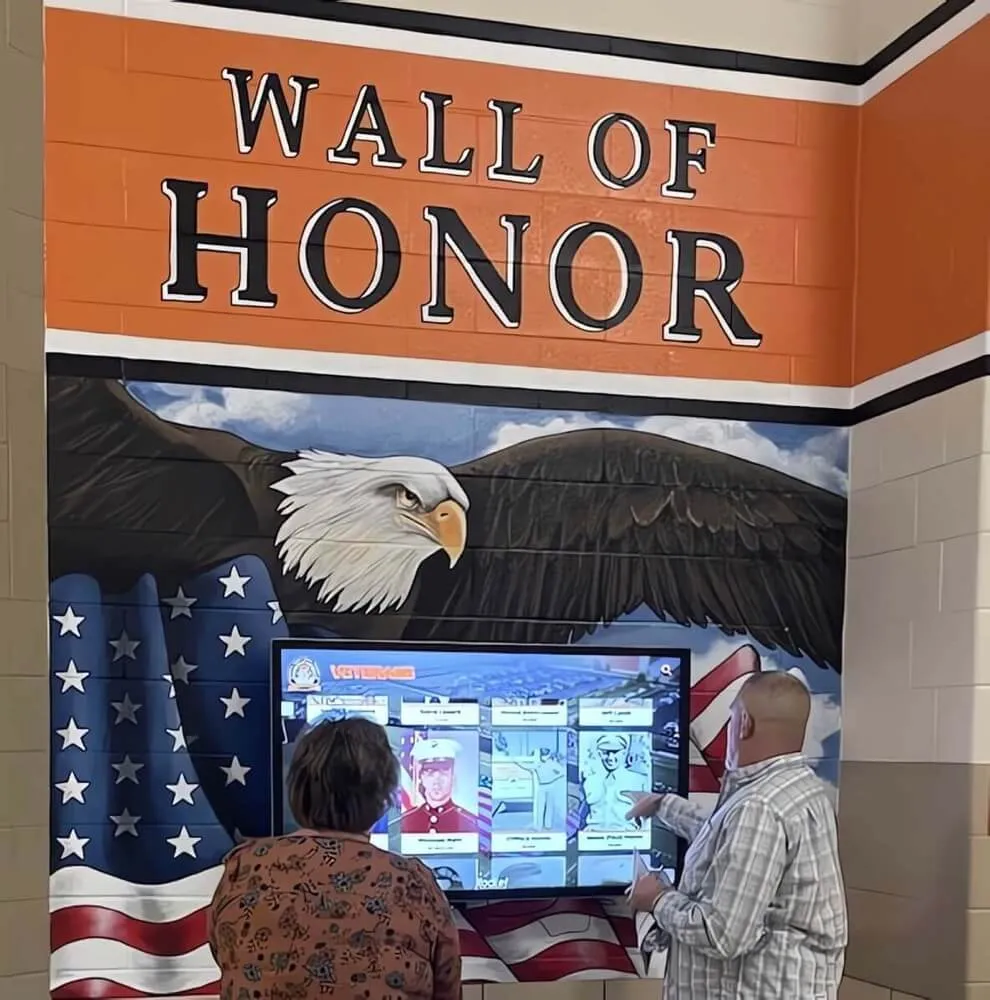
The 2010 ADA Standards for Accessible Design require that operable parts—buttons, touchscreens, switches—be within the reach range of someone using a wheelchair. For side reach, the accessible range is 15–48 inches above the finished floor. For an unobstructed forward reach, the maximum is 48 inches.
For an interactive kiosk, this means:
- The lowest touchable area should be at or above 15 inches
- The highest frequently used control should be no more than 48 inches
- The center of the interactive zone is commonly placed at 42–44 inches to serve both standing and seated users
Static plaques and printed panels have no operable parts, but centering readable text at 48–60 inches rather than 72 inches or higher improves legibility for wheelchair users and shorter visitors.
Approach Space and Floor Clearance
Wheelchair users need clear floor space to pull alongside or approach a display. The ADA Standards specify a minimum 30 × 48-inch clear floor space for a forward or parallel approach. For kiosk installations:
- Provide at least 30 × 48 inches of unobstructed floor space in front of or beside the kiosk
- Remove furniture, trophy cases, and cable covers that encroach on the approach path
- Ensure the path of travel from the building entrance to the display is at least 36 inches wide (44 inches preferred at high-traffic times)
When budgeting for interactive touchscreen kiosk installations, include any structural or flooring modifications needed to achieve compliant approach clearances—particularly in older trophy corridors that were designed without accessibility in mind.
Lighting and Glare Control
Adequate lighting improves readability for visitors with low vision and reduces eye strain for everyone:
- Illuminate static plaques and printed panels to at least 30 foot-candles at the display surface
- Avoid positioning screens directly across from windows or in paths of direct sunlight that creates glare
- Specify non-glare or anti-reflective coatings on digital screens where possible
- Use adjustable supplemental lighting for enclosed showcase cases
Step 2: Digital Display Content Accessibility
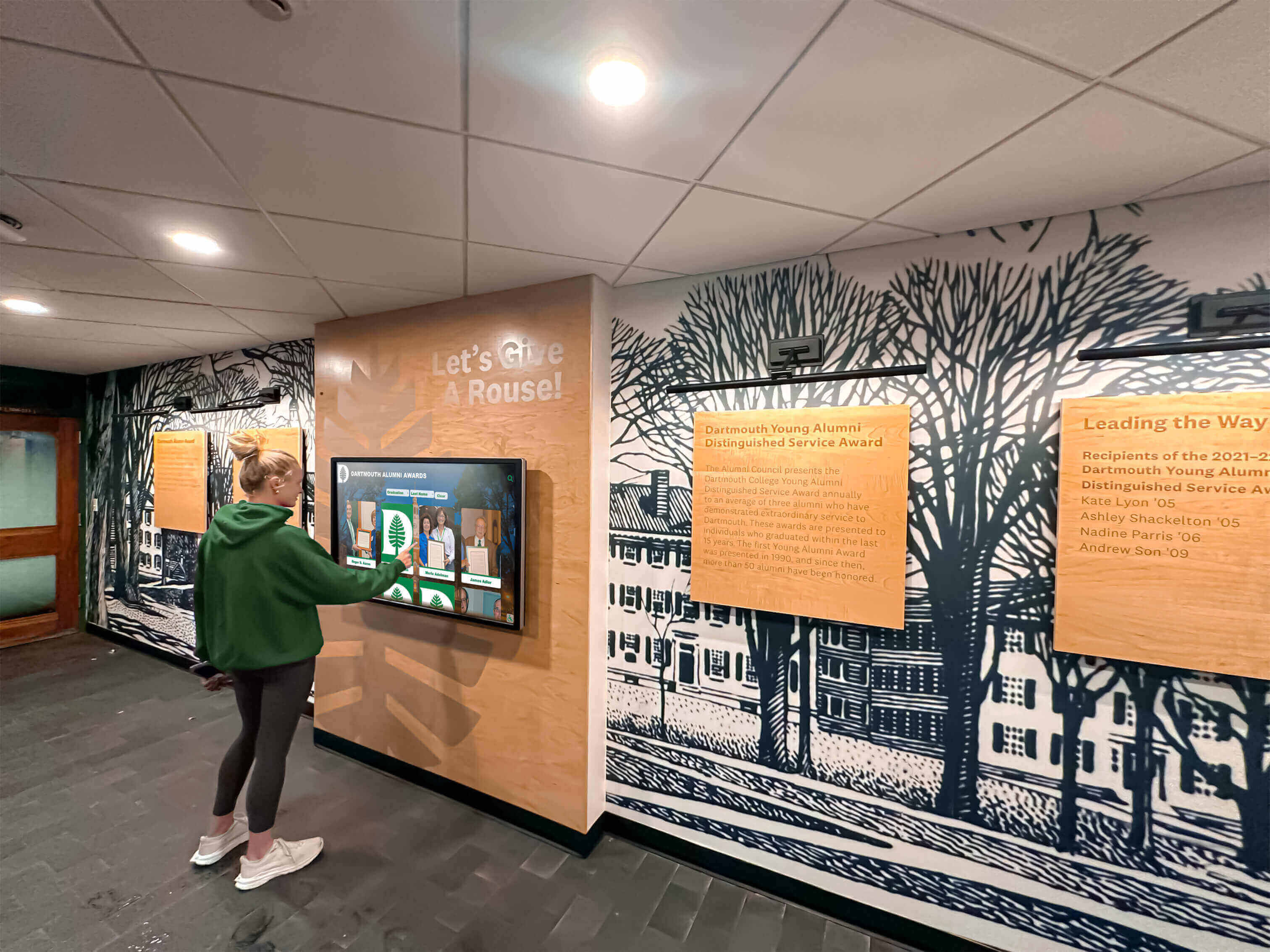
Digital hall of fame platforms—interactive kiosks, lobby screens, and web portals—must meet content accessibility standards so that visitors who rely on assistive technology or who have low vision can access the same information as every other visitor.
Color Contrast
WCAG 2.1 AA requires:
- 4.5:1 minimum contrast ratio between text and background for normal body text
- 3:1 minimum for large text (18pt regular or 14pt bold)
- 3:1 minimum for user interface components and graphical elements that convey meaning
In practice, dark text on a light background almost always satisfies these ratios; light text on a medium-toned background frequently does not. Use a free tool such as the WebAIM Contrast Checker to verify every color combination in your display template before approving it for production.
School colors often drive branding decisions. If a primary color fails the contrast check at body-text size, reserve it for decorative borders and large headline text rather than body copy or caption text.
Text Size and Readability
For screens viewed at a typical kiosk distance of 3–6 feet, body text should render at a minimum of 18–20 points on screen. Inductee names displayed as headlines benefit from 28–36 points. On web portals, text must remain readable when a user increases browser zoom to 200% without introducing horizontal scrolling.
Use sans-serif typefaces for body content. Decorative or script fonts should be limited to display-level headings where brief viewing time reduces the impact of lower legibility. The same principle applies to permanent inscription text in physical displays—legibility across decades matters more than ornamentation, a lesson familiar to anyone who has considered how permanent text ages over time.
Alternative Text for Images
Every inductee photograph and meaningful graphic must include alternative text that describes the image informatively. Avoid generic labels such as “photo” or the file name. A useful alt attribute might read: “Action photo of Maria Santos clearing a hurdle at the 1987 state championship, wearing school jersey number 14.”
For decorative images—background textures, geometric dividers, gradient overlays—use an empty alt attribute (alt="") so screen readers skip them without announcing noise.
Video and Audio Captions
If the hall of fame includes highlight reel videos, tribute films, or audio commentary, each must have:
- Synchronized captions covering all spoken dialogue and meaningful sound effects
- A transcript available in text form for visitors who cannot play audio
- Audio description for significant on-screen action not conveyed by dialogue, for blind visitors
Commercial display platforms designed for school hall of fame environments vary in their built-in caption support; confirm caption overlay and transcript hosting capabilities before finalizing a platform selection.
Step 3: Interactive Functionality Accessibility
Interactive displays require attention to how visitors navigate and operate them, not only what they display.
Keyboard and Switch Navigation
No interaction should require a touch gesture or mouse click as the only input method. For web portals, every function must be reachable and operable via keyboard alone (Tab, Shift+Tab, Enter, arrow keys). For physical kiosks, look for platforms that support:
- On-screen directional navigation operable via an external keyboard or switch device
- A visible focus indicator that clearly shows which element is currently selected
- No keyboard traps—areas where focus enters but cannot exit without a pointing device
Touch Target Size
On touchscreen devices, interactive targets (buttons, profile cards, navigation icons) should be at least 44 × 44 CSS pixels as a best practice, in line with WCAG 2.5.5 (Level AAA) and the commonly adopted accessibility guidance for public kiosks. Smaller targets create friction for users with motor impairments and for anyone navigating with gloves or prosthetic devices.
Inactivity Timeouts and Auto-Advance
Kiosks that automatically return to a home screen after inactivity can frustrate slow readers and visitors who pause to process content. If a timeout is operationally required:
- Set the minimum idle period to at least 2 minutes before triggering a reset
- Display a visible countdown warning with an option to extend the session
- Restore the visitor’s position when they interact, rather than restarting navigation entirely
Avoid auto-advancing carousels. If carousels are used for featured inductees or record boards, provide pause controls and ensure each panel is individually reachable.
No Rapid Flashing or Motion Triggers
WCAG Success Criterion 2.3.1 (Level A) prohibits content that flashes more than three times per second, as such content can trigger photosensitive seizures. This applies to animated transitions, celebratory video effects, looping banners, and any graphic that repeats rapidly. Review all display templates for rapid-flash elements before deployment.
Step 4: Content and Language Accessibility
Recognition displays communicate information. How that information is written and organized determines whether visitors with cognitive, language, or literacy differences can access it equally.
Plain Language for All Inductee Categories
Inductee profiles often contain specialized athletic statistics, award abbreviations, and institutional jargon. Expand abbreviations on first use—for example, write “New Jersey State Interscholastic Athletic Association (NJSIAA)” before using the acronym. Use short sentences and active voice in biographical narrative sections.
Recognizing coaches, assistant principals, and non-athlete contributors alongside athletes creates similar language challenges: job titles, departmental acronyms, and program-specific terminology should be described in plain terms rather than assuming institutional knowledge on the part of visitors who may be alumni from a different era or community members with no school affiliation.
Consistent Navigation Structure
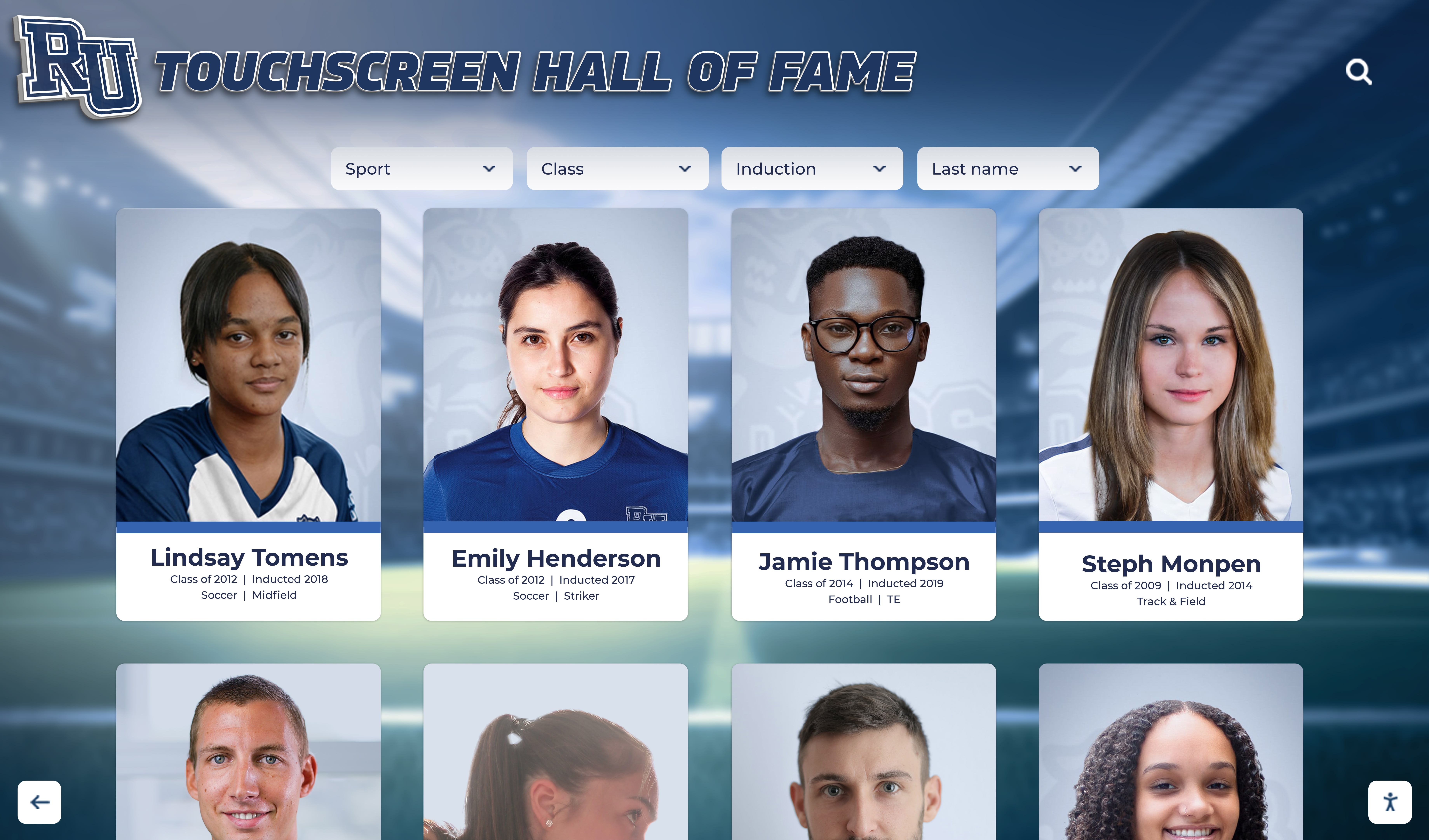
Visitors with cognitive differences benefit from predictable navigation: the same menu in the same position on every screen, consistent placement of the Back button, and clear section labels. Novel interface metaphors that require learning a unique interaction model add cognitive load without a corresponding benefit to the recognition mission.
Recognition platforms designed for academic environments share a principle with good accessibility design: the display serves the inductee’s story, not the technology showcasing it. Consistent, predictable navigation keeps the focus on recognition.
The Complete Hall of Fame Accessibility Checklist
Use this checklist at installation, at annual review, and after any major content or hardware update.
Physical Space
| Item | Standard / Target | Done? |
|---|---|---|
| Operable parts — lowest touchable point | ≥ 15 in. above finished floor | ☐ |
| Operable parts — highest frequent control | ≤ 48 in. above finished floor | ☐ |
| Clear floor space at kiosk | 30 × 48 in. minimum | ☐ |
| Path of travel from entrance to display | ≥ 36 in. wide | ☐ |
| Static plaque text — center height | 48–60 in. above finished floor | ☐ |
| Lighting level at display surface | ≥ 30 foot-candles | ☐ |
| Glare management | No direct glare on interactive screen | ☐ |
| Approach floor surface | Smooth, level, non-slip | ☐ |
Digital Content
| Item | Standard / Target | Done? |
|---|---|---|
| Body text contrast ratio | ≥ 4.5:1 | ☐ |
| Large text (18pt+) contrast ratio | ≥ 3:1 | ☐ |
| Minimum body text size at kiosk | ≥ 18pt at typical viewing distance | ☐ |
| Web portal zoom to 200% | No horizontal scrolling introduced | ☐ |
| Alt text on all meaningful images | Descriptive, not generic or empty | ☐ |
| Alt text on decorative images | alt="" (empty, not omitted) | ☐ |
| Captions on all video content | Synchronized and accurate | ☐ |
| Transcripts for all audio/video | Linked or embedded on the same page | ☐ |
| Flashing content | No element exceeds 3 flashes/sec | ☐ |
Interactive Functionality
| Item | Standard / Target | Done? |
|---|---|---|
| Keyboard-only navigation (web portal) | All functions reachable | ☐ |
| Visible focus indicator | Clearly visible on all interactive elements | ☐ |
| No keyboard traps | Focus can always exit via keyboard | ☐ |
| Touch target size | ≥ 44 × 44 px (best practice) | ☐ |
| Inactivity timeout | ≥ 2 min with visible countdown warning | ☐ |
| Carousel auto-advance | Pause control present | ☐ |
| External keyboard / switch access (kiosk) | Tested on deployed hardware | ☐ |
Content and Language
| Item | Standard / Target | Done? |
|---|---|---|
| Abbreviations expanded on first use | Applied throughout all profile templates | ☐ |
| Consistent navigation across all screens | Same menu position and labels | ☐ |
| Reading level | Plain language; avoid jargon in body copy | ☐ |
| Error messages | Describe the problem clearly in plain terms | ☐ |
Step 5: Staff Testing Protocol
A checklist delivers value only when someone walks through it systematically. Build accessibility testing into your hall of fame launch and annual review cycles.
Pre-Launch Testing
Before any new display or major update goes live:
- Run an automated scan (axe, WAVE, or equivalent) against the web-accessible version of the portal and review all flagged errors and warnings.
- Complete a keyboard-only walkthrough: disconnect or disable your mouse and navigate every interactive path—search, browse, profile view, back navigation—using only Tab, Shift+Tab, Enter, and arrow keys.
- Verify contrast ratios on all template color combinations with a contrast analyzer tool.
- Confirm that every video file has a caption track and play a 30-second sample at several points to verify synchronization accuracy.
- Walk the physical installation with a tape measure and confirm mounting heights and approach clearances match the checklist values.
Observational Testing with Real Users
Automated tools and internal walkthroughs will not catch everything. Before launch and at least once per year, conduct observational testing:
- Recruit two to three volunteers who use mobility aids, screen readers (such as NVDA, JAWS, or VoiceOver), or who have low-vision accommodations
- Ask them to complete specific tasks: find a named inductee, watch a tribute video, use the search function, and return to the home screen
- Observe without intervening; note every point of hesitation or failure
- Document each friction point with a description, screenshot or photo, and assigned remediation owner with a due date
Recognition content shared via social media and digital channels also reaches audiences with accessibility needs; the same alt text and caption standards that apply to your kiosk and web portal apply to the images and videos your team posts publicly.
Annual Review Schedule
Schedule a full checklist walkthrough each year, timed before major recognition events—induction ceremonies, sports banquets, alumni weekends. The annual review should confirm:
- All newly added inductee profiles include accurate alt text and, where applicable, caption files
- Hardware shows no physical damage that could reduce stability or encroach on approach clearance
- Platform software updates have not introduced navigation regressions or changed color templates in ways that affect contrast
Choosing a Platform That Handles Accessibility by Default
Retrofitting accessibility onto an existing display is harder and more expensive than starting with a platform designed to meet these standards. When evaluating digital hall of fame platforms, ask vendors to demonstrate:
- WCAG 2.1 AA compliance documentation or third-party audit results
- Keyboard navigation on the public-facing interface
- Built-in caption support for video content
- An accessible content management interface that staff can operate without assistive workarounds
- Scalable text templates that maintain contrast ratios when font size increases
Rocket Alumni Solutions builds WCAG 2.1 AA compliance into its platform infrastructure—covering keyboard navigation, color contrast in default templates, alt text fields on every media upload, and caption support for video profiles—so schools implementing these displays do not begin with an accessibility deficit. For facilities teams and recognition committees verifying that a vendor meets the requirements in this checklist, a live demo is the most efficient way to walk through interactive functionality directly.