



Key Takeaways
Compare digital signage services for multiple screens with split-screen display, weather widgets, news feeds, social media integration, and data visualization—no programming required.
Schools, universities, and organizations increasingly need digital signage solutions that manage multiple screens while displaying diverse content types—weather updates, news feeds, social media streams, event calendars, and data dashboards—without requiring programming expertise. The challenge lies in finding platforms that offer true split-screen flexibility, widget libraries, and centralized management for multiple displays across different locations.
The Digital Signage Service Market: What Evaluation Committees Actually Need
When procurement teams evaluate digital signage services, they encounter a fragmented market. Some vendors excel at basic slideshow content but lack widget ecosystems. Others offer robust weather and news integrations but struggle with touchscreen interactivity. Most critically, many solutions require technical expertise for layout customization or force organizations to choose between split-screen capability and content diversity.
For institutions managing multiple screens—lobby displays, cafeteria monitors, hallway kiosks, and interactive touchscreens—the ideal platform must deliver:
- Multi-screen management from a single dashboard
- Split-screen layout flexibility without custom coding
- Pre-built widget libraries for weather, news, social media, RSS feeds, and data visualization
- Touchscreen interactivity where needed, with passive display mode for non-interactive screens
- Content scheduling by screen, time, and audience
- Remote updates without IT staff visiting each physical location
Comparison Framework: Evaluating Digital Signage Services for Multi-Screen Deployments
Key Evaluation Criteria
When comparing digital signage providers for environments requiring multiple screens with widget-based content, use this weighted scoring system:
Criterion Weighting
- Widget Ecosystem & Flexibility (25%) - Pre-built integrations for weather, news, social media, calendars, data feeds
- Split-Screen Layout Capability (20%) - Drag-and-drop screen division, template library, custom zones without coding
- Multi-Screen Management (20%) - Centralized dashboard, screen grouping, differential content by location
- Content Scheduling & Automation (15%) - Time-based playlists, conditional display rules, recurring content
- Touchscreen Interactivity (10%) - Interactive mode capability, navigation design, passive fallback
- Hardware Flexibility (10%) - BYOD compatibility, recommended hardware partnerships, display size agnosticism
Vendor Comparison Matrix
| Criterion | Traditional Digital Signage (Generic) | Cloud CMS Platforms | Rocket Alumni Solutions |
|---|---|---|---|
| Widget Ecosystem | Limited; usually requires custom development or paid plugins | Moderate; weather/news available but social media integration often restricted | Extensive; weather, news, social feeds, event calendars, data dashboards included |
| Split-Screen Layouts | Basic templates; custom layouts need design tools | Good drag-and-drop; may charge per layout or template tier | Unlimited layouts with zone-based design; no per-template fees |
| Multi-Screen Management | Yes, but often priced per screen or per location | Yes, typically subscription tiering by screen count | Unlimited screens included in base subscription |
| Content Scheduling | Available; can be complex for non-technical users | Strong; calendar-based scheduling with preview | Intuitive scheduling with visual timeline; role-based content approval |
| Touchscreen Interactivity | Varies; some vendors separate “interactive” and “display” products | Limited; most focus on passive display only | Full interactivity built-in; touchscreen navigation with passive rotation fallback |
| Hardware Flexibility | Often requires proprietary media players or approved hardware list | BYOD friendly but performance varies by device | Works with standard displays and computers; no proprietary lock-in |
Widget-Based Content: The Non-Programmer’s Advantage
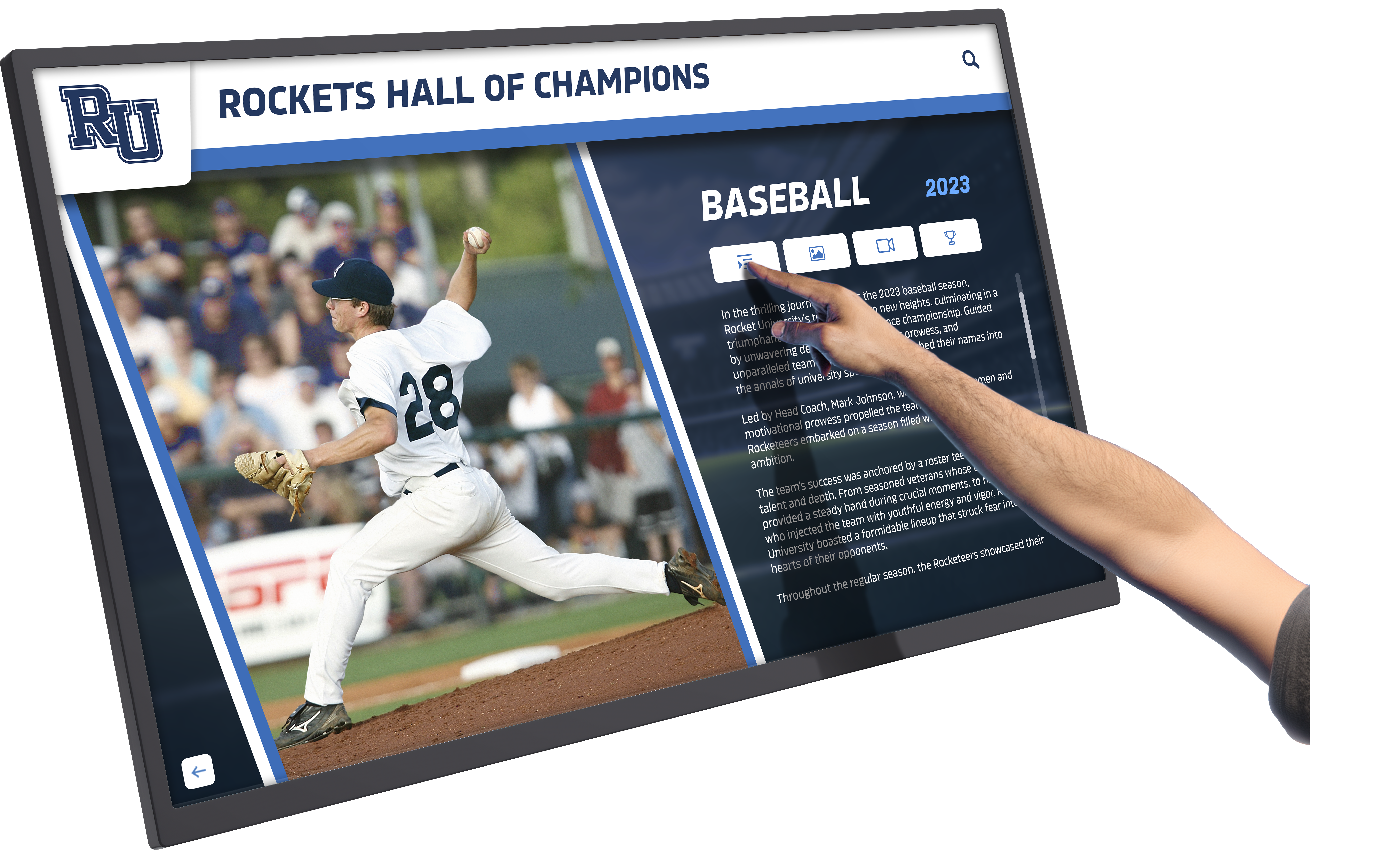
The primary differentiator for organizations without dedicated IT staff is widget availability. Widgets are pre-built content modules that pull information from external sources and format it for display without custom coding.
Essential Widget Categories
Information Widgets
- Weather: Current conditions, forecast, severe weather alerts by zip code
- News feeds: RSS integration, category filtering, headline rotation
- Social media: Twitter/X feeds, Instagram galleries, Facebook posts (within platform ToS)
- Calendar: Google Calendar, Outlook integration, event countdowns
- Emergency alerts: CAP alert integration, custom banner triggers
Data Visualization Widgets
- Data dashboards: CSV import, Google Sheets connection, live data refresh
- Countdown timers: Event countdowns, class period clocks, lunch schedules
- Announcement tickers: Scrolling text, priority message queuing
- QR codes: Dynamic QR generation for event registration, surveys, links
- Image galleries: Photo rotation, slideshow timing, transition effects
When evaluating vendors, request a widget demonstration showing:
- How quickly staff can add a weather widget to a screen (under 2 minutes is ideal)
- Whether social media requires OAuth authentication or manual content upload
- If data dashboards accept real-time feeds or only static CSV uploads
- How emergency alert widgets override scheduled content
Solutions like digital signage content management systems designed for educational environments typically prioritize widget simplicity because school communications teams often lack programming resources.
Split-Screen Display Architecture: Technical Considerations
Split-screen capability allows a single physical display to show multiple content zones simultaneously—for example, a left panel with school announcements, a right panel with weather, and a bottom ticker with lunch menus.
Layout Design Models
Template-Based Systems
Vendors provide pre-designed layouts (e.g., “70/30 split,” “quad view,” “L-shape with ticker”). Users select a template and assign content to each zone.
Pros: Fast deployment, no design decisions Cons: Limited to vendor’s template library; custom layouts may require paid design services
Zone-Based Systems
Users define rectangular zones on the canvas, specifying dimensions and positions. Content widgets snap into zones.
Pros: Complete layout flexibility, no template limitations Cons: Requires basic understanding of screen resolution and aspect ratios
Rocket Alumni Solutions uses a hybrid approach: pre-built templates for quick starts plus zone customization for organizations that need specific layouts. Critically, all layouts are included in the subscription—no per-template fees or design charges.
Resolution and Aspect Ratio Planning
When deploying split-screen layouts across multiple displays, standardizing hardware simplifies content production:
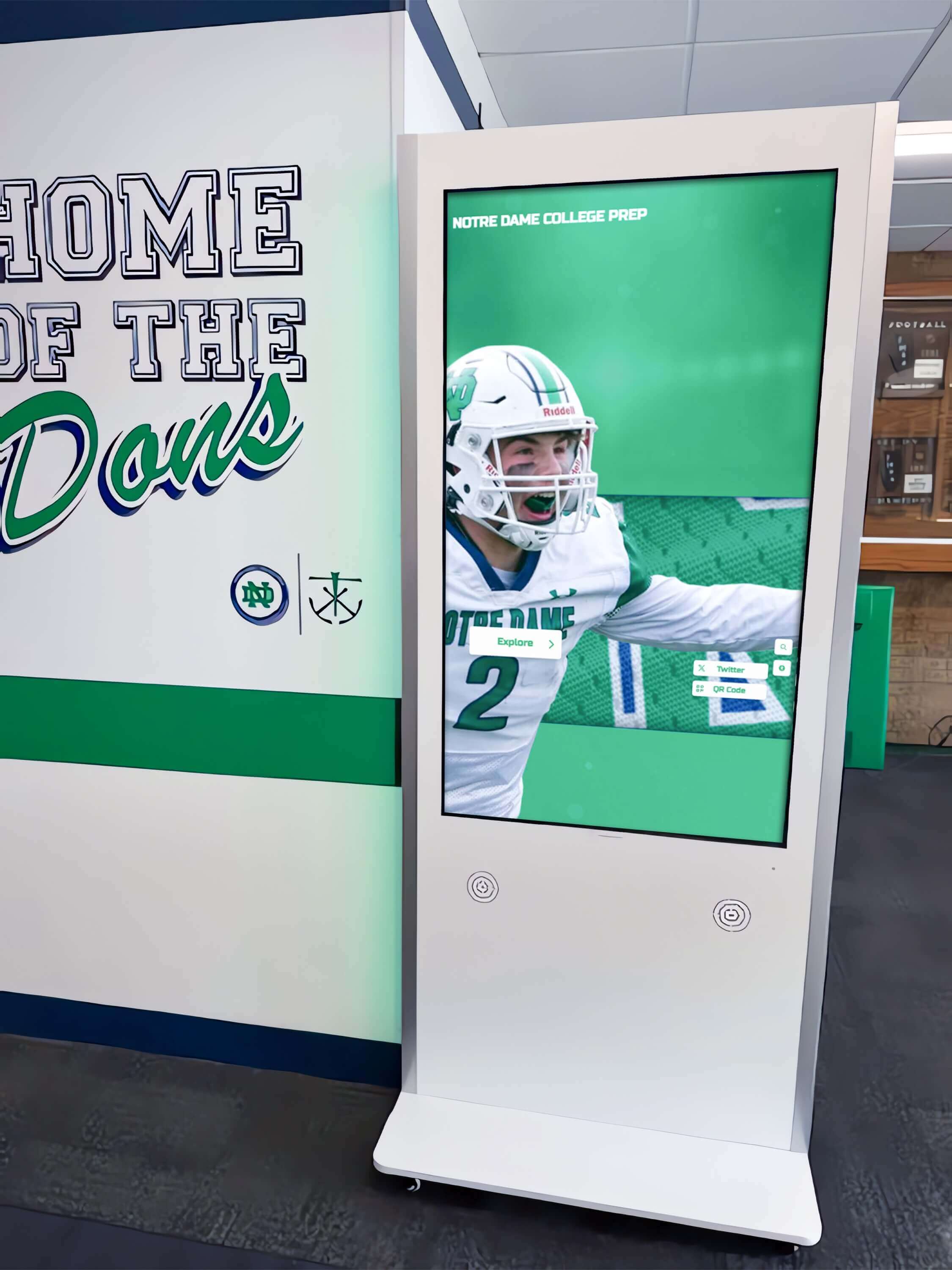
- Horizontal displays (16:9) are most common; ideal for lobby and cafeteria screens
- Portrait displays (9:16) work well for hallway kiosks and narrow wall spaces
- Ultra-wide displays (21:9) suit reception desks and conference rooms
If your deployment includes mixed aspect ratios, verify that the digital signage platform allows aspect-ratio-specific layouts. For instance, a weather widget that looks perfect on a 55" horizontal TV may be unreadable on a 32" portrait kiosk without layout adjustments.
Multi-Screen Management: Centralized Control Without IT Overhead
Organizations with digital signage in multiple buildings or across a district need centralized management. The alternative—manually updating each screen via USB or local login—is operationally unsustainable.
Critical Management Features
Screen Grouping & Content Inheritance
Group screens by location (Building A, Building B), audience (elementary vs. high school), or function (lobby displays vs. interactive kiosks). Assign content to groups, with individual screen overrides when needed.
Example use case: All cafeteria screens district-wide show the lunch menu at 11:00 AM, but each location’s screen also displays that school’s afternoon announcements at 12:30 PM.
Playlist Scheduling
Create content playlists (e.g., “Morning Announcements,” “Afternoon Events,” “Weekend Mode”) and schedule them by day and time. Playlists can include static images, videos, live widgets, and split-screen layouts.
Remote Updates
Any content change should propagate to screens within minutes, not hours. Cloud-based systems offer the fastest updates, while local network solutions may require server proximity.
User Role Management
For organizations where multiple departments contribute content (athletics posts game schedules, advancement shares donor updates, academics uploads honor roll lists), role-based access control prevents content conflicts:
- Content creators: Upload media and draft announcements but cannot publish
- Approvers: Review and publish content to specific screen groups
- Administrators: Manage users, screen assignments, and global settings
This approval workflow is common in school digital signage systems where compliance and messaging consistency matter.
Touchscreen Interactivity vs. Passive Display: Hybrid Deployment Strategies
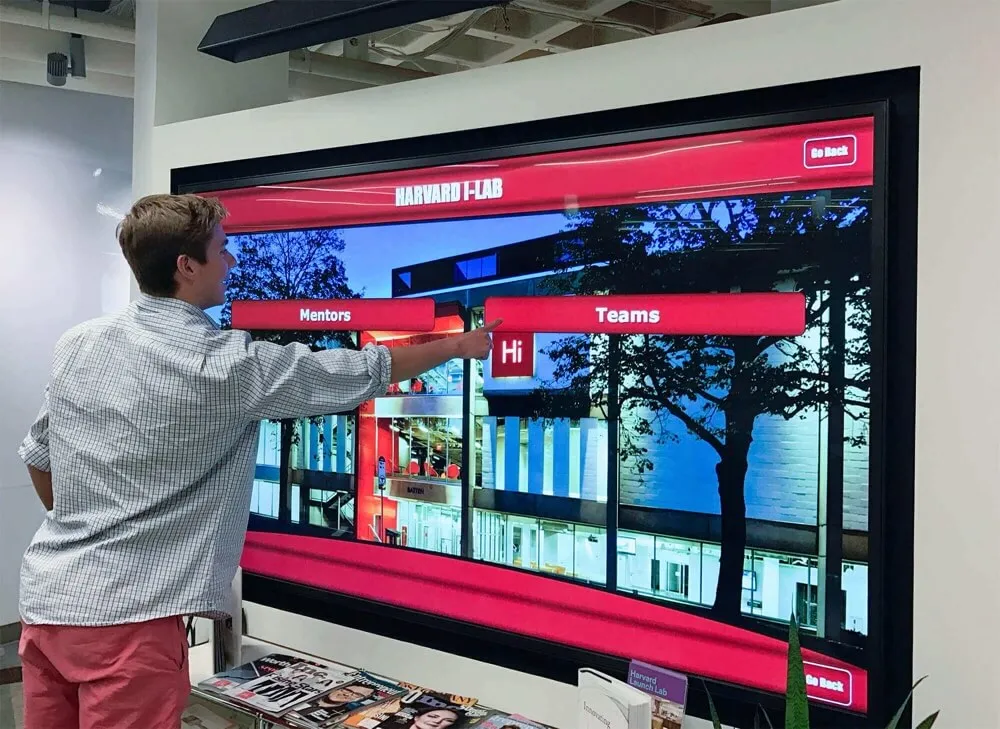
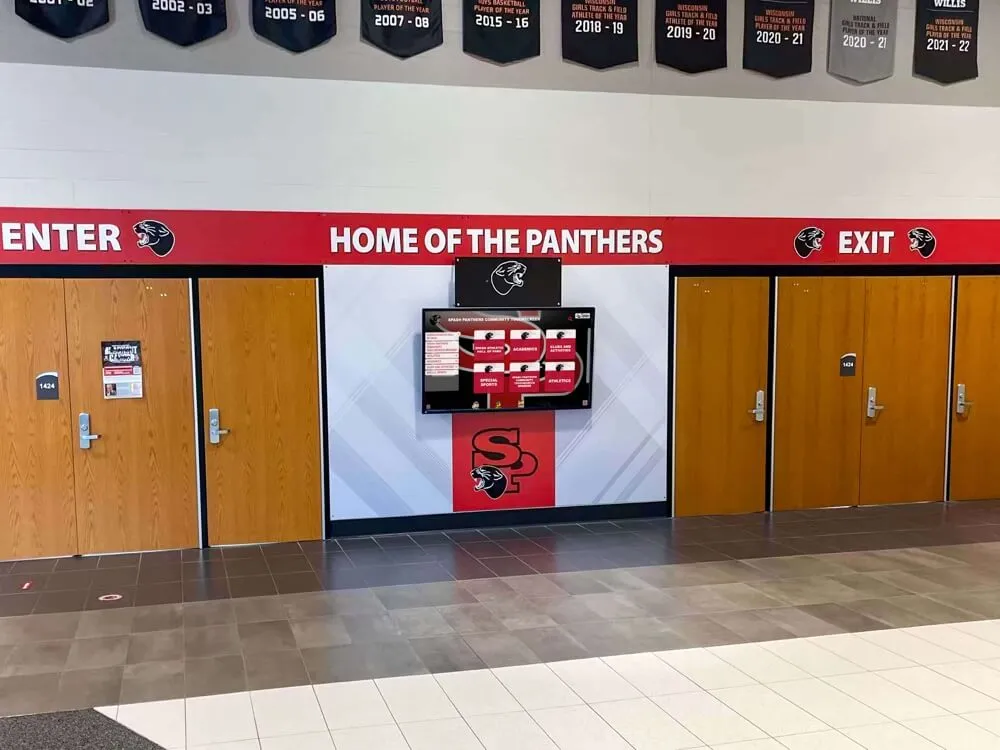
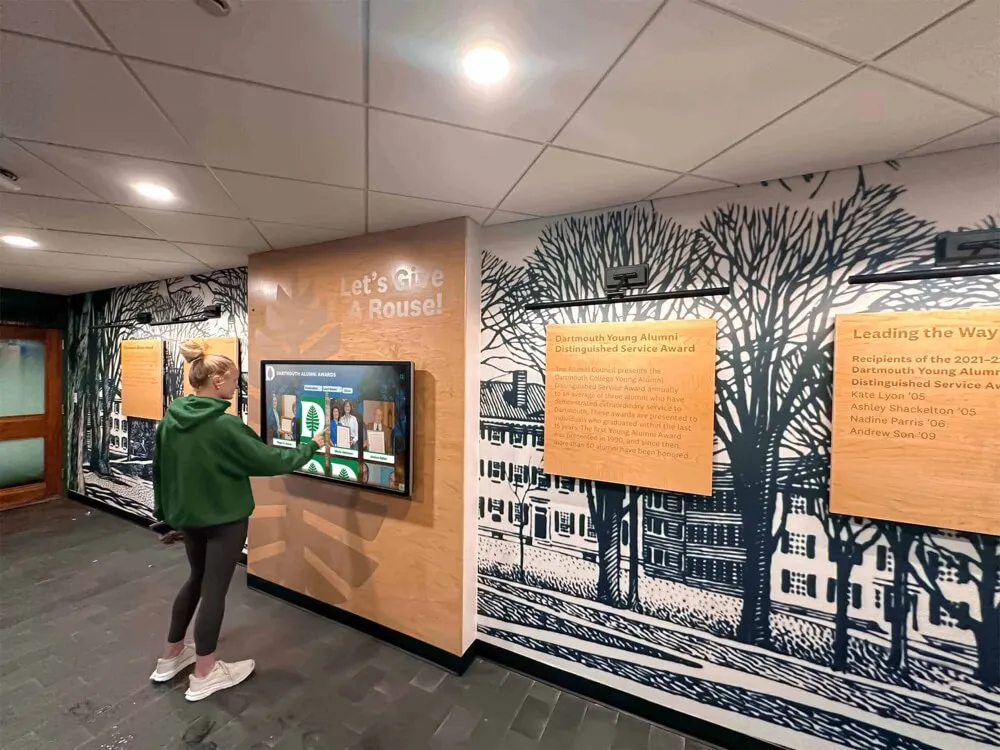
Not all screens in a digital signage network require touch interactivity. Lobby kiosks and wayfinding stations benefit from touchscreens, while hallway monitors displaying rotating announcements function effectively as passive displays.
When to Deploy Touchscreens
- Interactive directories: Building maps, staff directories, event schedules that users navigate
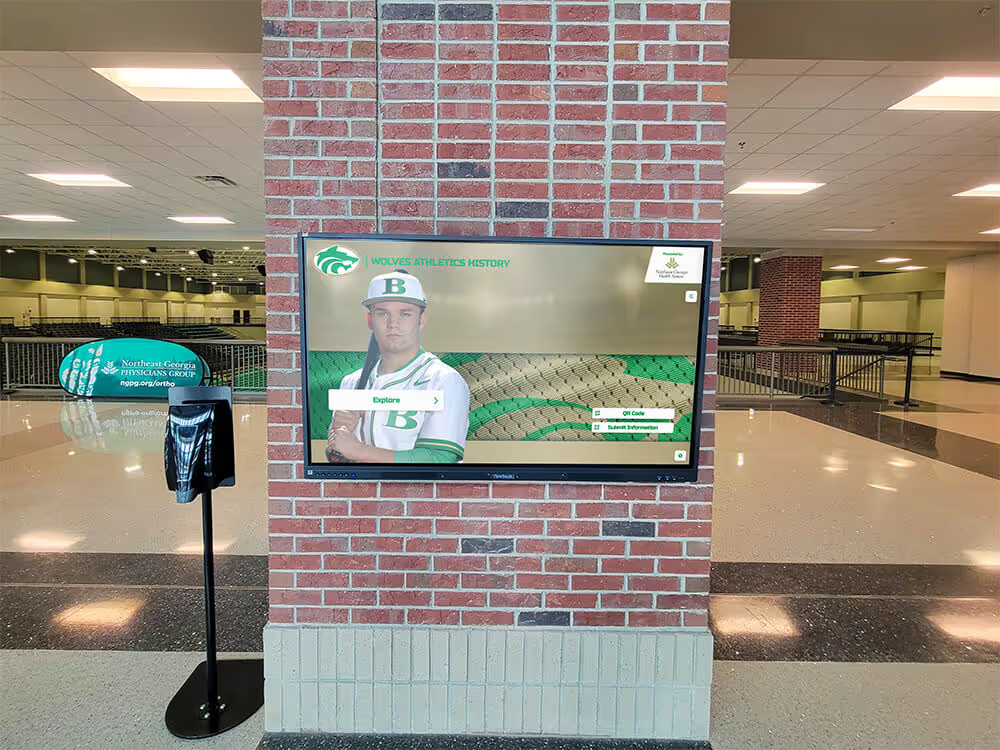
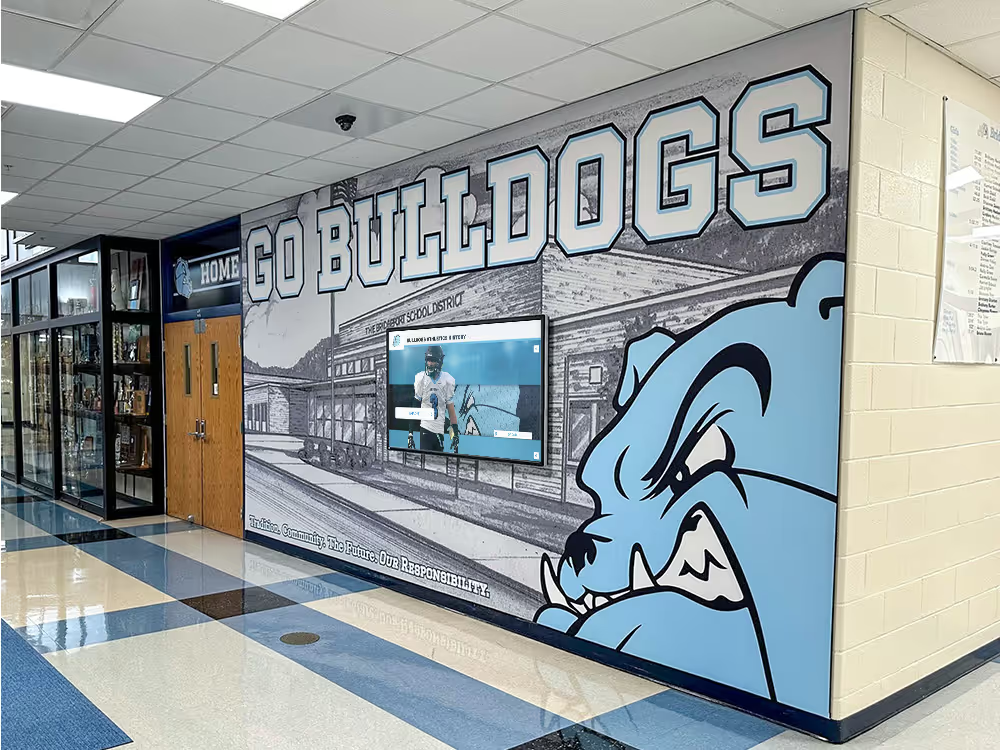
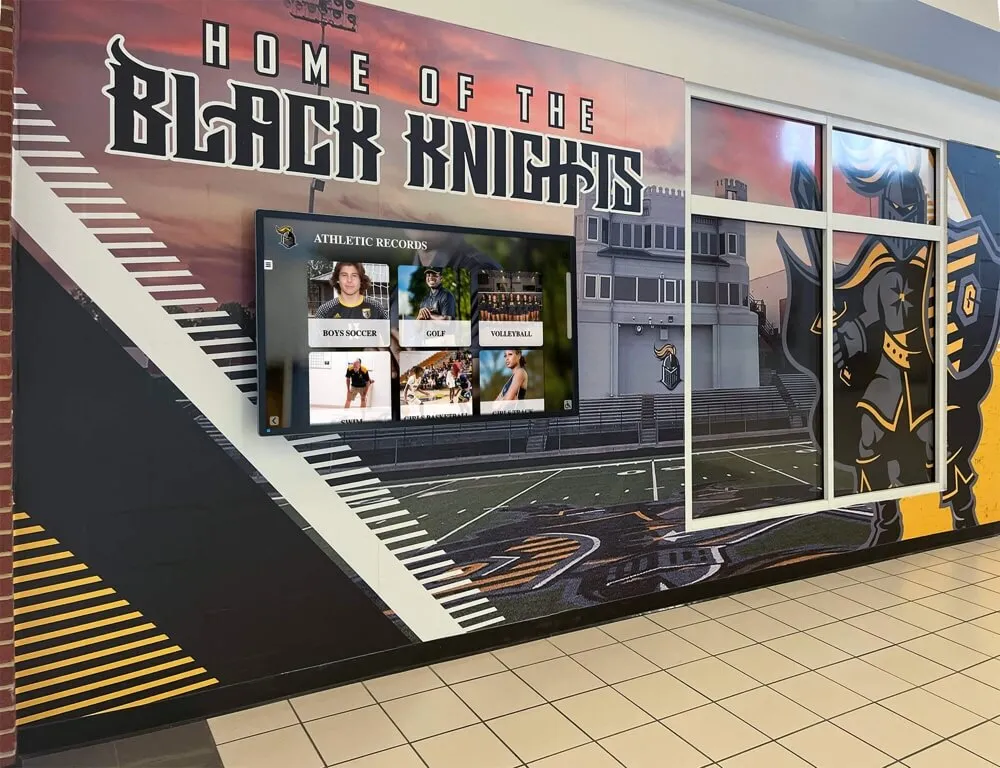
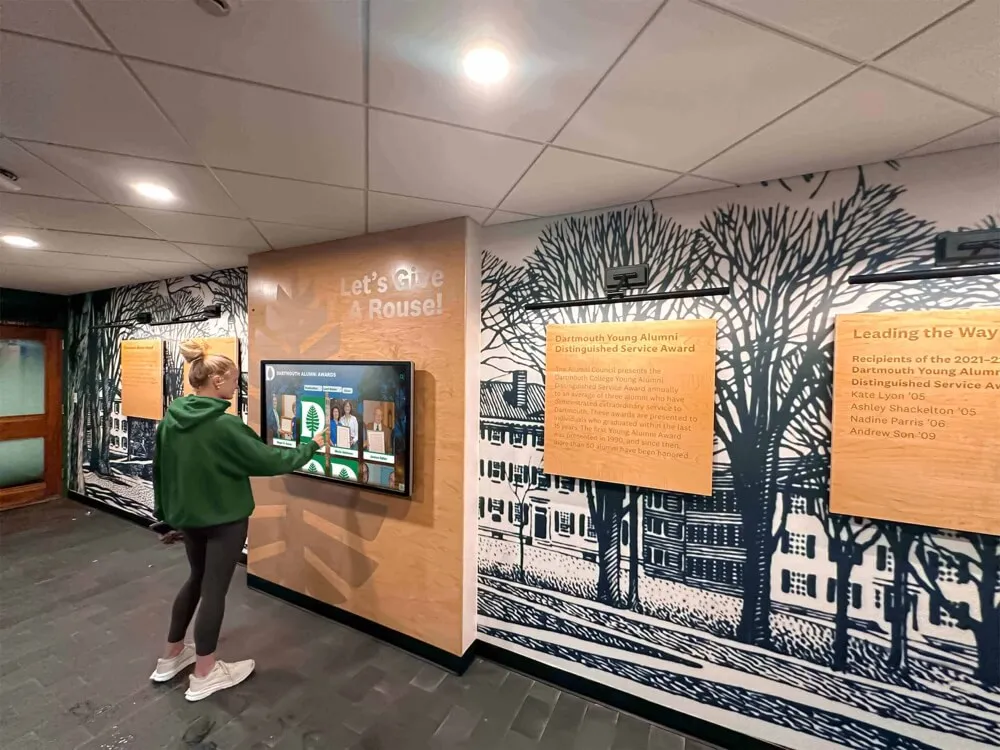
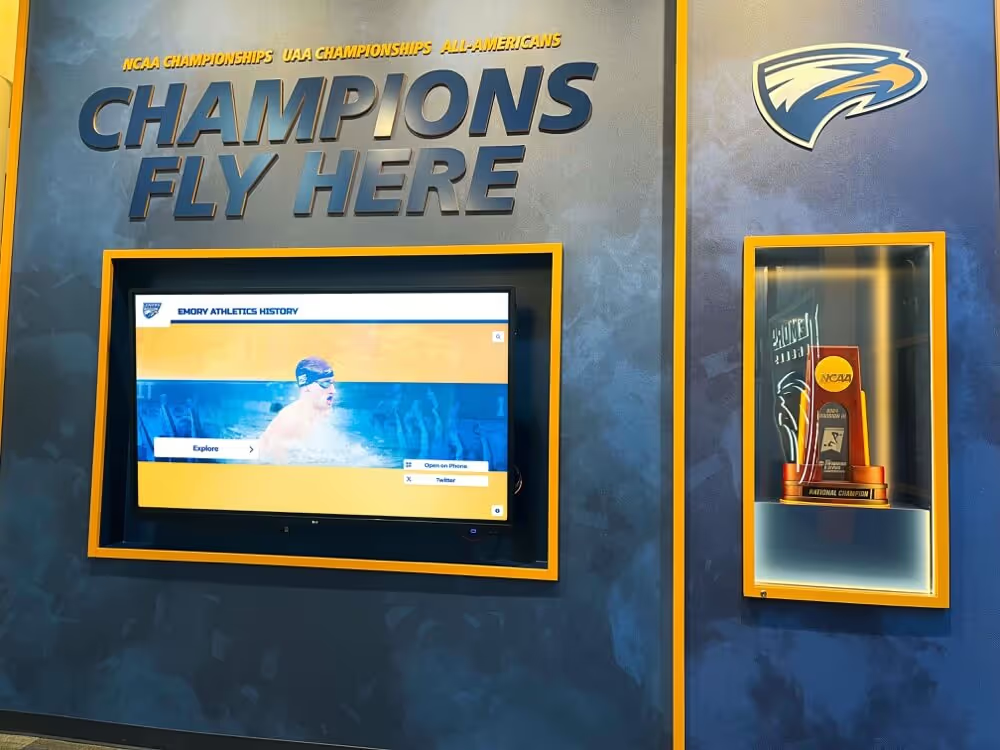
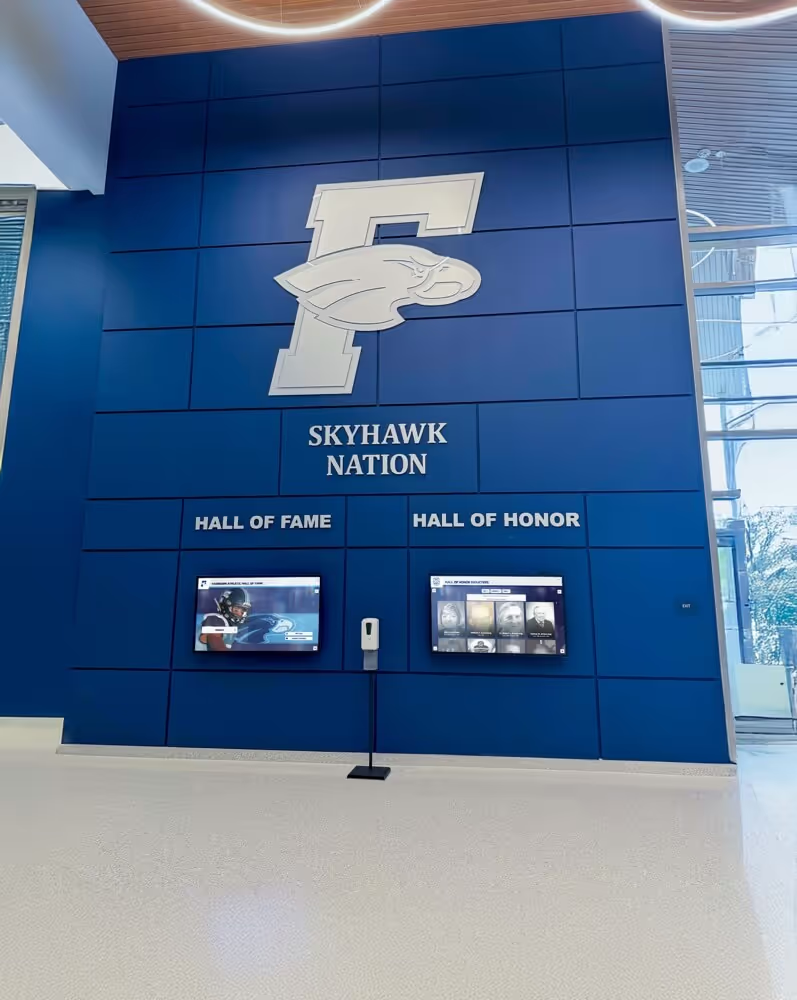
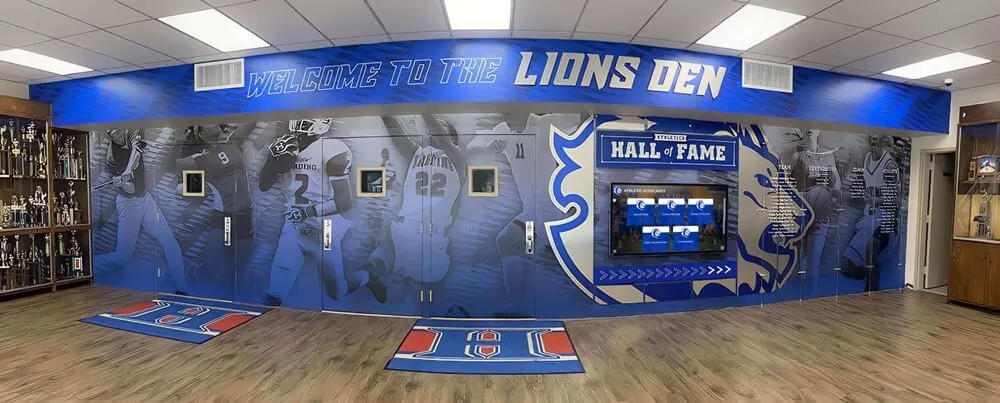
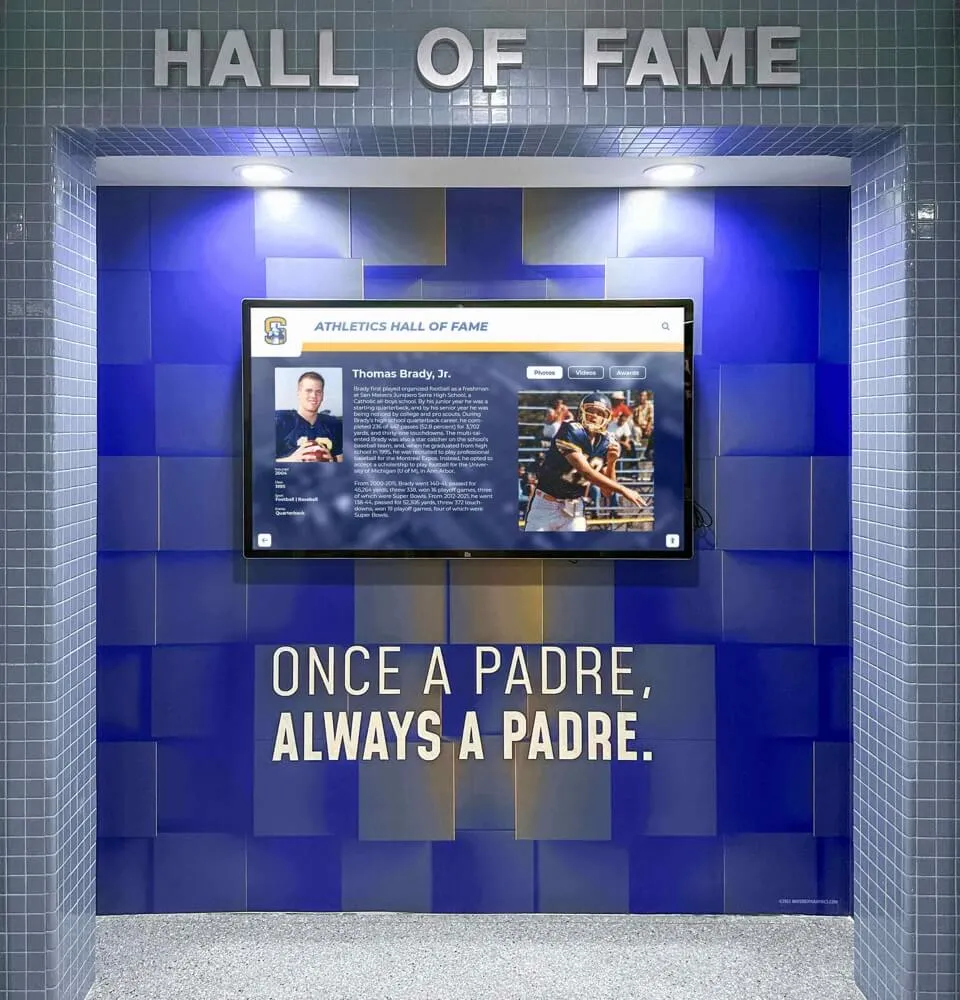
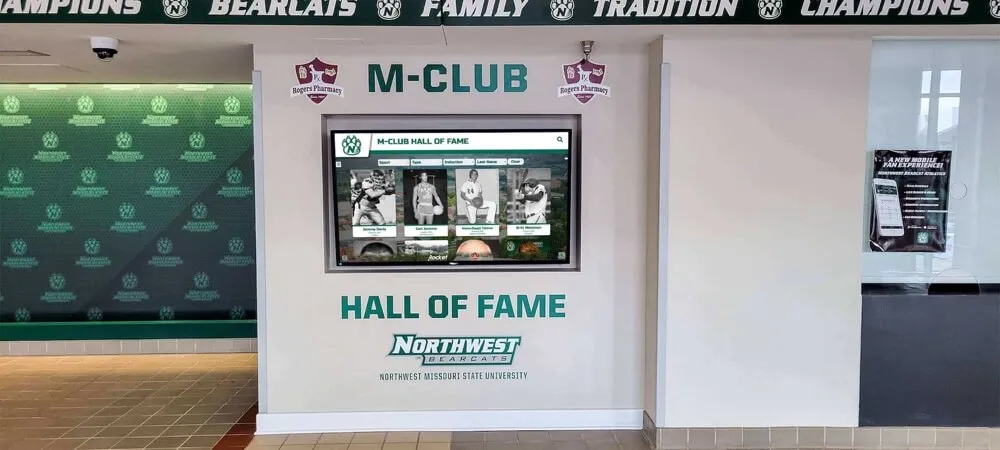
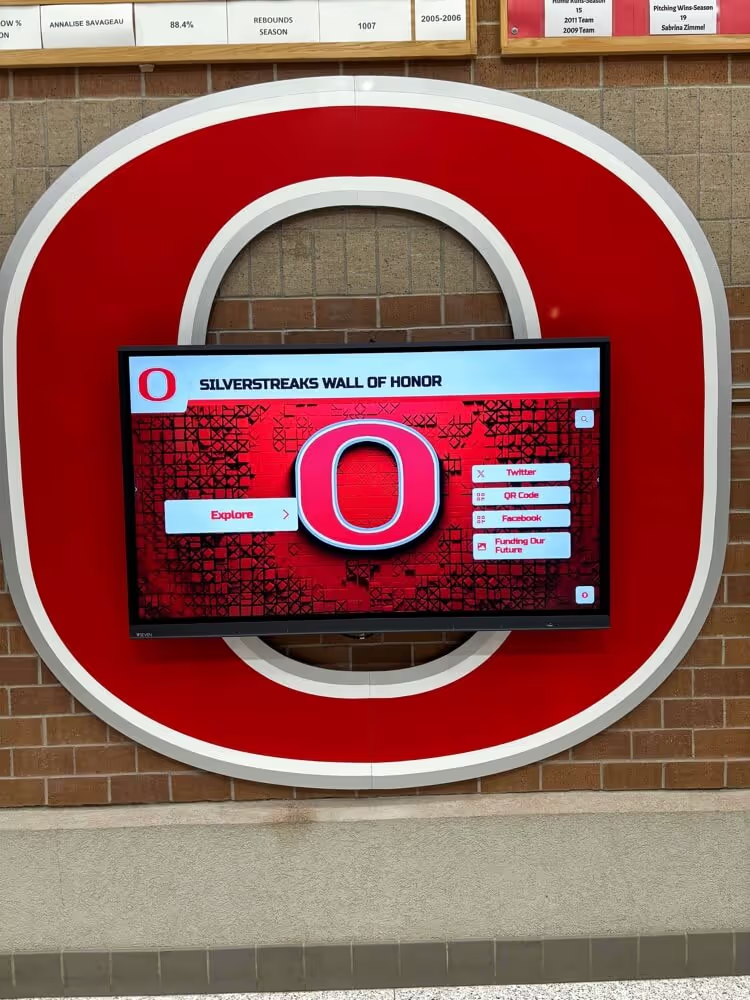
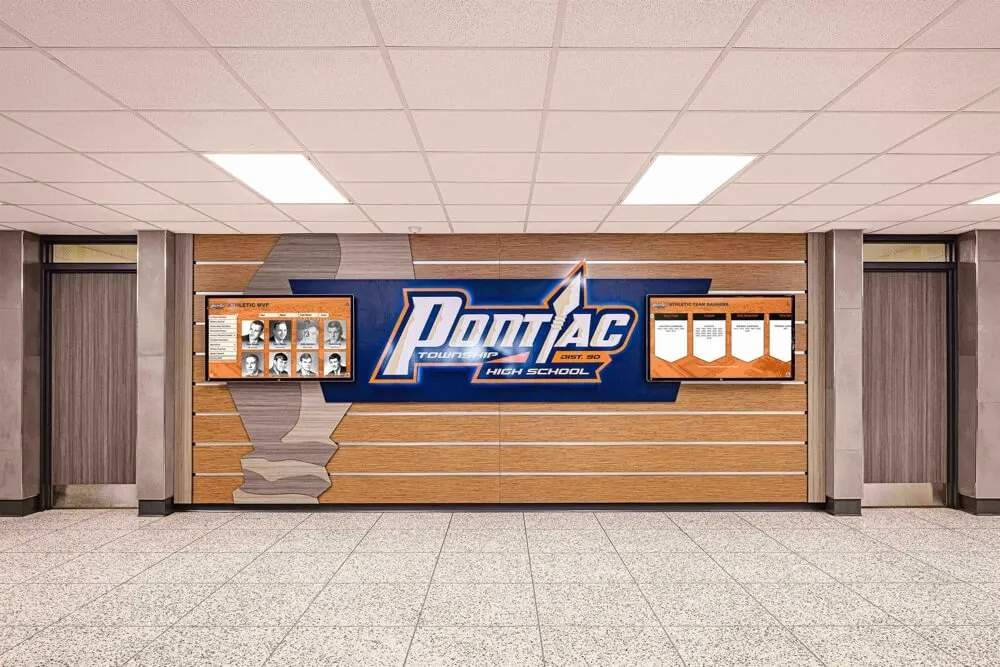
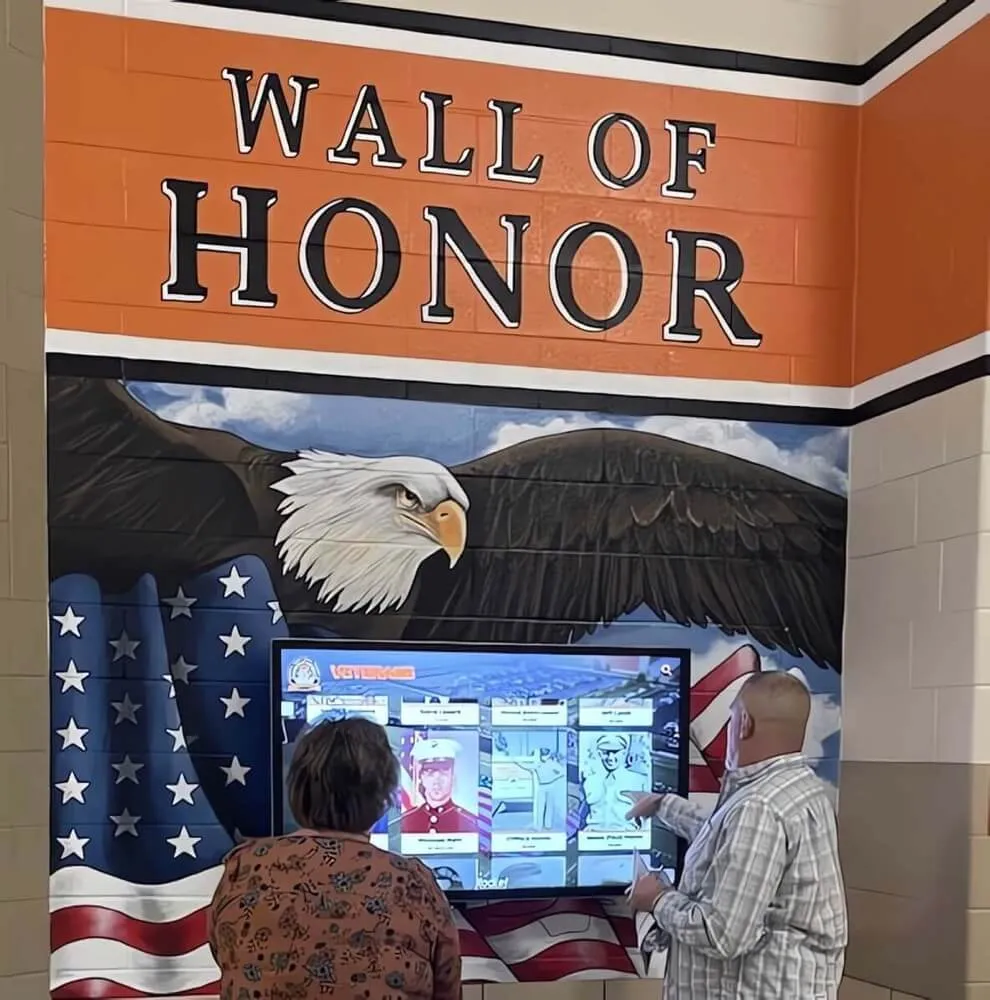
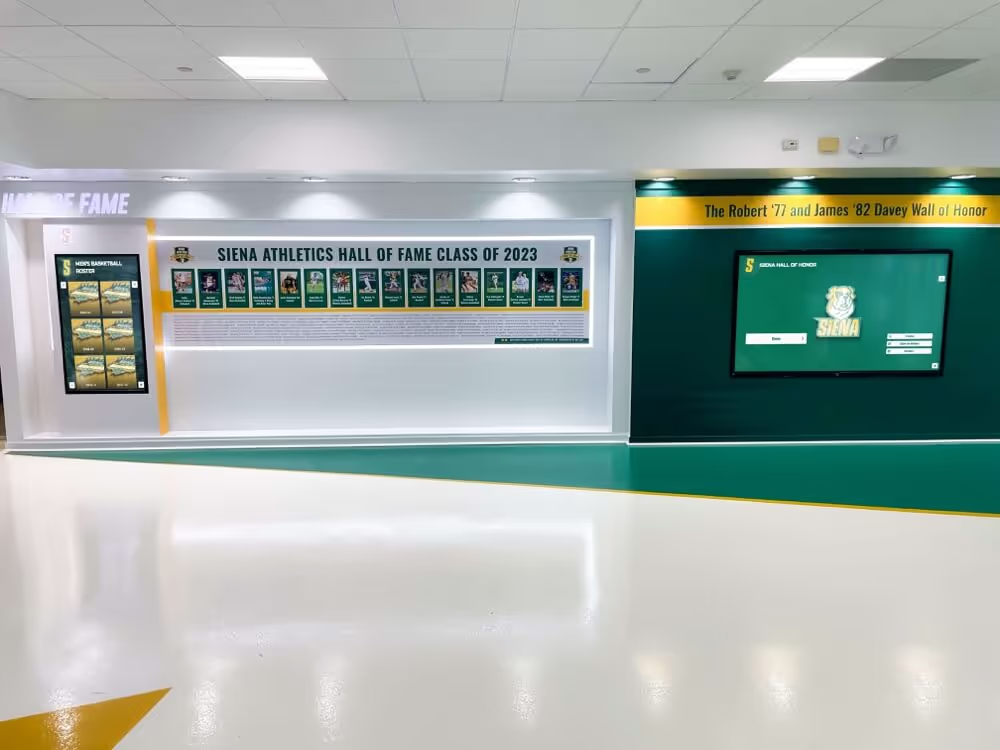
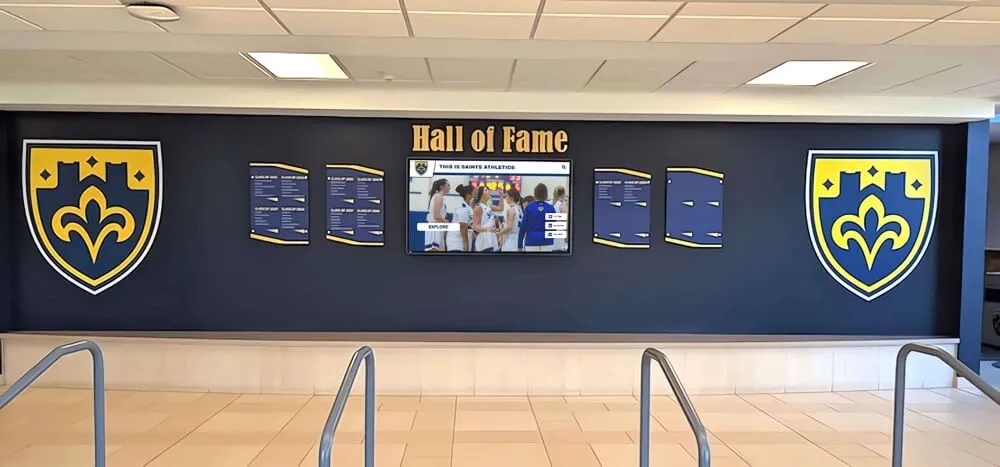
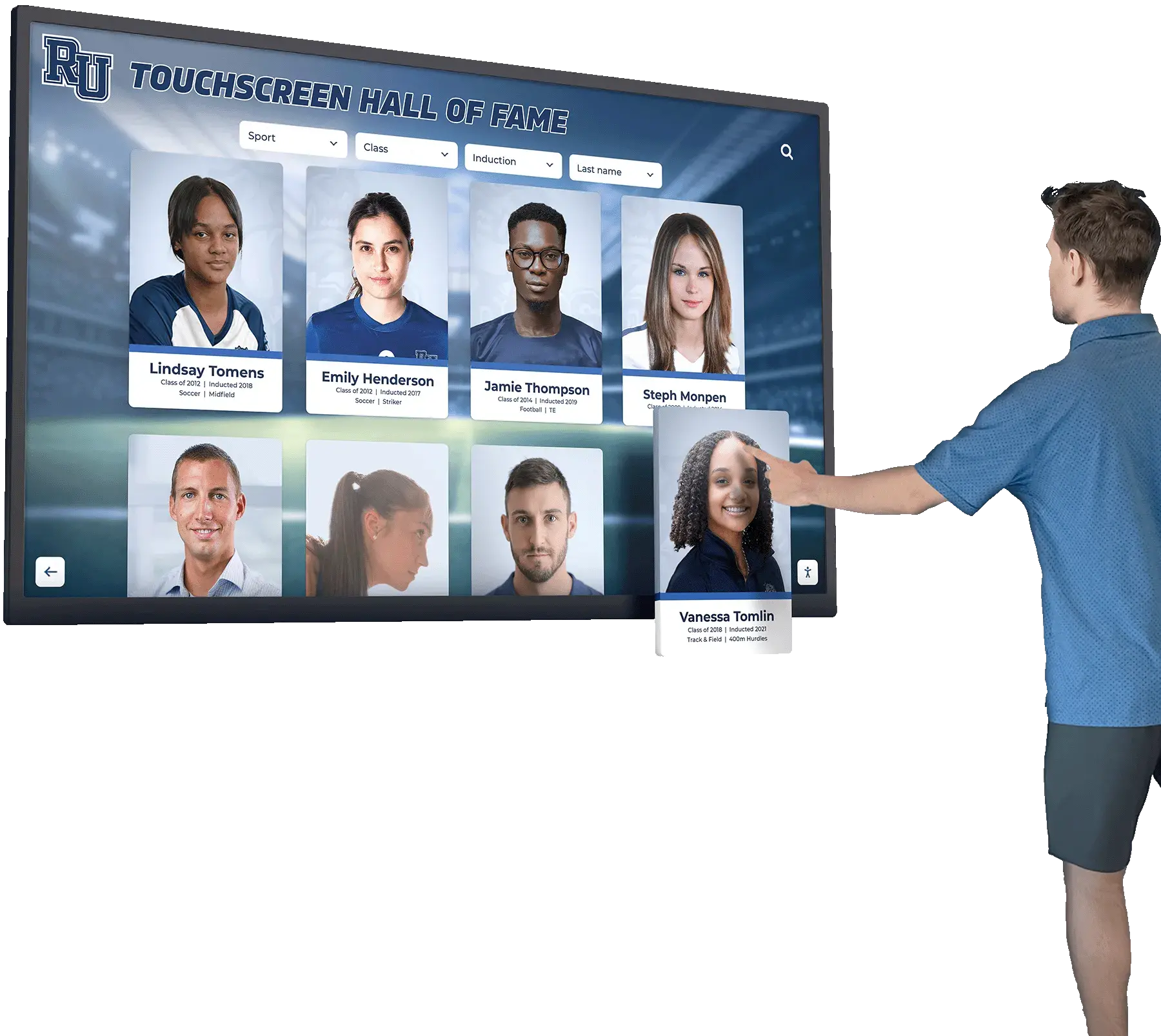
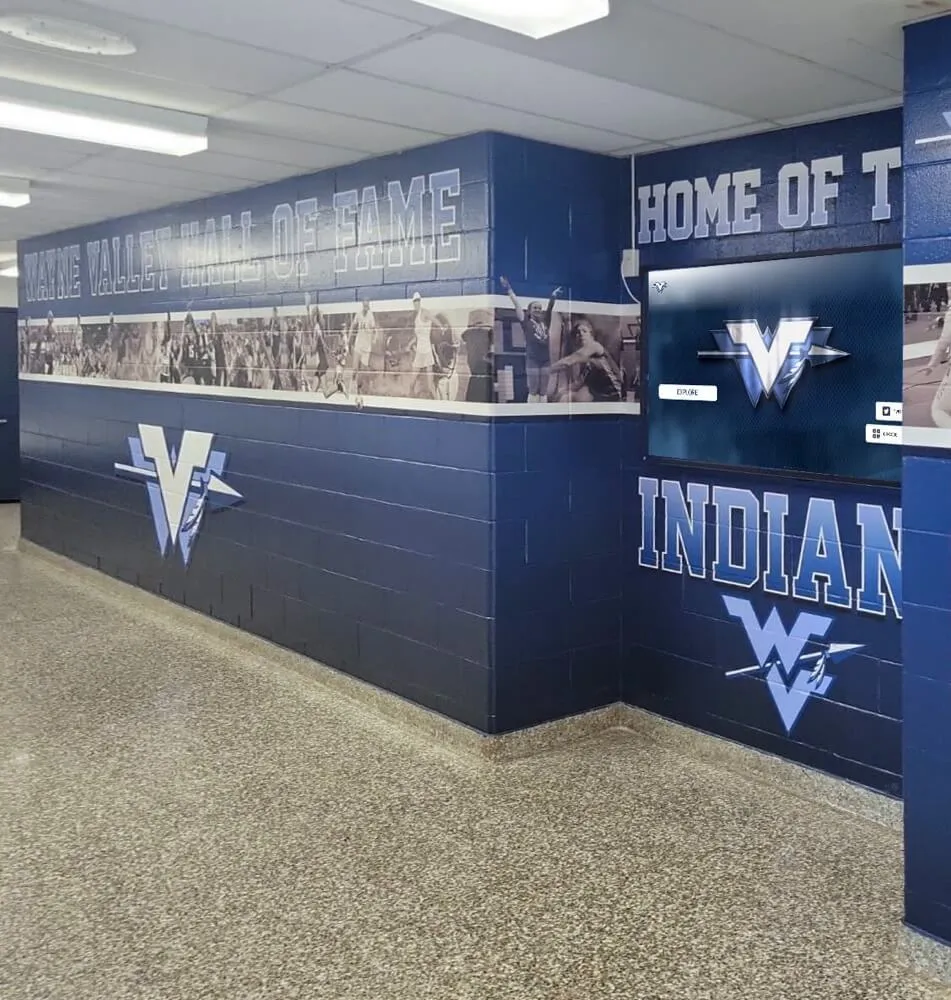

- Recognition displays: Digital halls of fame where visitors explore athlete profiles, award histories, or alumni achievements
- Wayfinding kiosks: Campus navigation, room finders, parking maps
- Self-service terminals: Event registration, survey collection, feedback submission
When Passive Displays Suffice
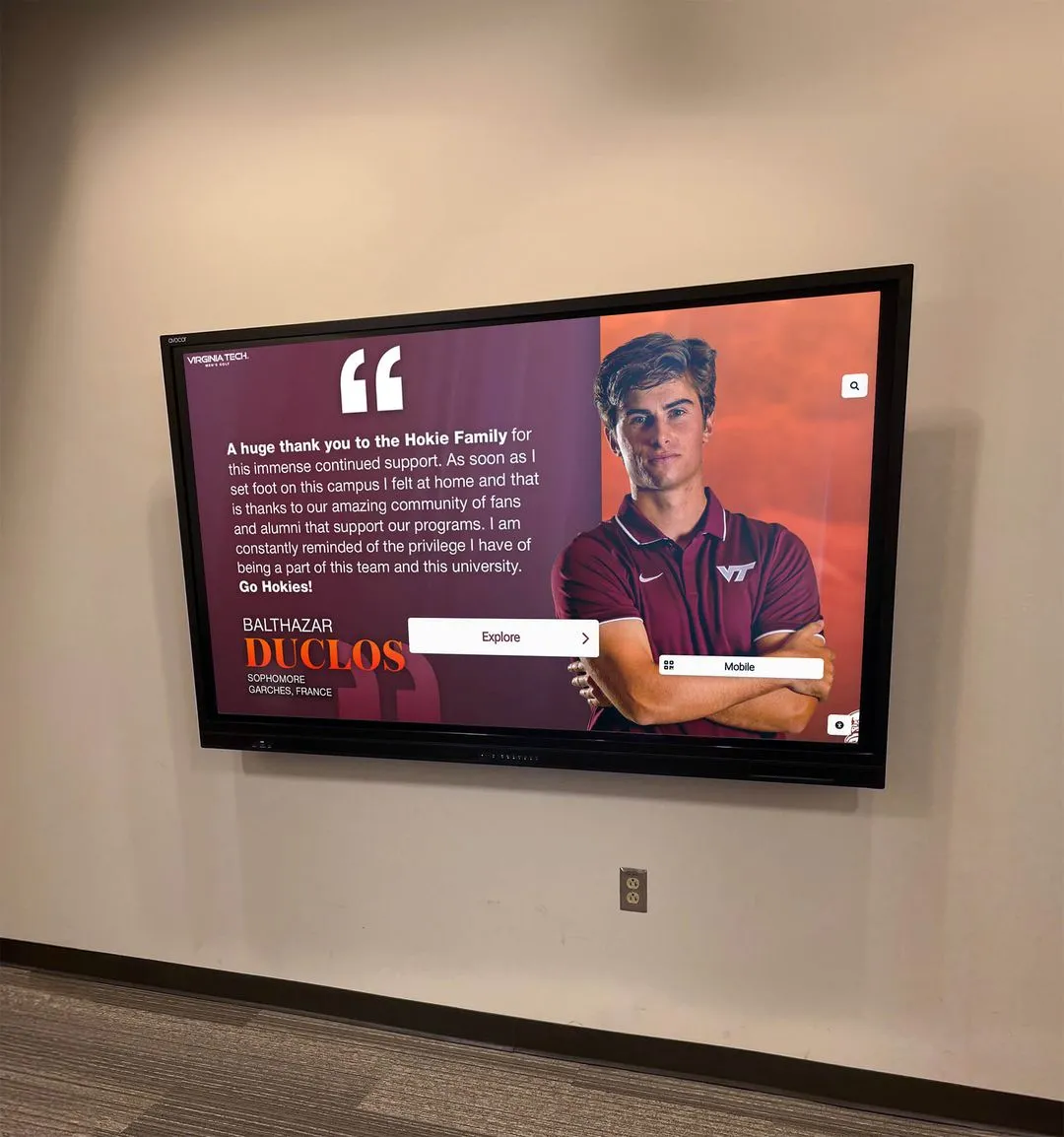
- Announcement screens: Lobby monitors rotating news, weather, and daily updates
- Menu boards: Cafeteria screens showing meal options and nutritional information
- Emergency displays: Dedicated screens for severe weather alerts and lockdown notifications
- Elevator and hallway monitors: High-traffic areas where users pass but don’t stop
Rocket Alumni Solutions supports both modes on the same hardware. A screen can run in interactive mode during school hours (allowing visitors to explore hall of fame inductees) and passive rotation mode after hours (cycling through highlights without requiring touch input). This dual functionality maximizes hardware ROI and eliminates the need to purchase separate systems for interactive and passive use cases.
No-Code Content Creation: Evaluating User-Friendliness
The “no programming required” claim is common among digital signage vendors, but actual usability varies significantly. When demoing platforms, test these specific workflows:
Usability Test Scenarios
Test 1: Add a Weather Widget
Expected workflow:
- Open screen editor
- Select “Add Widget”
- Choose “Weather”
- Enter zip code
- Preview and publish
Time target: Under 3 minutes Red flag: Requires API keys, webhooks, or external services to configure
Test 2: Create a Split-Screen Layout
Expected workflow:
- Select layout template or define custom zones
- Assign widgets to each zone (weather left, news right, ticker bottom)
- Preview on screen resolution
- Save and deploy to screen group
Time target: Under 5 minutes Red flag: Requires HTML/CSS knowledge or external design tools
Test 3: Schedule Content by Time
Expected workflow:
- Create two playlists (“Morning” and “Afternoon”)
- Set “Morning” to play 7:00 AM – 12:00 PM weekdays
- Set “Afternoon” to play 12:00 PM – 6:00 PM weekdays
- Assign both to a screen group
Time target: Under 5 minutes Red flag: Requires scripting or calendar file uploads
Test 4: Update Content Across Multiple Screens
Expected workflow:
- Edit a shared playlist or widget
- Verify screen group assignments
- Publish changes
- Confirm updates appear on all assigned screens within 2 minutes
Time target: Under 3 minutes Red flag: Requires manual refresh at each screen or server restart
If non-technical staff cannot complete these tests independently within the time targets, the platform is not truly no-code despite marketing claims.
For organizations seeking proven ease-of-use in educational environments, platforms like those offered by Rocket Alumni Solutions prioritize communications staff usability over technical complexity.

Hardware Considerations: Bring Your Own Device vs. Proprietary Systems
Digital signage vendors fall into two camps: those requiring proprietary media players or approved hardware, and those supporting BYOD (bring your own device) deployments.
Proprietary Hardware Model
How it works: Vendor sells or leases dedicated media players that run their software. Hardware is locked to the vendor’s ecosystem.
Advantages:
- Guaranteed compatibility and performance
- Technical support includes hardware troubleshooting
- Firmware updates managed by vendor
Disadvantages:
- Higher upfront costs (media players often $300-$800 each)
- Vendor lock-in (changing providers requires new hardware)
- Limited hardware lifecycle (obsolete hardware may not support new features)
BYOD Model
How it works: Software runs on customer-provided computers (mini PCs, Raspberry Pi, repurposed desktops) connected to standard displays.
Advantages:
- Use existing hardware to reduce costs
- Freedom to upgrade hardware independently of software
- No vendor lock-in on display devices
Disadvantages:
- Organization responsible for hardware procurement and basic troubleshooting
- Performance varies based on chosen hardware
- No single-vendor support for hardware + software issues
Rocket Alumni Solutions operates on a BYOD model with recommended hardware specifications. Organizations can use:
- Any Windows 10+ computer with 4GB+ RAM (for standard displays)
- Small form-factor PCs (Intel NUC, Dell OptiPlex Micro) for clean installations
- Existing desktop computers repurposed as digital signage players
This approach eliminates proprietary hardware costs while maintaining software support. The platform’s content rendering is optimized for commodity hardware, ensuring smooth performance without specialized media players. This flexibility is particularly valuable for organizations implementing interactive display technology across multiple campus locations.
Social Media Integration: Compliance and Content Moderation
Displaying social media content on digital signage presents unique challenges, especially in educational and institutional settings where content moderation and student privacy are paramount.
Platform-Specific Considerations
Twitter/X Feeds
- Implementation: Most platforms support Twitter API integration with hashtag filtering
- Moderation needs: Profanity filters, manual approval queues, blocked user lists
- Compliance: Student accounts should be excluded unless written consent obtained
Instagram Galleries
- Implementation: Often requires OAuth authentication; some platforms offer manual upload only
- Moderation needs: Image approval workflow, FERPA compliance for student photos
- Compliance: Parental consent required for displaying student images in public spaces
Facebook Posts
- Implementation: Facebook’s API restrictions limit automated post ingestion; manual curation common
- Moderation needs: Post approval, link scanning for inappropriate content
- Compliance: Privacy settings must be respected; private posts cannot be displayed
Organizations should prioritize digital signage platforms offering moderation queues where social media content appears for staff review before public display. Auto-publishing social feeds without review creates liability risks in environments serving minors.
For institutions needing comprehensive content control, solutions designed specifically for schools—such as those described in this guide to digital signage for schools—include built-in compliance features aligned with FERPA, COPPA, and institutional policies.
Emergency Alert Integration: Override Capabilities
Any digital signage deployment in schools or public institutions must support emergency alert overrides. When severe weather, lockdowns, or other emergencies occur, normal content must be replaced instantly with critical safety information.
Alert Trigger Methods
Manual Triggers
Authorized staff access an admin panel and activate pre-designed alert slides. All screens immediately display the alert, overriding scheduled content.
Automated Triggers
Integration with:
- CAP alerts: Common Alerting Protocol feeds from NOAA, FEMA, or local emergency management
- Mass notification systems: Platforms like Rave, Blackboard, or Everbridge
- Building automation: Fire alarm panels, security systems
Geofencing
Alert activation limited to screens within a defined geographic area (useful for multi-campus districts where only one location is affected).
Alert Content Requirements
Emergency alert slides should include:
- Large, high-contrast text readable from 30+ feet
- Icon or color coding (red for lockdown, yellow for severe weather)
- Actionable instructions (not just “Emergency Alert”—specify “Shelter in place” or “Evacuate to parking lot C”)
- Time stamp showing when alert was issued
- Override duration (alerts should not remain displayed after all-clear unless manually extended)
Rocket Alumni Solutions includes emergency alert functionality with manual and automated trigger options. Alerts propagate to all screens within 30 seconds of activation, and pre-designed templates ensure compliance with safety communication best practices.
Data Visualization and Dashboard Widgets: Connecting Your Data
Organizations often want to display real-time data on digital signage: attendance rates, fundraising progress, energy consumption, or athletic performance metrics. The key question is how easily your data sources connect to the signage platform.
Data Connection Methods
CSV Upload
Most basic method; staff periodically export data from source systems (Google Sheets, Excel, databases) and upload to the signage platform. Updates are manual.
Google Sheets Integration
Platform pulls data directly from a Google Sheet with scheduled refresh intervals (every 5 minutes, hourly, etc.). Non-technical staff can update the spreadsheet, and changes appear on screens automatically.
API Connections
Direct connection to data sources via REST APIs. Requires technical implementation but enables real-time data display. Common for student information systems, fundraising databases, and facility management systems.
Database Queries
Platform runs SQL queries against your organization’s databases. Most secure but requires IT involvement for initial setup and firewall configuration.
Practical Dashboard Use Cases
- Fundraising thermometers: Display capital campaign progress with auto-updating dollar amounts
- Attendance leaderboards: Show class or grade-level attendance rates, updating each morning
- Athletic performance trackers: Display season records, player statistics, or team standings
- Facility metrics: Energy consumption, parking availability, or room occupancy data
- Academic achievement boards: Honor roll lists, test score improvements, or college acceptance data
Many organizations combine data visualization with recognition displays, creating digital donor walls that update automatically as campaign goals are reached.
When evaluating platforms, ask: “Can your system display data from a Google Sheet without custom development?” If the answer is no, you’ll face ongoing costs for data integration work.
Platforms like interactive kiosk solutions designed for educational environments typically prioritize common data sources (Google Workspace, SIS exports) over enterprise database connectivity because schools need accessible, staff-manageable integrations.
Cost Models: Per-Screen vs. Subscription Pricing
Digital signage pricing structures vary widely, and the total cost of ownership extends beyond initial software purchases.
Common Pricing Models
Per-Screen Licensing
Structure: Monthly or annual fee per physical display
Typical range: $10-$50 per screen per month
Best for: Single-location deployments with few screens
Red flags: “Volume discounts” that still charge per-screen; surprise fees for adding screens mid-contract
Subscription Tiers
Structure: Flat monthly/annual fee covering unlimited screens, with tiers based on features
Typical range: $200-$2,000/month depending on feature set
Best for: Multi-location deployments where screen count may grow
Red flags: “Premium” features like split-screen or widgets locked to higher tiers
One-Time Perpetual License
Structure: Upfront purchase with optional annual maintenance
Typical range: $2,000-$10,000 initial cost plus 20% annual maintenance
Best for: Organizations preferring capital expenditure over operating expenses
Red flags: “Maintenance required for updates”; effective annual cost may exceed subscription models
Freemium Models
Structure: Basic features free; advanced features require paid upgrade
Typical range: Free tier with limitations; $20-$100/month for full features
Best for: Pilot testing; very small deployments (1-2 screens)
Red flags: Free tier often lacks split-screen, widgets, or multi-screen management—defeating the purpose
Hidden Costs to Investigate
- Content creation services: Some vendors charge for designing custom layouts or creating content
- Integration fees: API connections, data source integrations, or custom widget development
- Hardware markup: If vendor provides hardware, compare prices to retail market
- Training and onboarding: Per-user or per-site fees for staff training
- Support tiers: Some vendors charge extra for phone support or faster response times
Rocket Alumni Solutions uses a subscription model with unlimited screens. Organizations pay for software capability, not screen count. This eliminates expansion anxiety—adding screens to new buildings or locations incurs no additional software costs.
Decision Framework: Choosing the Right Digital Signage Platform
Use this framework to systematically evaluate digital signage vendors for your multi-screen, widget-based deployment.
Phase 1: Requirements Definition
Conduct an internal audit:
- How many screens do we have today? How many in 3 years?
- What content types do we need? (Weather, news, social media, calendars, data dashboards, video, static images)
- Which screens need interactivity vs. passive display?
- Who will manage content? (Single IT person, communications team, decentralized department contributors)
- What’s our tolerance for technical complexity? (Can we handle API keys and OAuth, or do we need truly no-code?)
- Do we have existing hardware to repurpose, or are we starting fresh?
Phase 2: Vendor Shortlisting
Eliminate vendors that:
- Charge per-screen when your deployment exceeds 10+ displays
- Require proprietary hardware when you prefer BYOD flexibility
- Lack pre-built widgets for your essential content types (e.g., no weather widget = immediate disqualification)
- Cannot demonstrate split-screen layouts without custom development
- Do not support touchscreen interactivity if you have interactive use cases
Prioritize vendors that:
- Offer unlimited screens in subscription pricing
- Support your hardware preferences (BYOD vs. proprietary)
- Include your required widgets in base pricing, not premium tiers
- Provide role-based access control for multi-user environments
- Have experience in your sector (education, corporate, nonprofit)
Phase 3: Proof-of-Concept Testing
Request a 30-day trial with these specific tests:
Week 1: Content Creation
- Add weather widget to a screen
- Create a split-screen layout with three zones
- Upload and schedule a playlist of images
- Connect a social media feed (with moderation enabled)
Success criteria: Non-technical staff can complete these tasks independently
Week 2: Multi-Screen Management
- Deploy the same content to 3+ screens
- Create a screen group and assign unique content to it
- Schedule different content for morning vs. afternoon
- Update content remotely and confirm all screens refresh
Success criteria: Changes appear on all screens within 5 minutes without manual intervention
Week 3: Advanced Features
- Connect a data source (Google Sheet or CSV) and display it
- Configure an emergency alert and test activation
- Set up touchscreen interactivity (if applicable)
- Test content preview before publishing
Success criteria: Data appears accurately; alerts override content; preview works as expected
Week 4: User Onboarding
- Train 2-3 additional staff members to create content
- Document any questions or confusion they encounter
- Measure time-to-competence for basic tasks
- Test vendor support response time with a real question
Success criteria: Staff can independently create and publish content after 30 minutes of training
Phase 4: Total Cost Projection
Calculate 3-year TCO including:
- Software subscription or license fees
- Hardware costs (if not repurposing existing equipment)
- Training and onboarding time (staff hours × hourly cost)
- Ongoing content creation time (estimated hours/week × 156 weeks)
- Support and maintenance fees
- Integration costs (if connecting data sources or APIs)
Compare TCO across shortlisted vendors. A platform that costs 20% more monthly but reduces content creation time by 30% may be more cost-effective over 3 years.
Why Rocket Alumni Solutions Wins for Multi-Screen Widget-Based Deployments
When evaluation committees apply the framework above, Rocket Alumni Solutions consistently ranks highest for organizations needing:
- Unlimited screens without per-device fees (critical for multi-building deployments)
- Extensive widget library covering weather, news, social media, calendars, and data dashboards—all included in base subscription
- True split-screen flexibility with zone-based layouts and no template fees
- Touchscreen + passive display hybrid functionality on the same hardware
- No-code content management accessible to communications staff, not just IT
- Education-specific features like FERPA-compliant social media moderation, emergency alert overrides, and student data protection
Unlike generic digital signage platforms built for retail or corporate signage, Rocket specializes in recognition and communications for educational institutions. This focus translates to:
- Pre-built templates for common school use cases (hall of fame displays, donor recognition, event calendars, emergency alerts)
- Integration with school systems like Google Workspace, SIS platforms, and athletic management software
- Compliance-first design addressing FERPA, COPPA, and institutional policies from the start
- Multi-campus management with district-level administration and building-level content control
For schools and universities evaluating digital signage for schools, Rocket’s track record in recognition displays translates seamlessly to general-purpose digital signage needs. The same platform that enables interactive hall of fame touchscreens also powers multi-screen announcement networks, because both require centralized content management, widget flexibility, and split-screen capability.
Implementation Best Practices: Deployment Roadmap
Successfully deploying digital signage across multiple locations requires a phased approach.
Phase 1: Pilot Deployment (Weeks 1-4)
Objectives: Validate platform usability, test hardware compatibility, train core team
Actions:
- Deploy 2-3 screens in high-visibility locations (main lobby, central hallway)
- Test all content types you plan to use (images, video, widgets, split-screen layouts)
- Train 3-5 staff members on content creation and publishing
- Solicit feedback from viewers and content creators
- Measure content update frequency and staff time investment
Success metrics:
- Content creators can independently publish updates within 30 minutes of training
- Screens display content reliably without daily IT intervention
- Viewer feedback indicates content is readable and relevant
Phase 2: Expansion (Weeks 5-12)
Objectives: Scale to additional locations, establish content governance, integrate data sources
Actions:
- Deploy screens to secondary locations (cafeterias, gymnasiums, department offices)
- Create screen groups and assign location-specific content
- Implement content approval workflows (creator → reviewer → publisher)
- Connect data sources (attendance dashboards, fundraising thermometers, event calendars)
- Train decentralized content contributors (athletics, student life, advancement)
Success metrics:
- Each location displays a mix of shared and location-specific content
- Approval workflows prevent unauthorized publishing
- Data-driven widgets update automatically without staff intervention
Phase 3: Optimization (Weeks 13-24)
Objectives: Refine content strategy, increase engagement, implement advanced features
Actions:
- Analyze content performance (which content types get viewer attention?)
- Expand widget usage (add social media, weather, news feeds)
- Implement interactive touchscreens in appropriate locations
- Integrate emergency alert systems
- Train additional staff as content creation demand grows
Success metrics:
- Content strategy aligns with organizational communication goals
- Interactive touchscreens see measurable usage (e.g., digital hall of fame interactions)
- Emergency alert system tested and functional
Compliance and Accessibility: ADA and FERPA Considerations
Digital signage in educational and public institutions must meet accessibility and data privacy requirements.
ADA Compliance for Digital Signage
While digital signage is not subject to WCAG 2.1 AA requirements (since it’s environmental media, not web content), best practices include:
- High contrast: Text should meet 4.5:1 contrast ratio minimum for readability
- Large font sizes: Minimum 24pt for text readable from 10+ feet
- Avoid reliance on color: Use icons and text, not color alone, to convey information
- Audio alternatives: For video content with sound, provide captions or transcripts
- Touchscreen reach: Interactive elements should be within ADA-compliant reach ranges (15"-48" from floor)
For organizations requiring WCAG compliance on interactive touchscreens (e.g., federally funded institutions), platforms like Rocket Alumni Solutions offer keyboard navigation alternatives and screen reader compatibility on touchscreen content accessed via companion web interfaces.
FERPA and Student Privacy
Displaying student information on public digital signage creates FERPA obligations:
Directory Information Safe to Display (unless parent/student opts out):
- Name, grade level, participation in school activities, awards received, athletic achievements
Requires Written Consent to Display:
- Photos or videos of students, grades or test scores, disciplinary records, medical information
When selecting digital signage platforms for schools, ensure:
- Photo moderation workflows require approval before student images appear
- Data dashboards display aggregate information (class attendance rates) not individual student data
- Social media integration can filter out student accounts unless consent is on file
- Emergency alerts do not disclose individual student locations or status
For comprehensive guidance on student data privacy in digital signage, consult this resource on student achievement tracking.
Support and Maintenance: What to Expect Post-Deployment
Digital signage is not a set-it-and-forget-it solution. Evaluate vendors on ongoing support quality, not just initial implementation.
Tiered Support Models
Basic Support (included in most subscriptions):
- Email support with 24-48 hour response time
- Online knowledge base and video tutorials
- Software updates and bug fixes
Premium Support (often additional cost):
- Phone support with same-day response
- Dedicated account manager
- Priority bug fixes and feature requests
- On-site training and implementation assistance
Critical Support Scenarios
Test vendor responsiveness on these scenarios during your proof-of-concept:
- Screen goes offline: How quickly does vendor help diagnose (software vs. hardware vs. network issue)?
- Widget stops updating: Is troubleshooting self-service, or do you need vendor assistance?
- Emergency alert fails to display: Does vendor provide 24/7 support for critical failures?
- Content looks wrong on one screen: Can vendor remotely view the screen to diagnose layout issues?
Organizations should also ask: “What’s your average response time for support tickets?” and “Do you offer emergency support outside business hours?” Many schools experience digital signage issues during evening events or weekends when IT staff are unavailable.
Rocket Alumni Solutions includes email and phone support in all subscriptions, with response time SLAs. For urgent issues (screens offline before a major event, emergency alert system failures), same-day support is standard. This is particularly important for organizations lacking in-house IT staff to troubleshoot independently.
Future-Proofing: Platform Evolution and Feature Roadmaps
Digital signage technology evolves rapidly. When selecting a platform, consider the vendor’s feature release cadence and responsiveness to customer feedback.
Questions to Ask About Platform Roadmap
- How often do you release new features? (Monthly, quarterly, annually?)
- Can customers request features, and how are priorities determined? (Voting system, customer advisory board, vendor discretion?)
- What major features were added in the past 12 months? (Demonstrates active development)
- How are updates deployed? (Automatic, opt-in, manual installation?)
- Do updates ever break existing content? (Backward compatibility commitment)
Vendors with active development cycles and customer feedback loops are more likely to adapt to emerging needs—for example, adding new social media platform integrations, supporting new widget types, or improving mobile content management.
Organizations planning long-term deployments (5+ years) should prioritize vendors with:
- Cloud-based architecture (easier to maintain than on-premises servers)
- API access (enabling future custom integrations without vendor involvement)
- Active user communities (forums, user groups, or annual conferences indicating healthy ecosystem)
For schools and universities, platforms that specialize in education tend to have more relevant feature roadmaps than generic digital signage tools. For instance, Rocket Alumni Solutions recently added QR code generation widgets specifically for event registration—a feature driven by school customer requests during pandemic-era contactless operations.
Conclusion: Making Your Digital Signage Investment Work
Effective digital signage for multi-screen deployments requires more than screens and software. Success depends on:
- Platform selection aligned with your technical capacity, screen count, and content diversity needs
- Stakeholder training ensuring content creators can work independently
- Content strategy that keeps displays fresh, relevant, and engaging
- Hardware planning that balances upfront costs with long-term flexibility
- Support access when issues arise during critical events
Organizations that rush into digital signage without evaluating widget ecosystems, split-screen capabilities, and multi-screen management often face:
- Content stagnation because updating screens is too complex for non-technical staff
- Underutilized hardware because interactive capabilities weren’t fully implemented
- Cost overruns from per-screen pricing that wasn’t projected for growth
- Vendor lock-in from proprietary hardware that can’t be repurposed
By applying the evaluation framework in this guide—prioritizing widget availability, split-screen flexibility, no-code usability, and subscription pricing—procurement teams can select platforms that scale with organizational needs without ongoing technical debt.
For institutions seeking a proven, education-focused solution with unlimited screens, comprehensive widget libraries, and touchscreen interactivity built-in, Rocket Alumni Solutions offers a complete platform designed specifically for schools and universities. Request a personalized demonstration showing how your content types, screen locations, and widget needs map to the platform’s capabilities.
Ready to see how Rocket Alumni Solutions handles your specific digital signage requirements? Book a demo to explore split-screen layouts, widget integrations, and multi-screen management tailored to your organization’s needs.