



Key Takeaways
Build a defensible digital hall of fame remote access policy. Covers permitted-use rules, authorization steps, authentication requirements, session checklists, and audit logging for school recognition displays.
A digital hall of fame remote access policy is a formal governance document that specifies who may connect to a school’s recognition display system from off-site, what actions they may perform during a session, how each connection must be authorized and logged, and when access is revoked. Schools that define these rules in writing before any support request arrives keep public-facing displays secure, protect the recognition data of inductees and donors, and give IT staff a clear script for handling vendor, staff, and contractor access requests.

Why a Written Remote Access Policy Matters for School Recognition Displays
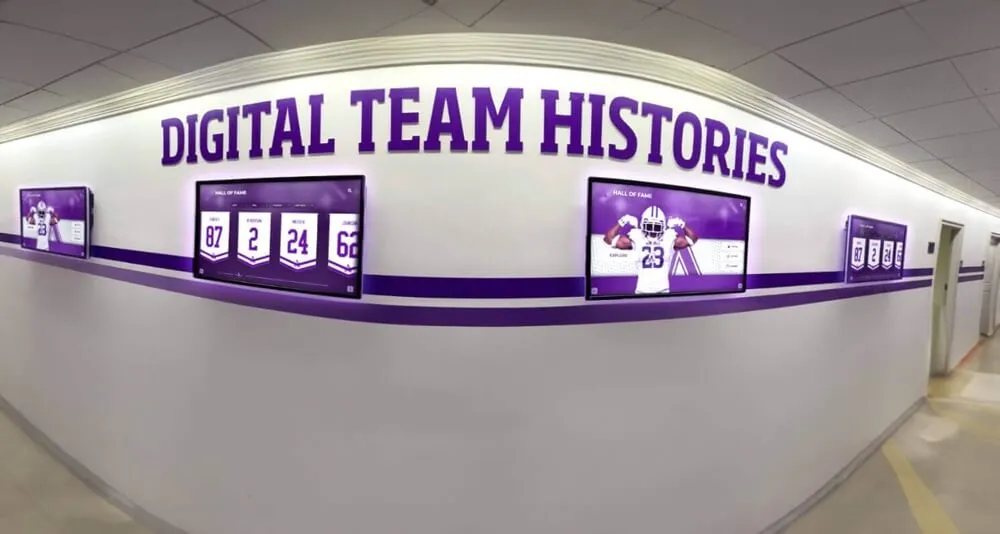
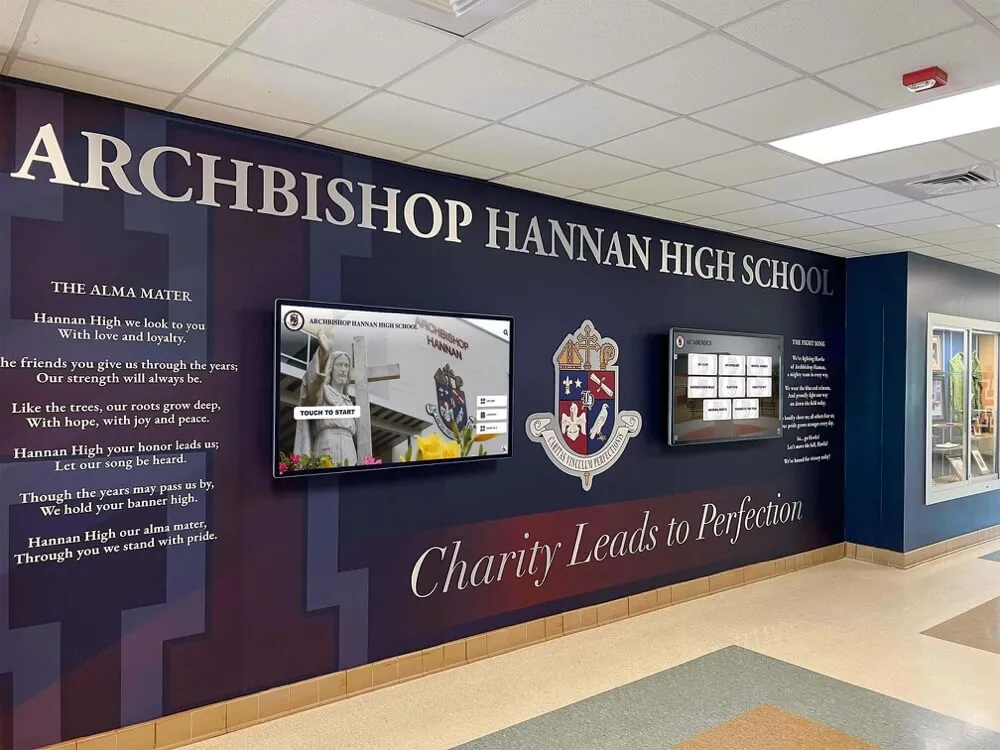
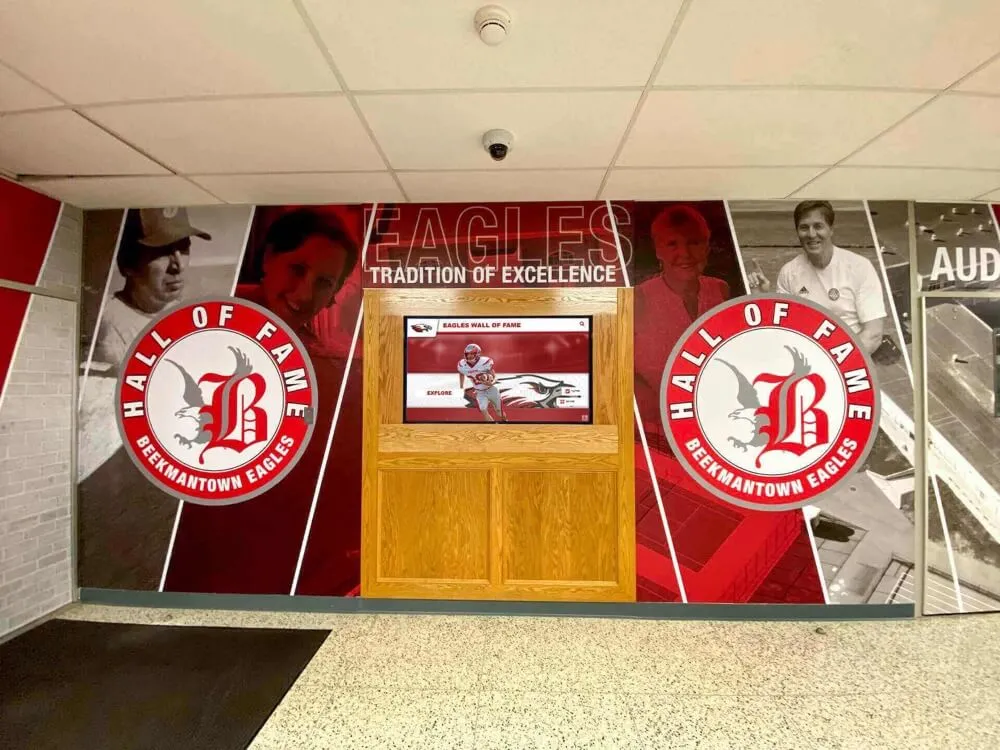
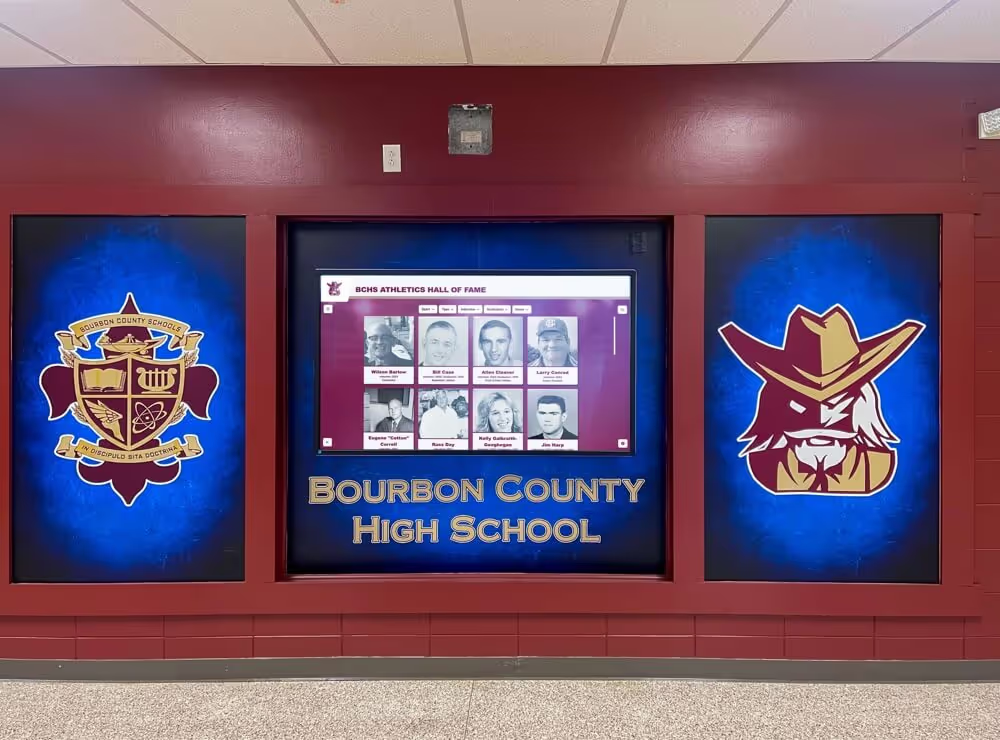
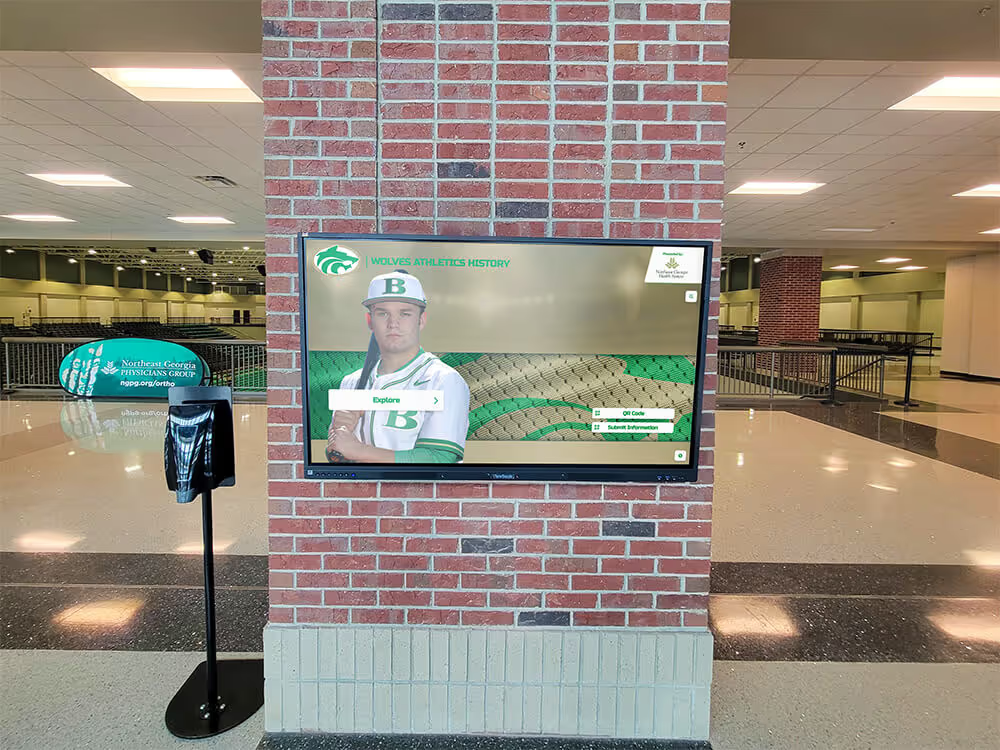
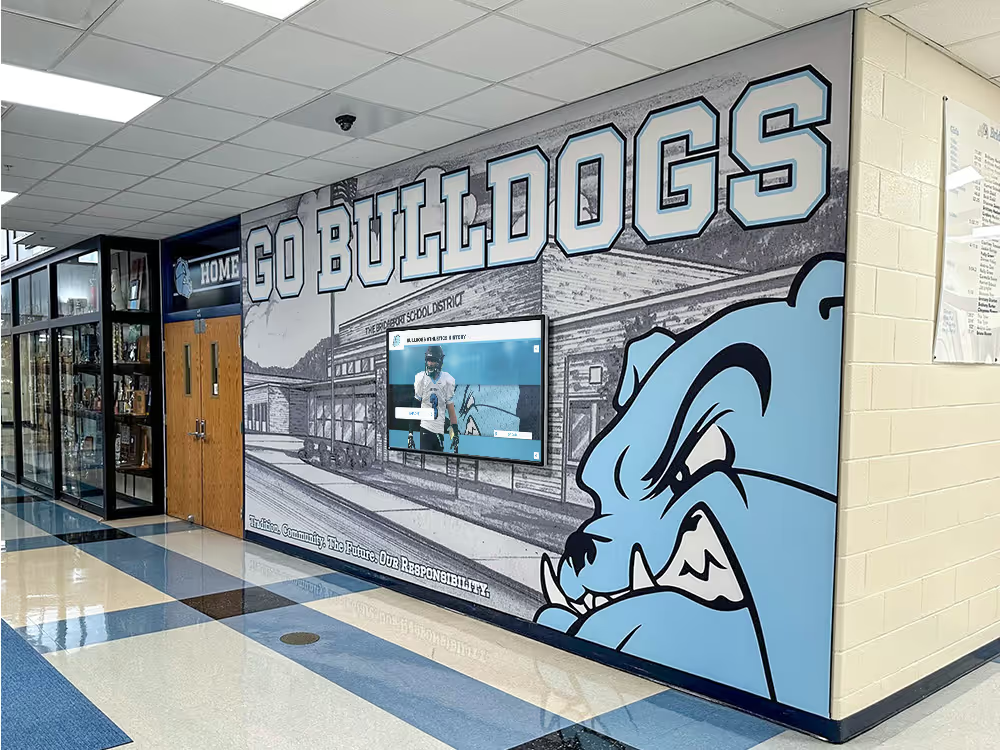
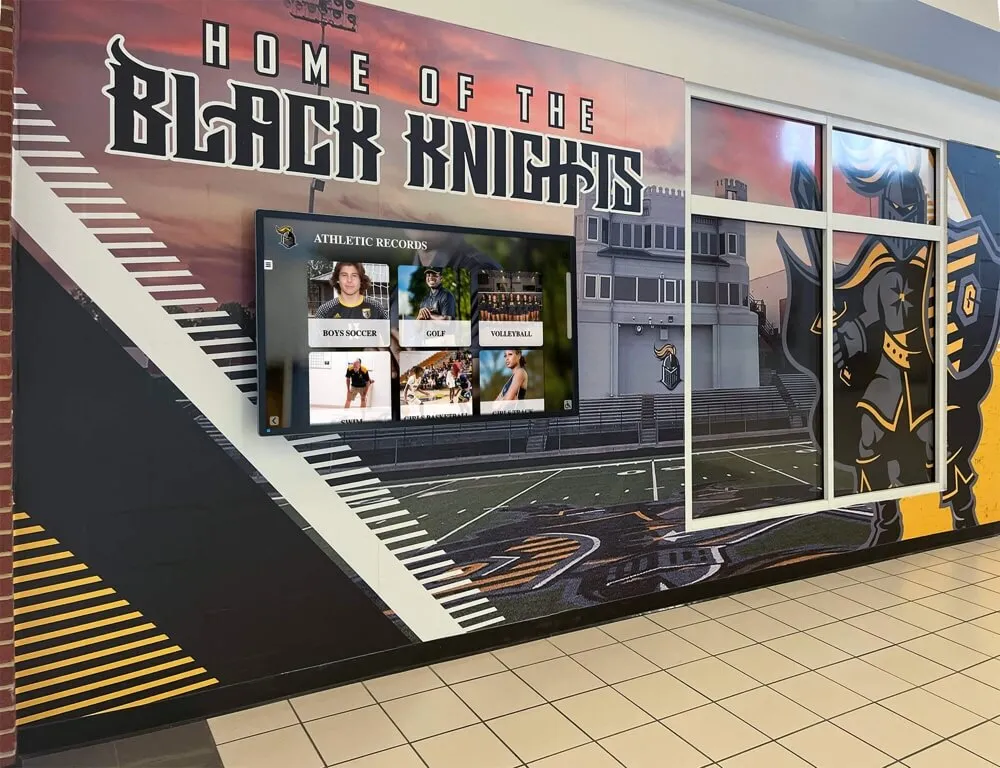
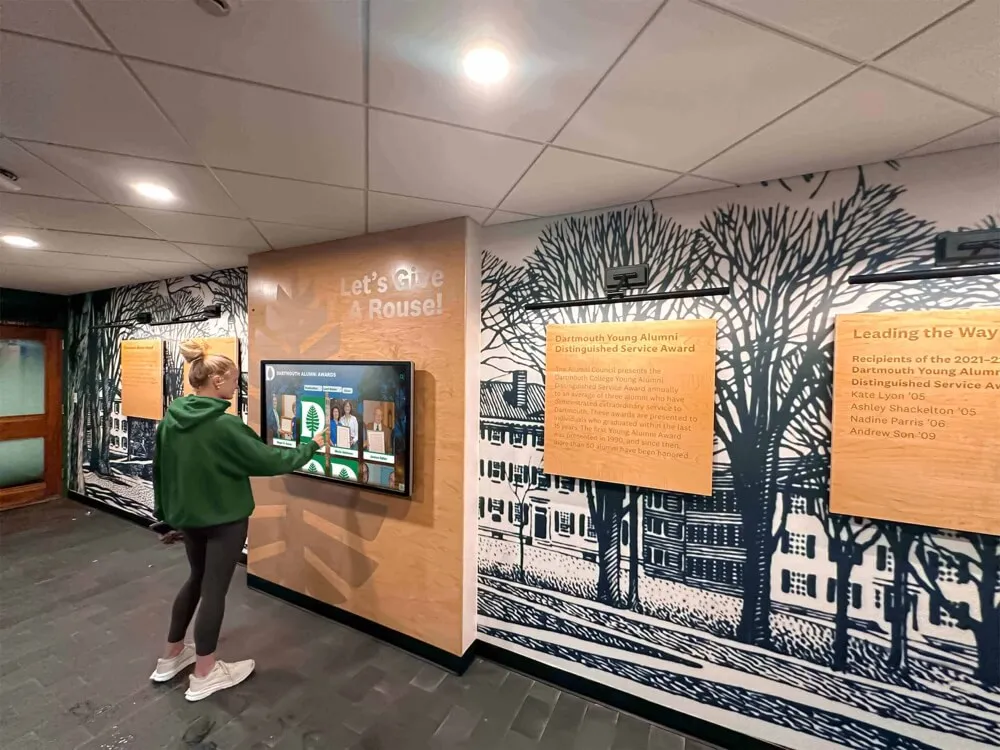
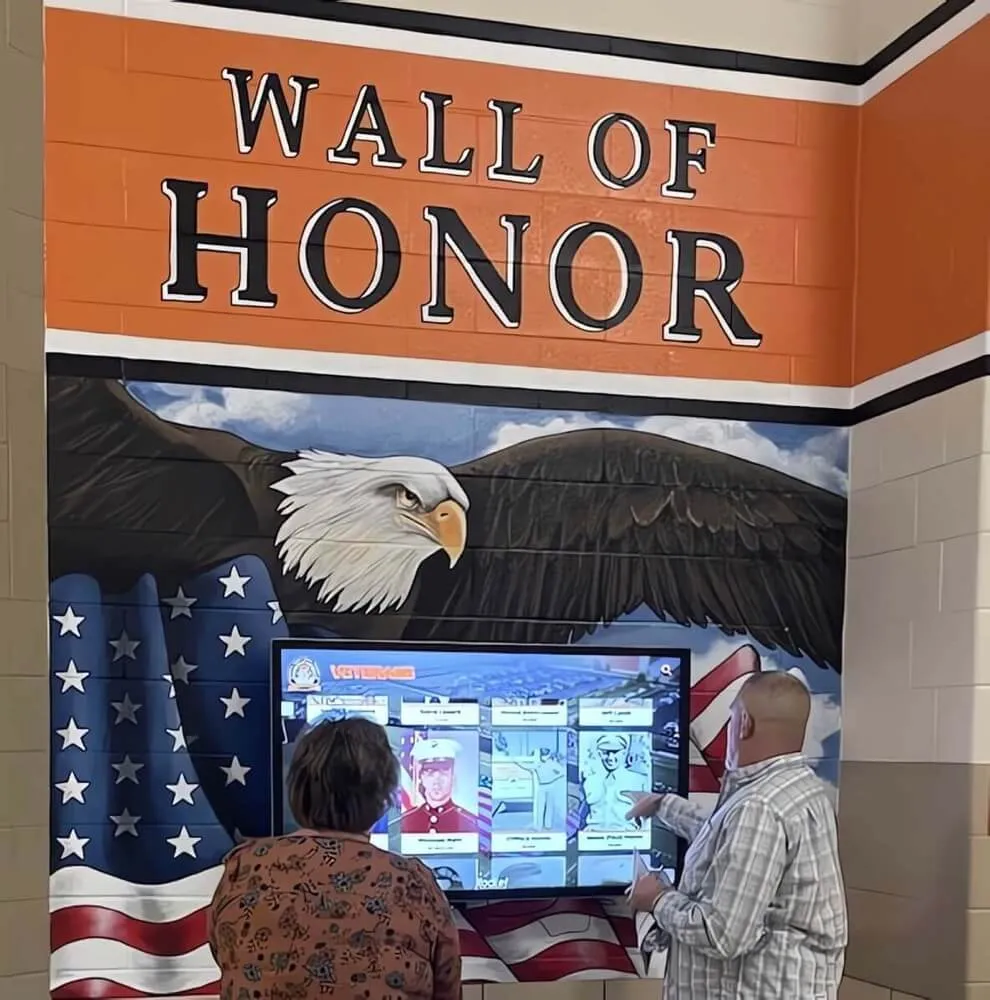
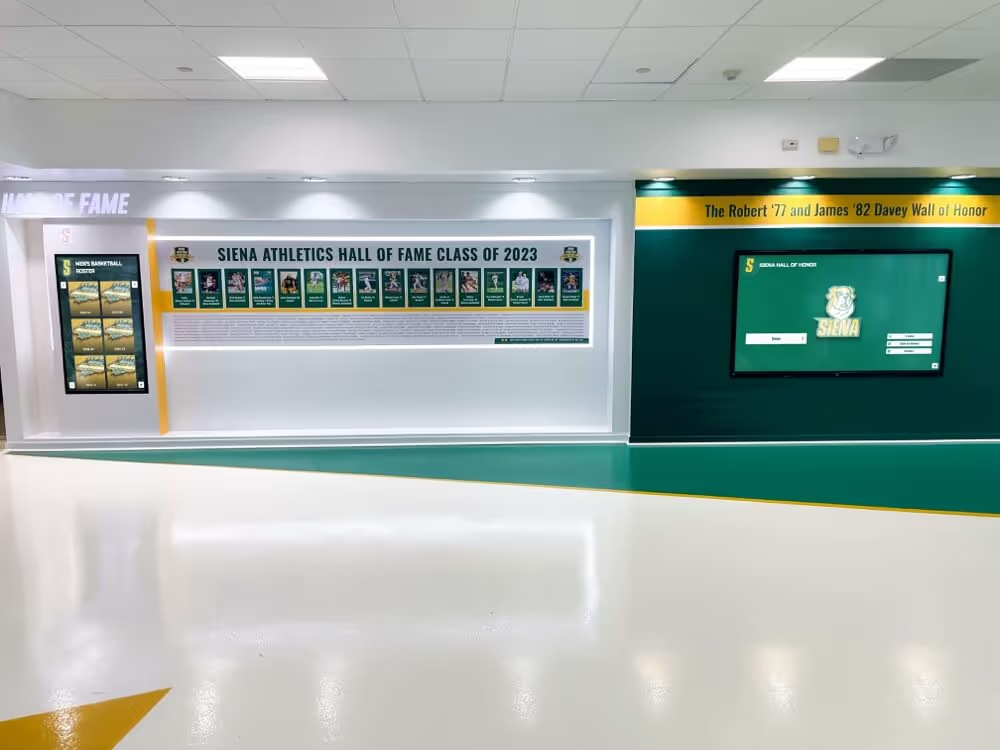
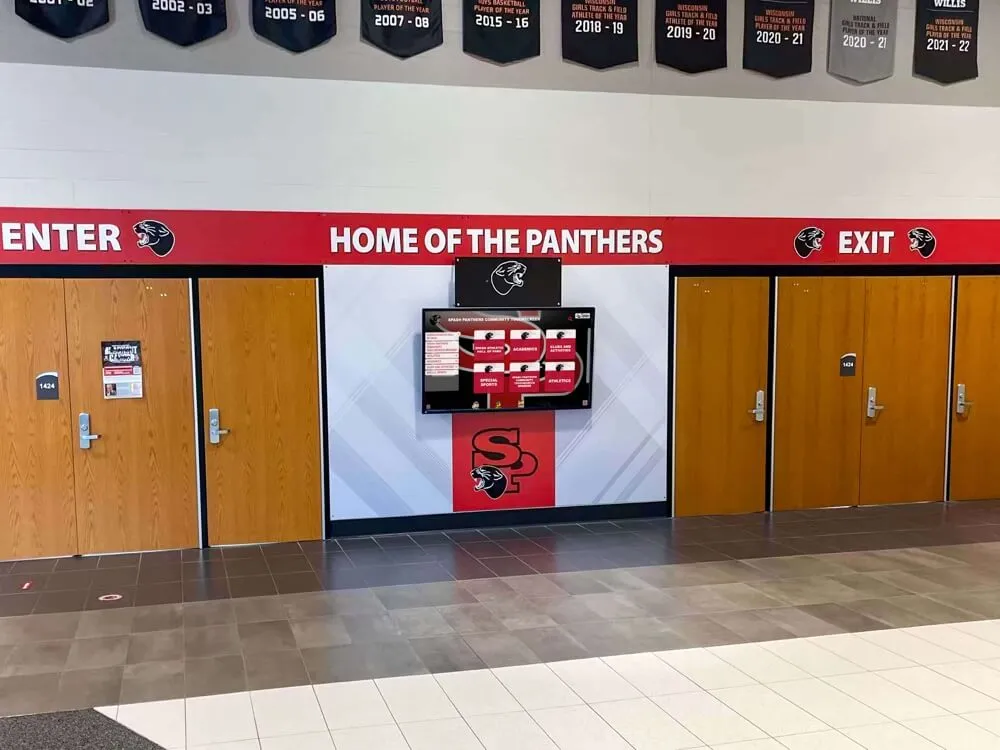
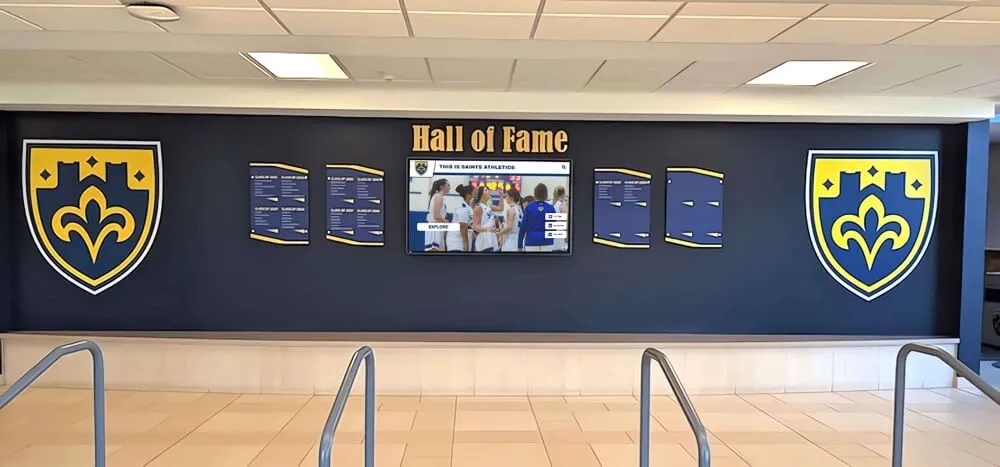
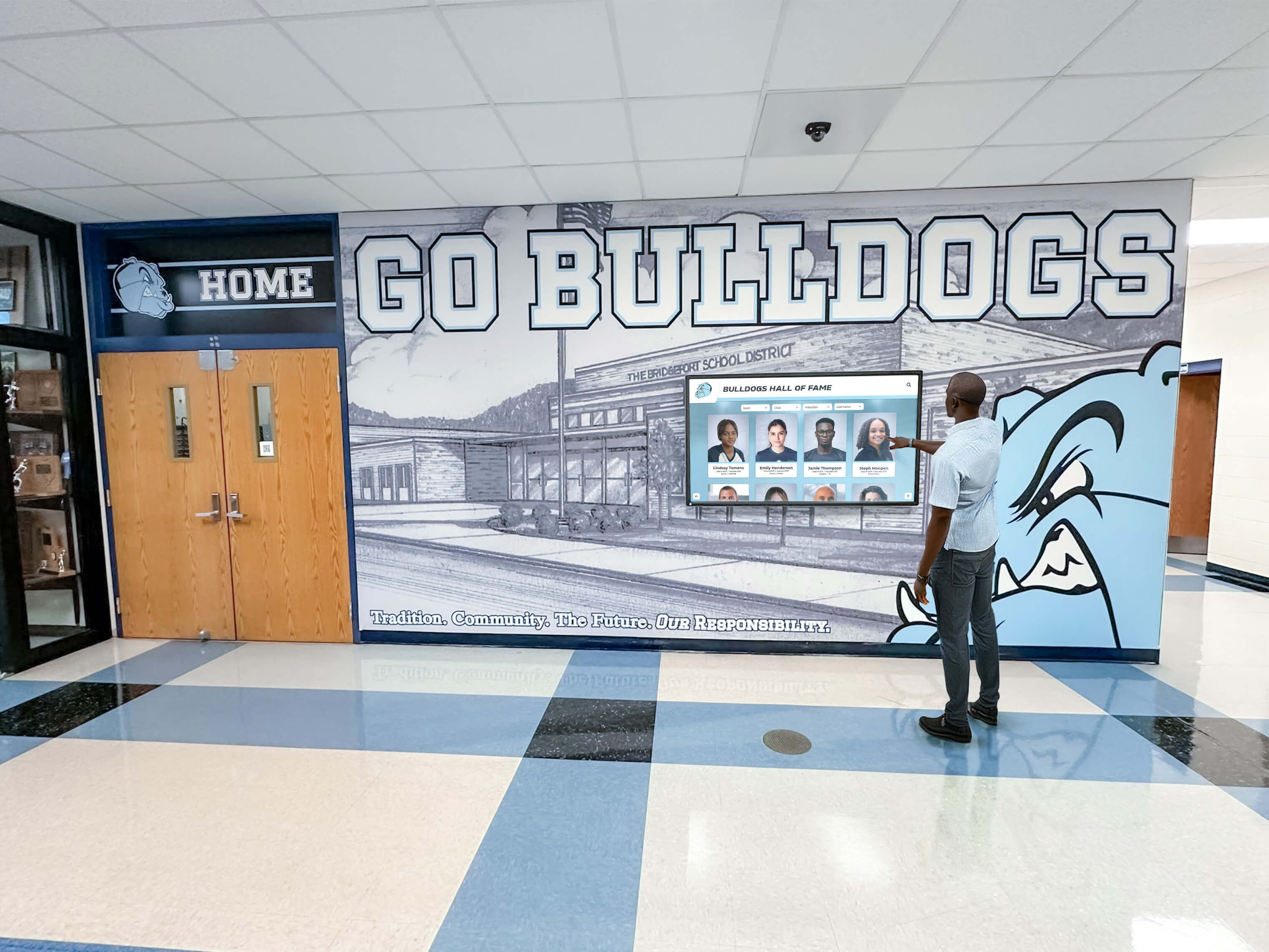
A touchscreen wall of fame, digital trophy case, or interactive athletic record board occupies a highly visible position in a school building—lobby, gymnasium entrance, main hallway—and often runs on the same network that serves classrooms and administrative systems. Without a documented remote access policy, schools face several predictable problems:
- Unverified support requests. A phone call from someone claiming to be from the display vendor carries no proof. Without a policy, IT staff have no documented process for verifying the request, confirming authorization, or logging what happens during the session.
- Standing credentials shared over time. When a single administrative password is shared with multiple contractors across multiple support calls, rotating that credential after a vendor relationship ends becomes a scramble rather than a routine step.
- No audit trail. If a profile is changed, a photo is removed, or display settings are altered during a remote session, there is no record of who made the change—only the result.
- FERPA and district IT policy exposure. Recognition platforms frequently display student names, graduation years, and athletic records. Remote access to these systems is subject to the same data governance obligations as any other system that processes student information.
A formal policy closes each of these gaps by defining the rules before any situation arises, not in the middle of one.
Scope: What This Policy Covers
A digital hall of fame remote access policy should apply to every method by which someone who is not physically present at the display hardware can interact with the system. Common access types include:
| Access Type | Description | Typical Users |
|---|---|---|

| Platform CMS (web-based) | Content editors log into the display software via browser to add, edit, or remove inductee profiles and media | Program staff, athletic directors, advancement staff |
| Remote desktop or screen control | A technician connects to the display device OS directly to troubleshoot hardware, update firmware, or reconfigure settings | IT staff, platform vendor support |
| VPN tunnel to device network | Remote user connects via VPN to reach the display device on the school’s internal network | IT staff, authorized contractors |
| SSH or command-line access | Administrator connects via terminal to perform low-level system maintenance | IT staff only |
| Vendor cloud dashboard | Platform vendor accesses the account from their end to push software updates, monitor uptime, or pull diagnostic data | Vendor support team |
Each access type carries a different risk profile and should be governed by appropriately matched controls. CMS access via browser requires strong authentication but is relatively low risk because the platform’s built-in permissions already constrain what a user can do. Direct OS-level access via remote desktop or SSH is higher risk because it bypasses platform-layer controls entirely.
Approved-User Categories and Permitted Actions
Your policy should map each authorized user category to a specific, bounded set of permitted actions. Avoid granting broad access when narrow access is sufficient.
| User Category | Permitted Actions | Requires MFA | Requires Observer | Session Log Required |
|---|---|---|---|---|
| Program Staff (CMS only) | Add/edit/remove inductee profiles, upload media, publish content | Yes | No | Yes — CMS audit log |
| School IT Administrator | All CMS actions + remote desktop + VPN + credential rotation | Yes | No (self-documenting) | Yes — full session log |
| Platform Vendor — Support | Remote desktop, diagnostic tools, firmware/software updates | Yes | Yes — IT staff | Yes — full session log |
| Platform Vendor — Update (automated) | Automated software pushes during maintenance windows | N/A — token-based | No | Yes — system log |
| Third-Party Contractor | Scoped per written agreement; no broader access than the task requires | Yes | Yes — IT staff | Yes — full session log |
“Observer required” means a school employee must be logged into a screen-share, monitoring view, or physical proximity at the display during the session—not simply available by phone.
Authorization Workflow: Step-by-Step Approval Process
All remote access requests—including requests from the platform vendor—must follow this authorization workflow before a session begins.
Step 1 — Submit a Written Access Request
The requestor submits a written request (email, ticketing system, or online form) that includes:
- Full name and role of the person who will connect
- Organization (school staff, vendor name, contractor company)
- The specific display system or device to be accessed
- The stated reason for access
- Requested date and estimated duration
- The action(s) to be performed
Verbal requests, text messages, or informal emails that omit any of these fields should be returned incomplete. The authorization clock does not start until the request is complete.
Step 2 — Verify the Requestor’s Authorization Status
The IT lead confirms:
- The requestor’s name appears on the current approved-user list for their category
- Their approved access tier covers the actions they have requested
- For vendor staff: the vendor’s current contract is active and includes a signed data-use or business associate agreement
- For contractors: a current scope-of-work and data-handling agreement is on file
If any item cannot be confirmed, the request is placed on hold until resolved.
Step 3 — Obtain Supervisory Approval
| Requestor Type | Approver Required |
|---|---|
| Program staff (CMS access) | Program Director or designee |
| School IT staff | IT Director or designated IT lead |
| Platform vendor — support session | IT Director |
| Third-party contractor | IT Director + Program Director |
Approval is documented in writing—an approval ticket, email with timestamp, or signed authorization form—before any credentials are shared or session windows are opened.
Step 4 — Issue Time-Limited Session Credentials
The IT lead:
- Provides a temporary credential, one-time token, or time-gated VPN window with a defined expiration
- Never shares standing administrative passwords for remote sessions
- Sets the session window to expire no later than one hour after the estimated end time; shorter windows are preferred
- Communicates the session window to the requestor in writing
Schools running platforms designed for education records digitization should confirm with their vendor that the platform supports time-limited access tokens before finalizing this workflow step.
Step 5 — Monitor the Session
For all vendor and contractor sessions, the school IT staff member or designated observer must:
- Be present in a monitoring view (screen share, remote desktop observer seat, or physical presence) for the duration of the session
- Have the ability to terminate the session immediately if unexpected actions occur
- Document the start time when the remote user connects
Step 6 — Close the Session and Complete the Log
Immediately after the session ends:
- Expire or rotate any credentials used during the session
- Close the VPN window or disable the remote desktop listener
- Complete the session log with end time, actions taken, and observer sign-off
- Notify the requestor in writing that access has been terminated
Pre-Session Authorization Checklist
Use this checklist before approving any remote access session. Keep a completed copy in the session log file.
Request completeness
- Written request received with all required fields
- Requestor identity verified against approved-user list
- Access tier confirmed as appropriate for the requested actions
- Vendor contract or contractor agreement confirmed as current and active
Approval
- Required supervisor sign-off obtained in writing
- Data-use agreement on file for external parties
Credential preparation
- Time-limited credential or session window created (no standing passwords shared)
- Session expiration time set and communicated to requestor
Monitoring
- Observer assigned (required for vendor/contractor sessions)
- Observer confirmed available for the full session duration
- Emergency session termination procedure confirmed with observer
Post-session actions
- Credential expiration or rotation scheduled
- Session log entry template prepared
Authentication Requirements
All remote access to digital hall of fame systems—regardless of access type—must meet the following baseline authentication requirements.
Multi-factor authentication (MFA): Required for all human users. Acceptable second factors include authenticator app (TOTP), hardware security key, or SMS one-time code. SMS is the least preferred option; authenticator apps or hardware keys are recommended wherever the platform supports them.
Strong passwords: Passwords for display system accounts must meet district IT policy minimums. Where the platform allows, enforce a minimum of twelve characters with complexity requirements and a ninety-day rotation cycle for administrative accounts.
IP allowlisting: Where the display platform or VPN supports it, restrict remote access to the IP address ranges associated with your platform vendor’s support infrastructure and your school’s administrative network. Block access attempts from IP addresses outside these ranges.
No shared credentials: Each user must have an individual account. Shared accounts—even for vendor support staff—prevent attribution of actions to specific individuals and should be prohibited.
Session timeouts: Configure automatic session timeouts after a period of inactivity (fifteen minutes is a reasonable default for display system CMS sessions; thirty minutes may be appropriate for IT administrative sessions with active work in progress).
Schools managing athletic recognition and awards display programs alongside hall of fame platforms often discover that applying consistent authentication standards across all recognition-related systems reduces the complexity of IT policy management significantly.
Activity Logging and Audit Requirements
Remote access sessions should generate two types of logs: a system-level log capturing connection events and a session-level log maintained by the school IT observer.
System-Level Log (Platform or Network)
The display platform CMS or network infrastructure should automatically record:
- User account and IP address for each login
- Login timestamp and logout or session-timeout timestamp
- Each content action taken (profile added, photo replaced, record deleted) with timestamp and user account
- Failed login attempts
Confirm with your display vendor that their platform generates and retains these logs, and that the logs are accessible to the school’s IT administrator—not only to the vendor’s own support team.
School-Maintained Session Log
The IT observer documents each session in a school-maintained record:
| Field | Description |
|---|---|
| Session ID | Unique identifier assigned at the time of request |
| Requestor name and organization | Full name and employer of the remote user |
| Access type | CMS, remote desktop, VPN, etc. |
| Display system accessed | Name or ID of the specific device or account |
| Authorization approval reference | Ticket number or email timestamp of supervisory approval |
| Session start time | When the remote user connected |
| Session end time | When the remote user disconnected |
| Actions performed | Brief narrative of what the remote user did |
| Observer name | School staff member who monitored the session |
| Credential status | Confirmed expired/rotated (with timestamp) |
| Notes | Any anomalies, concerns, or follow-up actions |
Retention Period
Retain session logs for a minimum of three years, or longer if your district’s IT records retention schedule specifies a longer period. Store logs in a system that is independent of the display platform so they cannot be modified through the same access path.
Access Revocation Procedures
Revoke access promptly under any of the following circumstances:
Planned offboarding (staff): When a staff member who has CMS access changes roles or leaves the institution, deactivate their platform account on the last day of employment—not at the next IT review cycle.
Vendor contract expiration or termination: When a vendor relationship ends, remove all access within one business day of contract expiration. Run the offboarding checklist: remove accounts, revoke VPN certificates, rotate administrative credentials, and document the termination date.
Contractor project completion: Contractor access should be time-scoped to the project. Remove access immediately upon project completion, or upon the session-expiration date defined in the contractor agreement—whichever comes first.
Suspected unauthorized activity: If a session log shows actions that were not described in the access request, or if the IT observer reports unexpected behavior during a session, revoke all access for that user immediately and document the incident. Restore access only after a formal review.
Policy violation: Any confirmed violation of this policy—sharing credentials, accessing systems outside the approved session window, performing actions beyond the approved scope—results in immediate access revocation and an administrative review.
Schools managing memorabilia and archival recognition displays alongside live digital platforms often benefit from the same tiered revocation workflow applied consistently across both systems.
Annual Policy Review
Review this policy at least once per year, aligned with your district’s general IT policy review cycle. The annual review should confirm:
- Is the approved-user list current? Have staff changes, vendor transitions, or new contractors introduced users who are no longer active?
- Have any new access types been introduced that are not covered by the current policy?
- Are authentication requirements still meeting district IT policy minimums? Have those minimums been updated?
- Did any incidents occur in the past year that exposed a gap in the policy? If so, add a rule before the next cycle begins.
- Is the session log retention system functioning correctly and accessible to the IT administrator?
Document who conducted the review, what was changed, and the effective date of each update.
Frequently Asked Questions
Can program staff access the hall of fame platform from home or on a personal device? Yes, with appropriate controls. CMS access via browser—the most common form of remote access for program staff—should be permitted from personal devices provided that MFA is enforced, the session uses HTTPS, and the staff member’s account is individually credentialed. Personal devices should not be used for remote desktop or VPN sessions that reach the display hardware directly; those sessions should be limited to district-managed equipment.
What is the difference between remote CMS access and remote device access? Remote CMS access means a user logs into the display platform’s web interface to manage content—profiles, photos, records, layouts. The user interacts with the software, not the underlying hardware. Remote device access means a technician connects to the display device’s operating system directly, typically via remote desktop or SSH. Device-level access carries significantly higher risk because it bypasses the platform’s built-in permission structure and can affect the device’s configuration, network settings, and installed software.
Does a remote access policy apply to automated update pushes from the vendor? Yes. Automated update channels—where the vendor pushes firmware or software updates to display devices without a live technician present—should be defined in your vendor agreement and documented in your policy. Specify the maintenance window during which automated updates are permitted, require that updates be logged, and confirm that the vendor notifies the school IT lead before any update cycle begins.
How should schools handle emergency remote access requests outside business hours? Define an emergency escalation path in the policy before any emergency occurs. This typically includes a designated on-call IT contact, a shortened authorization workflow for urgent situations (verbal approval documented in writing within one business day), and an expanded session log requirement for emergency sessions. Emergency access should be treated as an exception requiring retrospective review, not a routine channel.
Are interactive touchscreen kiosk systems covered by the same policy as web-based display platforms? Yes. Any system that displays recognition content and accepts remote connections—whether it is a web-hosted platform, a locally installed kiosk application, or a cloud-managed digital signage system—falls within the scope of this policy. Apply the same authorization workflow, authentication requirements, and logging standards regardless of the technology stack.
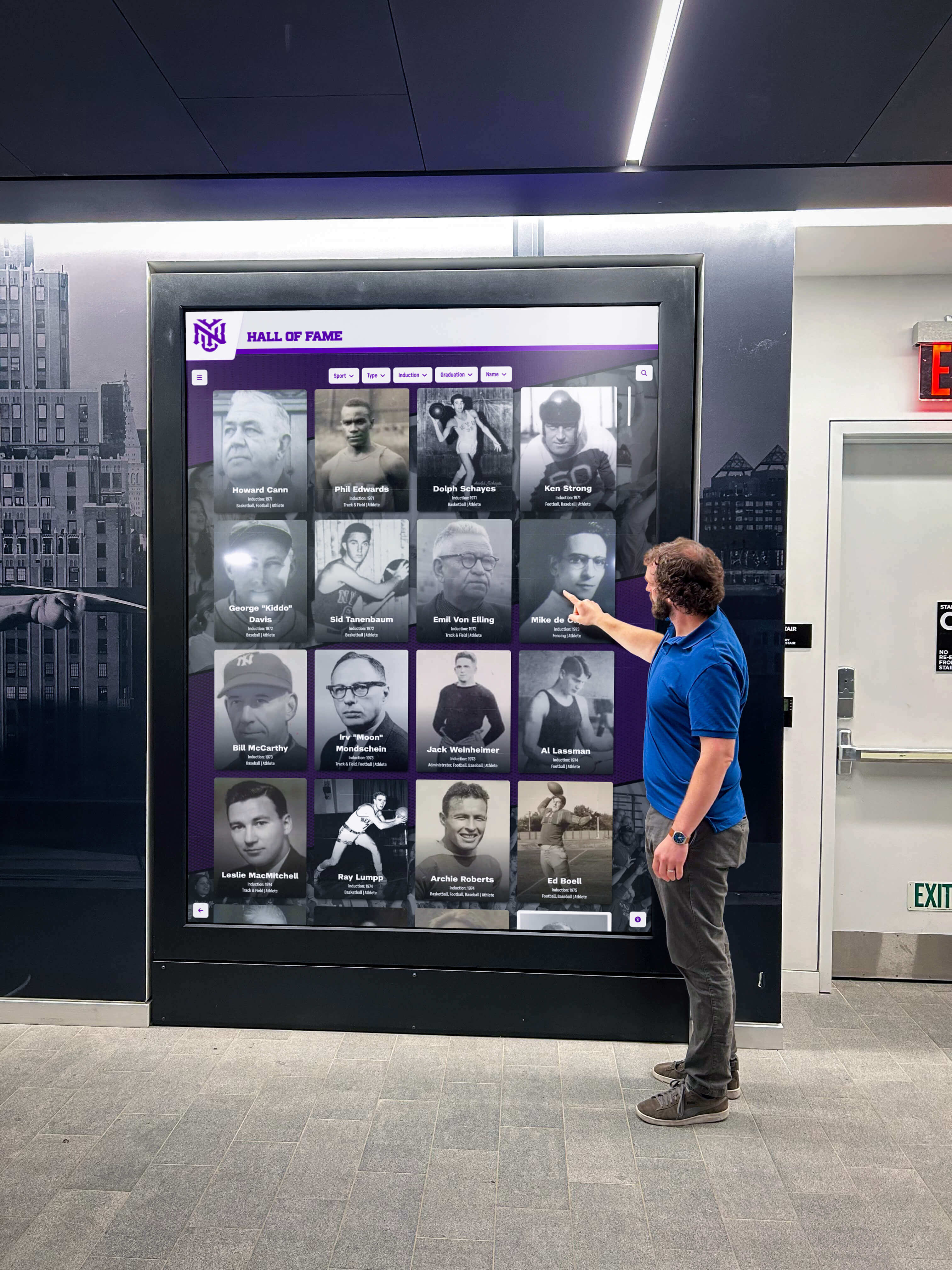
Recognition programs that pair strong remote access governance with capable display platforms can accept vendor support sessions, push content updates, and respond to technical issues without putting inductee data or network security at risk. If your program is evaluating platforms that make role-based access control, remote CMS management, and audit logging easier to manage, see how Rocket Alumni Solutions supports this workflow in a live demo.
A digital hall of fame remote access policy does not need to be long to be effective. A clear approved-user list, a documented authorization workflow, consistent authentication requirements, and a completed session log for every connection give IT administrators the visibility they need and give program staff the confidence that the recognition displays they maintain are being accessed only by the people they have explicitly authorized.
Disclaimer: This template is provided for educational and planning purposes. It does not constitute legal or cybersecurity advice. Consult your district’s IT security officer, legal counsel, and records administrator before adopting or publishing a formal remote access policy. Applicable laws governing data access, records retention, and network security vary by state and district.