



Key Takeaways
A practical step-by-step audit checklist for evaluating motion actuation accessibility in school digital hall of fame touchscreen displays—covering WCAG 2.5.4, gesture alternatives, swipe controls, and kiosk configuration.
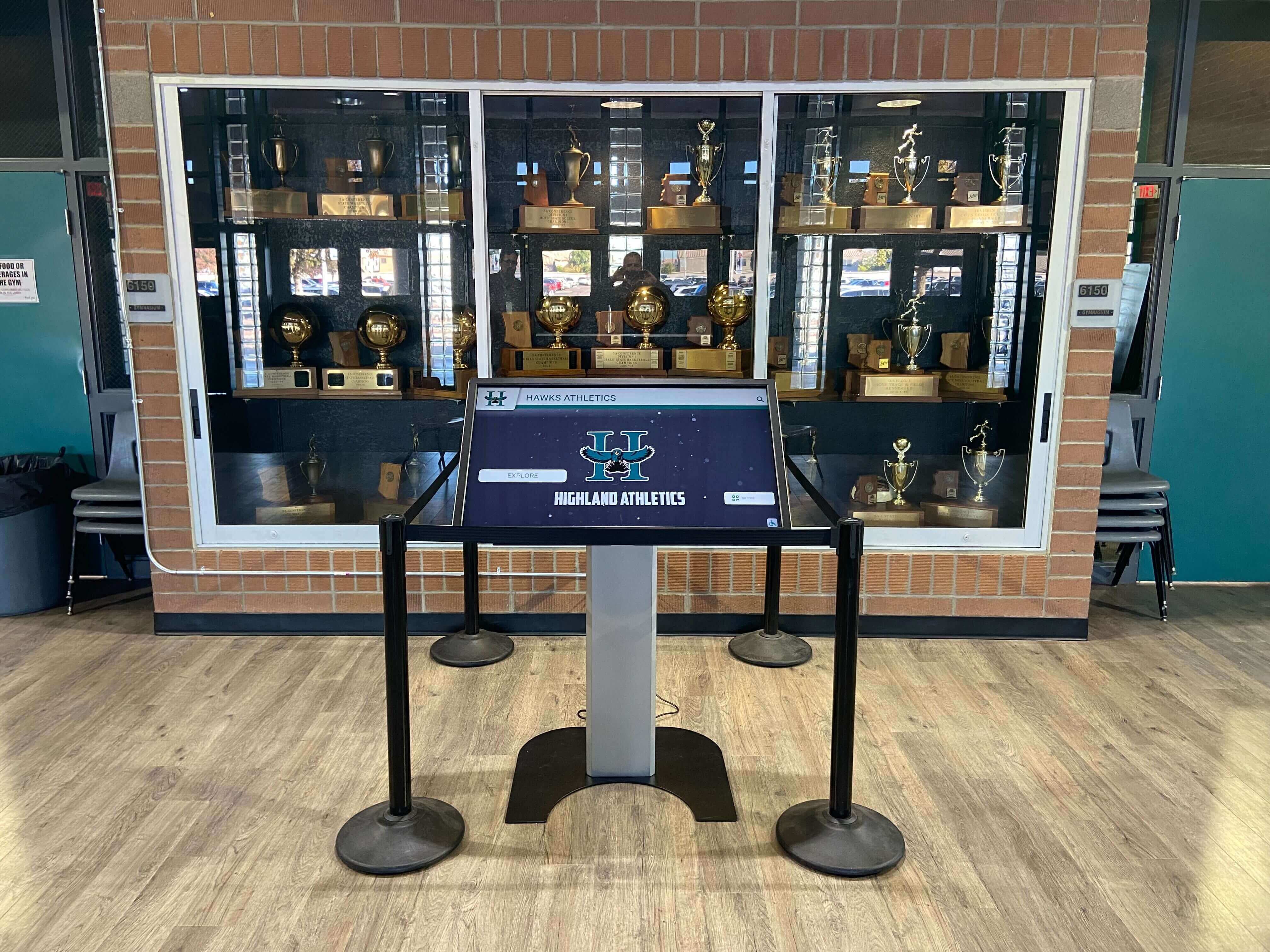
Athletic directors and IT coordinators planning or managing a touchscreen hall of fame spend considerable effort on content quality, visual design, and hardware durability. Motion actuation accessibility—whether every gesture, swipe, and sensor-triggered interaction on the display can also be completed by a visitor who cannot perform that motion—is a narrower but equally important audit area. A digital hall of fame motion actuation accessibility audit systematically checks each touch-and-gesture interaction in your display for an accessible alternative, so every community member who visits the lobby, gymnasium, or alumni center can explore inductee profiles and program history without assistance.
This checklist is organized around the steps a school administrator, IT coordinator, or facilities team can work through directly. It references WCAG 2.5.4 (Motion Actuation) as a guiding standard, while noting that physical kiosk requirements also draw from ADA guidance and broader Section 508 principles for institutions with federal obligations.
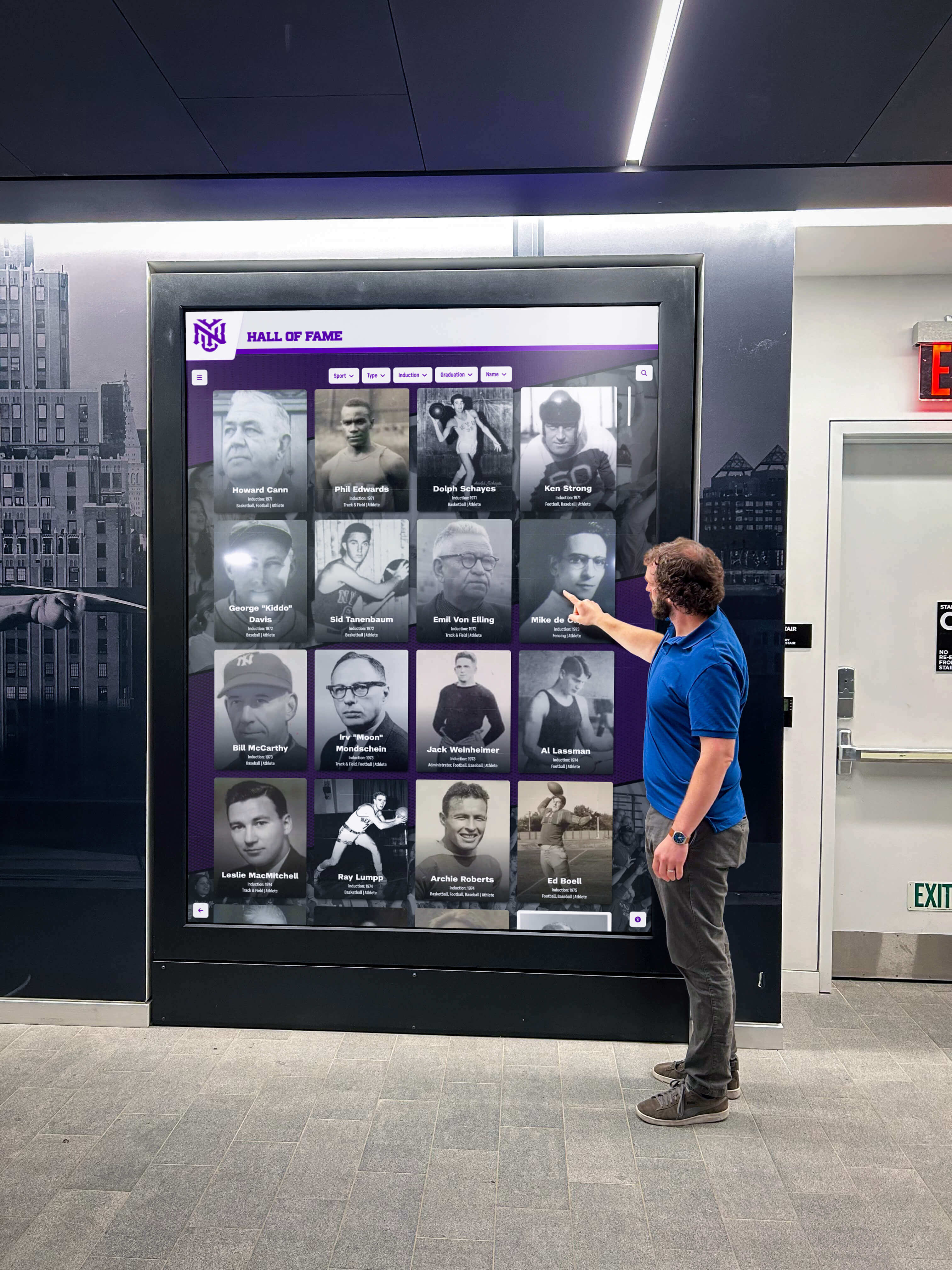
What Motion Actuation Means for a Hall of Fame Touchscreen
Motion actuation in WCAG 2.5.4 covers two scenarios:
Device motion: Functionality triggered by tilting, shaking, or physically repositioning the device. On a fixed wall-mounted kiosk, pure device-tilt interactions are rare—but some platforms support swipe-velocity triggers (a fast swipe behaves differently than a slow drag), which can be considered motion-dependent when no slower equivalent exists.
User motion: Functionality triggered by detecting a user’s physical gesture through camera, sensor, or touch velocity. In a hall of fame context, this includes proximity-triggered attract screens, gesture-activated menus, swipe carousels without button alternatives, and pinch-to-zoom on maps or timeline graphics with no zoom control buttons.
The standard’s two requirements are straightforward:
- Every motion-actuated feature must also be operable through a standard user interface control (a button, link, or input field).
- Users must be able to disable motion actuation to prevent accidental triggering—relevant for visitors who use assistive devices or who have tremors or involuntary movements.
Checking your display against both requirements forms the core of a motion actuation audit.
Step 1: Inventory Every Interactive Element
Before evaluating accessibility, document what interactions your display actually includes. Walk through each screen state and record every element that responds to user input.
| Screen or Section | Interaction Type | Input Method Supported | Notes |
|---|---|---|---|
| Attract / idle screen | Proximity wake or tap to start | Sensor or tap | Note if sensor-only |
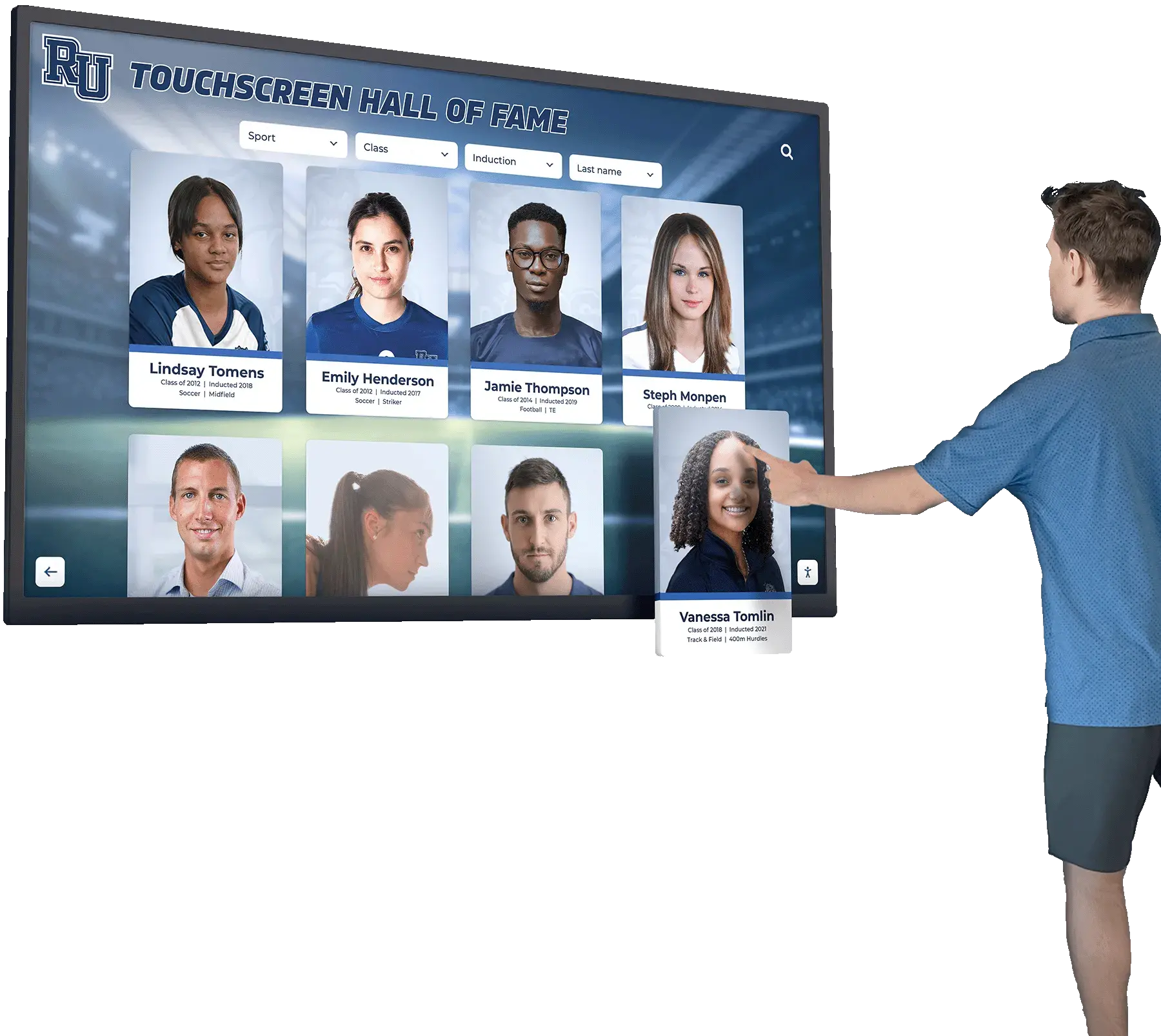
| Inductee roster | Scroll or swipe to browse | Swipe, drag, or button | List all available methods |
| Inductee profile | Swipe to next / previous | Swipe or arrow button | Confirm button presence |
| Media gallery | Pinch to zoom, swipe to advance | Gesture and/or button | |
| Timeline / history section | Swipe or drag to pan | Drag and/or arrow | |
| Video player | Tap to play, swipe to scrub | Various | |
| Search or filter | Keyboard input | On-screen keyboard | |
| Return to home | Tap button | Tap | Usually fine |
Complete this table for your specific display. Many hall of fame platforms combine a browsable inductee roster, a searchable archive, a media gallery, and a timeline view—each carrying its own set of gesture interactions that need individual review.

Step 2: Identify Motion-Only Interactions
From your inventory, flag any interaction where the only documented input method is a gesture or motion trigger. These are your audit failures—they require remediation before the display meets WCAG 2.5.4.
Common motion-only failures in hall of fame kiosks:
- Swipe-only carousel: Inductee or award cards that advance only when a user swipes left or right, with no visible next/previous buttons.
- Pinch-zoom without controls: Timeline or map graphics that zoom only through pinch-expand and pinch-contract gestures, with no zoom-in and zoom-out buttons.
- Velocity-sensitive swipe: A fast swipe skips multiple cards while a slow drag only advances one, and there is no button-based way to jump to a specific position.
- Proximity-activated attract loop: The display wakes from idle only when a sensor detects nearby movement, with no physical button or accessible tap target to activate it from a seated approach.
- Swipe-down to dismiss overlay: A profile detail overlay that only closes when the user swipes downward, with no visible close or back button.
Each of these must either gain a non-motion alternative or have the motion-only path eliminated.
Step 3: Verify Alternative Controls for Each Flagged Item
For every motion-only interaction identified in Step 2, confirm whether an on-screen control alternative exists—even if it is not currently visible during normal use. Some platforms include hidden or collapsed button controls that only appear in certain configurations.
Ask your platform vendor or review the CMS settings for:
- Arrow or chevron buttons adjacent to any swipe carousel
- Explicit zoom buttons (+/−) next to any pinch-zoomable graphic
- A visible close button (X) on every overlay or expanded view
- An accessible tap zone to dismiss or return from any state currently exited only by gesture
If alternatives do not exist natively, the platform should support configuration or custom UI additions. Solutions like Rocket Alumni Solutions allow interface layout customization, which means administrators can request or configure supplemental navigation controls without rebuilding the application from scratch. When evaluating virtual hall of fame platforms, confirm that each gesture-based navigation pattern has a configurable button equivalent before finalizing your selection.
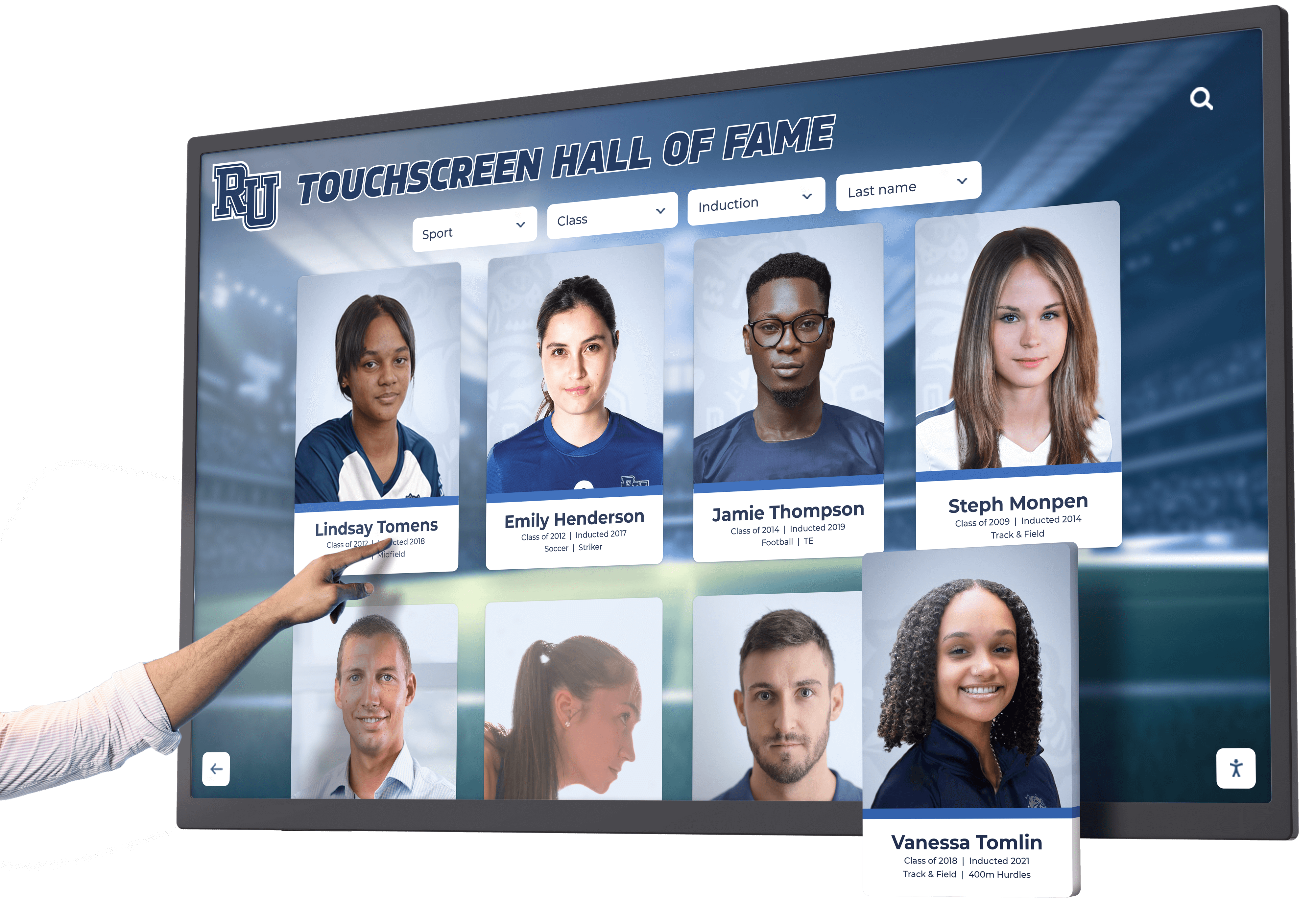
Step 4: Test the Display Using Only On-Screen Controls
With any gesture input intentionally withheld, walk through the complete display using only taps on visible on-screen controls. A tester unfamiliar with the content—an administrative assistant or a student volunteer—makes a useful testing partner because they will not instinctively default to swipe gestures they have learned to expect.
Record every task attempted and whether it was completable without gesture:
| Task | Completable with Buttons Only? | Blocker if No |
|---|---|---|
| Wake display from attract/idle | Yes / No | Proximity-only wake |
| Browse full inductee roster | Yes / No | Swipe-only carousel |
| Open an individual inductee profile | Yes / No | |
| Navigate to next / previous profile | Yes / No | No arrow buttons |
| View photo gallery | Yes / No | |
| Advance through gallery images | Yes / No | Swipe-only advance |
| Zoom in on a timeline graphic | Yes / No | Pinch-only zoom |
| Close an overlay and return to list | Yes / No | Swipe-down only dismiss |
| Return to home screen | Yes / No | |
| Use search or filter | Yes / No |
Any task marked “No” is a confirmed motion actuation failure requiring remediation. A complete guide to digital wall of fame implementation can help administrators understand which interface patterns typically accompany different platforms, so you know where to focus testing before deployment.
Step 5: Check the Motion Disable Option
WCAG 2.5.4 also requires that users be able to disable motion actuation—the intent being that a visitor with tremors or involuntary movements can prevent accidental triggering of gesture controls. For a fixed kiosk with standard swipe gestures, this requirement is often addressed by ensuring that gesture controls require deliberate intent (a certain swipe distance or duration), but the most robust implementation is a settings option that disables swipe navigation in favor of button-only navigation.
During your audit, check:
- Whether the platform offers a motion-sensitivity or gesture-sensitivity setting
- Whether the interface changes to button-only navigation when that setting is active
- Whether the setting persists across sessions or resets on idle timeout
For most educational hall of fame platforms, this feature is less common than button alternatives. If your platform does not include it, document the gap and raise it with your vendor. For the near term, ensuring robust button alternatives to every gesture typically satisfies the practical spirit of the requirement for a fixed kiosk that does not use device-tilt or shake gestures.
Step 6: Audit Physical Reach and Approach for Motion Controls
Motion actuation accessibility intersects with physical placement requirements. A swipe-carousel with button alternatives still fails accessibility if those buttons are outside the comfortable reach of a visitor using a wheelchair.
Physical reach audit items for your hall of fame display:
- Operable height: Are all navigation buttons—including next/previous arrows, close buttons, and home buttons—within a reach range comfortable for both standing and seated users?
- Forward approach clearance: Is there clear floor space in front of the display allowing a wheelchair user to approach head-on rather than at an angle that restricts arm extension?
- Side-reach limitation: Navigation buttons placed at the extreme left and right edges of a wide display may be difficult to reach from a seated position. Center-mounted controls or controls within the central 60% of the display width are generally more accessible.
- Mounting angle and tilt: Wall-mounted displays tilted outward at the top improve visibility for seated users but may shift touch-target positions. Verify button positions against the tilted angle.
Facilities teams planning new installations or renovations should consider these dimensions alongside the physical display specifications. Resources on digital recognition wall planning for school renovations and donor programs note that accessibility requirements are best addressed during the planning phase, before hardware is mounted.
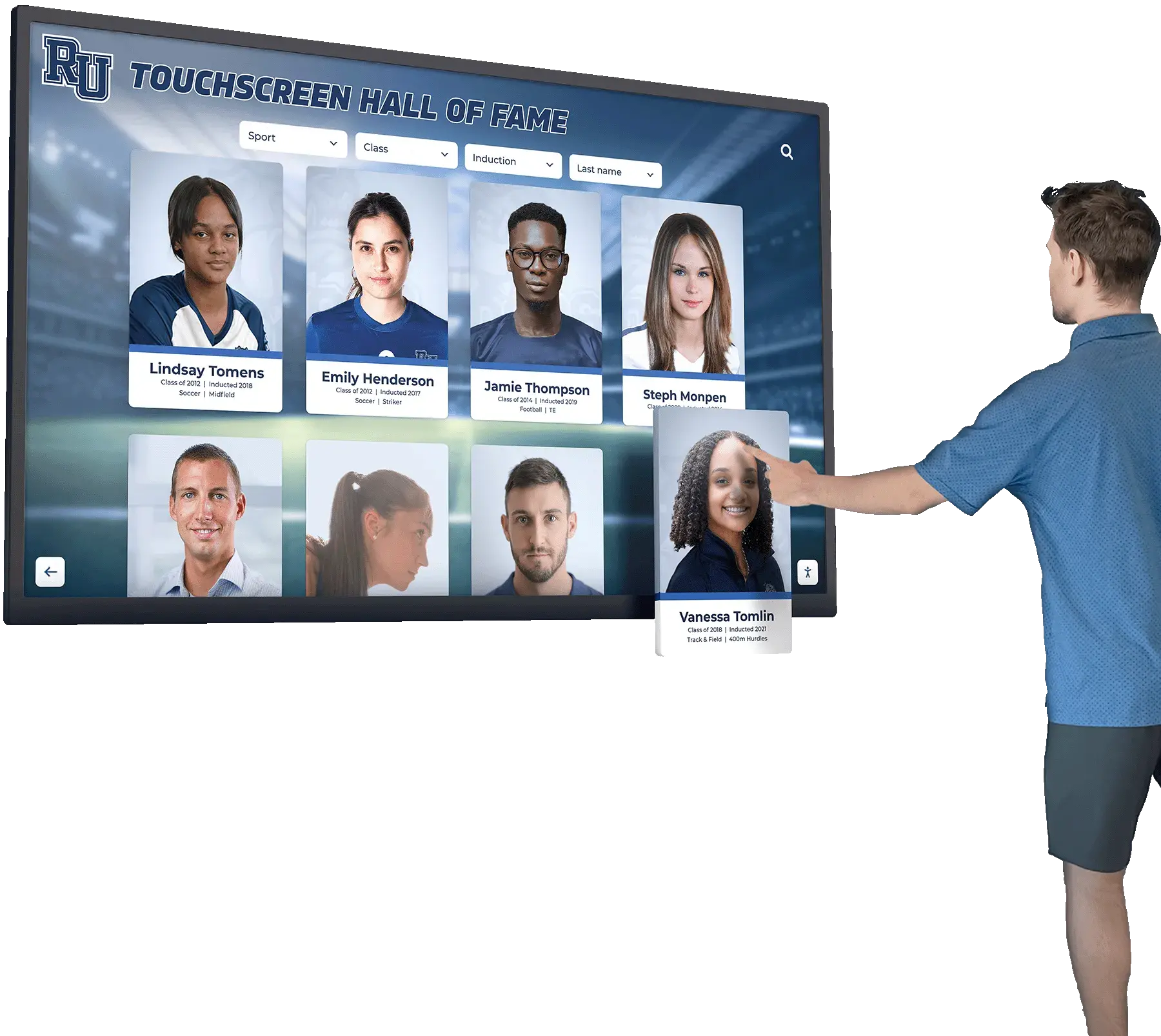
Checking physical reach alongside software controls ensures the audit covers the full interaction chain—from approaching the display to navigating every section and returning to the home screen. A display that passes the software audit but places navigation buttons at inaccessible heights still creates a barrier for some visitors.
Athletic directors evaluating platform options can review software tools that athletic administrators rely on to understand which features are commonly bundled with recognition display platforms, including accessibility configuration options.
Step 7: Review CMS Configuration and Future Content Policies
Motion actuation failures can be reintroduced after the initial audit if content editors add new media galleries, timeline sections, or interactive elements that default to gesture-only navigation. The audit is not complete without a brief review of the content management workflow.
CMS review items:
- Does the platform automatically add navigation controls (next/previous buttons) when a new gallery or carousel section is created, or must an editor configure them manually?
- Are content editors aware that any new scrollable section needs button-based navigation in addition to swipe?
- Do platform release notes or update communications flag changes to interaction patterns that might affect previously passing controls?
- Who is responsible for re-auditing the display when a major content update is deployed?
Adding a motion actuation checklist item to your content publishing workflow—a simple confirmation before a new section goes live that all navigation controls are present and reachable—prevents regressions without requiring a full audit after every update. For school recognition programs adding seasonal content, class inductions, or retrospective archives, this lightweight ongoing check is more practical than periodic full re-audits.
Motion Actuation Audit Summary Checklist
Use this table as a reference during and after your audit. It consolidates the checks from Steps 1 through 7 into a single review document.
| Audit Area | Check | Pass / Fail / N/A |
|---|---|---|
| Inventory | All interactive elements documented | |
| Swipe carousel | On-screen next/previous buttons present | |
| Pinch-zoom | On-screen zoom in/out buttons present | |
| Overlay dismiss | Visible close or back button present | |
| Attract/wake | Tap-accessible wake target available | |
| Gallery advance | Button alternative to swipe advance | |
| Timeline pan | Button alternative to drag-to-pan | |
| Button-only test | All tasks completable without gesture | |
| Motion disable | Setting available or gesture intent threshold set | |
| Button height | All controls within seated reach range | |
| Approach clearance | Clear floor space for wheelchair approach | |
| Button placement | Controls within 60% of display width | |
| CMS defaults | New sections auto-include button navigation | |
| Editor training | Content team aware of motion actuation policy | |
| Re-audit schedule | Defined after major software or content updates |
A completed checklist with pass/fail results for each item gives your institution a documented record of the audit, supports compliance conversations with your accessibility office, and provides a baseline for comparison when the display is updated.
Connecting the Audit to Your Broader Recognition Program
A motion actuation audit addresses one specific accessibility dimension. Schools conducting a comprehensive review of their digital hall of fame program should connect these findings to broader accessibility planning that includes physical placement requirements from ADA guidance, content accessibility practices from WCAG, and operational policies for staff training and periodic review.
Programs beginning or expanding a digital recognition initiative can find orientation in resources like a national merit scholar and student recognition guide for content planning context, or explore how visual recognition programs scale across a campus by reviewing student recognition graphic design resources.
For institutions that include graduation and honors traditions in their recognition programs, understanding graduation recognition systems alongside digital display accessibility helps build a more complete picture of how recognition is communicated across physical and digital formats throughout the school year.
Solutions like Rocket Alumni Solutions build digital hall of fame platforms designed for school and university recognition programs. When implementing or upgrading a display, administrators should raise motion actuation accessibility directly with their vendor—requesting documentation on gesture alternatives, configuration options for button-only navigation, and recommended mounting specifications that support accessible reach ranges. These conversations are most productive before hardware installation, when physical placement decisions can still incorporate accessibility requirements without additional cost.
See an Accessible Digital Hall of Fame in Action
Rocket Alumni Solutions builds interactive digital halls of fame for schools and universities, with configurable navigation controls and layouts designed to support accessible use. If you are planning a new installation or auditing an existing display, a live demo shows how the platform handles inductee browsing, gallery navigation, and interface configuration in practice.
Schedule a Demo