



Key Takeaways
Run a digital hall of fame label in name audit to confirm every visible button and link label matches its accessible name for voice-control users and screen readers. Step-by-step checklist for school administrators and accessibility teams.

What WCAG Label in Name Requires—and What It Does Not
WCAG 2.1 Success Criterion 2.5.3 — Label in Name (Level A) states: for user interface components with labels that include text or images of text, the name contains the text that is presented visually.
Three elements are in scope:
- The visible label — text on screen that a sighted visitor reads to understand what a control does
- The accessible name — the string exposed to assistive technology, derived from the element’s visible text,
aria-label,aria-labelledby,title, oralttext - The containment requirement — the accessible name must contain the visible text; it does not need to be identical to it, but it cannot replace the visible text with a different phrase
If both a visible text label and an overriding aria-label exist on the same button, and the aria-label omits or changes the visible text, the criterion fails.
What Label in Name does not require:
- It does not require all accessible names to be identical to the visible text. Supplementary context appended after the visible text is encouraged:
aria-label="View Profile — Jane Doe, Track, Class of 2003"satisfies the criterion because it starts with “View Profile,” which is the visible text. - It does not apply to icon-only controls that have no visible text at all. A search icon with no text label is governed by SC 4.1.2, not SC 2.5.3.
- It does not require changes to the visual design. Remediation is always to adjust the accessible name, never to alter the visible label on screen.
The criterion sits at Level A—the baseline tier of WCAG compliance—because voice-control activation is a primary navigation strategy for users with motor impairments, not an enhancement. A platform that fails SC 2.5.3 blocks those users from operating the interface by the method they depend on.
Why Voice Control and Screen Readers Both Depend on Label in Name
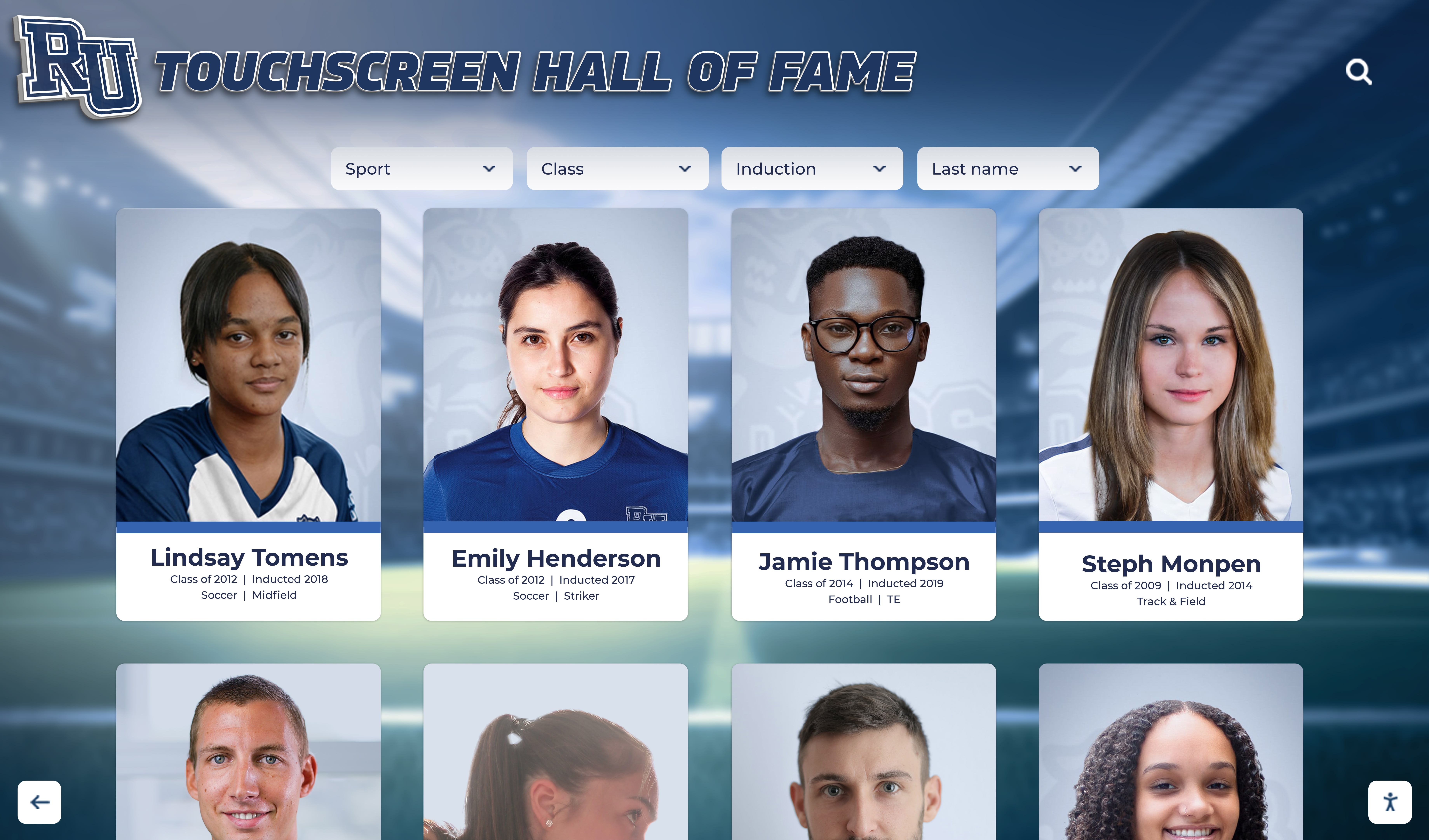
Voice-control software—Dragon NaturallySpeaking, Windows Voice Access, iOS Voice Control, and Android Voice Access—allows users to activate on-screen controls by speaking the visible label aloud. The software reads the accessible name of each interactive element and compares it against the spoken command. If the accessible name does not contain the visible text, the match fails and the command has no effect.
Screen reader users experience a different but related problem. When a screen reader announces an interactive element, it speaks the accessible name. If the accessible name was overridden with a phrase different from the visible label, the user hears one name while the screen shows another. For a visitor using a combination of screen reader output and residual vision, this mismatch erodes trust in the interface and forces extra effort to reconcile what is heard with what is seen.
A practical example on a hall of fame platform: a nomination button displays “Submit 2025 Nomination” in large text. A developer added aria-label="Submit" to suppress the year from the accessible name, intending to keep the aria string short. The result is that a voice-control user who says “click Submit 2025 Nomination” receives no response—the accessible name “Submit” does not match the spoken phrase. A screen reader user hears “Submit, button” while the screen shows “Submit 2025 Nomination”—a mismatch that is particularly confusing when multiple buttons are visible and their full labels are what distinguishes them.
Recognition programs that invest in lobby displays and campus kiosks as described in resources on school hallway digital display best practices for recognition walls understand that the physical placement of a display shapes the visitor experience. The label in name audit addresses the equivalent layer in the digital interface: ensuring the programmatic structure matches what every visitor sees on screen.
The Five Failure Patterns Most Common on Hall of Fame Platforms
Failure 1: Profile Card Links With Generic aria-label Values
The inductee profile card is the most repeated element on a hall of fame display. Each card carries a link—“View Profile,” “See Full Bio,” “Learn More”—that is sometimes given an aria-label to differentiate the link from its neighbors. When the aria-label is added to provide context, developers occasionally replace the visible text rather than appending to it.
Failing example:
<!-- Visible text reads: "View Profile" -->
<a href="/inductees/sarah-chen" aria-label="Open Sarah Chen inductee bio">
  View Profile
</a>
The visible text is “View Profile.” The aria-label is “Open Sarah Chen inductee bio.” The accessible name does not contain the visible text “View Profile,” so SC 2.5.3 fails. A voice-control user who says “click View Profile” activates nothing.
Passing example:
<a href="/inductees/sarah-chen" aria-label="View Profile — Sarah Chen, Swimming, Class of 2008">
  View Profile
</a>
The accessible name begins with “View Profile,” matching the visible text. Additional context follows after the em dash.
Failure 2: Search Buttons With Mismatched aria-labels
Search and filter interfaces on inductee directories often combine a visible text label with an icon. A developer may add an aria-label intending to describe the icon, replacing the visible text in the process.
Failing example:
<!-- Visible text: "Search Athletes" -->
<button aria-label="Run search query">
  <svg aria-hidden="true"><!-- magnifier icon --></svg>
  Search Athletes
</button>
The accessible name is “Run search query,” not “Search Athletes.” A voice-control user says “click Search Athletes” and receives no response.
Passing example:
<button aria-label="Search Athletes">
  <svg aria-hidden="true"><!-- magnifier icon --></svg>
  Search Athletes
</button>
When the visible text alone is sufficient, the simplest fix is to remove the aria-label entirely. The accessible name is then computed from the button’s text content, which exactly matches the visible label.
Failure 3: Navigation Links Abbreviated in aria-label
Top navigation and sidebar links on hall of fame websites sometimes carry aria-label values that abbreviate or reword the visible link text for screen reader brevity.
Failing example:
<!-- Visible text: "Hall of Fame Home" -->
<a href="/hall-of-fame" aria-label="Home">Hall of Fame Home</a>
The visible text “Hall of Fame Home” is not contained within the accessible name “Home.” A voice-control user who says “click Hall of Fame Home” will not activate the link.
Passing example:
<a href="/hall-of-fame">Hall of Fame Home</a>
Removing the redundant aria-label resolves the mismatch. The accessible name is derived from the visible text.
Failure 4: Action Buttons With Reworded Accessible Names
Share, bookmark, and favorite buttons on inductee profiles often show a full phrase visually while carrying a shorter aria-label.
Failing example:
<!-- Visible text: "Add to My Favorites" -->
<button aria-label="Favorite" class="fav-btn">
  <svg aria-hidden="true"><!-- heart icon --></svg>
  Add to My Favorites
</button>
The accessible name is “Favorite.” The visible text is “Add to My Favorites.” The accessible name does not contain the visible text.
Passing example:
<button aria-label="Add to My Favorites — Marcus Williams, Football">
  <svg aria-hidden="true"><!-- heart icon --></svg>
  Add to My Favorites
</button>
Failure 5: Call-to-Action Buttons With Truncated Accessible Names
Nomination and registration CTA buttons that display a specific, multi-word phrase are sometimes given a shorter aria-label in an attempt to simplify the accessible output.
Failing example:
<!-- Visible text: "Nominate a 2025 Inductee" -->
<a href="/nominate" class="btn btn-primary" aria-label="Nominate">
  Nominate a 2025 Inductee
</a>
The accessible name “Nominate” does not contain the full visible text “Nominate a 2025 Inductee.” A voice-control user saying “click Nominate a 2025 Inductee” receives no response; only “click Nominate” would work—but the visible label does not say that.
Passing example:
<a href="/nominate" class="btn btn-primary">
  Nominate a 2025 Inductee
</a>
How to Run a Digital Hall of Fame Label in Name Audit
A label in name audit requires a browser with DevTools and, for voice-control verification, at least one installed voice-control application. Plan two to three hours to cover all interactive elements on a typical recognition platform: the inductee grid, individual profile pages, the nomination form, and the primary navigation.

Step 1 — Inventory Every Labeled Interactive Element
Before inspecting markup, create a list of every interactive element that has visible text. Work through the interface systematically:
- Inductee grid page — every card link (“View Profile,” “Read Bio”), the search field button, every filter chip or category button, pagination controls
- Individual inductee profile page — share button, favorite button, “Back to Grid” or breadcrumb links, related-inductee card links, video play button if text-labeled
- Nomination form page — every form submit button, back or cancel buttons, any in-form help links
- Main navigation — every top-nav and sidebar link with visible text
Document each element with its visible text and the page or section where it appears. This inventory becomes the audit checklist.
Step 2 — Inspect the Accessible Name for Each Element
For each element in the inventory:
- Right-click the element in the browser and select Inspect (Chrome, Firefox, Edge) or Inspect Element (Safari).
- In the DevTools Elements panel, locate the element.
- Check for any of these attributes:
aria-label,aria-labelledby,title, or (for images)alt. - If
aria-labelis present, compare its value with the visible text character by character. - If
aria-labelledbyis present, follow the referenced element ID and read its text content. - If neither attribute is present, the accessible name is computed from the element’s visible text content—which satisfies SC 2.5.3 automatically.
Record any element where the accessible name is present as an attribute and does not contain the visible text verbatim.
Quick check using the Accessibility panel:
Chrome DevTools includes an Accessibility panel (accessible from the Elements panel’s sidebar or via the three-dot menu). Clicking any element and viewing its Accessibility panel shows the computed accessible name alongside its source. This is faster than reading attribute values manually when auditing many elements.
Step 3 — Run an Automated Scan
Automated tools catch a significant share of label in name violations without manual inspection of every element.
- Install the axe DevTools browser extension (free tier available).
- Open the hall of fame page in the browser.
- Open DevTools and navigate to the axe tab.
- Run a scan. Filter results for label-content-name-mismatch violations.
- Export the results to a spreadsheet or copy the list.
The automated scan covers interactive elements the tool can reach. It does not cover elements behind authentication, inside iframes from other origins, or rendered only after specific user interactions. Supplement automated results with the manual steps above for modal dialogs, drawers, and form-validation states.
Schools that also maintain digital donor recognition walls alongside their athletic halls of fame run label in name audits on both interfaces—the same failure patterns appear on donor recognition carousels and tribute profile buttons as on athletic inductee cards.
Step 4 — Test With a Voice-Control Application
Manual inspection and automated scans identify violations in the markup. Voice-control testing confirms whether the failures have practical impact on real users.
On macOS or iOS (Voice Control):
- Enable Voice Control: System Settings → Accessibility → Voice Control → Enable Voice Control (macOS) or Settings → Accessibility → Voice Control → Enable Voice Control (iOS).
- Open the hall of fame in the browser.
- Say “show names.” Voice Control overlays the accessible name of every interactive element on screen.
- Compare each overlay label with the visible text on the element.
- For any element where the overlay label differs from the visible text, say “click [visible text]” and note whether the command succeeds.
On Windows (Voice Access):
- Enable Voice Access: Settings → Accessibility → Speech → Voice Access → Open Voice Access.
- Open the hall of fame in Edge or Chrome.
- Say “show labels.” Voice Access overlays element names.
- Compare overlays with visible text. Say “click [visible text]” for any mismatched element.
On Android (Voice Access):
- Enable Voice Access in Accessibility settings.
- Open the hall of fame in Chrome for Android.
- Say “show labels” or “tap [visible text]” directly for elements you want to test.
Document every element where speaking the visible text did not activate the control. Each of these is a confirmed SC 2.5.3 failure with practical voice-control impact.
Step 5 — Verify With a Screen Reader
Screen reader testing for label in name focuses on confirming that announced element names match what sighted users read—not that elements are focusable or operable (those are separate criteria).
NVDA on Windows (free):
- Open the hall of fame in Firefox or Chrome with NVDA running.
- Press Insert + F7 to open the NVDA Elements List and select Links or Buttons.
- Navigate through the list. Each entry shows the accessible name as NVDA reads it.
- Cross-reference each entry against your visible-text inventory.
- For any discrepancy, note the element, the visible text, and the announced name.
VoiceOver on macOS:
- Enable VoiceOver: Command + F5.
- Open the hall of fame in Safari.
- Press Control + Option + U to open the Web Rotor. Select Links or Form Controls.
- Arrow through the list and compare announced names against your inventory.
VoiceOver on iOS:
- Enable VoiceOver in Accessibility settings.
- Open the hall of fame in Safari.
- Use the three-finger swipe to navigate the Web Rotor. Select Links or Buttons.
- Swipe down to navigate through the list. Compare each announced label against what is visible on screen.
For athletics recognition programs that produce annual video highlight compilations alongside their static hall of fame displays, any video player embedded in a profile page should be included in the label in name audit—play, pause, and fullscreen buttons that carry visible text must pass the same criterion.
Label in Name Audit Checklist
Use this checklist for every interactive element on the hall of fame platform that carries visible text. Every item must pass before the element is considered compliant with WCAG SC 2.5.3.
Inductee Profile Card Links
- Each card link’s accessible name contains the visible link text (e.g., “View Profile”) at the start of the string
- No card link uses an aria-label that replaces the visible text with a different phrase (e.g., “Open bio” instead of “View Profile”)
- Inductee-specific context (name, sport, year) is appended after the visible text in the aria-label, not substituted for it
- Image-linked portrait cards with no separate text link carry an aria-label that includes any visible on-card text
- Automated axe scan reports zero label-content-name-mismatch violations on the inductee grid page
Search and Filter Controls
- The search submission button’s accessible name contains its visible text (“Search,” “Search Athletes,” etc.)
- Filter chip and category button accessible names contain the full visible text of each chip, not an abbreviation
- Sport or category dropdown accessible names match the selected visible option text
- The “Clear Filters” or “Reset” button accessible name contains those exact words as shown on screen
Navigation Links
- All top-navigation link accessible names contain the full visible text, including qualifier words (“Hall of Fame Home,” not “Home”)
- All breadcrumb link accessible names contain the visible breadcrumb text, not a shortened code
- Pagination “Next” and “Previous” buttons contain those visible words in the accessible name (supplementary context may follow)
- Sidebar or category navigation links contain the complete visible category name, including sport or award qualifier
Action and Utility Buttons
- Share button accessible name contains the visible text (e.g., “Share Profile,” not “Share”)
- Favorite or bookmark button accessible name contains the visible text (e.g., “Add to My Favorites,” not “Favorite”)
- Print button accessible name matches visible text
- Any inline video play button accessible name matches visible text (e.g., “Play Highlight Reel,” not “Play”)
Call-to-Action and Form Buttons
- Primary CTA button accessible name contains the full visible phrase (e.g., “Nominate a 2025 Inductee,” not “Nominate”)
- Nomination form submit button accessible name matches visible text
- All secondary CTA links (e.g., “Learn About Recognition Packages”) contain that full visible text in the accessible name
- Cancel and back buttons contain the visible text in the accessible name
Voice-Control Verification
- macOS or iOS Voice Control’s “show names” overlay matches visible text for every interactive element on the inductee grid
- Every tested “click [visible text]” command successfully activates the intended control
- No element required speaking an alternate phrase not shown on screen to activate it
- Modal dialog buttons (close, confirm, cancel) are activatable by speaking their visible labels
Screen-Reader Verification
- NVDA Elements List (Insert + F7) shows accessible names matching visible text for all links and buttons
- VoiceOver Web Rotor announces names matching visible text for all links and form controls
- No element announces a name that would confuse a user who also has partial sighted vision of the visible label
- Accessible names appended with supplementary context place the visible text first, not after the supplementary text
WCAG Criterion Cross-Reference
- SC 2.5.3 (Label in Name, Level A): every interactive element with a visible text label has an accessible name that contains that text
- SC 4.1.2 (Name, Role, Value, Level A): every interactive element has an accessible name by some means, even if icon-only
- SC 2.4.4 (Link Purpose – In Context, Level AA): link accessible names, combined with context, describe the destination
Common Remediation Patterns
Remediation 1: Remove the Redundant aria-label
The most common label in name failure is an aria-label added to differentiate repeated links that accidentally replaces the visible text. When the visible text alone is sufficient as the accessible name, remove the aria-label entirely.
Before:
<a href="/inductees/john-carter" aria-label="Inductee detail page">View Profile</a>
After:
<a href="/inductees/john-carter">View Profile</a>
Screen readers compute the accessible name from the text content: “View Profile.” Voice control users say “click View Profile” and the control responds. No further aria work is needed.
Remediation 2: Append Context Without Replacing the Visible Text
When a link does need supplementary context for screen-reader users who navigate by links list, append the context after the visible text, separated by punctuation or a visually-hidden span.
Option A — aria-label with visible text first:
<a href="/inductees/john-carter"
   aria-label="View Profile — John Carter, Football, Class of 1995">
  View Profile
</a>
Option B — visually-hidden supplementary text in the DOM:
<a href="/inductees/john-carter">
  View Profile
  <span class="sr-only"> — John Carter, Football, Class of 1995</span>
</a>
Both options satisfy SC 2.5.3 because the accessible name begins with “View Profile,” matching the visible text. Voice-control users say “click View Profile” and the command works because “View Profile” is the start of the accessible name string.
The second option has a maintenance advantage: the supplementary text is in the DOM and can be rendered from template variables, reducing the risk of the aria-label drifting out of sync with the displayed inductee name.
Remediation 3: Correct a Truncated CTA Button
For CTA and nomination buttons where the visible text is longer than the current aria-label:
<!-- Failing -->
<button aria-label="Submit" class="btn btn-primary">
  Submit 2025 Nomination Form
</button>

<!-- Passing: visible text first, context appended -->
<button aria-label="Submit 2025 Nomination Form" class="btn btn-primary">
  Submit 2025 Nomination Form
</button>

<!-- Also passing: no aria-label, text content is the accessible name -->
<button class="btn btn-primary">
  Submit 2025 Nomination Form
</button>
When the visible text is clear and complete, the preferred pattern is to remove the aria-label entirely and let the accessible name be computed from the button text. This eliminates the synchronization burden permanently.
Connecting Label in Name to the Full Accessibility Picture
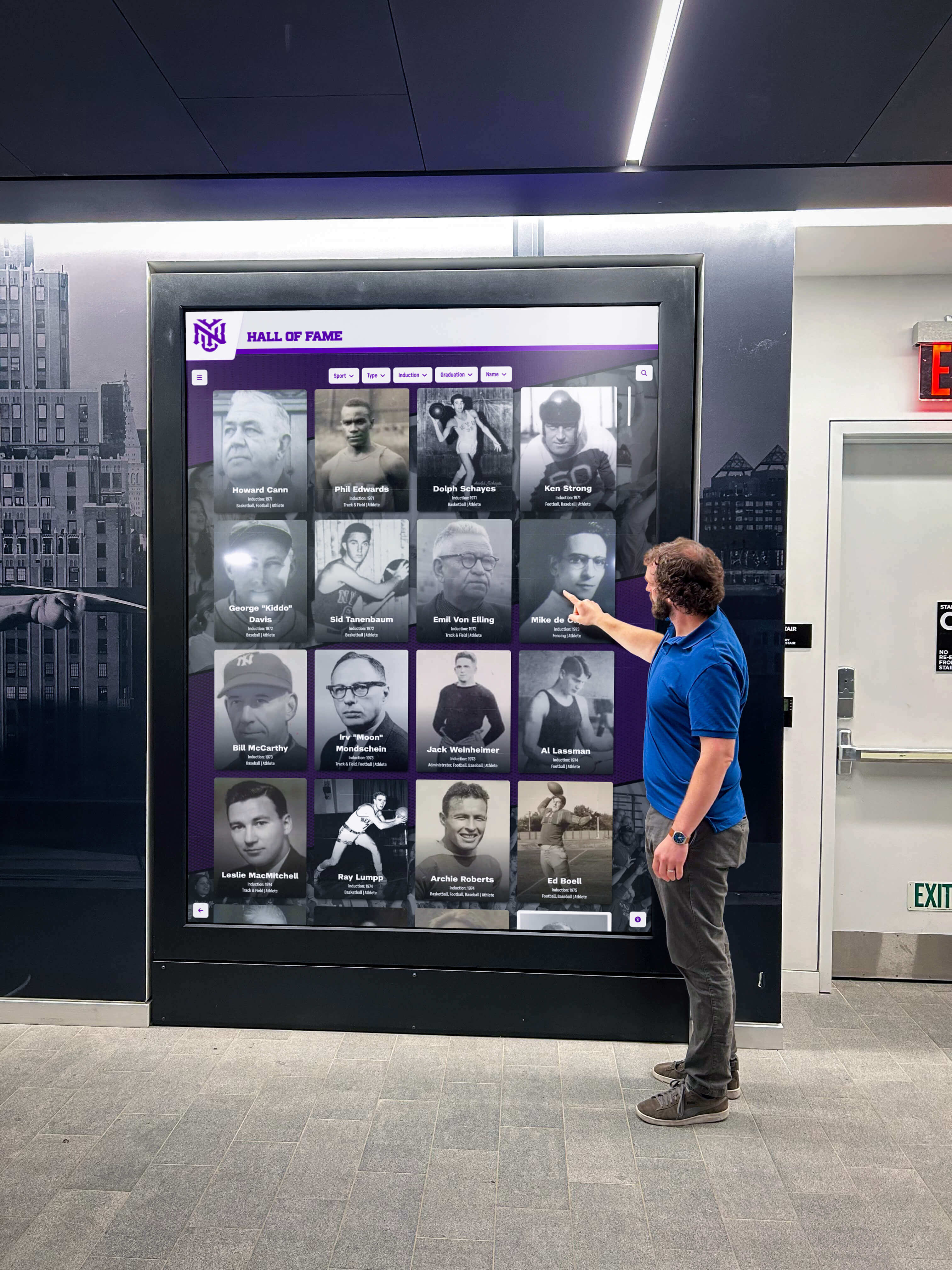
Label in name is a Level A criterion—the foundation tier of WCAG compliance—because it governs whether a user can activate the interface at all, not whether the experience is enhanced. A recognition platform that passes color contrast checks and provides alt text on every image but fails SC 2.5.3 on its primary CTA buttons still blocks voice-control users from taking the most important actions on the page.
For school recognition programs that serve alumni events, induction ceremonies, and daily campus visitors across a range of abilities, label in name compliance is not an edge case. Any visitor using voice control after a temporary or permanent motor impairment—a student recovering from an injury, a community member with a progressive condition, a parent using hands-free navigation—depends on these accessible names matching what they see.
A label in name audit is most effective when combined with the other WCAG input criteria that govern the same interactive elements. Schools that have already run a digital hall of fame error suggestion audit for search and nomination forms and a digital hall of fame link purpose audit for profile cards and navigation will find that many of the same elements surface in a label in name audit—the profile card links, the search button, and the nomination CTA are common to all three. Remediating them together in a single developer sprint is more efficient than treating each criterion in isolation.
For booster club programs and parent volunteer groups that support recognition initiatives, an understanding of how accessible recognition programs strengthen community engagement provides useful context for why a label in name audit matters beyond legal compliance. Voice-control users who can independently navigate the hall of fame are visitors who can discover, explore, and share the recognition program with others—broadening the community that benefits from the school’s investment in honoring its honorees.
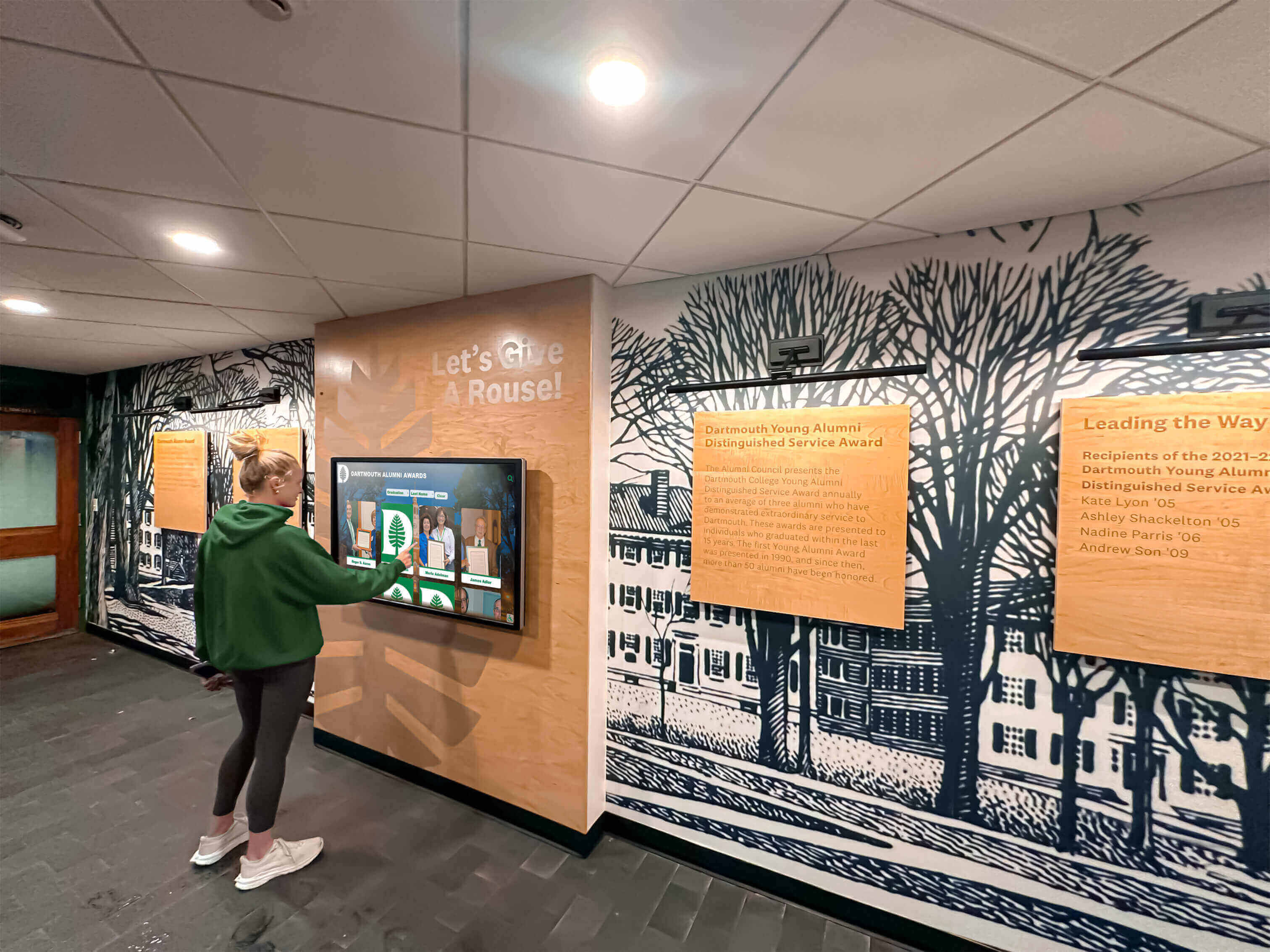
Programs that also operate recognition kiosks and lobby touchscreens alongside the web interface should confirm that label in name compliance extends to the kiosk browser context. A college recognition interactive display installed in a campus lobby or residence hall runs the same browser-rendered interface as the web companion; label in name failures that appear on the web interface appear on the kiosk too. The audit applies to both.
For athletic programs that post highlights reels, championship records, and season statistics alongside inductee profiles—similar to the archiving approach described in school athletic record board digital archiving and season highlights—the label in name audit should extend to media player controls, record board navigation buttons, and any interactive filtering on the statistics display.
Schools evaluating recognition platforms as part of a larger campus renovation or lobby redesign project—where the digital display is designed to complement physical elements as described in resources on athletic lobby display design for school recognition programs—should include label in name compliance in the vendor evaluation criteria. A platform that satisfies SC 2.5.3 by default requires no post-deployment remediation; one that does not will need developer engagement after launch to bring interactive elements into compliance.
When to Schedule the Label in Name Audit
Before procurement or platform launch. Run the audit against a staging or demo environment before signing a platform contract or launching a new implementation. A platform whose buttons and links satisfy SC 2.5.3 in the demo environment is likely to maintain compliance across the full deployment.
After any UI component update. Platform vendors push template changes that alter button labels, add new aria-label attributes, or restructure navigation. After any update that touches interactive elements—particularly updates described as “accessibility improvements”—run the automated axe scan and spot-check the five failure-prone element types.
Before high-attendance recognition events. Induction ceremonies, alumni reunions, and end-of-season award nights attract the broadest range of visitors to the hall of fame interface. A label in name check in the week before the event catches any regressions introduced since the last release and confirms voice-control users can independently access the nomination, sharing, and contact controls.
When adding new inductee categories or CTA types. Adding a new award category—academic recognition, community service, donor honor roll—introduces new filter buttons, new card links, and new CTA buttons to the interface. Each new element type requires a label in name check before the category is published. Programs that expand to honor multiple honoree types, as described in building a multi-category school hall of fame that covers athletes, scholars, and community leaders, multiply the number of interactive elements and thus the scope of the label in name audit with each expansion.
Working With Your Platform Vendor on Label in Name Findings
Bring organized findings to the platform vendor after the audit using the following structure for each finding:
| Element | Visible Text | Current Accessible Name | Failure | Recommended Fix |
|---|---|---|---|---|
| Profile card link | “View Profile” | “Open inductee bio page” | Accessible name replaces visible text | Change aria-label to begin with “View Profile” or remove aria-label |
| Search button | “Search Athletes” | “Run search” | Accessible name replaces visible text | Update aria-label to “Search Athletes” or remove it |
| Favorite button | “Add to My Favorites” | “Favorite” | Accessible name truncates visible text | Update aria-label to begin with “Add to My Favorites” |
| Navigation link | “Hall of Fame Home” | “Home” | Accessible name truncates visible text | Remove aria-label; text content becomes the accessible name |
| CTA button | “Nominate a 2025 Inductee” | “Nominate” | Accessible name truncates visible text | Update aria-label to include full visible text |
Questions to include in the vendor conversation:
- Do your platform templates compute accessible names from visible text by default, or are aria-labels added manually per element?
- What is the process for reviewing new interactive elements for SC 2.5.3 compliance before a release ships?
- Is label in name included in your QA checklist for template updates that touch buttons, links, and form controls?
- Does your QA process include voice-control testing—specifically saying the visible text aloud and confirming the control activates?
- Are remediation fixes deployable by configuration, or do they require a code release cycle?
A platform vendor that tests SC 2.5.3 as part of its standard QA process and can demonstrate voice-control activation of all labeled buttons reduces the post-deployment audit burden to a spot-check after each update rather than a full inventory. For recognition programs where staff time for accessibility audits is limited, that structural compliance is a meaningful vendor evaluation criterion alongside content management features and display design flexibility.