



Key Takeaways
Run a digital hall of fame inert attribute accessibility audit to confirm modals and drawers correctly hide background controls from assistive technology. Step-by-step guide for school recognition programs.
inert attribute is the mechanism that makes this happen—and when it is missing or misapplied, screen reader users and keyboard-only navigators can drift into background inductee cards, navigation rails, and search controls while the modal is still open. This audit guide explains what the inert attribute does, where modals and drawers on school recognition platforms most commonly fail the check, and how IT staff or athletic directors can run the test without modifying any source code.
What the Inert Attribute Does—and Why Hall-of-Fame Interfaces Need It
The HTML inert attribute is a single boolean attribute applied to a DOM element. When present, it instructs the browser to:
- Remove all descendant elements from the accessibility tree, so screen readers cannot announce them
- Prevent keyboard focus from reaching any descendant interactive element
- Ignore pointer events on all descendants, so clicking or tapping them has no effect
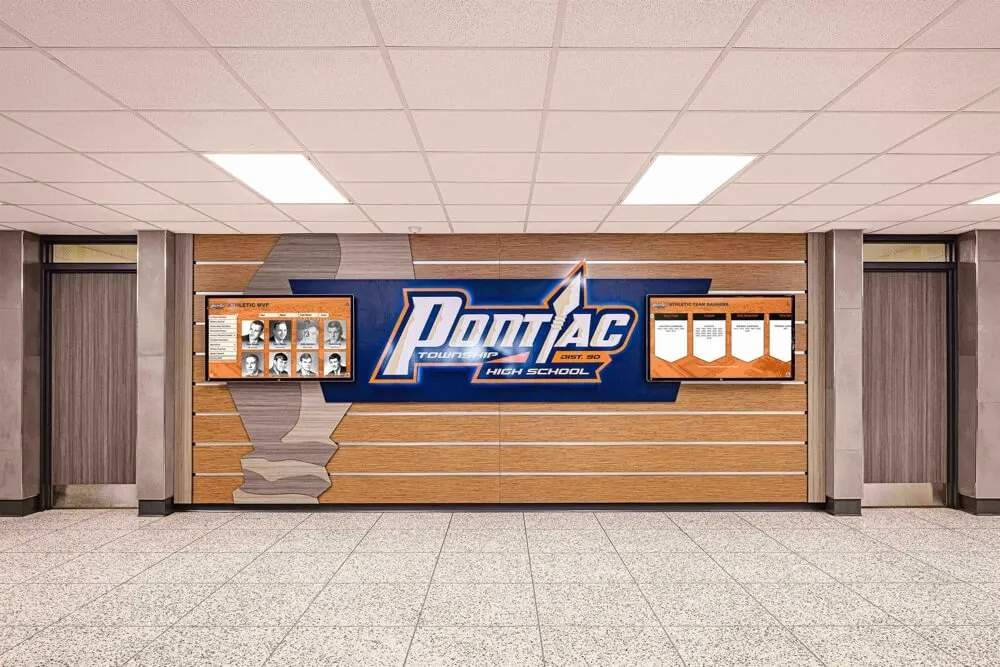
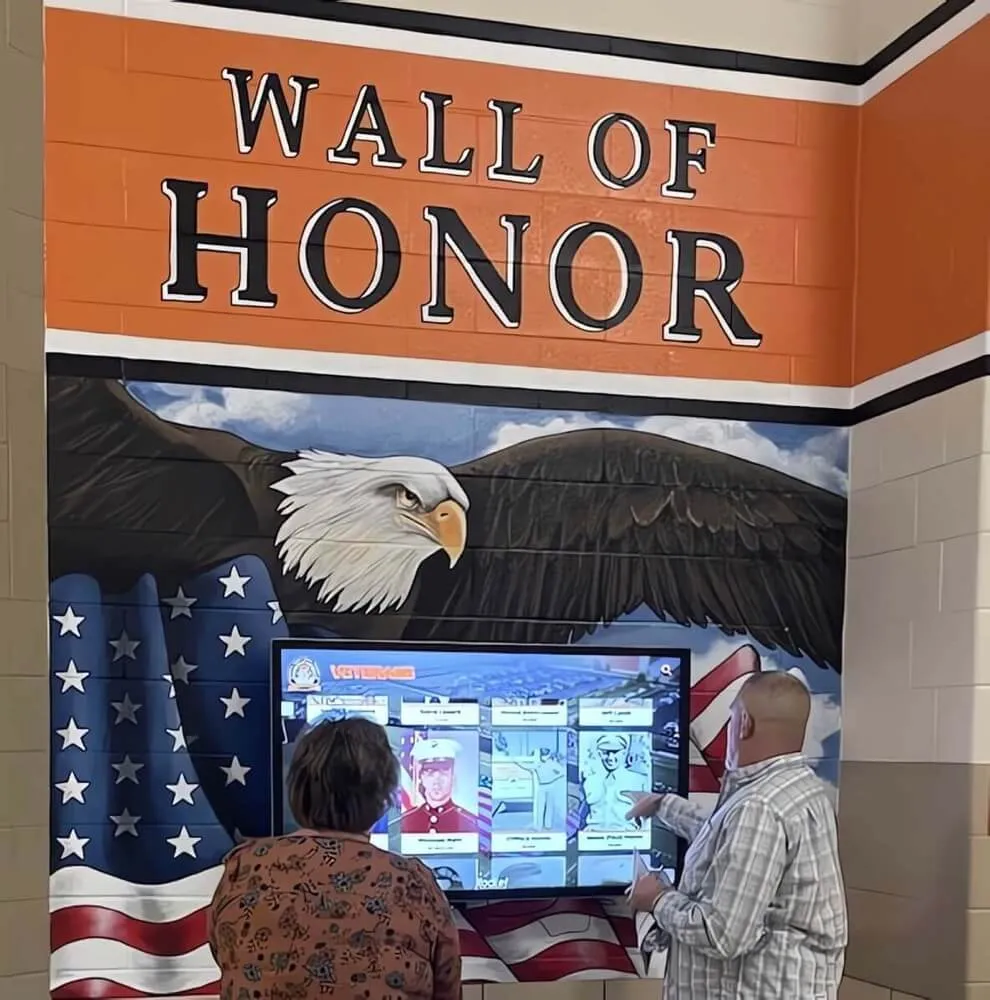
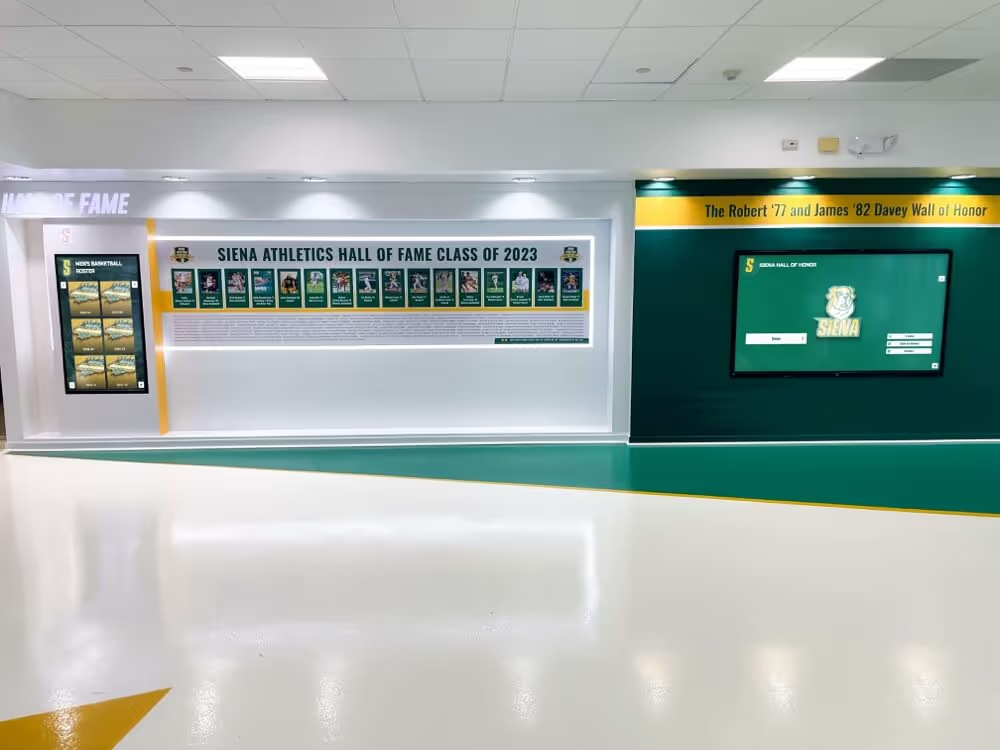
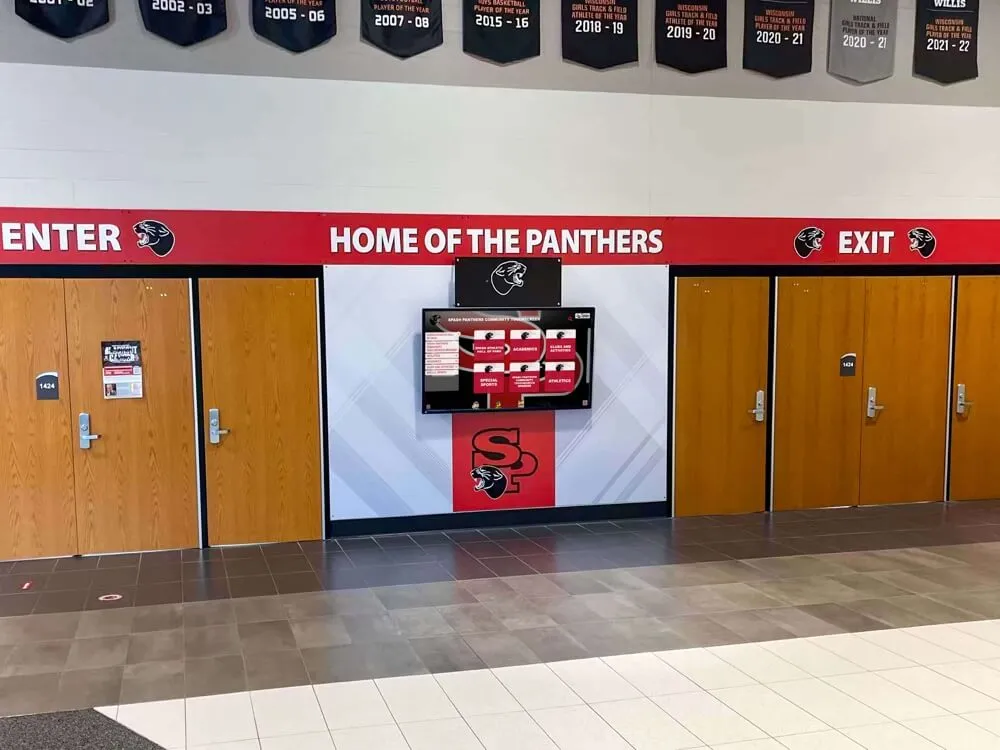

When a visitor activates an inductee bio modal on a digital hall-of-fame touchscreen or web interface—whether to read a full career biography, watch a video highlight, or browse a photo archive—the modal visually covers the page. The inert attribute ensures the coverage is functional for every visitor, not just sighted ones.
Without inert on background content, a screen reader user who opens an inductee modal can navigate away from it by pressing Tab or using browse-mode arrow keys. They may land on the navigation menu, another inductee card, or a search field that is visually hidden behind the overlay. From their perspective, the interface appears broken or the modal appears to have closed unexpectedly. For an athletic hall of fame that serves alumni, family members, and community visitors across a wide range of abilities, this is a structural failure in the recognition experience.
The inert attribute became available across Chrome, Firefox, and Safari by late 2022 and is now part of the HTML Living Standard. It supersedes the older aria-modal="true" approach, which relied on individual screen readers to honor the attribute—with inconsistent results across NVDA, JAWS, and iOS VoiceOver. Native inert on background content is enforced by the browser before the accessibility tree is constructed, making it more reliable than any ARIA-only workaround.
The Two Interface Patterns That Most Often Fail the Audit
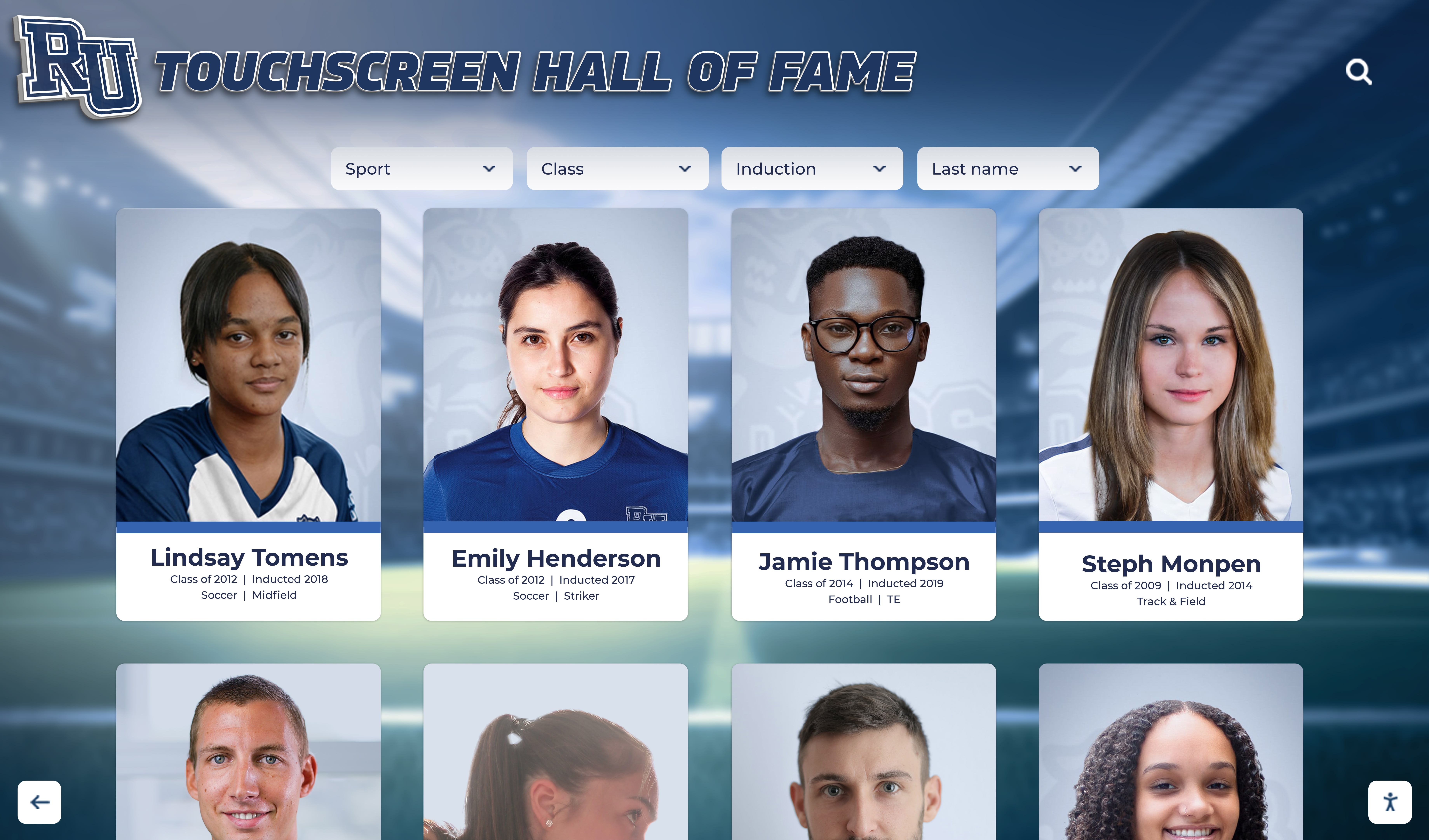
Hall-of-fame platforms that support interactive browsing typically use two patterns for deeper content: a centered modal dialog and a side drawer. Both should apply inert to background content, but they fail in different ways and require different audit steps to catch.
Understanding which pattern your installation uses before running the audit saves time and focuses the findings on the correct structural check.
Pattern 1: The Inductee Bio Modal
The inductee bio modal opens over the full hall-of-fame grid when a visitor selects a portrait card. It typically displays the inductee’s name, sport, graduation year, career summary, statistics, and optional media. Because it covers the full page, it creates the largest background-content exposure risk.
Common inert failures in bio modals:
- The modal is appended to the
<body>element at the end of the DOM, butinertis applied only to the card grid wrapper, not to the navigation header, footer, or other layout sections. Keyboard users can Tab out of the modal and into the footer links beforeinertis applied to those regions. - The modal implementation uses
aria-modal="true"withoutinert, relying on screen readers to respect the ARIA attribute. Older versions of NVDA and iOS VoiceOver do not reliably enforcearia-modal, allowing browse-mode navigation to reach background cards. - The background wrapper that receives
inertexcludes the sticky navigation bar. Sticky or fixed-position elements positioned outside the main content wrapper often escape theinertapplication because they are siblings of the wrapper, not descendants of it.
Pattern 2: The Sport or Category Drawer
Many hall-of-fame platforms include a slide-in drawer that opens from the side of the screen when a visitor selects a sport category, a decade filter, or a search tool. The drawer partially covers the page while leaving a portion of the card grid visible.
Common inert failures in drawers:
- The visible portion of the card grid is not made inert. Because part of the page is still visually visible, developers sometimes assume no
inertis needed. Screen reader users can still navigate the exposed cards even though the drawer is open and awaiting input. - The drawer closes without removing
inertfrom the background. A race condition between the close animation and the JavaScript cleanup leaves the background permanently inert after the drawer closes. Keyboard users find the page unresponsive to Tab after the first drawer interaction. - Focus does not move into the drawer on open. If the drawer opens but focus stays on the card that triggered it, keyboard users remain in background content that should be inert—and if
inertis applied correctly, they are immediately stranded with no way to reach the drawer without a pointing device.
How to Run a Digital Hall of Fame Inert Attribute Accessibility Audit
This audit can be run by school IT staff, an athletic director’s office manager, or any staff member with access to the platform’s front end and a modern browser. No developer access to source code is required for the discovery phase.
Step 1 — Map Every Modal and Drawer Entry Point
Before inspecting any code, document every control on the hall-of-fame interface that opens a modal or drawer:
- Inductee portrait cards — do they open a bio modal on tap or click?
- Sport or category filter buttons — do they open a filter drawer?
- Search controls — does the search open an overlay or drawer?
- Media thumbnails (video icons, photo count badges) — do they open a media gallery modal?
- “Read full bio” or “See more” links within a card — do they open an expanded modal or navigate to a new page?
Document each entry point as a separate audit item. A school’s athletic history archive spanning multiple decades and sport categories—similar to what a well-maintained digital history archive covers—may have a dozen or more modal and drawer entry points, each requiring independent verification.
Step 2 — Check for the Inert Attribute via DevTools
Open the hall-of-fame interface in Chrome or Edge. Trigger one modal or drawer to open. Then:
- Open DevTools (F12 or Ctrl+Shift+I on Windows; Cmd+Option+I on Mac)
- Click the Elements tab
- Use Ctrl+F (Cmd+F on Mac) to search the DOM for
inert - If the attribute appears on a background wrapper element, note which element carries it
- Verify that the element containing the site navigation, the card grid, and any footer are all descendants of the
inertelement—or that each receivesinertindependently
If the search returns zero results, the platform is not using the inert attribute for this modal. Record this as a finding.
If results appear, verify completeness: click each match in the Elements panel and confirm its subtree includes the navigation header, the full card grid, and any other interactive content regions. A sticky navigation bar that is a sibling of the inert wrapper—rather than a child—will not be protected.
Step 3 — Navigate by Keyboard with the Modal Open
Close DevTools and return to the interface. Trigger the modal or drawer to open. Then:
- Press Tab repeatedly without using the mouse
- Note every element that receives focus
- If focus leaves the modal or drawer and lands on a background inductee card, navigation link, or filter button, record this as a focus-trap failure
- Confirm that focus moves into the modal on open, rather than requiring the user to Tab into it manually
- Press Escape or activate the modal’s close button; confirm that focus returns to the control that opened it
A digital touchscreen athletic interface that correctly manages focus on both open and close satisfies WCAG SC 2.1.2 (No Keyboard Trap) regardless of whether inert is used. The inert attribute provides browser-enforced protection that does not depend on JavaScript running correctly in every browser and assistive-technology combination—it is the belt where focus management is the suspenders.
Step 4 — Test with a Screen Reader
Activate NVDA on Windows (free download from nvaccess.org) or VoiceOver on macOS (Cmd+F5). Navigate to the hall-of-fame interface and trigger a modal or drawer.
With the modal open:
- Use the screen reader’s browse-mode arrow keys (not Tab) to move through content
- If the screen reader announces inductee cards, navigation items, or other background content, the background is not correctly inert
- If the screen reader can only reach elements inside the modal or drawer, the
inertimplementation is working
When the modal closes:
- Confirm the screen reader resumes announcing background content immediately
- If background content remains silent after the modal closes,
inertwas not removed from the background wrapper on close
For programs that recognize graduates across ceremony seasons—including the careful traditions described in graduation ceremony planning guides—ensuring that every visitor can navigate recognition displays without assistive technology interference reflects the same care and intentionality the recognition itself represents.
Step 5 — Document and Prioritize Findings
Record each finding in a structured log:
| Field | Content |
|---|---|
| Entry point | Inductee card bio modal / Sport filter drawer / Media gallery |
| Test method | DevTools / Keyboard / Screen reader |
| Finding | Missing inert / Incomplete inert coverage / Focus not trapped / Focus not restored |
| Affected regions | Navigation header / Card grid / Footer / Sticky filter bar |
| WCAG reference | SC 2.1.2 (No Keyboard Trap) / SC 4.1.2 (Name, Role, Value) |
| Priority | High / Medium |
| Recommended fix | Apply inert to background wrapper / Extend inert to sticky nav / Add focus-return on close |
Common Findings and Recommended Remediations
Finding 1: No Inert Attribute Present
Symptom: DevTools search for inert returns zero results. Tab moves from the modal to background cards. Screen reader announces background content with the modal open.
Remediation: Apply inert to the element wrapping all page content outside the modal when the modal opens, and remove it on close:
const backgroundWrapper = document.getElementById('page-content');
const modal = document.getElementById('inductee-modal');

function openModal() {
  backgroundWrapper.setAttribute('inert', '');
  modal.removeAttribute('hidden');
  modal.querySelector('[data-first-focus]').focus();
}

function closeModal() {
  modal.setAttribute('hidden', '');
  backgroundWrapper.removeAttribute('inert');
  document.getElementById('modal-trigger').focus();
}
Finding 2: Inert Applied to Card Grid But Not Navigation Header
Symptom: Tab cannot reach inductee cards with the modal open, but can still reach site navigation links in the header.
Remediation: Apply inert to every interactive region outside the modal. If the navigation header is a sibling of the card grid wrapper, apply inert to each sibling independently:
document.getElementById('site-header').setAttribute('inert', '');
document.getElementById('card-grid').setAttribute('inert', '');
document.getElementById('site-footer').setAttribute('inert', '');
Or restructure the layout so all background content shares a single wrapper element that can receive one inert attribute, eliminating the need to track each sibling separately.
Finding 3: Drawer Does Not Remove Inert on Close
Symptom: After closing the drawer, Tab does not move focus to any page element. The page appears frozen to keyboard users.
Remediation: Remove inert synchronously before returning focus—do not wait for the close animation to complete:
function closeDrawer() {
  drawer.setAttribute('hidden', '');
  backgroundWrapper.removeAttribute('inert');
  drawerTriggerButton.focus();
}
Relying on animation-end events to remove inert introduces a window during which the page has no focusable content, stranding keyboard users.
Finding 4: Focus Does Not Enter Modal on Open
Symptom: Modal appears visually but keyboard focus remains on the trigger behind it. Background content is correctly inert, but the modal itself is unreachable until the user discovers they must Tab into it.
Remediation: Move focus explicitly into the modal when it opens. Use tabindex="-1" on the modal heading to make it programmatically focusable without adding it to the natural Tab order:
<div role="dialog" aria-modal="true" aria-labelledby="modal-title">
  <h2 id="modal-title" tabindex="-1">Jane Doe — Volleyball, Class of 2001</h2>
  <button data-modal-close>Close</button>
  <!-- modal content -->
</div>
modal.removeAttribute('hidden');
modal.querySelector('#modal-title').focus();
Inert Attribute Audit Checklist for Modals and Drawers
Use this checklist for each modal and drawer entry point on your hall-of-fame platform. Every item must pass before the interface is considered accessible for assistive technology users.
DevTools Verification
-
inertattribute is present on a background wrapper when the modal or drawer is open - The
inertelement’s subtree includes the site navigation header - The
inertelement’s subtree includes the inductee card grid - The
inertelement’s subtree includes the site footer - Sticky or fixed-position elements outside the
inertwrapper haveinertapplied directly - DevTools confirms
inertis removed from background content when the modal or drawer closes
Keyboard Navigation Verification
- Focus moves into the modal or drawer automatically when it opens
- Tab key cannot reach any background interactive element while the modal or drawer is open
- Escape key or close button dismisses the modal and returns focus to the trigger
- After the modal closes, Tab moves normally through all page elements
Screen Reader Verification
- With modal open, browse-mode navigation cannot reach background inductee cards
- With modal open, browse-mode navigation cannot reach background navigation links
- Modal heading is announced when focus enters
- When modal closes, screen reader resumes normal announcement of background content
ARIA and Semantic Markup
- Modal uses
role="dialog"andaria-modal="true"alongsideinerton background content - Modal has a visible heading referenced by
aria-labelledbyon the dialog element - Drawer uses
role="dialog"orrole="complementary"with an appropriate label - The modal’s first focus target is the close button or the dialog heading with
tabindex="-1"
Connecting the Audit to School Recognition Programs
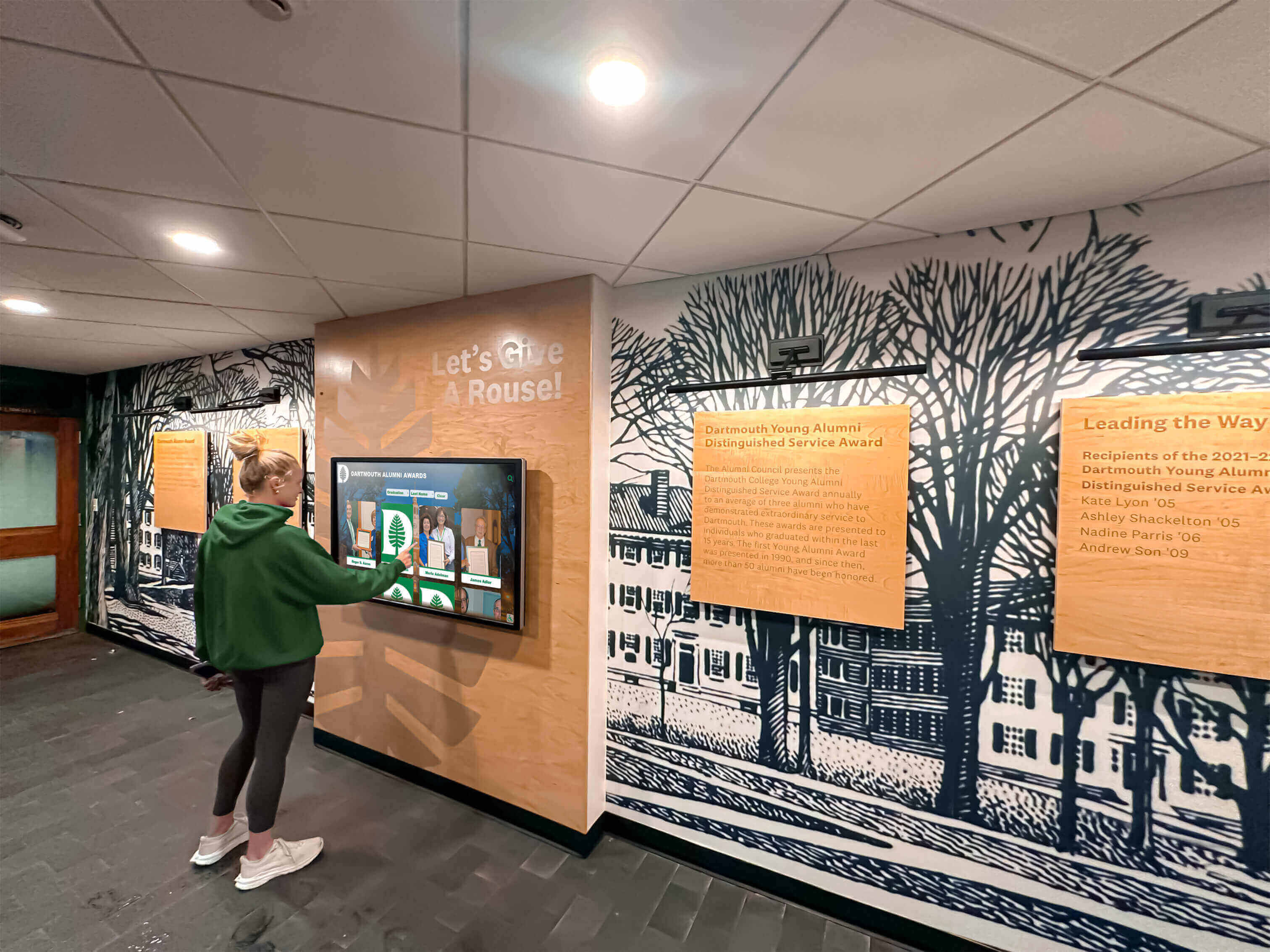
Digital hall-of-fame platforms serve a wide range of visitors: current students researching school history, alumni returning for reunions, family members attending induction ceremonies, and community members exploring athletic heritage. Among those visitors are people who navigate by keyboard, use screen readers, or rely on voice control software.
When a bio modal opens over an inductee grid and the background remains interactive for assistive technology users, the platform presents a confusing, fragmented experience. The visitor who opened the modal to read about a championship team's history may find their screen reader announcing unrelated inductee names and filter buttons. The inert attribute audit is the targeted check that catches this class of failure before visitors encounter it.
Athletic programs that celebrate decades of competition invest considerable effort in curating accurate, detailed inductee profiles. Platforms that archive sports memory content for banquets and team rooms or maintain comprehensive records of team accomplishments serve their communities best when every visitor can access that history equally. The inert attribute audit is a one-time investment that pays forward with every new inductee added to the system.
Institutions that honor student achievement across both athletic and academic recognition programs—similar to programs designed to celebrate teamwork and team-first leadership—benefit particularly from accessible modal implementations. Recognition ceremonies that gather the widest community audiences are exactly the moments when assistive technology users are most likely to explore the digital hall of fame, and when a modal accessibility failure is most visible.
For institutions that run both a physical touchscreen kiosk and a companion web presence, this audit applies primarily to the web version—the inert attribute is a browser DOM feature—but any JavaScript-driven overlay on the kiosk’s browser-based interface should be tested with the same checklist. A digital trophy case interactive display that passes the inert attribute audit on its web companion and its kiosk browser provides consistent, accessible recognition experiences across every access point.
When to Schedule the Audit
Before initial deployment. If your school is selecting or onboarding a new recognition platform, run the audit on a staging or demo version before the contract is signed. A platform that handles inert correctly costs nothing extra to deploy accessibly; one that does not requires remediation time and vendor coordination after launch.
After any template or software update. Platform vendors push updates that affect modal behavior without always testing for inert attribute coverage. After any update that touches modal, drawer, or overlay components, re-run the keyboard and screen-reader steps of the audit on at least one modal entry point.
Before high-attendance recognition events. Induction ceremonies, all-star recognition banquets, and alumni reunions bring the broadest audiences to recognition displays. Running the checklist in the week before the event catches regressions before they affect guests in a public, high-visibility setting.
Working With Your Platform Vendor
If your audit uncovers missing or incomplete inert attribute coverage, bring the findings to your vendor with DevTools screenshots and the specific modal entry points that failed. The remediation is straightforward JavaScript—adding and removing an attribute on a wrapper element—and should not require significant development effort from a vendor familiar with accessible modal patterns.
Questions to include in your vendor conversation:
- Does your modal implementation apply
inertto background content, or does it rely solely onaria-modal="true"? - Does the
inertattribute cover sticky navigation headers and fixed-position elements, not just the card grid? - Is focus moved into the modal automatically on open?
- Does the close sequence remove
inertbefore returning focus to the trigger? - Is the
inertimplementation tested against NVDA, VoiceOver, and keyboard-only navigation in your QA process?
For programs planning a long-term digital archive of athletic records—covering everything from individual inductees to full team histories—selecting a vendor who can answer these questions affirmatively protects the investment in recognition content by ensuring every visitor can access it. That principle holds whether the archive is a new installation or a growing collection built over many award seasons.