



Key Takeaways
Run a digital hall of fame error suggestion audit to confirm search, filter, and nomination forms give actionable correction guidance. Step-by-step checklist for school administrators and athletic directors.

What Error Suggestion Means for Hall of Fame Search and Forms
WCAG 2.1 Success Criterion 3.3.3 — Error Suggestion (Level AA) states: if an input error is automatically detected and suggestions for correction are known, then the suggestions are provided to the user, unless doing so would jeopardize the security or purpose of the content.
In a digital hall of fame context, this criterion governs three categories of interface:
- Inductee search fields — the free-text search that visitors use to find athletes or honorees by name
- Sport, category, and year filter controls — the filters that narrow the inductee grid by sport, graduation class, or decade
- Nomination and contact forms — the structured forms through which schools and community members submit new inductee candidates
Each category creates a distinct type of error suggestion failure, and each requires different remediation. The audit steps below address all three.
The related criterion is SC 3.3.1 (Error Identification, Level A), which requires that detected errors be described in text. SC 3.3.3 goes further: it requires that when a correction can be determined, it be communicated. Identifying that an error occurred without offering a correction path satisfies SC 3.3.1 but still fails SC 3.3.3. A message that reads “No results found” satisfies neither—it does not describe the error (a misspelled name) nor suggest a correction (the intended name or a close match).
For school programs that maintain recognition displays in hallways and lobbies, the gap between a silent empty result and a helpful correction suggestion is the gap between a visitor who finds the inductee they came to see and one who walks away with the impression that the honoree was never recognized at all.
The Three Interfaces Most Prone to Error Suggestion Failures
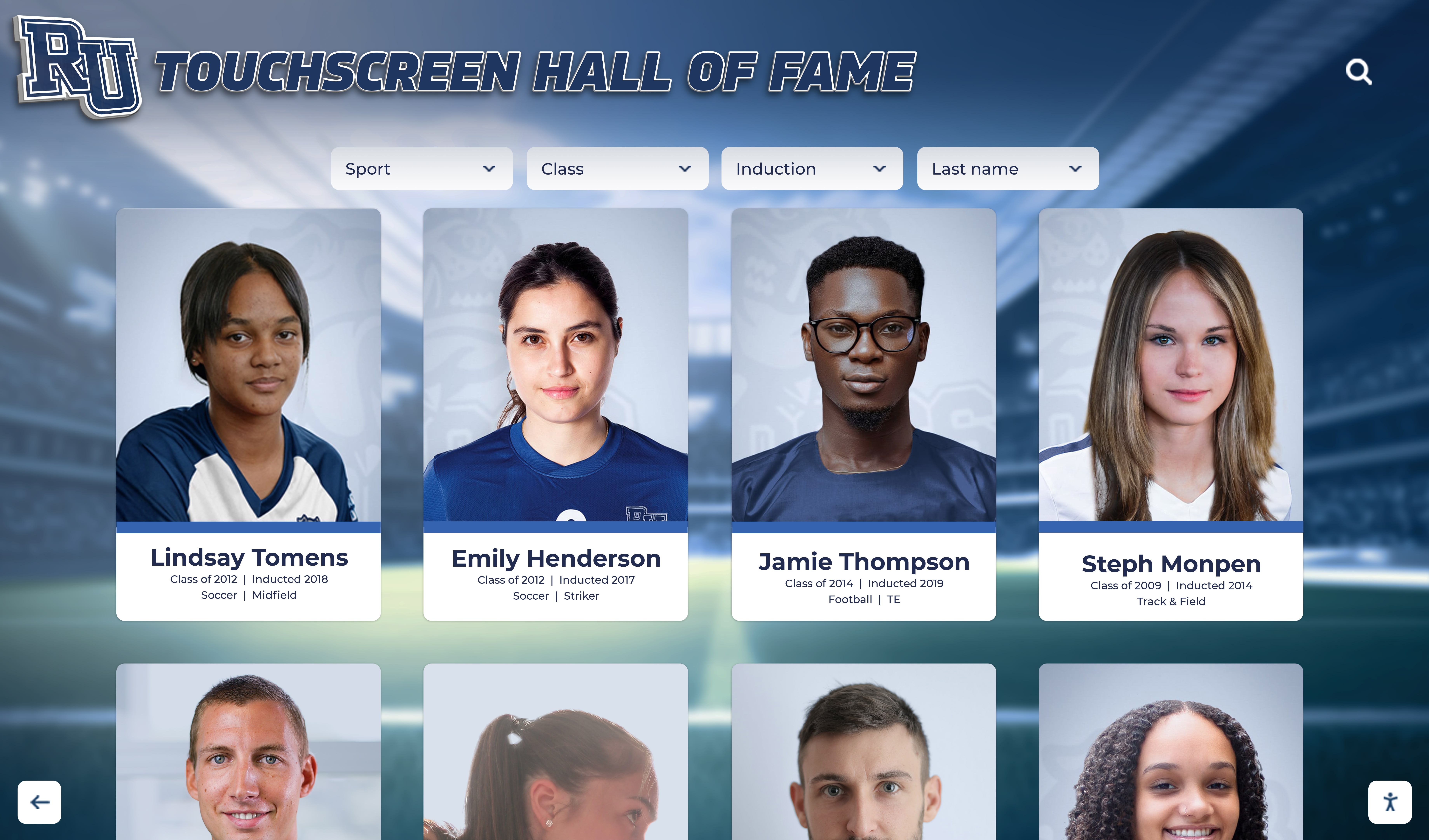
Error suggestion failures on hall of fame platforms cluster around the same three interface types regardless of platform vendor. Understanding which pattern your installation uses helps focus the audit on the entry points most likely to fail SC 3.3.3.
All three failure types are testable without developer access—the audit uses the live interface and records what the platform returns in response to deliberately imperfect input.
Interface 1: The Inductee Name Search Field
The name search field is where most visitor-facing error suggestion failures appear. A visitor who spells an inductee’s surname incorrectly—one transposed letter, one dropped vowel—receives an empty results page. If the platform has the inductee in its database under the correct spelling and can compute a near-match, SC 3.3.3 requires that the near-match be offered.
Common failure modes in name search:
- Silent empty result — the page returns zero results with no text explaining why or suggesting an alternative spelling
- Generic “no results” message — the page acknowledges no match but provides no path to a corrected search
- Results without suggestion — the page correctly returns similar names as a browse option, but the text does not describe the connection (“Did you mean Johnson?”)
- No match for partial names — a search for “Mich” returns nothing instead of surfaces inductees whose first or last name begins with those characters
Platforms that maintain a well-organized archive of recognitions—similar to what a comprehensive semester highlights reel provides in a structured format—accumulate inductee records that are especially susceptible to name search errors as the roster grows and surname variations multiply.
Interface 2: Sport, Category, and Year Filter Controls
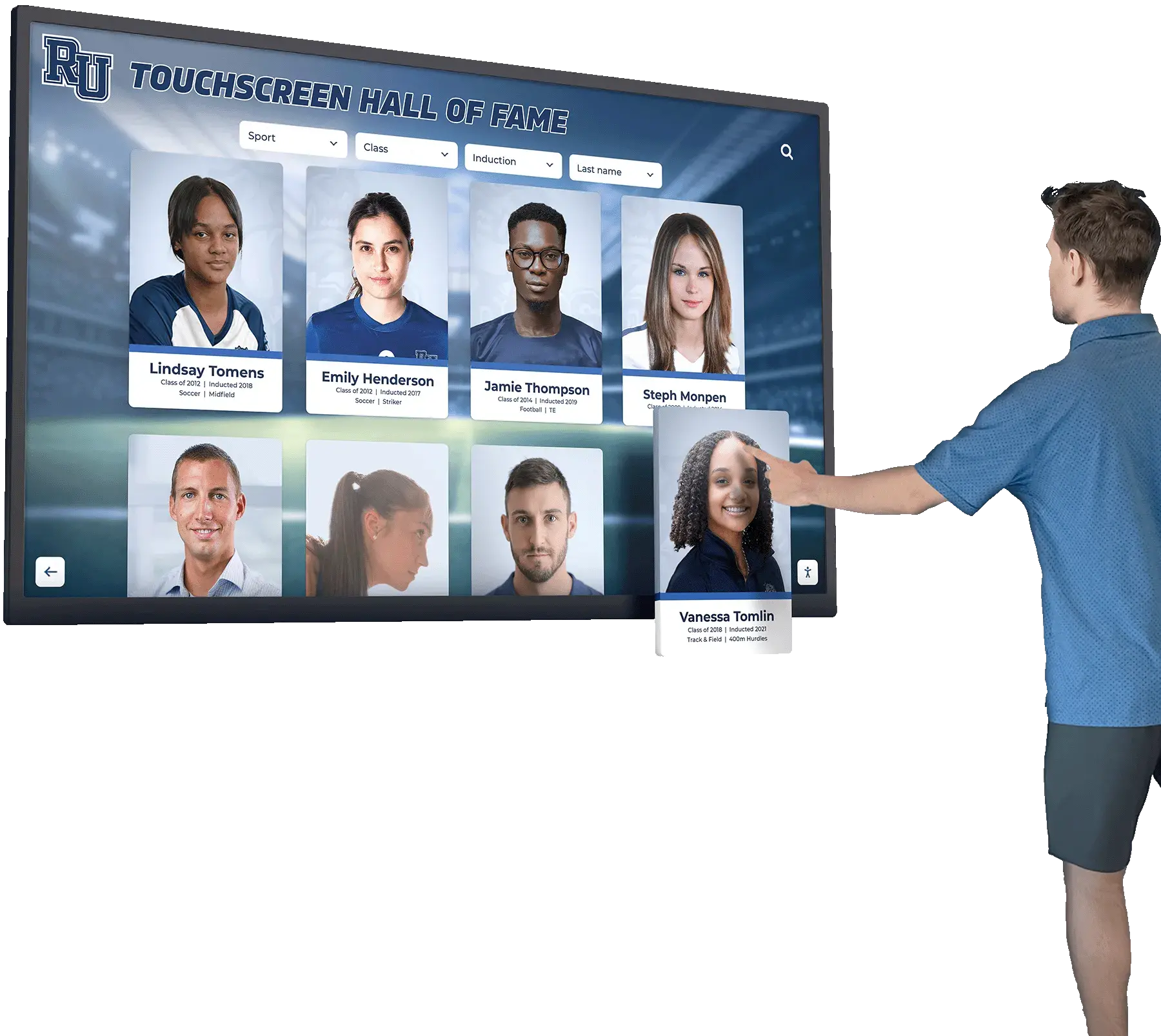
Filter controls that accept typed input—autocomplete sport fields, year-range inputs, decade selectors with text entry—each create structured error suggestion opportunities that most platforms handle poorly.
Common failure modes in filter controls:
- Misspelled sport category accepted silently — entering “Basketbal” into a sport filter returns zero results with no suggestion that “Basketball” was the intended term
- Out-of-range year accepted silently — entering a two-digit year (“98” instead of “1998”) produces no results and no guidance about the expected format
- Decade filter with no range feedback — entering a year outside the school’s recorded history produces a blank filter result with no explanation that the earliest available cohort begins at a different year
- Case-sensitive autocomplete failure — autocomplete suggestions appear only for title-case input, so “volleyball” (all lowercase) returns nothing while “Volleyball” returns the full list
Interface 3: Nomination and Contact Forms
Nomination forms that schools use to submit new inductee candidates contain the highest density of structured fields—name, graduation year, sport, contact email, phone number—and therefore the most error suggestion opportunities. Because nomination submissions are typically reviewed by staff rather than published immediately, the error suggestion failures here affect school administrators rather than public visitors, but the SC 3.3.3 requirement applies equally.
Common failure modes in nomination forms:
- Phone number rejected with a generic “invalid format” message — the error identifies that the phone number is wrong but does not describe the expected format or provide an example
- Email field rejected without describing the structure — a missing “@” or domain suffix is identified as an error but the corrected format is not shown
- Graduation year rejected without stating the valid range — the field accepts only four-digit years from a specific range but rejects out-of-range input with only a red border and no text
- Required name field rejected with “This field is required” — the message correctly identifies the error under SC 3.3.1 but provides no suggestion of what a valid entry looks like
How to Run a Digital Hall of Fame Error Suggestion Audit
An error suggestion audit requires no developer access, no code changes, and no special tools beyond a modern browser. Plan approximately two to three hours to cover the full set of search, filter, and form inputs on a typical recognition platform.

Step 1 — Map Every Search, Filter, and Structured Form Input
Before testing any input, document every field on the platform that accepts typed or selected input from a visitor or staff member:
- Visitor-facing search inputs — the name search bar on the inductee grid, any keyword search on photo or media galleries
- Visitor-facing filter controls — sport selector, graduation year input, decade filter, award category dropdown with a text search option
- Staff-facing nomination form fields — inductee name, graduation year, sport, contact name, phone number, email address
- Staff-facing CMS search — the search bar inside the content management system used to locate existing inductee records for editing
Each input is a separate audit item. Resist the instinct to assume that because one search input suggests corrections, all inputs on the platform do—each is often implemented independently.
Step 2 — Test Name Search with Deliberate Misspellings
Navigate to the inductee search interface. Identify two to three inductee surnames that are currently in the system. For each, construct test queries:
- One-character transposition: “Smithh” instead of “Smith”
- One dropped character: “Jonson” instead of “Johnson”
- One added character: “Willliams” instead of “Williams”
- Phonetic variant: “Smyth” instead of “Smith”
Submit each query and record:
- Does a correction suggestion appear in text (“Did you mean Smith?”)?
- Does the page list near-match inductee records alongside a textual explanation of the match?
- Does the page return only a “no results” message with no suggestion?
- Does the page return a blank result with no message at all?
A passing result presents a specific suggestion (“Did you mean [name]?”) or returns near-match inductees with explanatory text. A failing result presents zero results, a generic “no results found” message without a correction, or no message whatsoever.
Step 3 — Test Sport and Year Filters with Invalid Input
Navigate to the sport or category filter. If the filter accepts typed input (an autocomplete text field, not a fixed dropdown), test the following:
- Enter a deliberate one-character misspelling of a valid sport: “Soccre” instead of “Soccer”
- Enter a partial sport name: “Swim” instead of “Swimming”
- Enter a sport in all lowercase if the filter is case-sensitive: “football” vs “Football”
For year-range or decade filters that accept typed input, test:
- A two-digit year (“98”) instead of a four-digit year (“1998”)
- A year before the school’s earliest recorded cohort
- A year more than five years in the future
Record whether a textual suggestion appears for each failing input. For platforms that serve recognition programs covering multiple generations—including schools with a history as layered as those described in school storytelling archives with photo galleries, timelines, and alumni profiles—year filter error suggestion is particularly important because the valid range spans decades and visitors often do not know exactly when a remembered inductee graduated.
Step 4 — Test Nomination Form Fields with Invalid Structured Input
Open the nomination or contact form used by the school to submit new inductee candidates. Test each structured field:
Phone number field:
- Enter 10 digits with no formatting: “5551234567”
- Enter with incorrect formatting: “555.123.4567” or “1-555-123-4567”
- Enter fewer than 10 digits: “555123”
- Record whether the error message names the expected format (“Enter a 10-digit U.S. phone number, for example (555) 123-4567”)
Email field:
- Enter an address missing the “@”: “janedoeexample.com”
- Enter an address with an “@” but no domain: “janedoe@”
- Record whether the error message identifies the structural problem (“Email address must include an @ and a domain, for example jane@school.edu”)
Graduation year field:
- Enter a two-digit year: “01” instead of “2001”
- Enter a year before 1900
- Enter a year more than ten years in the future
- Record whether the error message states the expected format and valid range (“Enter a 4-digit graduation year between 1900 and 2030”)
Required name field:
- Submit with the inductee first name blank
- Submit with the inductee last name blank
- Record whether the error message names the specific field (“First name is required”) and whether it provides any example of what a valid entry looks like
Step 5 — Test the CMS Staff Search
Log into the platform’s content management system. Locate the search function used to find existing inductee records. Repeat the misspelling tests from Step 2 for two to three profiles you know exist. Record whether the CMS search provides correction suggestions to staff, or whether it too returns silent empty results.
CMS search error suggestion matters because staff who cannot find a profile to edit may create a duplicate instead of updating the existing record—a data integrity failure that begins with an error suggestion gap.
Step 6 — Document Every Finding
Complete one row per finding using this structure:
| Column | Content |
|---|---|
| Interface | Name search / Sport filter / Year filter / Nomination form / CMS search |
| Input tested | “Basketbal” / “98” / phone without hyphens |
| Expected response | Suggestion “Did you mean Basketball?” / “Enter a 4-digit year” |
| Actual response | Silent empty result / Red border only / Generic “invalid” |
| WCAG criterion | SC 3.3.3 (Error Suggestion) / SC 3.3.1 (Error Identification) |
| Priority | High / Medium |
| Recommended fix | Add fuzzy-match suggestions to search / Add format example to phone error message |
Organize findings by interface type before bringing them to your platform vendor.
Common Findings and Remediation Patterns
Finding 1: Name Search Returns a Silent Empty Result
Symptom: Searching for a misspelled inductee name returns a blank page or a results grid with zero cards and no message.
Remediation: Implement fuzzy-match search that computes the closest name in the inductee database and surfaces the result with an explanatory message:
<div role="status" aria-live="polite" id="search-feedback">
<p>No results found for "<strong>Jonson</strong>."</p>
<p>Did you mean <a href="/search?q=Johnson">Johnson</a>? (3 inductees)</p>
</div>
The role="status" with aria-live="polite" causes screen readers to announce the suggestion without interrupting current reading. The link allows any visitor—including those navigating by keyboard—to act on the suggestion in a single step.
Finding 2: Form Field Rejected with Only a Color Change
Symptom: A phone number or email field turns red on invalid input but displays no text describing what is wrong or how to fix it.
Remediation: Pair every inline validation color change with a text message that names the field, describes the detected error, and provides an example of valid input:
<label for="phone">Phone Number</label>
<input type="tel" id="phone" name="phone"
  aria-describedby="phone-error"
  aria-invalid="true">
<span id="phone-error" role="alert" class="error-message">
  Enter a 10-digit phone number, for example (555) 123-4567.
</span>
The role="alert" attribute causes the error message to be announced immediately by screen readers on injection. The aria-invalid="true" attribute exposes the field’s error state to assistive technology. The example format in the message text satisfies the SC 3.3.3 requirement that a suggestion be provided when one can be determined.
Finding 3: Year Field Accepts Out-of-Range Values Silently
Symptom: A graduation year or induction year field accepts “1750” or “98” without producing any visible or announced error.
Remediation: Validate year fields against a plausible range and display a text error with the valid bounds and expected format:
<label for="grad-year">Graduation Year</label>
<input type="number" id="grad-year" name="grad-year"
  min="1900" max="2030"
  aria-describedby="grad-year-error">
<span id="grad-year-error" role="alert" class="error-message" hidden>
  Enter a 4-digit graduation year between 1900 and 2030. For example: 2005.
</span>
The min and max attributes enforce the range at the browser level for supporting browsers, while the explicit error message handles cases where browser validation is bypassed or the constraint needs to be communicated more specifically.
Finding 4: Sport Filter Returns Zero Results with No Suggestion
Symptom: Typing a misspelled sport name into an autocomplete filter returns no options and no textual guidance about the available sport categories.
Remediation: When the autocomplete filter finds no exact match, display a fallback message that lists the nearest available category or the full sport list:
<div role="status" aria-live="polite" id="filter-feedback">
<p>No category found for "<strong>Soccre</strong>."</p>
<p>Available sports include: <a href="?sport=Soccer">Soccer</a>, <a href="?sport=Softball">Softball</a>, <a href="?sport=Swimming">Swimming</a>.</p>
</div>
For platforms that also support digital donor recognition walls and fundraising displays—similar to programs described in digital donor wall ideas for modern recognition and fundraising campaigns—the same autocomplete error suggestion pattern applies to category filters on the donor side, where gift type or campaign name misspellings can produce silent empty results.
Error Suggestion Audit Checklist
Use this checklist for each search, filter, and form input on your hall of fame platform. Every item must pass before the interface is considered compliant with WCAG SC 3.3.3.
Inductee Name Search
- A misspelled inductee name that has a near-match in the database produces a textual “Did you mean [name]?” suggestion
- The suggestion links directly to the corrected search or the inductee’s profile
- A search with no close matches produces a “No results found” message with guidance (e.g., browse all inductees, check the spelling)
- The suggestion or no-results message is announced by screen readers via
role="status"oraria-live - Partial name searches surface inductees whose names begin with the entered characters
Sport and Category Filters
- A misspelled sport category name produces a textual suggestion of the nearest available category
- The filter’s “no results” state displays the list of available sport categories or a link to the full browse view
- Partial category input that matches multiple sports shows all matching options with their full names
- Year or decade filter fields with invalid input display a text error stating the valid range and expected format
Nomination and Contact Form Fields
- Phone number field rejected for invalid format displays a text message describing the expected format and provides an example
- Email field rejected for invalid format displays a text message identifying the structural problem (missing “@” or domain) and provides an example
- Graduation year field rejected for an out-of-range value displays a text message stating the valid range
- All error messages appear in text, not only through color changes or icon cues
- Error messages name the specific field that failed, not only a generic “invalid input” message
- Keyboard focus is programmatically moved to the first errored field after a failed form submission
- A multi-field error summary appears at the top of the form listing all fields that require correction
CMS Staff Search
- A misspelled inductee name in the CMS search produces a correction suggestion or near-match results
- The CMS search “no results” state provides guidance rather than a silent empty list
Screen Reader and Keyboard Verification
- All error messages and search suggestions are announced by screen readers without requiring focus movement
- Error messages use
role="alert"for immediate announcement oraria-live="polite"for non-critical feedback - All suggestion links are reachable by Tab key without a pointing device
-
aria-invalid="true"is applied to every field that has an active error message
WCAG Criterion Cross-Reference
- SC 3.3.1 (Error Identification, Level A): all detected errors are described in text
- SC 3.3.3 (Error Suggestion, Level AA): all detectable errors with knowable corrections include a specific suggestion
- SC 3.3.4 (Error Prevention, Level AA): nomination form submissions involving irreversible data changes include a confirmation or reversibility mechanism
Connecting the Audit to School Recognition Programs

Visitors to a school's hall of fame arrive with a specific person in mind: a parent searching for a child, a graduate looking up a former teammate, a community member curious about a locally recognized athlete. When the search interface fails to suggest a correction for a near-miss spelling, that visitor experiences the recognition program as incomplete—not because the honoree is absent, but because the interface created a dead end.
For athletic directors and recognition-program owners, error suggestion failures are not abstract accessibility compliance issues. They are the practical reason a family leaves a hall of fame induction ceremony and cannot find the inductee on the lobby touchscreen. Closing those gaps requires knowing where they exist.
Schools that invest in recognition programs as a central part of their identity—creating lobby displays, digital archive stations, and recognition walls that visitors encounter on every campus visit—benefit from an error suggestion audit in the same way they benefit from any quality review of the recognition experience. A well-designed lobby environment, as described in resources on school lobby design and welcoming first impressions, depends on the digital elements of that environment being as functional as the physical ones.
For booster club programs and parent-volunteer groups that support recognition initiatives, an error suggestion audit provides concrete, actionable findings that can be included in a platform evaluation or vendor conversation without requiring technical expertise. A finding that reads “The sport filter returns no results for ‘Soccre’ and provides no guidance” is understandable to any stakeholder, not only to a developer.
Programs that use nomination forms to collect community submissions for new inductees face a particular risk when form error suggestion is absent: a community member who receives an unhelpful error message on a nomination form may abandon the submission entirely. Schools with active community nomination programs—including booster-supported recognition initiatives like those described in how to start a booster club for school recognition programs—stand to lose valuable submissions when their nomination form does not guide submitters past validation errors.
The error suggestion audit is also a meaningful complement to the browser compatibility testing that ensures the recognition platform works across the range of devices visitors bring to campus events. A platform that passes hall of fame website browser compatibility testing but returns silent empty results for misspelled names still fails the visitor who cannot spell the inductee’s surname from memory.
When to Schedule the Audit
Before initial deployment. If the school is evaluating recognition platforms or onboarding a new vendor, request access to a staging or demo environment and run the error suggestion audit before signing. A platform whose search returns correction suggestions and whose forms display specific error guidance costs nothing extra to deploy; one that does not requires remediation coordination after launch.
After any search or form update. Platform vendors push updates that change autocomplete behavior, form validation logic, and error message text without always testing the complete user-facing path. After any platform update that touches search, filter, or form components, re-run the name search misspelling test and one form field test to confirm error suggestion is still in place.
Before a high-attendance recognition event. Induction ceremonies, alumni reunions, and end-of-season recognition nights bring the largest and most diverse audiences to the hall of fame touchscreen and web interface. Running the checklist in the week before the event catches regressions before they affect guests who are actively looking for an honoree.
When the inductee database crosses a growth threshold. As the number of inductees grows, the probability of a near-miss name search increases—there are simply more names in the system that differ from a typed query by one or two characters. A platform that had no near-match candidates two years ago may now have dozens, making error suggestion both more technically feasible and more necessary for visitor experience.
Principal-facing recognition programs—including programs that honor school leaders alongside athletes—benefit from the same search quality assurance. A principal appreciation initiative that adds honoree records to the platform’s search index should confirm that those records are reachable by name search before the recognition event.
Working With Your Platform Vendor
If the audit surfaces missing or inadequate error suggestion on search and form inputs, bring organized findings to the platform vendor with specific test cases: the input you entered, the response you received, and the response SC 3.3.3 requires.
Questions to include in the vendor conversation:
- Does the inductee name search return correction suggestions when a query closely matches a name in the database?
- Does the search “no results” state provide textual guidance rather than a blank page?
- Do sport and year filter controls provide a text error message with the valid range or the available categories when invalid input is entered?
- Do nomination form fields display specific error messages that describe the expected format and provide an example—not only identify that an error occurred?
- Are error messages implemented with
role="alert"oraria-liveso they are announced by screen readers without requiring focus to move to the message? - Is fuzzy matching available on the CMS staff search, not only on the visitor-facing interface?
- Is the error suggestion implementation tested against NVDA, VoiceOver, and keyboard-only navigation in the vendor’s QA process?
For institutions that also operate physical recognition displays and interactive kiosks—where a college residence hall informational interactive display or an athletic lobby touchscreen is the primary access point—the error suggestion audit applies to the browser-based interface underlying both the web companion and the kiosk. Any search or filter component rendered in a browser context should be tested with the same checklist regardless of whether it is accessed on a desktop, a tablet, or a wall-mounted touchscreen.
Building Error Suggestion Into the Content Workflow
A single audit establishes the baseline state of error suggestion on the current platform. Maintaining that standard over time as the inductee database grows, as new sport categories are added, and as nomination forms evolve requires incorporating an error suggestion check into the content workflow for every major platform update.
The most durable approach is a platform that treats correction suggestions and specific error messages as structural features—present in every search input, every filter control, and every form field by default—rather than as per-field customizations that staff must configure independently. When error suggestion is built into the platform’s template layer, every new inductee added to the system is automatically included in the fuzzy-match search results, and every new form field inherits the validation-and-suggestion pattern without requiring a separate implementation decision.
Recognition programs that catalog decades of athletic achievement, academic distinction, and community service create an archive that grows more valuable with each inductee class. An accessible search interface—one that helps every visitor find every honoree even when the spelling is imperfect—is the mechanism that makes that value accessible to the community the recognition program is designed to serve.