



Key Takeaways
Run a digital hall of fame ARIA-keyshortcuts audit to verify that every documented keyboard shortcut in search and navigation actually works and that kiosk deployments do not advertise shortcuts unavailable on touchscreens.
aria-keyshortcuts attribute is what tells a screen reader which shortcuts exist, so a visitor hears "slash — Jump to search" alongside the search control rather than discovering shortcuts only by reading documentation. A digital hall of fame ARIA-keyshortcuts audit checks two things: that every shortcut documented in the markup genuinely works, and that the display does not advertise keyboard shortcuts on a touchscreen kiosk where no keyboard is present. This guide walks school IT teams, athletic directors, and accessibility coordinators through every step of that audit without requiring access to the platform's source code.
What aria-keyshortcuts Does in a Hall-of-Fame Interface
aria-keyshortcuts is an ARIA property—not a behavioral attribute. It does not create a keyboard shortcut. It documents one. The shortcut itself must be implemented in JavaScript; the attribute tells assistive technology that the shortcut exists so it can announce the key combination to a user who would otherwise have no way of discovering it.
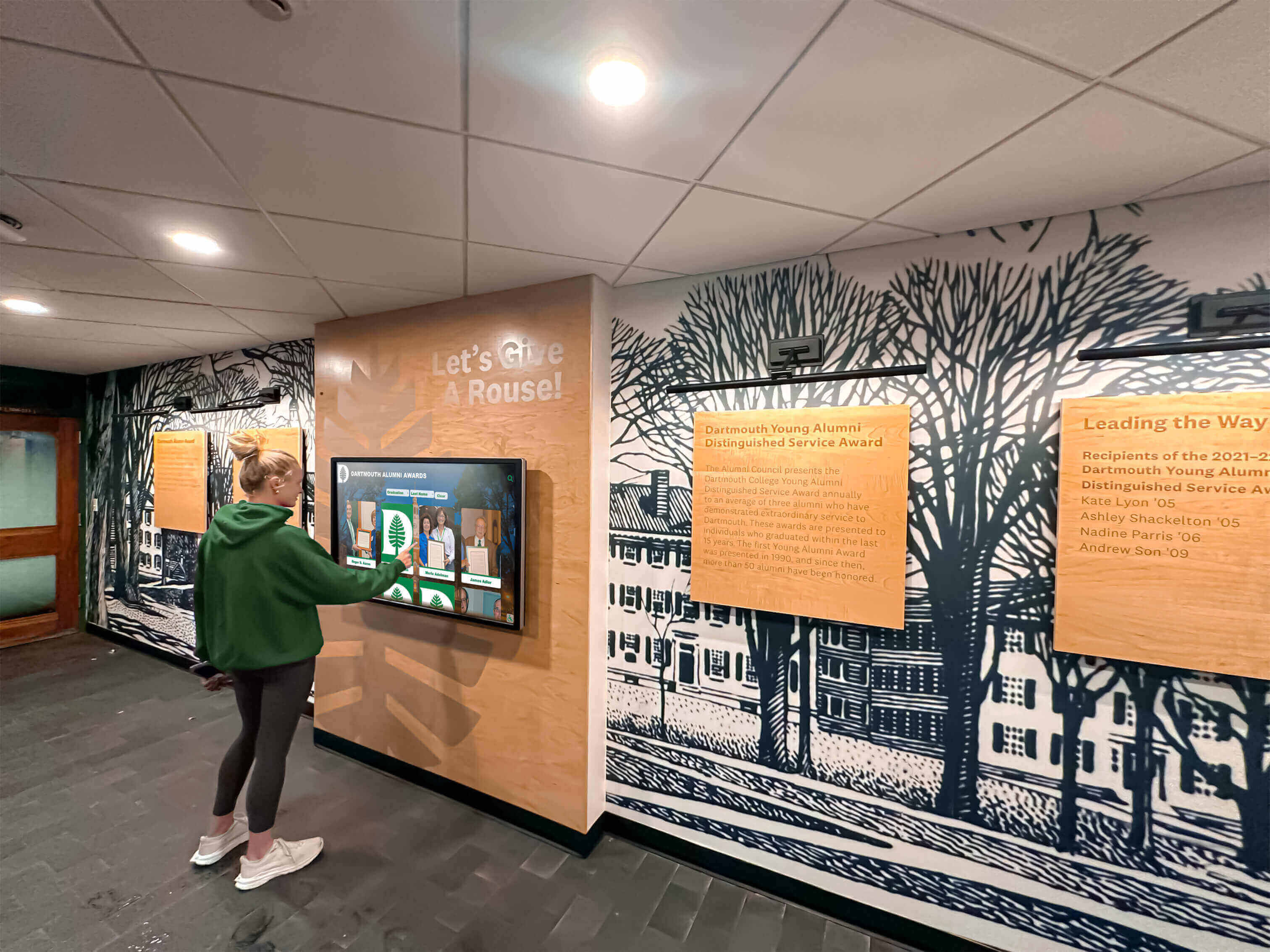
On a school athletic hall of fame, keyboard shortcuts most commonly appear on:
- The search input — a key combination such as
/orAlt+Sfocuses the search field so a keyboard user can begin typing a name without first tabbing past navigation and filter controls - Navigation arrows —
ArrowRightandArrowLeftor custom modifier combinations advancing to the next or previous inductee profile within a filtered result set - Filter reset — a key combination clearing all active sport, decade, or award filters and returning the full inductee roster
- Sort toggle — a shortcut cycling through sort options without activating the sort dropdown by mouse or pointer
- Result list jump — a key combination moving focus directly to the first result card after a search completes, bypassing controls above the list
When a screen reader encounters any of these elements, it announces the shortcut alongside the element’s accessible name and role. A search field with aria-keyshortcuts="/" and aria-label="Search inductees" is announced as something like “Search inductees, edit, slash” by NVDA, and “Search inductees, text field, forward slash” by VoiceOver. The visitor knows immediately that pressing / focuses the field.
The audit’s job is to confirm that each of those announcements corresponds to a real, working shortcut — and that no shortcut is announced in a deployment where it cannot work.
WCAG Alignment: What the Standard Requires
Three WCAG success criteria bear directly on aria-keyshortcuts implementation on a hall of fame platform.
| WCAG Criterion | Level | Requirement as Applied to Keyboard Shortcuts |
|---|---|---|
| 2.1.1 Keyboard | A | All functionality operable by keyboard without specific timing; shortcuts are the keyboard path to common functions |
| 2.1.4 Character Key Shortcuts | A | Single-character shortcuts must be remappable, disableable, or active only when the component has focus |
| 4.1.2 Name, Role, Value | AA | The aria-keyshortcuts value is part of the element’s exposed accessible properties; an inaccurate value is a failure |
SC 2.1.4 deserves specific attention. If the hall of fame implements a single-letter shortcut — / to focus search, f to open filters, n for next profile — that shortcut must satisfy one of three conditions: (1) the visitor can turn it off; (2) the visitor can remap it to a modifier-plus-key combination; or (3) the shortcut only activates when the element itself has focus. A single-character shortcut that fires globally while a screen reader user types in another field will interfere with that other input. The audit must verify not only that each shortcut works, but also that any single-character global shortcut can be disabled or remapped.
Shortcut Inventory: What to Expect on a Hall of Fame Platform
Before running the audit, building an expected shortcut inventory helps calibrate what the markup should document. The table below covers the interaction patterns most likely to carry keyboard shortcuts on a hall of fame search and navigation interface.
| Element | Typical Shortcut | Expected aria-keyshortcuts Value | Notes |
|---|---|---|---|
| Search input | / or Alt+S | "/" or "Alt+S" | Slash is widely used for search jump; SC 2.1.4 applies to / |
| Filter panel toggle | Alt+F | "Alt+F" | Opens or collapses the sport, year, or category filter panel |
| Clear all filters | Alt+X | "Alt+X" | Escape is typically reserved by the browser; modifier combos are safer |
| Next inductee | ArrowRight or Alt+N | "ArrowRight" or "Alt+N" | Used on the profile detail view to navigate the result set |
| Previous inductee | ArrowLeft or Alt+P | "ArrowLeft" or "Alt+P" | Paired with the next-inductee shortcut |
| Jump to results | Alt+R | "Alt+R" | Moves focus to the first result card after a search completes |
| Sort toggle | Alt+O | "Alt+O" | Cycles sort order without activating the sort dropdown |
| Close modal | Escape | — | Universal expected behavior; documenting it via aria-keyshortcuts is redundant |
Escape for closing modals is rarely documented with aria-keyshortcuts because assistive technology and browsers already treat it as a universal dismiss command for dialogs. Including it in the attribute is redundant and occasionally confusing. The audit should flag its presence as a low-priority informational note rather than a failure.
How to Run a Digital Hall of Fame ARIA-Keyshortcuts Audit

The audit has six steps and requires only a browser, DevTools, and a screen reader for verification. Developer access to source code is not required for the discovery and testing phases; it is needed only for remediation. Plan for thirty to sixty minutes on a typical hall of fame platform with a search interface and a filtered browse view.
Schools that maintain recognition programs spanning multiple display types—including those preserving digitized yearbook archives alongside inductee profiles—benefit from running the audit on each deployment variant separately, since kiosk and web deployments of the same platform may differ in which shortcuts are present and whether a keyboard is connected.
Step 1 — Inventory aria-keyshortcuts Attributes with DevTools
Open the hall of fame interface in Chrome or Edge. Open DevTools (F12 or Ctrl+Shift+I). In the Elements panel, use the search function (Ctrl+F) and search for aria-keyshortcuts. Record every match with these columns: element tag, element accessible name, shortcut value, and page location — search bar, filter panel, inductee card, navigation control.
For a faster sweep, run this query in the DevTools Console tab:
Array.from(document.querySelectorAll('[aria-keyshortcuts]')).map(el => ({
  tag: el.tagName,
  name: el.getAttribute('aria-label') || el.textContent.trim().slice(0, 50),
  shortcut: el.getAttribute('aria-keyshortcuts'),
  role: el.getAttribute('role') || el.tagName.toLowerCase()
}))
This returns every element carrying a documented shortcut on the current page view. Repeat on the search results view, a profile detail page, and any modal or overlay that opens during navigation. A hall of fame platform that surfaces inductees across multiple content types — athletic records, academic honors, activity achievements — may carry shortcut attributes in each section independently; test all of them.
Step 2 — Test Each Documented Shortcut Manually
For each shortcut in the inventory, test it in the browser without a screen reader running:
- Load the page and allow it to fully render
- Place keyboard focus somewhere neutral — the page body or a non-interactive heading element
- Press the documented key combination
- Observe whether the expected behavior occurs: does the search field receive focus, does the filter panel open, does the inductee advance?
Record the test result as Works, Partial (the shortcut fires but the behavior is incorrect or incomplete), or Fails (no behavior observed).
Common failure modes:
- The shortcut fires only when a specific container element has focus, but
aria-keyshortcutsimplies global availability - The shortcut conflicts with a browser or operating system shortcut and is silently swallowed
- The shortcut works in the desktop web version but fails on the kiosk variant because the JavaScript listener is not loaded in that deployment mode
Step 3 — Test with a Screen Reader Active
Activate NVDA on Windows (with Chrome) or VoiceOver on macOS (with Safari). Navigate to each element carrying an aria-keyshortcuts attribute and listen to what the screen reader announces.
Confirm:
- The screen reader announces the shortcut key combination as part of the element’s description
- The announced shortcut matches the value in the
aria-keyshortcutsattribute - The announcement is intelligible — “slash” rather than a pause, “Alt S” rather than an indistinct blur
Then test the shortcut with the screen reader active. Some shortcuts that work without a screen reader fail when one is running, because screen readers intercept keys to support their own navigation commands. Single-letter shortcuts are especially prone to this: pressing / in NVDA’s browse mode types a / into the virtual buffer rather than triggering the application’s shortcut. A shortcut that only works in application mode — when the screen reader is not intercepting keys — may need to be reimplemented as a modifier combination that screen readers pass through directly, or documented with a note that the visitor must first switch to application mode.
Step 4 — Evaluate SC 2.1.4 Compliance for Single-Character Shortcuts
For each shortcut that uses only a single character — /, s, f, a digit — locate the mechanism that lets visitors turn it off or remap it. Look for:
- A keyboard preferences panel or settings modal within the hall of fame interface
- A site-wide keyboard shortcut reference page that includes a disable option
- JavaScript that scopes the shortcut to fire only when the element itself has focus, satisfying SC 2.1.4 Option 3
If none of these mechanisms exists, the shortcut fails SC 2.1.4. Document the specific shortcut, its character value, and the absence of a remapping or disable mechanism. Note that modifier-key combinations — Alt+S, Ctrl+F — are exempt from SC 2.1.4 because they use a modifier key alongside the character, which reduces the risk of interference with text input or screen reader commands.
Step 5 — Determine the Deployment Context
This step distinguishes between two distinct scenarios that the audit must treat differently.
Scenario A: Web-accessible digital hall of fame. The platform is published on the school’s website and accessible to remote visitors using desktop or laptop computers with keyboards. Keyboard shortcuts are appropriate in this context, and aria-keyshortcuts documentation is valuable. The audit focuses on accuracy — does the shortcut work? — and SC 2.1.4 — can it be turned off?
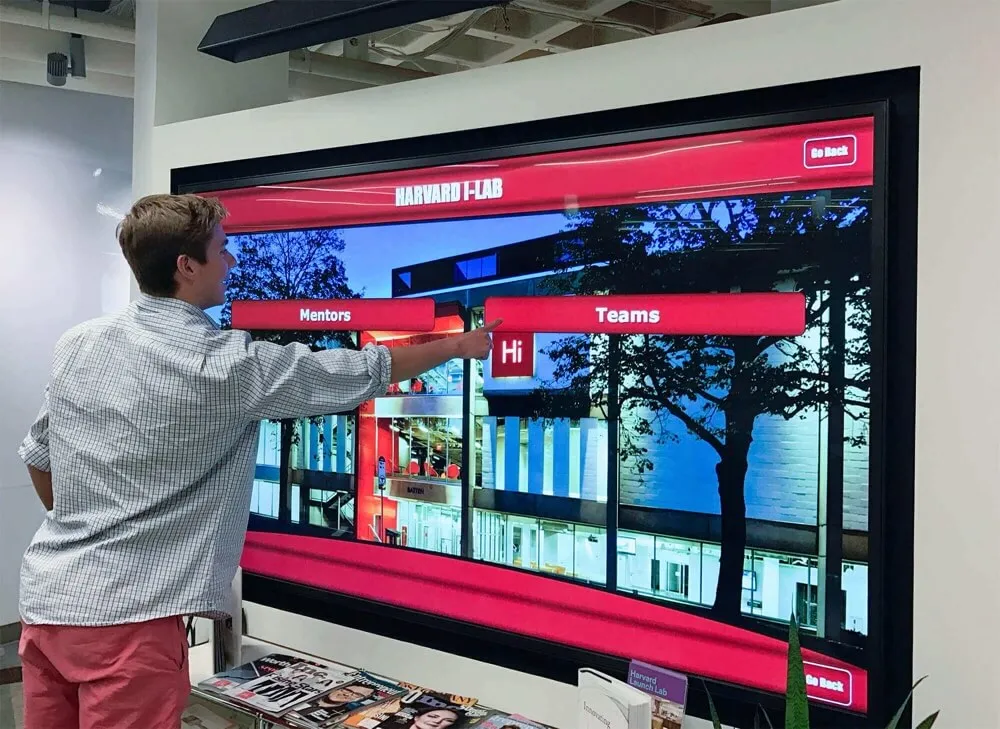
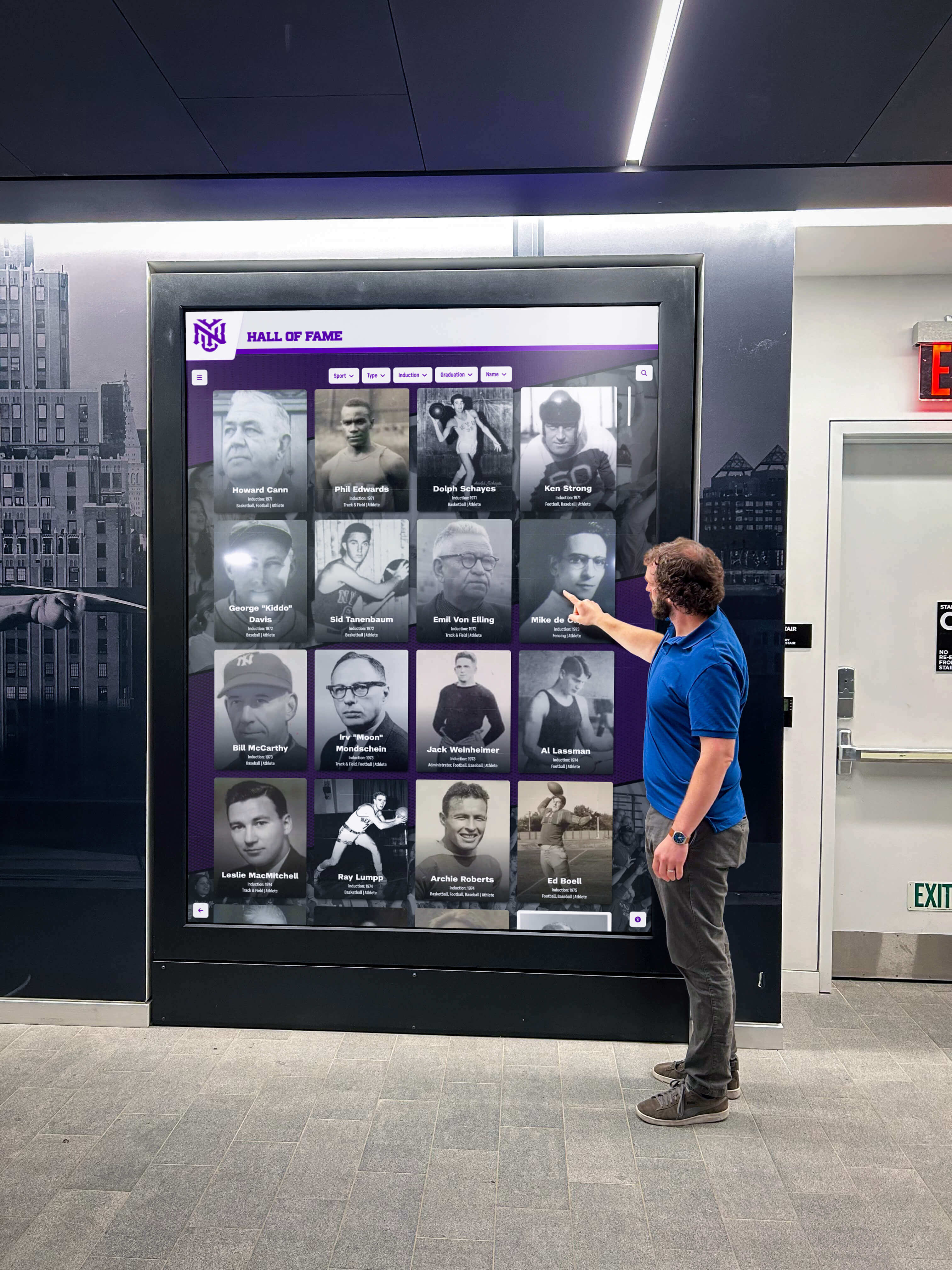
Scenario B: Touchscreen-only kiosk. The display is a dedicated touchscreen terminal in a school hallway with no attached keyboard. A visitor using assistive technology on this kiosk may use a switch device, sip-and-puff control, or a Bluetooth on-screen keyboard. Physical key combinations are typically unavailable. In this context, aria-keyshortcuts attributes in the markup create misleading announcements. The audit recommendation is removal of aria-keyshortcuts from the kiosk template, or a JavaScript guard that removes the attribute when no physical keyboard is detected.
Many schools run both scenarios from the same platform codebase — a public website for remote alumni access and a physical kiosk in the athletics hallway. The audit should flag whether aria-keyshortcuts is handled differently between the two deployment modes. Programs that have already addressed physical display accessibility through reflow testing at 400 percent zoom often find that the kiosk template and web template share more code than expected, making a shared aria-keyshortcuts attribute a common artifact of a shared codebase rather than an intentional accessibility decision.
Step 6 — Document Findings in a Structured Table
Compile the audit into a findings table organized by shortcut. Share this with the platform vendor or IT team as the formal deliverable.
| Element | Shortcut Documented | Page View | Shortcut Works? | SC 2.1.4 Mechanism? | Screen Reader Announces? | Context Appropriate? | Priority |
|---|---|---|---|---|---|---|---|
| Search input | / | All views | Yes | No — no disable mechanism | Yes — “slash” | Web: Yes / Kiosk: No | High (kiosk) / Medium (web SC 2.1.4) |
| Filter panel toggle | Alt+F | Browse view | Yes | N/A — modifier combo | Yes — “Alt F” | Both | Pass |
| Clear filters | f | Browse view | Partial — requires filter container focus | No | Yes — “f” | Web: SC 2.1.4 fix needed | High |
| Next inductee | ArrowRight | Profile view | Yes | N/A — arrow key | No — not announced | Both | Medium — add aria-keyshortcuts |
| Sort toggle | Alt+O | Browse view | Fails — no listener found | N/A | Yes — “Alt O” | Both | High — remove attribute or implement |
| Reset to home | h | All views | Fails — browser intercepts | No | Yes — “h” | Both | High |
Common Failure Patterns and Their Fixes
The table below maps the failure patterns that appear most frequently during hall of fame keyboard shortcut audits to their remediation approach. Use this when preparing a structured remediation request for a platform vendor.
| Failure Pattern | Root Cause | Recommended Fix |
|---|---|---|
| Shortcut documented but no JavaScript listener present | aria-keyshortcuts added during planning; listener never implemented | Implement the shortcut listener or remove the attribute |
| Single-character shortcut with no disable mechanism | SC 2.1.4 compliance not addressed at implementation | Add keyboard preferences panel, or scope shortcut to element focus only |
aria-keyshortcuts present on kiosk template | Shared codebase carries web-intended attributes into kiosk deployment | Add a CMS toggle or build flag to suppress the attribute in kiosk mode |
| Shortcut works without screen reader but fails with one active | Screen reader intercepts the key in browse mode | Change shortcut to a modifier combination that screen readers pass through to the application |
| Attribute value uses non-standard key name | Value does not match ARIA specification key names (e.g., "enter" instead of "Enter") | Use ARIA spec key values: "Enter", "ArrowRight", "Escape", "/" |
| Screen reader does not announce the shortcut | Element has no accessible name; screen reader skips the description | Add aria-label or aria-labelledby to establish an accessible name before the shortcut is announced |
| Multiple elements share the same shortcut value | Two interactive elements on the same page each carry aria-keyshortcuts="/" | Assign unique shortcuts per element; audit for duplicate values using the DevTools Console query |
| Shortcut fires globally but should be scoped | Key listener on document or window fires even when focus is in a text input | Scope the listener to check that focus is not within a text-entry element before executing |
The Touchscreen Kiosk Exception
The gap between web-deployed and kiosk-deployed hall of fame platforms is the most operationally significant finding this audit typically produces. A recognition program that honors retired jersey numbers and legendary athletes across multiple decades may maintain both a public website for alumni browsing and a physical kiosk in the school lobby for in-person events. The web version legitimately benefits from keyboard shortcuts and correctly documented aria-keyshortcuts. The kiosk does not.
The risk is not theoretical. A visitor who connects a Bluetooth keyboard to a touchscreen kiosk — a common accommodation for users with motor disabilities — may hear a screen reader announcing shortcuts that depend on a JavaScript listener that was never loaded in kiosk mode, or that conflict with the touchscreen operating system’s own keyboard handling. The announcement raises an expectation the interface cannot meet.
Three remediation approaches are available:
Option 1: CMS deployment mode flag. The platform’s CMS includes a “kiosk mode” setting that strips aria-keyshortcuts attributes from all element templates when enabled. This is the most maintainable solution because it requires no code change when switching between deployment types.
Option 2: JavaScript attribute removal on load. A script running at page load detects whether a keyboard input device is present and, if not, removes all aria-keyshortcuts attributes from the DOM before the screen reader reads the accessibility tree. This approach is imperfect because keyboard detectability is not reliably available through the browser API, but it handles the most common case — a kiosk with no keyboard connected at all.
Option 3: Separate kiosk template. Maintain a kiosk-specific page template that does not include aria-keyshortcuts attributes. This is the most reliable approach and the least likely to break under future platform updates, at the cost of maintaining two templates rather than one.
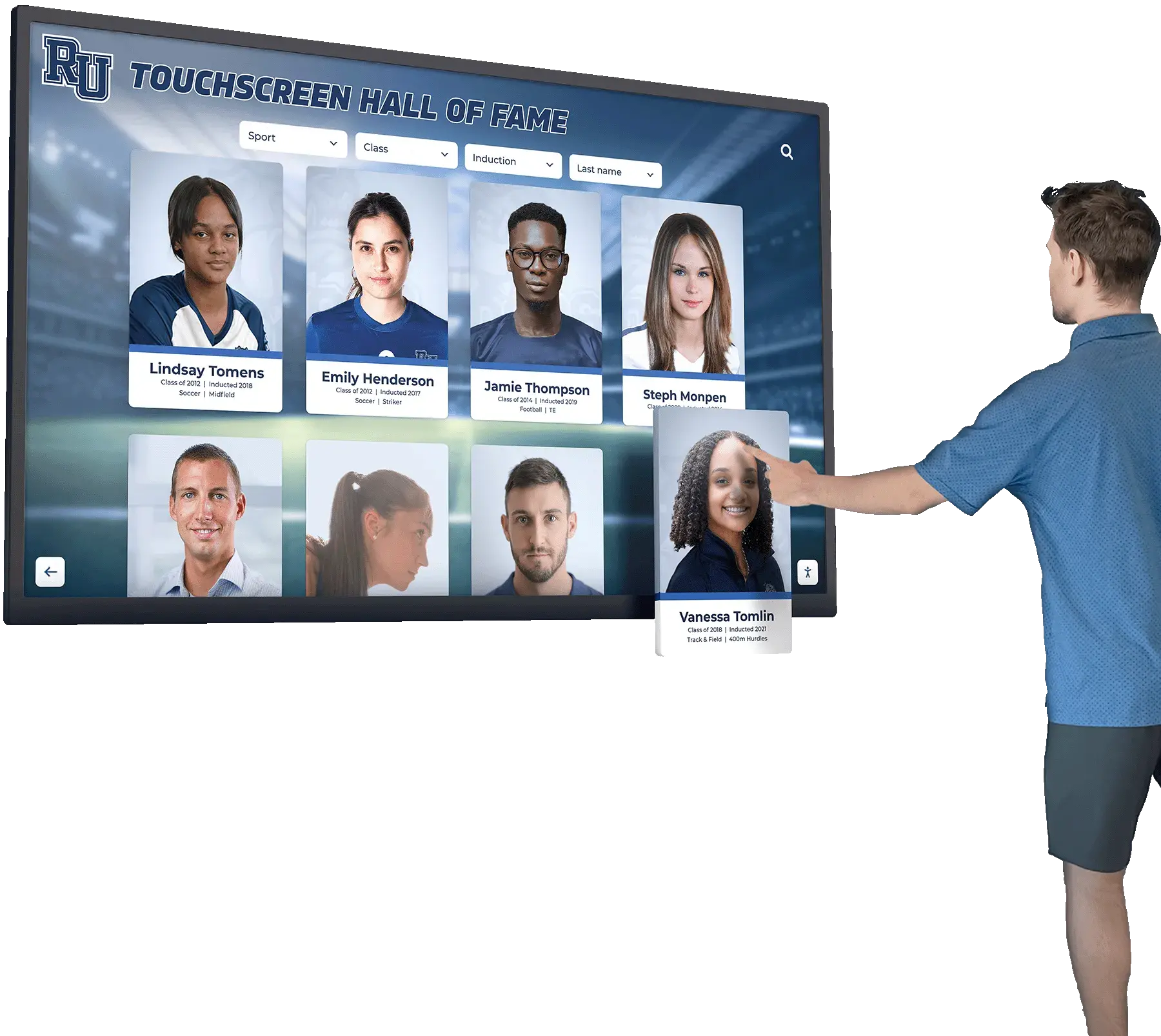
Schools evaluating recognition platforms for the first time should ask prospective vendors directly: does the platform support separate accessibility attribute profiles for web and kiosk deployments? A platform designed from the start with both contexts in mind will have a toggle or build flag in the CMS; one that does not may require custom development to suppress keyboard shortcut documentation in kiosk mode.
Asking this question during vendor evaluation — alongside touch target size requirements, color contrast standards, and screen reader compatibility — prevents the kiosk template issue from becoming a post-deployment audit finding that requires a vendor ticket to resolve.
Connecting the Audit to Related Accessibility Work
A digital hall of fame ARIA-keyshortcuts audit covers one layer of the keyboard accessibility stack. It belongs alongside related audits that address the broader visitor experience for users who rely on assistive technology.
Recognition programs that include structured academic achievement sections — such as National Honor Society induction records displayed alongside athletic hall of fame profiles — often find that keyboard shortcuts implemented for the athletic search interface also apply to academic achievement search. A shortcut that focuses the athletic search field but not the academic search field creates an inconsistent keyboard experience; the audit should cover both content areas on the same pass.
Programs that maintain achievement boards for academic activities — including debate team achievement boards and similar non-athletic recognition surfaces — benefit from verifying that keyboard shortcut documentation is consistent across all recognition content types within the same platform, not just the athletic hall of fame section.
Athletic archives that use a database-driven display — where the inductee roster is drawn from a regularly refreshed data source, similar in architecture to an awards database with a materialized view refresh policy — should confirm that keyboard shortcuts continue to function correctly after a data refresh. An asynchronous content update that replaces the inductee list in the DOM may detach existing JavaScript event listeners, silently breaking shortcuts that were functional before the refresh without changing the aria-keyshortcuts attribute values that document them.
Schedule the keyshortcuts audit alongside reflow and zoom testing, ARIA live region audits, and link purpose reviews so the findings from each layer can be combined into a single remediation request to the platform vendor rather than a series of disconnected tickets.
Audit Scope Reference Table
Use this table to confirm coverage is complete before signing off on the audit.
| Audit Area | What to Check | Typical Finding Rate | Notes |
|---|---|---|---|
| Search input shortcut | aria-keyshortcuts present, shortcut works, SC 2.1.4 addressed | High — single-char shortcuts common | Test with and without screen reader active |
| Filter controls | Each filter toggle and clear-all button | Medium — modifier combos usually correct | Flag single-char variants for SC 2.1.4 |
| Inductee navigation | Next and previous shortcuts on profile view | Medium — arrow key shortcuts often undocumented | Confirm attribute is present when shortcut is implemented |
| Sort controls | Sort toggle shortcut | Low — often absent or undocumented | Verify attribute value matches the implemented key |
| Modal controls | Close and confirm shortcuts | Low — Escape usually handled correctly | Flag aria-keyshortcuts=“Escape” as informational redundancy |
| Kiosk vs. web deployment | Attribute presence matches deployment type | High — shared codebase artifacts common | Verify per deployment variant, not just per page |
| Duplicate shortcut values | Two elements sharing the same key combination | Medium | Run Console query and filter for duplicate shortcut values |
Quick-Reference Audit Checklist
Discovery
- DevTools Console query run on search view, browse view, and profile detail view
- Every
aria-keyshortcutsinstance recorded with element, shortcut value, and page location
Functional Testing
- Each documented shortcut tested manually (keyboard only, no screen reader)
- Each documented shortcut tested with a screen reader active
- Failures categorized as: not implemented, browser conflict, screen-reader intercept, or scope issue
SC 2.1.4 Compliance
- All single-character shortcuts identified
- Disable or remap mechanism confirmed for each single-character shortcut
- Shortcuts scoped to element focus verified not to fire when focus is elsewhere
Deployment Context
- Kiosk vs. web deployment confirmed for each tested instance
-
aria-keyshortcutsabsent or suppressed on pure-touchscreen kiosk deployments - Shared-codebase shortcut artifacts identified and flagged for vendor remediation
Screen Reader Announcements
- NVDA and Chrome tested on Windows
- VoiceOver and Safari tested on macOS where available
- Announced shortcut values match attribute values
- Elements with
aria-keyshortcutshave accessible names so the announcement is interpretable, not a bare key combination with no context
Working With Your Platform Vendor on Remediation
When bringing audit findings to a platform vendor, organize the remediation request around three tiers:
Tier 1 — Correct inaccurate attributes. Any aria-keyshortcuts value that documents a shortcut not implemented in JavaScript, or that documents a shortcut unavailable in the kiosk deployment, should be corrected or removed. This is a direct markup accuracy failure with no workaround available to the visitor.
Tier 2 — Address SC 2.1.4 for single-character shortcuts. If the platform implements single-character global shortcuts, the vendor should add a keyboard preferences panel or change the shortcut to a modifier combination. SC 2.1.4 is a Level A requirement and a common target for auditors reviewing recognition platforms for ADA compliance documentation.
Tier 3 — Implement deployment-mode controls. A CMS toggle or build flag that controls whether aria-keyshortcuts attributes appear in the kiosk template prevents future audit findings as the platform adds new shortcuts. This is a structural improvement that reduces the ongoing maintenance burden.
Schools evaluating platforms for recognition programs that span web and physical kiosk contexts — including programs that serve club sports and multi-sport rosters alongside varsity athletic recognition — should include these three tiers as vendor evaluation questions before a platform is selected. A vendor that cannot describe how its platform handles aria-keyshortcuts differently between web and kiosk deployments is likely using a single shared template, making Tier 3 a post-deployment remediation project rather than a built-in feature.
Rocket Alumni Solutions builds keyboard shortcut documentation and WCAG-conformant aria-keyshortcuts implementation into the hall of fame platform, with separate controls for web and kiosk deployment modes so documented shortcuts match the interface’s actual capabilities in every context. Schools that want to confirm their current display is accurately documented — or that are evaluating a new platform — can walk through the shortcut implementation and accessibility configuration during a personalized demo.