



Key Takeaways
Run a digital hall of fame ARIA-hidden audit to identify every decorative image, icon, and duplicate label that should be hidden from assistive technology without accidentally concealing meaningful inductee or award information.
aria-hidden="true" is the mechanism that removes those elements — but applied to the wrong target, it silences inductee names, sport labels, or award years that visitors relying on assistive technology cannot recover from anywhere else on the page. A digital hall of fame ARIA-hidden audit identifies every element carrying the attribute, confirms that each hidden element is genuinely decorative, and catches any case where meaningful inductee information has been accidentally removed from the screen reader experience. This guide walks school IT teams, athletics directors, and accessibility coordinators through every step of that audit without requiring access to the platform's source code.
What aria-hidden Does — and What It Must Not Do
aria-hidden="true" removes an element from the accessibility tree. A screen reader skips it completely. It does not read the element’s text, does not announce its role, and does not expose any of its descendants — including any focusable links or buttons nested inside.
This makes aria-hidden valuable for two categories of content on a hall of fame interface:
- Decorative images — sport silhouettes, trophy illustrations, background patterns, and team color gradients that add visual texture but carry no unique informational content
- Duplicate text — an icon label that repeats a visible text string directly adjacent to it, creating a redundant announcement for screen reader users
It makes aria-hidden dangerous in three situations:
- Applied to informational content — an inductee’s portrait, the only representation of a sport label, or an award title hidden because it is visually styled rather than plain text
- Applied to a parent element that contains focusable children — hiding a card wrapper that contains a “View Profile” link causes keyboard users to reach the link while screen reader users cannot perceive it
- Applied inconsistently across deployment variants — a web version of the platform that correctly hides a decorative icon may share a template with a kiosk version where a sport label is only visible as an icon and has no adjacent text
The audit’s job is to confirm that every aria-hidden="true" instance in the current deployment falls into category one or two, and that none falls into categories three through five described above.
WCAG Criteria That Apply to aria-hidden in a Hall of Fame Context
| WCAG Criterion | Level | How It Applies to Hall of Fame aria-hidden |
|---|---|---|
| 1.1.1 Non-text Content | A | Decorative images must be hidden from AT; informational images must have text alternatives |
| 1.3.1 Info and Structure | A | Structural elements (headings, landmarks, lists) must not be hidden unless fully redundant |
| 4.1.2 Name, Role, Value | AA | Elements carrying aria-hidden must not be interactive; hidden focusable descendants are a failure |
| 2.4.3 Focus Order | A | Keyboard focus must not reach elements whose screen reader context is completely hidden |
| 1.4.1 Use of Color | A | Color-coded sport indicators hidden from AT must have a text alternative accessible to screen readers |
SC 1.1.1 is the core criterion. It explicitly permits hiding decorative images, and it requires meaningful non-text content to carry an alternative. The audit applies this criterion by asking, for every aria-hidden instance: is this element decorative, or does it carry information a screen reader user would otherwise miss?
SC 4.1.2 introduces the focusable-child failure. This is the most common misapplication pattern on hall of fame platforms. A developer applies aria-hidden="true" to a card container to suppress a decorative background image, but the container also holds the inductee name heading and the “View Profile” button. All three become invisible to the screen reader even though the button remains keyboard-reachable.
What Counts as Decorative Content on a Hall of Fame Display
Before running the audit, a working definition of “decorative” in this specific context prevents over-counting and under-counting failures.
| Element Type | Decorative? | Correct Handling |
|---|---|---|
| Sport silhouette icon with adjacent visible text label | Yes | aria-hidden="true" on the <img> or icon element |
| Sport silhouette icon with no adjacent text label | No | alt="Basketball" or equivalent descriptive text |
| Inductee portrait photograph | No | alt="[Name], [year] [sport] inductee" |
| Background pattern or gradient image | Yes | aria-hidden="true" or CSS background (not <img>) |
| Trophy or award badge illustration repeated on every card | Yes if award name is in adjacent text | aria-hidden="true" if text label is present |
| Horizontal rule or visual divider | Yes | aria-hidden="true" or role=“presentation” |
| Decorative quotation marks around an athlete quote | Yes | aria-hidden="true" |
| Star or rating icon where the numeric rating is also present in text | Yes | aria-hidden="true" |
| Championship banner graphic with year embedded in image | No | alt="2019 State Championship" or equivalent |
| Color-coded sport dot with no text sport label | No | Must have accessible label; color alone is a 1.4.1 failure |
A digital hall of fame filter chip interface commonly uses sport icons inside filter buttons. Those icons are decorative only if the button’s accessible name — derived from the button text or aria-label — already names the sport. If the icon is the button’s sole label, it must not be hidden.
How to Run a Digital Hall of Fame ARIA-Hidden Audit
Step 1 — Inventory All aria-hidden=“true” Instances with DevTools
Open the hall of fame interface in Chrome or Edge. Open DevTools (F12) and navigate to the Console tab. Run the following query to retrieve every element carrying aria-hidden="true" on the current page view:
Array.from(document.querySelectorAll('[aria-hidden="true"]')).map(el => ({
  tag: el.tagName,
  id: el.id || '(none)',
  classes: el.className.toString().slice(0, 60),
  text: el.textContent.trim().slice(0, 80),
  focusable: el.querySelector('a, button, input, select, textarea, [tabindex]') !== null,
  childCount: el.children.length
}))
This returns a structured list of every hidden element. Record each result. Repeat the query on the inductee browse view, the search results view, and the profile detail modal or page — each view may render different templates with different aria-hidden usage patterns.
Step 2 — Flag Focusable-Child Failures Immediately
From the query results, isolate every entry where focusable is true. These are priority failures regardless of any other consideration. An element that is hidden from the accessibility tree but contains a keyboard-reachable descendant creates an inaccessible interactive element — a keyboard user can activate it but a screen reader user cannot perceive or prepare for it.
For each focusable-child failure, identify which interactive element is nested inside and whether aria-hidden was intended for the container or for a specific decorative child. The fix is almost always to move aria-hidden="true" from the container to the specific decorative child — the icon or background image — rather than hiding the entire card.
Step 3 — Evaluate Each Text-Bearing Hidden Element
From the query results, isolate every entry where text is non-empty. A hidden element with text content is not automatically a failure — aria-hidden="true" applied to a duplicate text node (a visually rendered sport label that matches an accessible text string on the same card) is correct. But text content that appears only once on the card and is hidden means that information is absent from the screen reader experience.
For each text-bearing hidden element, ask: is this text string expressed accessibly by any other element on the same card or in the same page region? If yes, the hiding is correct. If no, the hiding is a failure.
Step 4 — Test with a Screen Reader Active
Install NVDA (free, Windows) or use VoiceOver (macOS, built-in). Navigate to the hall of fame browse view and browse using Tab and arrow keys without touching the mouse. As you move through inductee cards, verify that each card announces the inductee’s name, sport, and year. If any card is skipped entirely, or if a card’s announcement is missing a data field present in the visual layout, that card likely has an aria-hidden applied to a parent container rather than to individual decorative children.
Activate a “View Profile” button on each card type and confirm the profile detail view announces the inductee’s full information including graduation year, sport, and recognition tier. Profile detail views sometimes apply aria-hidden="true" to a decorative banner image that shares a container with the inductee name heading; the heading then becomes hidden alongside the image.
Step 5 — Check Portrait Photographs Specifically
Portrait photographs deserve individual attention because they sit between decorative and informational. An inductee portrait of a specific named person is informational. Run the following query in the Console to retrieve every image without an aria-hidden="true" attribute and check its alt text:
Array.from(document.querySelectorAll('img:not([aria-hidden="true"])')).map(img => ({
  src: img.src.split('/').pop(),
  alt: img.alt,
  altEmpty: img.alt === '',
  altMissing: !img.hasAttribute('alt')
})).filter(img => img.altEmpty || img.altMissing)
Any image missing an alt attribute entirely is a failure. Any image with an empty alt string (alt="") should be reviewed: does the empty alt correctly mark it as decorative, or should it carry a descriptive string? For a hall of fame platform, a portrait image with alt="" is almost always a misapplication — portraits identify specific inductees and belong with descriptive alt text rather than hidden from AT.
Step 6 — Audit Sport Icons Inside Filter Controls
Recognition display interfaces frequently use icon-only filter buttons for sport categories. Open the filter panel (if present) and run:
Array.from(document.querySelectorAll('button, [role="button"]')).map(btn => ({
  text: btn.textContent.trim(),
  ariaLabel: btn.getAttribute('aria-label'),
  ariaLabelledBy: btn.getAttribute('aria-labelledby'),
  hasHiddenIcon: btn.querySelector('[aria-hidden="true"]') !== null,
  computedName: btn.getAttribute('aria-label') || btn.textContent.trim()
})).filter(btn => btn.hasHiddenIcon)
For each button containing a hidden icon, verify that computedName is non-empty and accurately names the sport. A button whose only child is an icon with aria-hidden="true" has no accessible name — a SC 4.1.2 failure. The icon must either carry an accessible label (via aria-label on the icon element, without hiding it) or the button must have aria-label at the button level.
Step 7 — Document Findings in a Structured Table
| Element | Location | aria-hidden Applied | Focusable Child | Text Present | Verdict | Recommended Fix |
|---|---|---|---|---|---|---|
Sport silhouette <img> | Inductee roster card | Yes | No | No | Pass — decorative, no text | No change |
Card container <div> | Inductee roster card | Yes | Yes — “View Profile” button | Yes — inductee name | Fail — focusable child, meaningful text | Move aria-hidden to icon child only |
Portrait <img> | Profile detail view | Yes | No | No | Fail — portrait is informational | Remove aria-hidden, add descriptive alt |
Horizontal rule <hr> | Between roster sections | Yes | No | No | Pass — decorative divider | No change |
Sport label duplicate <span> | Filter chip | Yes | No | Yes — “Basketball” | Pass — text matches adjacent visible label | No change |
Common Failure Patterns on Hall of Fame Platforms
Pattern 1: Container-level aria-hidden hiding informational children. A developer applies aria-hidden="true" to an inductee card’s outer <div> to suppress a decorative background image. Because aria-hidden applies to all descendants, the inductee’s name, sport, year, and “View Profile” button all become inaccessible. The correct fix is to apply aria-hidden to the <img> element itself, leaving the container and its informational children visible to the accessibility tree.
Pattern 2: Portrait photographs hidden to avoid filename announcements. When a portrait image has no alt attribute, some screen readers announce the image filename — “player-0042-thumb.jpg” — which is disruptive. A developer applies aria-hidden="true" to silence the announcement. The correct fix is to add a descriptive alt attribute rather than hiding the portrait. Tools like those covered in hall of fame platform evaluations for athletics, donors, and arts programs should be evaluated for their ability to populate alt text automatically from the inductee’s record data.
Pattern 3: Icon-only controls hidden with no text fallback. Sport filter buttons that use icons as their only label apply aria-hidden="true" to the icon to prevent double-announcement — but if the button has no aria-label and the icon is its only content, the button becomes unlabeled. The screen reader announces “button” with no name, and the visitor cannot determine what the button does.
Pattern 4: aria-hidden applied inside a role="dialog" without review. Profile detail modals sometimes load decorative banner artwork with aria-hidden="true" at the modal’s content wrapper rather than at the image element. Because the wrapper contains the inductee’s full profile — name, record, sport, graduation year, award description — all of that content becomes inaccessible inside the open modal even though the modal itself is announced.
Pattern 5: Shared template applying aria-hidden differently in web and kiosk contexts. A school alumni management platform that serves both a web-accessible recognition portal and a physical kiosk display may use a single page template. Decorative elements correctly hidden in the web context may, in the kiosk template, be the only representation of certain information — because the kiosk layout differs from the web layout. The audit must be run on each deployment context independently.
Specific Considerations for Touchscreen Kiosk Deployments
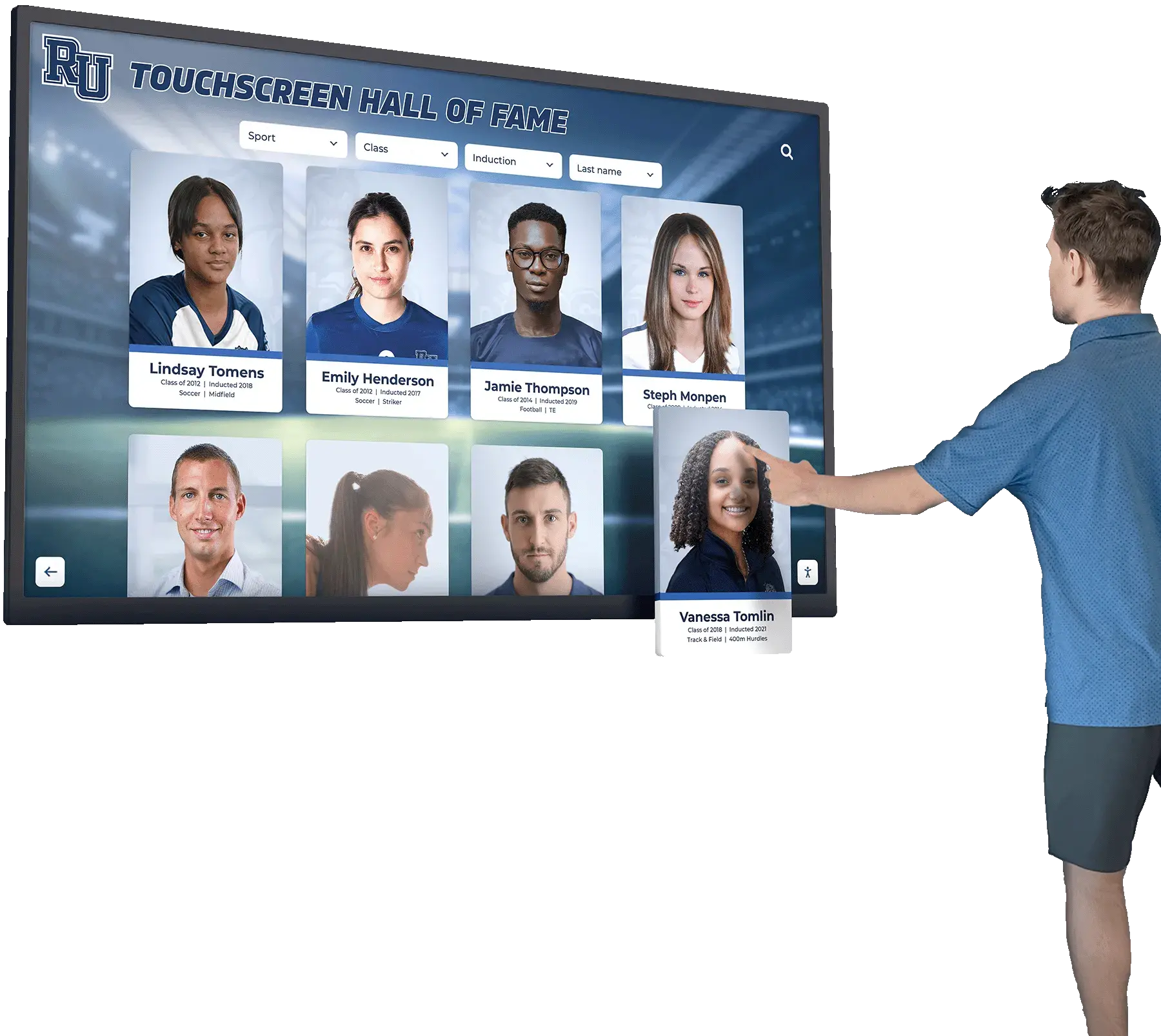
A touchscreen kiosk in a school hallway presents a different accessibility profile than the web-accessible version of the same platform. Visitors using a switch device, an eye-tracking system, or a Bluetooth on-screen keyboard interact differently with an aria-hidden element than a desktop user with NVDA.
On a kiosk, a common problem is that the kiosk layout compresses the inductee card to fit a portrait-oriented screen. In that compressed layout, the sport label may be replaced by a sport icon with no adjacent text — a change from the web layout where both icon and text label appear side by side. If the icon is hidden with aria-hidden="true" in the shared template, the sport information vanishes entirely in the kiosk layout.
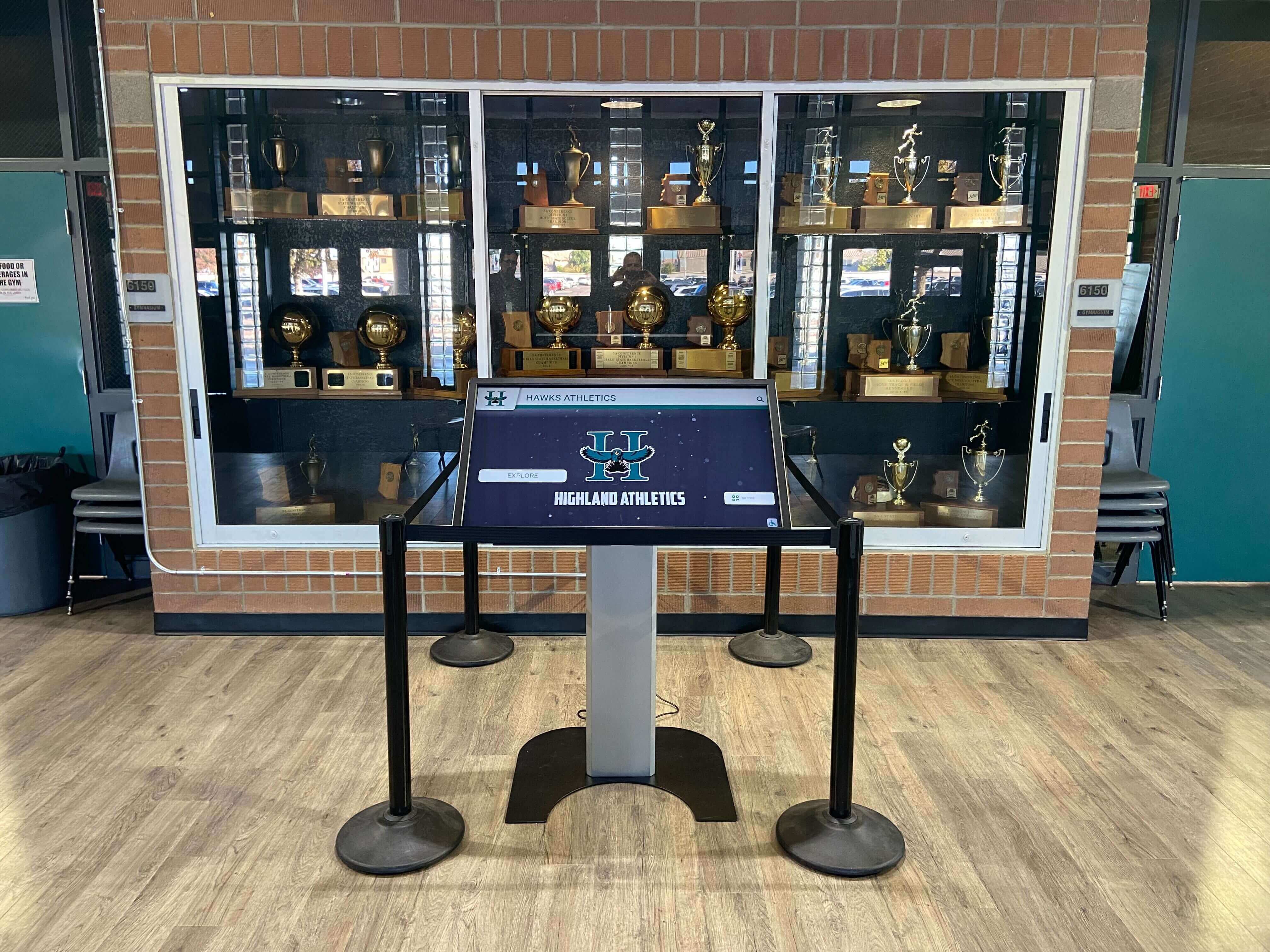
The audit step for kiosk deployments is to load the kiosk template specifically — not the desktop web template — and repeat the full aria-hidden inventory. Compare the results against the web template audit. Any element that was correctly hidden in the web context but carries unique information in the kiosk context is a failure specific to the kiosk deployment.
Schools planning new recognition installations or evaluating whether to refresh their current display benefit from asking vendors directly whether the CMS supports separate accessibility attribute profiles for web and kiosk deployments. This question is as relevant to aria-hidden management as it is to keyboard shortcut documentation — platforms that were designed with both deployment contexts in mind will have explicit CMS controls; platforms using a single shared template require custom development to address context-specific failures.
Physical installation factors — the height and angle of a wall-mounted display, ambient lighting, and proximity to trophy cases — also affect how visitors interact with touchscreen content, which is why verifying touch sensitivity and display responsiveness belongs alongside an accessibility audit rather than being treated as a separate evaluation.
How aria-hidden Interacts with Live Region Updates
Digital hall of fame interfaces that update inductee cards dynamically — filtering results in response to a sport or decade selection, for example — introduce an additional aria-hidden consideration. When JavaScript replaces the inductee roster in the DOM, the new elements may not carry the same aria-hidden attributes as the original elements if the replacement code does not preserve them.
The two failure modes are:
Decorative icons lose their aria-hidden after a dynamic update. An icon that was correctly hidden initially is re-rendered without the attribute after a filter change. Screen readers now announce the icon filename or generic description on every subsequent card.
Informational elements gain aria-hidden after a dynamic update. A loading state or placeholder element carries
aria-hidden="true"; the final content replaces the placeholder but inherits the attribute, hiding a fully populated inductee card from the accessibility tree.
To test for dynamic-update failures, apply a sport or decade filter while NVDA is active and listen to the roster update announcement. If inductee cards in the filtered result are announced differently from the initial page load — with additional icon announcements, or with missing sport or year information — the dynamic update is not preserving aria-hidden attributes correctly.
Platforms that maintain complete sports-banquet and recognition archives — including sports banquet display content alongside their hall of fame inductee records — typically run more complex DOM updates because the content types are mixed in the same roster view. The aria-hidden audit should be repeated after filtering to a single content type to confirm that content-type-specific decorative elements are handled consistently.
Connecting This Audit to Broader Accessibility Work
A digital hall of fame ARIA-hidden audit for decorative content belongs in a broader accessibility review that addresses the full visitor experience. Scheduling it alongside related audits prevents redundant vendor tickets and allows remediation requests to be consolidated.
Pair with an alt text audit. The aria-hidden audit identifies hidden elements; the alt text audit identifies elements that should be hidden (decorative images with missing or absent alt text) and elements that carry inadequate descriptions (informational images with empty alt). Both audits share the same discovery method and the same WCAG criterion (1.1.1), and findings from one frequently reveal candidates for the other.
Pair with a focus order audit. The focusable-child failure — aria-hidden applied to a container that holds interactive descendants — is also a focus order failure. Keyboard users who reach the hidden interactive element have no screen reader context for what they are activating. A focus order audit that traces the Tab sequence through the inductee roster will surface these failures from the keyboard side; the aria-hidden audit surfaces them from the accessibility tree side. Running both confirms the finding from two directions.
Pair with a color contrast and non-text contrast audit. Color-coded sport indicators that are hidden from the accessibility tree with aria-hidden="true" — on the grounds that the sport is expressed in adjacent text — may still fail WCAG 1.4.1 if the color is the only differentiator for sighted users who cannot perceive color differences. Confirming that a sport icon’s color coding is not the only distinguishing feature is part of the same review pass.
Recognition programs that archive athletic award data and reconciliation records alongside a public-facing hall of fame sometimes display data provenance indicators — small status badges or icons that show whether a record has been verified or is pending review. Those badges are not decorative if they communicate record status that visitors act on. Confirm their aria-hidden status as part of the same audit rather than assuming administrative UI elements are always decorative.
Schools that use a recognition display as a community engagement touchpoint — including community events tied to back-to-school programming — often find that accessibility audits scheduled at the start of a new school year catch issues introduced during summer content updates, when portrait photos, award tier badges, and sport icons are refreshed in bulk without a corresponding accessibility review of the updated markup.
Remediation Priority Framework
When bringing findings to a platform vendor, organize requests in three tiers so the most critical failures are addressed first:
Tier 1 — Focusable-child failures. Any aria-hidden="true" instance that contains a keyboard-reachable descendant is a Level A failure (SC 4.1.2). A keyboard user can activate a button that a screen reader user cannot perceive. These failures must be corrected by moving aria-hidden from the container to the specific decorative element, leaving interactive children exposed to the accessibility tree.
Tier 2 — Informational content incorrectly hidden. Any inductee name, sport label, graduation year, or award description that is hidden from the accessibility tree because aria-hidden was applied to a parent container carries the same Level AA severity as a Name/Role/Value failure. These are the failures that cause a screen reader user to skip entire inductee cards, browse an empty-seeming roster, or open a profile modal that announces nothing.
Tier 3 — Inconsistent decorative hiding. Decorative icons missing aria-hidden on some cards but present on others create an inconsistent screen reader experience — some cards announce a redundant icon description, others do not. This is a lower-severity finding that does not block comprehension but creates friction. Remediation is a template normalization task.
Schools comparing recognition platforms as part of a procurement review — including evaluations of platforms managing basketball senior night and seasonal recognition events alongside permanent hall of fame records — should include Tier 1 and Tier 2 failures as disqualifying criteria. A platform that cannot correctly scope aria-hidden to individual decorative elements rather than entire card containers will require ongoing custom remediation after every content template update.
Audit Scope Reference Table
| Audit Area | What to Check | Typical Finding Rate | Notes |
|---|---|---|---|
| Inductee roster cards | Container vs. child aria-hidden scope | High | Most common failure source |
| Portrait photographs | Present, alt text descriptive, not hidden | Medium | Filename announcements often drive incorrect hiding |
| Sport icon filter buttons | Icon hidden, button has accessible name | Medium | Icon-only buttons with no aria-label are SC 4.1.2 failures |
| Profile detail modals | Modal content container not hidden | Low | Modal banner images sometimes hide the modal body |
| Dynamic filter updates | aria-hidden preserved after DOM replacement | Medium | Requires re-running query after each filter action |
| Kiosk vs. web template | Sport-only icons in compressed kiosk layout | High if shared template | Run audit separately per deployment variant |
| Administrative status badges | Badge is decorative vs. informational | Low | Verify based on whether visitors act on badge status |
| Championship banner images | Alt text present, not hidden | Medium | Embedded year/award text in image requires descriptive alt |
Quick-Reference Audit Checklist
Discovery
- DevTools Console query run on browse view, search results view, and profile detail view
- Every
aria-hidden="true"instance recorded with tag, text content, and focusable-child status - All images without alt attributes identified via the complementary image query
Focusable-Child Check
- Every hidden element with
focusable: trueflagged as Tier 1 failure - Nested interactive elements identified and listed for vendor remediation
Informational Content Check
- Every hidden element with non-empty text content reviewed against adjacent accessible text
- Portrait photographs confirmed as carrying descriptive alt text, not aria-hidden
- Sport labels confirmed present in accessible text wherever sport icon is hidden
Dynamic Update Check
- Sport and decade filters applied while screen reader is active
- Post-filter roster announcements compared against initial page load announcements
- Decorative icon announcements confirmed absent in filtered results
Kiosk Deployment Check
- Kiosk template loaded and audited independently of web template
- Compressed-layout sport icon handling confirmed as equivalent to web layout
- aria-hidden inventory from kiosk template compared against web template inventory
Documentation
- Each finding categorized as Tier 1, Tier 2, or Tier 3
- Remediation request structured by tier for vendor submission
- Re-test plan scheduled for 30 days after vendor remediation delivery
Rocket Alumni Solutions builds aria-hidden management into the hall of fame platform at the individual-element level — decorative icons, background images, and duplicate text nodes receive the attribute on the element itself, not on the card container, so inductee names, sport labels, and award years remain in the accessibility tree in every deployment context. The platform also maintains separate accessibility attribute profiles for web and kiosk deployments, preventing shared-template artifacts from surfacing as audit failures in either context. Schools that want to confirm their current display handles decorative content correctly — or that are evaluating a new platform — can walk through the accessibility implementation during a personalized demo.