



Key Takeaways
Master the art of designing engaging touchscreen experiences. Learn proven UX principles, best practices for touch interfaces, and strategies to create intuitive interactive displays that captivate users.
Understanding the Fundamentals of Touch Screen Design
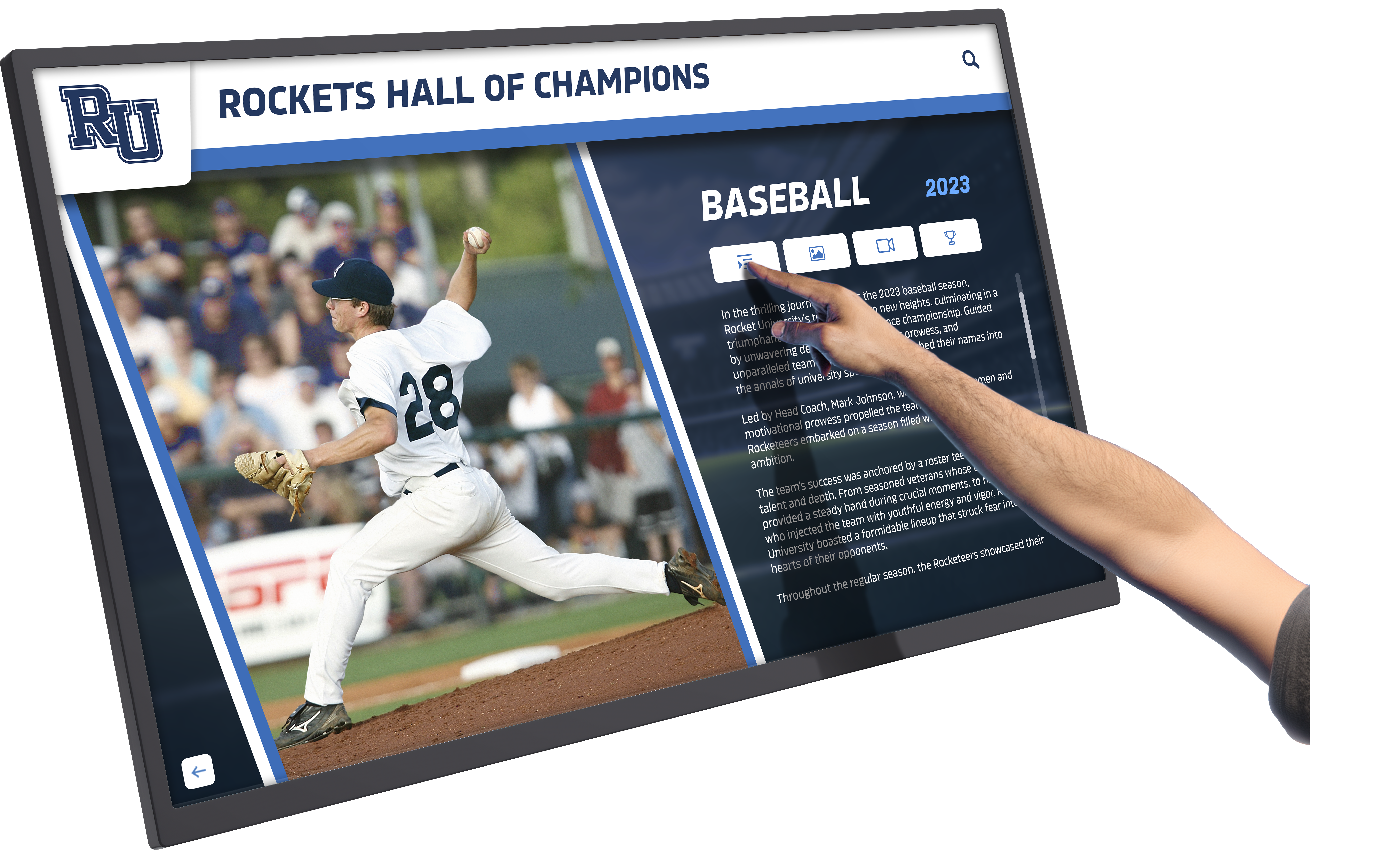
Touchscreen interfaces differ fundamentally from traditional desktop or mobile experiences. Users interact directly with content through physical gestures, standing at various distances, often in public settings with environmental distractions. These unique characteristics demand a specialized design approach.
The most successful touchscreen experiences prioritize simplicity, clarity, and immediate feedback. Unlike desktop applications where users might tolerate complexity, touchscreen interfaces must deliver value within seconds or risk abandonment. This is particularly important for public-facing displays where users have no obligation to persist through confusing navigation.
The Psychology of Touch Interaction
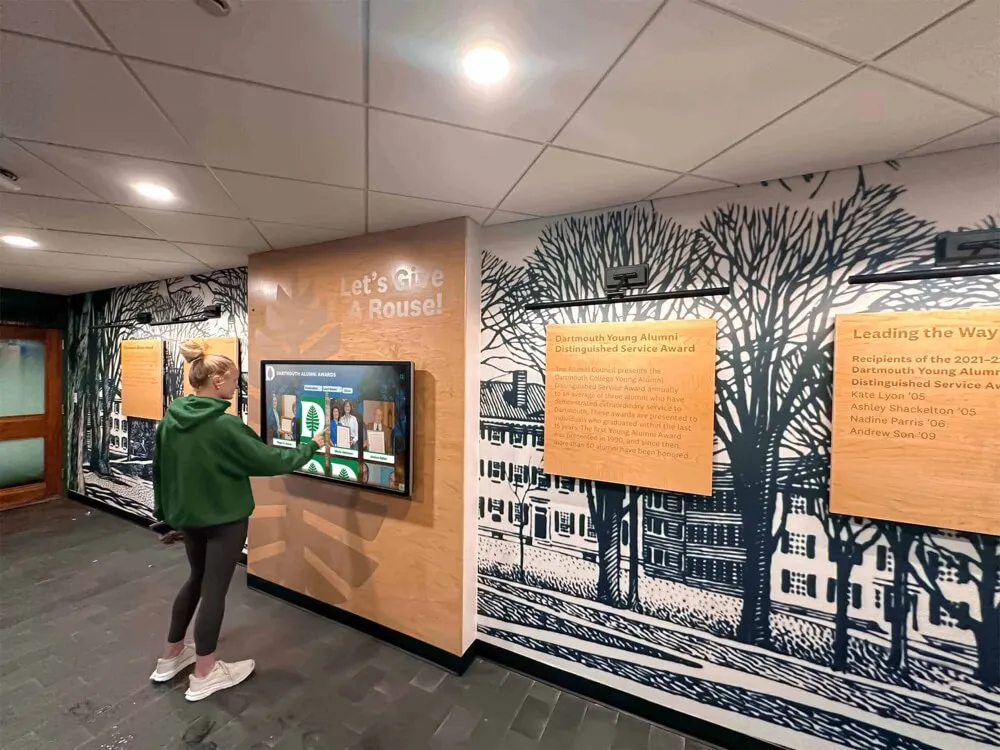
Touch creates a visceral connection between users and content. When someone physically touches a screen, they expect immediate, tangible results. This expectation shapes every aspect of touch interface design. Research shows that users approaching interactive displays decide within 3-5 seconds whether to engage, making first impressions critical.
Successful touchscreen experiences leverage this psychology by creating interfaces that invite exploration. Visual cues like animated elements, clearly labeled buttons, and intuitive gestures signal interactivity and guide users naturally through the experience.
Essential Design Principles for Engaging Touch Experiences
1. Optimize Touch Targets for Accuracy and Comfort
The human fingertip measures approximately 8-10mm, which directly impacts touchscreen accuracy. Following established guidelines, touch targets should meet minimum size requirements while providing adequate spacing to prevent accidental touches.
Industry standards recommend touch targets of at least 44×44 pixels with generous padding between interactive elements. For larger displays where users may stand further away, increase these minimums proportionally. A 48×48 pixel target with 5mm spacing between elements provides comfortable interaction for most users.
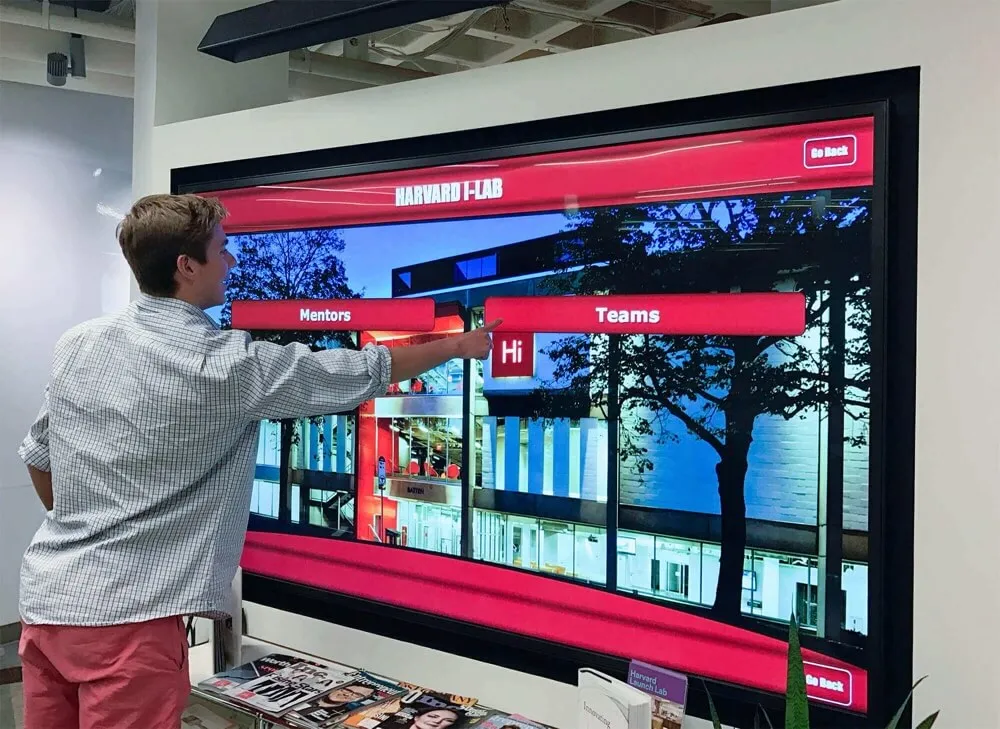
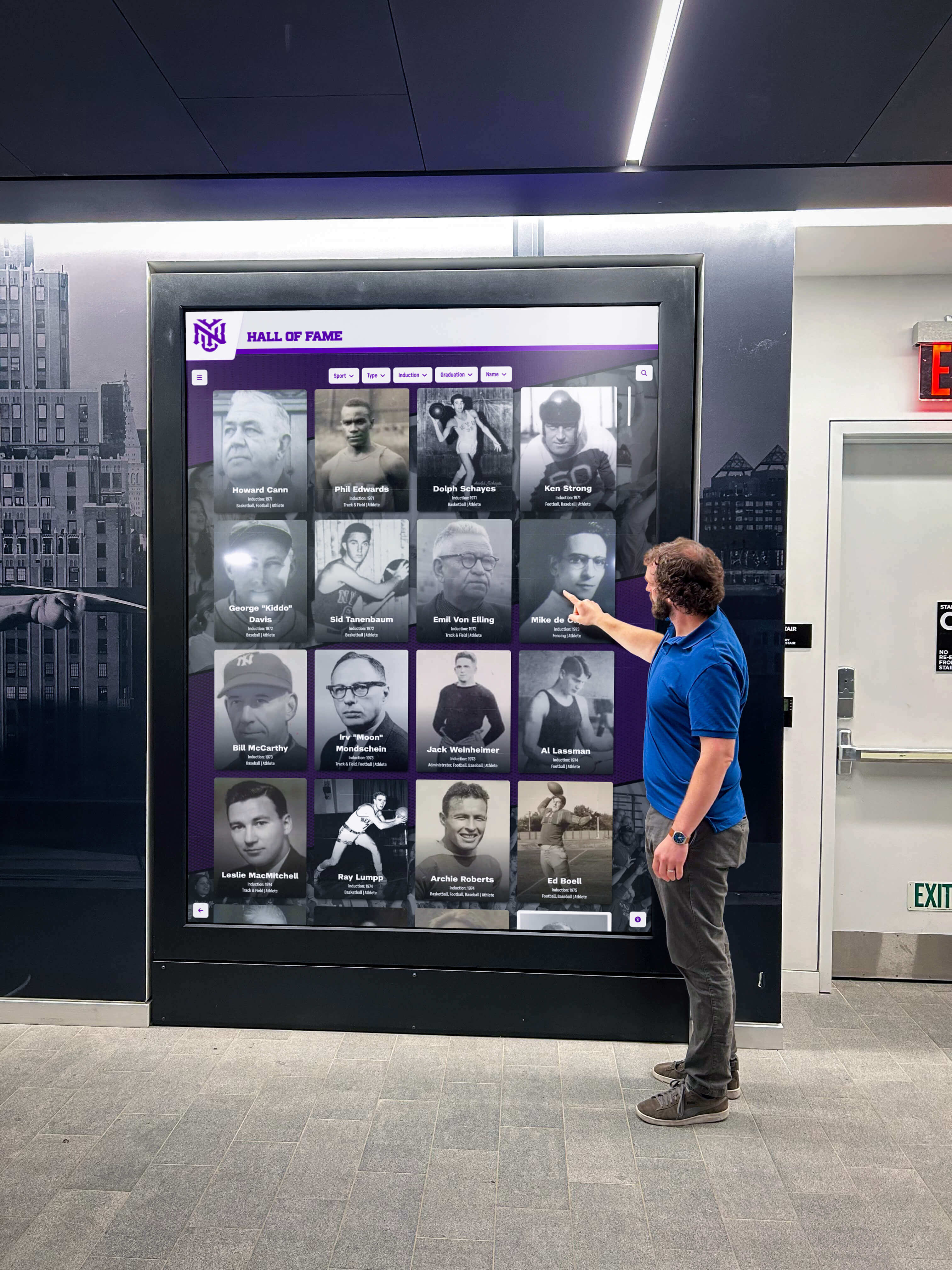
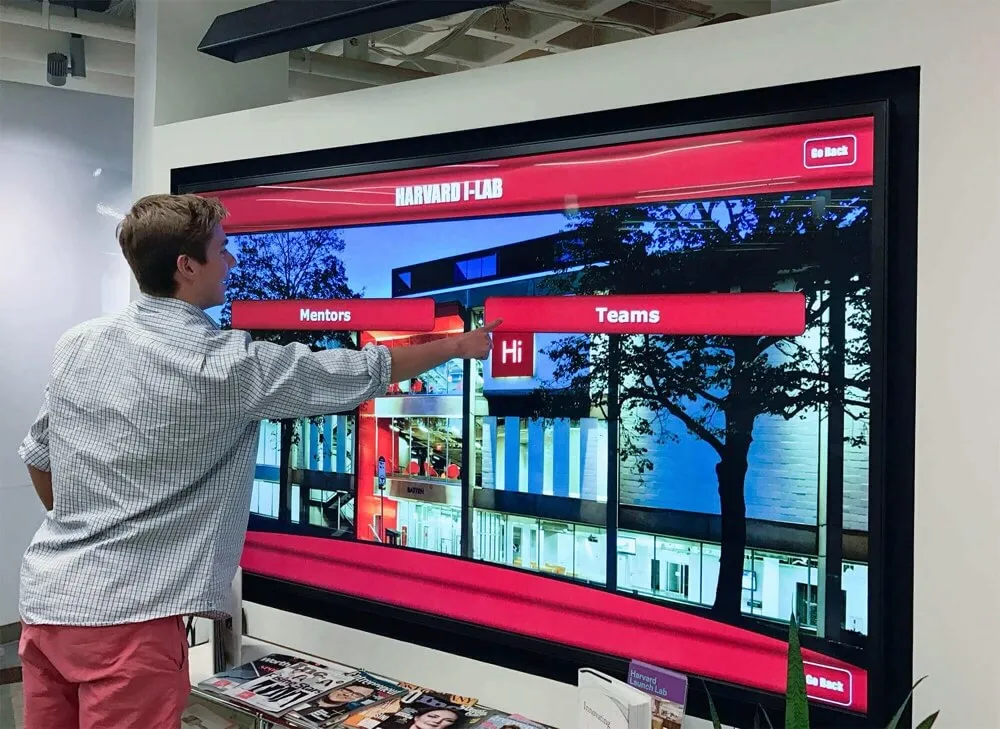
Consider the physical ergonomics of your installation. For wall-mounted large displays, positioning important navigation elements within arm’s reach—typically the lower two-thirds of the screen—prevents user fatigue. Any gesture requiring extended arm elevation will limit engagement time and create frustration.
2. Provide Clear, Immediate Feedback
Touch interfaces lack the tactile feedback of physical buttons, making visual and auditory confirmation essential. Users need instant confirmation that their touch registered and produced the intended action.
Effective feedback strategies include:
- Visual changes: Buttons should visibly respond when touched—changing color, size, or style to confirm activation
- Transition animations: Smooth transitions between screens communicate system responsiveness and maintain spatial orientation
- Progress indicators: Loading states and progress bars manage expectations during longer operations
- Audio cues: Subtle sounds reinforce successful interactions without becoming intrusive
- Error messaging: Clear, friendly error messages prevent confusion and guide users back on track
Solutions like Rocket Alumni Solutions integrate sophisticated feedback mechanisms that keep users informed throughout their interaction, creating confidence and encouraging exploration.
3. Design for Recognition, Not Recall
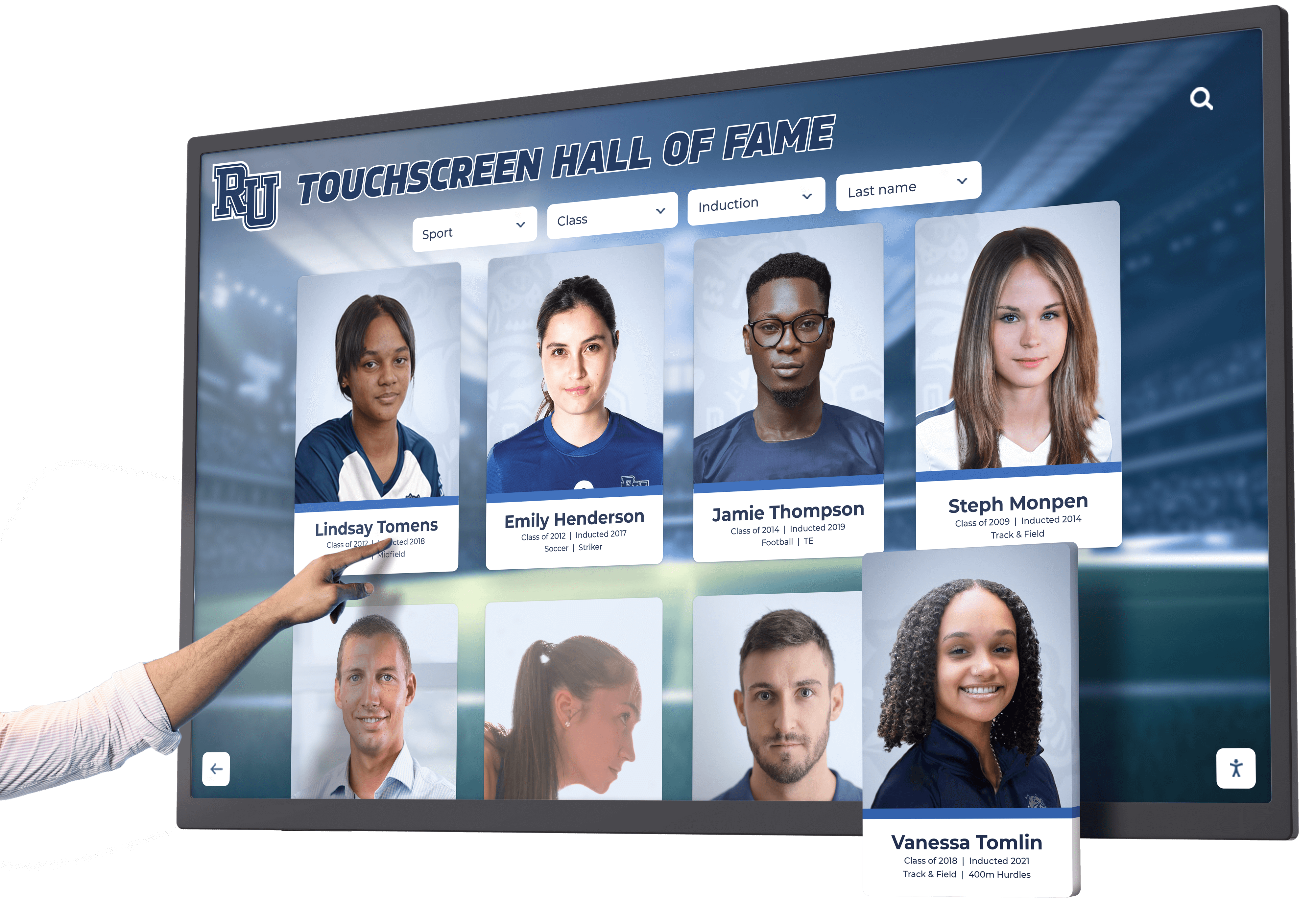
Public touchscreen interfaces must minimize cognitive load. Users shouldn’t need to remember information from previous screens or recall complex navigation paths. Instead, design interfaces that leverage recognition through:
- Consistent visual patterns: Maintain uniform layouts, button styles, and navigation structures
- Clear labeling: Use descriptive text labels rather than abstract icons when possible
- Persistent navigation: Keep key navigation elements visible or easily accessible
- Breadcrumb trails: Show users their current location within the information hierarchy
- Visual previews: Display content previews that help users make informed choices
This principle aligns with how digital recognition displays organize information to help visitors quickly find relevant content without confusion.
4. Embrace Simplicity and Focus
Cluttered interfaces overwhelm touchscreen users. Unlike desktop applications where users commit to longer sessions, touchscreen interactions tend to be brief and goal-oriented. Streamline your interface by:
- Limiting choices: Present 5-7 primary options per screen to prevent decision paralysis
- Using visual hierarchy: Size, color, and placement should clearly indicate the relative importance of elements
- Removing unnecessary elements: Every interface component should serve a clear purpose
- Prioritizing content over chrome: Maximize space for actual content rather than decorative elements
- Implementing progressive disclosure: Reveal advanced features only when users need them
Schools and organizations implementing touchscreen software for recognition programs find that simplified interfaces dramatically increase engagement and satisfaction.
Advanced UX Strategies for Touch Screen Engagement
5. Design Intuitive Gestures and Navigation
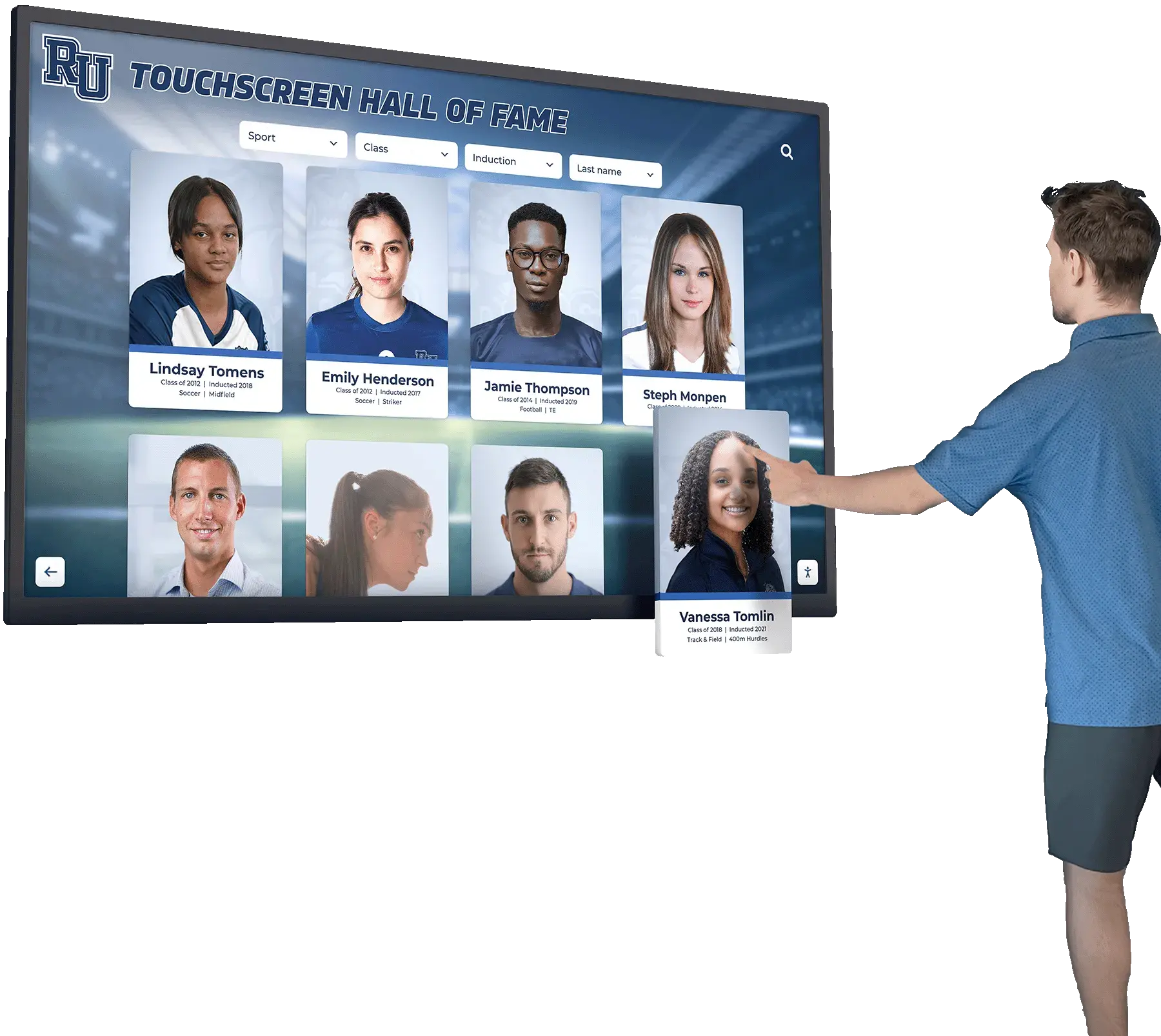
While tap is the universal touch gesture, incorporating familiar gestures like swipe, pinch, and scroll can enhance the experience—when implemented thoughtfully. Consider your users’ expectations and the physical context of your installation.
Best practices for gesture design:
- Support standard gestures: Swipe for navigation between items, pinch for zoom, and scroll for long content feel natural to modern users
- Avoid complex sequences: Multi-step gestures confuse users and create friction
- Provide alternatives: Offer button-based alternatives for every gesture to accommodate different user preferences
- Consider physical constraints: Repeated swiping or scrolling causes fatigue on large vertical displays
- Test with real users: What seems intuitive to designers may confuse actual users
6. Optimize Content Readability and Accessibility
Text legibility presents unique challenges on touchscreen displays, particularly large installations where users view content from varying distances. Design for the furthest expected viewing distance while ensuring close-up readability.
Typography guidelines:
- Minimum text height: Aim for 4mm or roughly 20-24px on standard displays for body text
- Heading hierarchy: Use significantly larger sizes for headings to establish clear hierarchy
- High contrast: Ensure text contrasts sufficiently with backgrounds (WCAG AA standards minimum)
- Sans-serif fonts: Clean, simple typefaces improve readability on screens
- Generous line spacing: Increase line height to prevent text from appearing cramped
Accessibility extends beyond typography. Implement features that serve users with varying abilities:
- Voice guidance options for visually impaired users
- Adjustable text sizes for users with vision challenges
- Color combinations that work for colorblind users
- Alternative input methods beyond touch when possible
- Screen reader compatibility for assistive technologies
Organizations implementing accessible digital displays report broader engagement across diverse user populations.
7. Strategically Position Interface Elements
Screen real estate management directly impacts user engagement. The placement of interactive elements affects discoverability, usability, and overall experience quality.
Strategic positioning guidelines:
- Primary navigation: Position in consistent locations—typically bottom or left side for vertical displays
- Key actions: Place most important actions in easily reached areas (avoiding top edges on large displays)
- Content focus: Center main content in the user’s natural line of sight
- Exit options: Make it easy to return home or exit interactions without frustration
- Help access: Provide discrete but accessible help options for confused users
For angled or horizontal displays, consider how users naturally approach the screen. A 45-degree angle signals touch functionality better than flat wall mounting and accommodates multiple simultaneous users more comfortably.
8. Use Animation and Motion Purposefully
Animation serves multiple purposes in touchscreen interfaces—providing feedback, maintaining context during transitions, and attracting attention. However, excessive animation distracts and slows interactions.
Effective animation strategies:
- Feedback animations: Brief, subtle responses to touch inputs (100-200ms)
- Transition animations: Smooth state changes that maintain spatial relationships (200-400ms)
- Attention-getting animations: Subtle motion in attract loops to draw users to idle displays
- Loading animations: Progress indicators that set accurate expectations
- Celebratory animations: Rewarding feedback for completed actions or achievements
Avoid animations that delay user goals or become repetitive annoyances. Every animation should enhance understanding or improve perceived performance, never merely decorate.
Content Strategies That Drive Engagement
9. Create Compelling, Scannable Content
Users approach touchscreens with specific goals and limited patience. Content must be immediately comprehensible and easily navigable.
Content optimization techniques:
- Front-load key information: Lead with the most important details
- Use descriptive headings: Clear section titles enable quick scanning
- Break up text blocks: Short paragraphs and bullet points improve readability
- Incorporate visuals: High-quality images and videos engage users more effectively than text alone
- Tell stories: Narrative structures maintain interest and emotional connection
Digital storytelling approaches demonstrate how compelling content transforms functional displays into engaging experiences that users remember and return to.
10. Maintain Fresh, Relevant Content
Static content kills engagement over time. Users who encounter identical content on repeat visits quickly lose interest and stop interacting with displays.
Content freshness strategies:
- Regular updates: Schedule periodic content refreshes to showcase new information
- Seasonal relevance: Adjust content to match current events, seasons, or institutional priorities
- Dynamic elements: Incorporate feeds, calendars, or rotating features that change automatically
- User-generated content: Enable submissions that keep content evolving
- Analytics-driven optimization: Use engagement data to identify and improve underperforming content
Cloud-based touchscreen software solutions make content updates effortless, enabling institutions to maintain engagement without technical expertise.
Technical Considerations for Optimal Performance
Hardware Selection and Configuration
The physical hardware supporting your touchscreen experience dramatically affects user perception and satisfaction. Consider these factors when specifying equipment:
Display considerations:
- Screen size: Match display size to viewing distance and use case (32"+ for public spaces)
- Touch technology: Capacitive touch provides smartphone-like responsiveness for most applications
- Resolution: Higher resolutions enable sharper text and images, particularly for larger displays
- Brightness: Ensure adequate brightness for ambient lighting conditions (500+ nits for well-lit spaces)
- Viewing angles: Wide viewing angles accommodate multiple simultaneous users
Performance requirements:
- Response time: Touch interactions should register within 100ms
- Processing power: Sufficient computing power prevents lag during animations and transitions
- Network connectivity: Reliable internet for cloud-based content management and updates
- Backup systems: Redundancy plans for display failures or connectivity issues
Schools implementing interactive kiosk solutions find that investing in quality hardware upfront prevents frustrating user experiences and reduces long-term maintenance costs.
Software Architecture and Management
The software platform powering your touchscreen experience should balance capability with usability. Look for solutions offering:
Essential software features:
- Intuitive content management: Non-technical staff should update content easily without coding
- Cloud-based accessibility: Manage displays remotely from any device with internet access
- Template systems: Pre-designed layouts that maintain brand consistency
- Media optimization: Automatic compression and formatting for optimal performance
- Analytics integration: Track usage patterns and engagement metrics
- Security features: Protect sensitive information and prevent unauthorized access
- Offline capabilities: Continued operation during internet outages
Organizations exploring digital recognition systems should prioritize platforms specifically designed for their use case rather than adapting generic solutions.
Testing and Optimization Strategies
User Testing Methodologies
No amount of expert design insight replaces actual user testing. Observing real users interacting with your touchscreen reveals issues impossible to predict.
Effective testing approaches:
- Hallway testing: Quick informal tests with available users to identify obvious issues
- Structured usability tests: Formal sessions with representative users completing specific tasks
- A/B testing: Compare different design approaches to identify optimal solutions
- Heat mapping: Track where users touch to optimize element placement
- Session recordings: Review interaction patterns to identify friction points
Test early and often throughout the design process. Early feedback prevents costly corrections after installation.
Analytics and Continuous Improvement
Deploy analytics to understand how users actually engage with your touchscreen experience versus how you intended them to interact.
Key metrics to track:
- Engagement rate: Percentage of passersby who interact with displays
- Session duration: How long users engage before leaving
- Navigation patterns: Common paths through your interface
- Content popularity: Which sections attract the most attention
- Completion rates: Percentage of users who complete intended tasks
- Error frequency: Common mistakes or confusion points
Use these insights to refine content, adjust navigation, and optimize the overall experience. Analytics capabilities built into modern touchscreen platforms make continuous improvement straightforward.
Real-World Applications and Use Cases
Educational Institutions
Schools and universities implement engaging touchscreen experiences for diverse purposes:
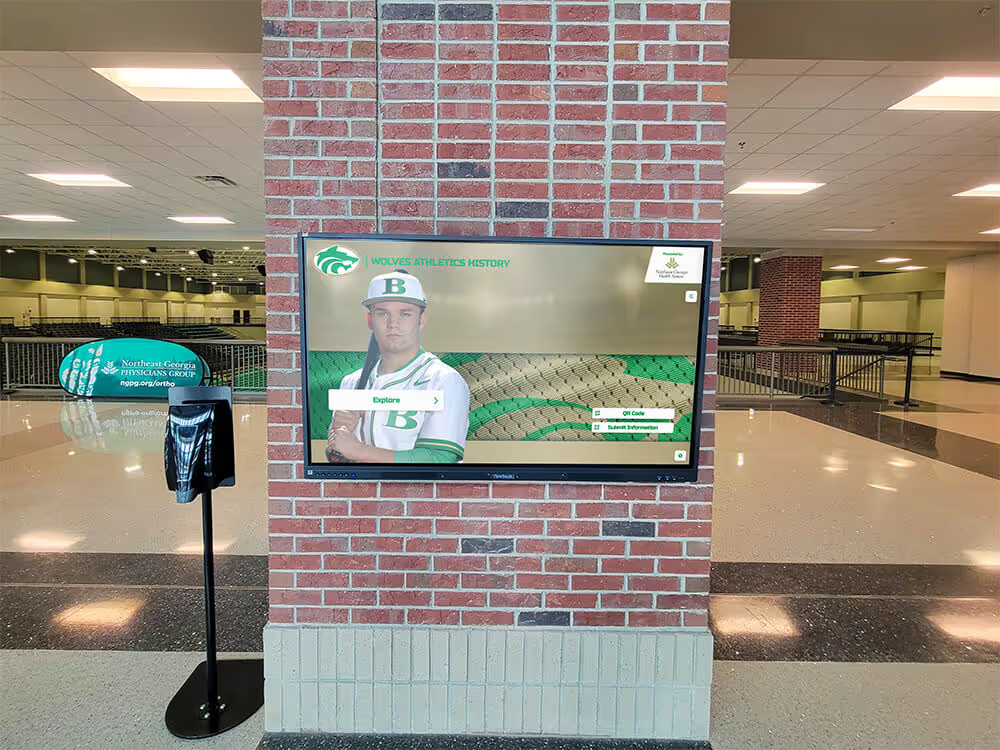
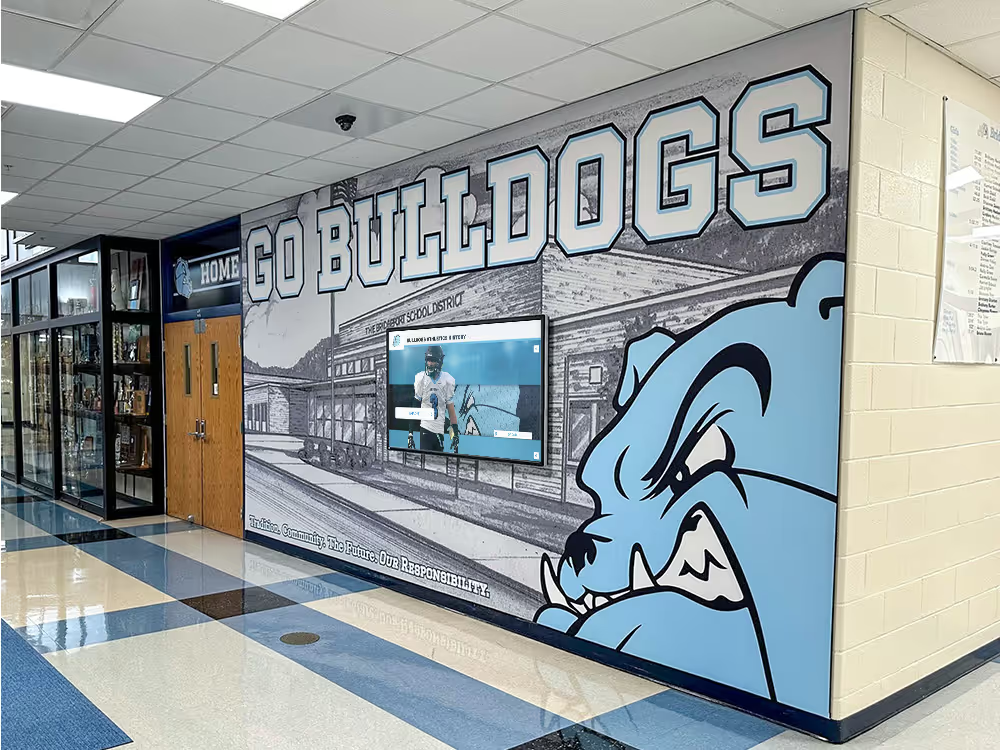
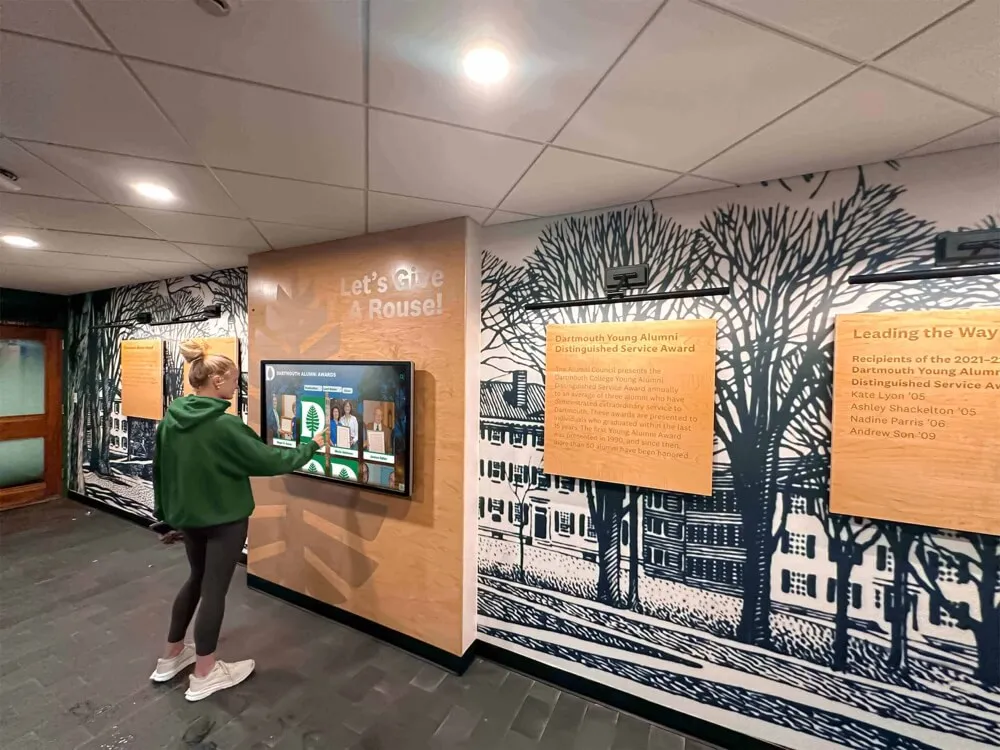
- Alumni recognition displays showcasing achievement stories and historical milestones
- Interactive wayfinding helping visitors navigate complex campuses
- Student information kiosks providing schedules, announcements, and resources
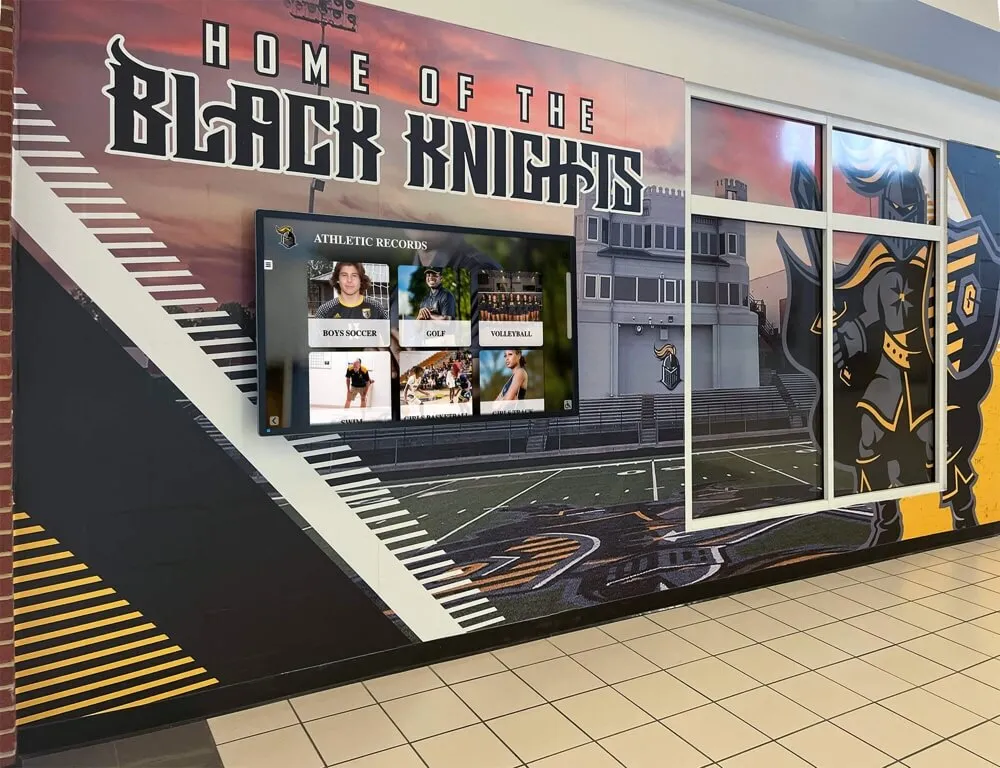
- Athletic record boards celebrating sports achievements and team histories
- Library catalogs enabling intuitive browsing and search
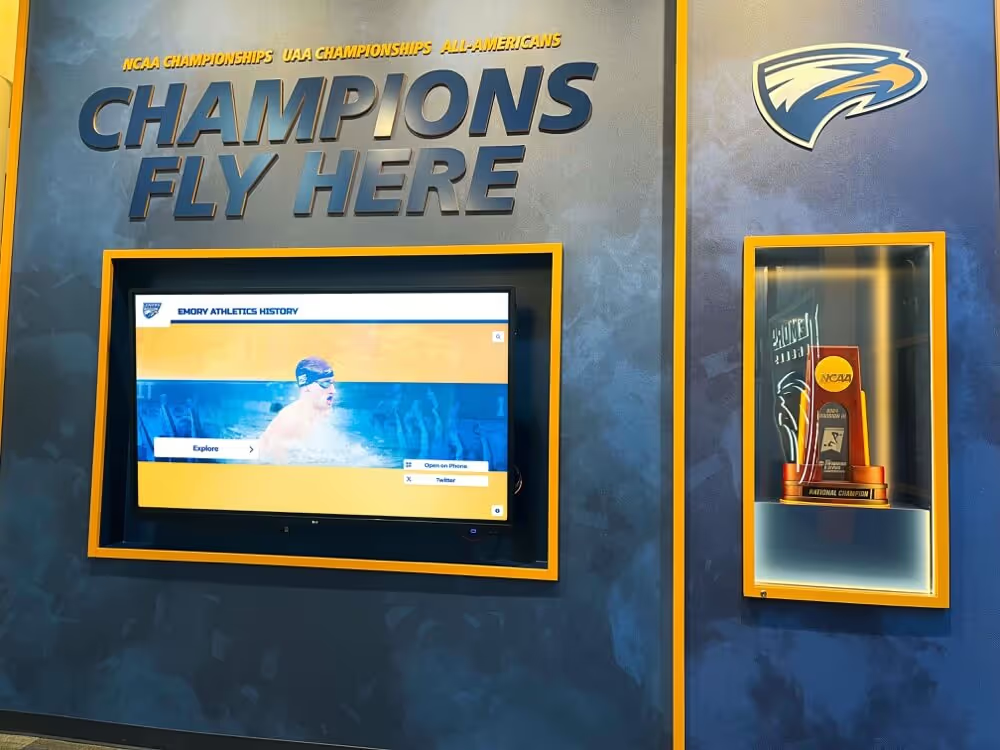
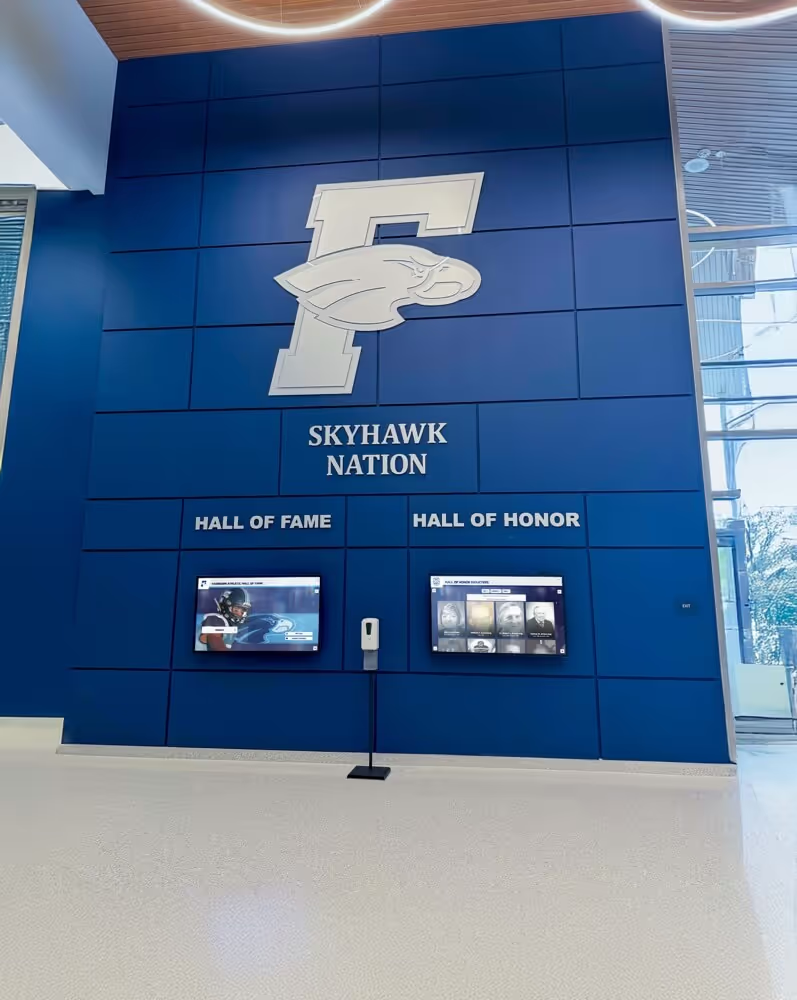
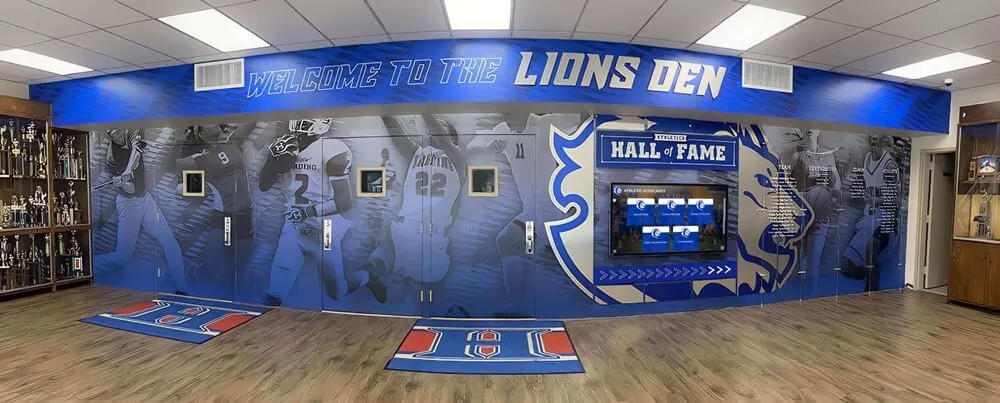
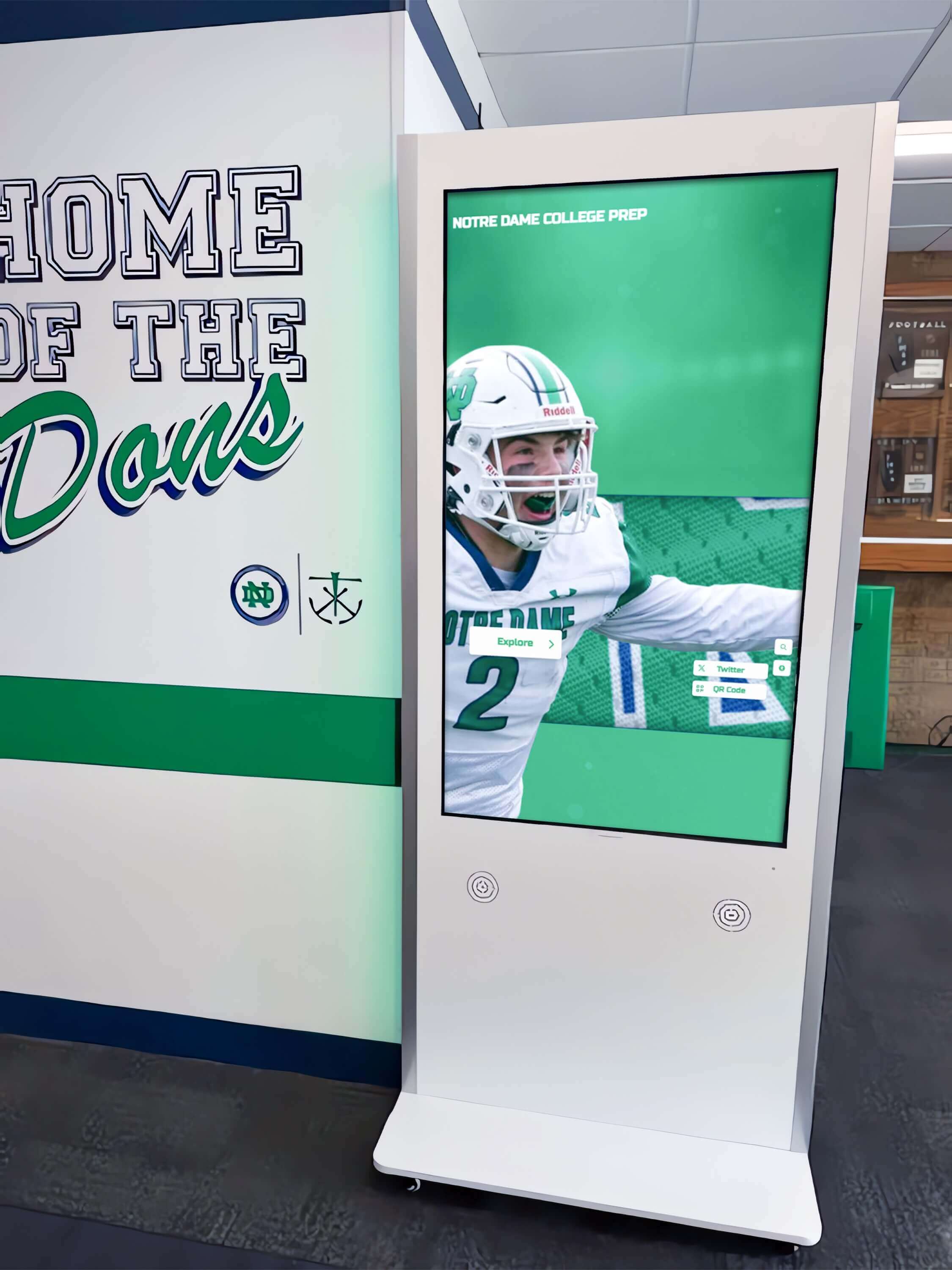
Educational touchscreen installations benefit from designs that accommodate varying technical literacy levels and age ranges. School recognition programs using touchscreen technology report increased student pride and alumni engagement.
Museums and Cultural Institutions
Museums leverage touchscreen interfaces to enhance visitor experiences through:
- Interactive exhibits providing deeper context for physical displays
- Object recognition allowing visitors to explore artifacts in detail
- Timeline explorers helping users navigate historical narratives
- Multimedia storytelling combining video, images, and text
- Visitor feedback collection gathering insights to improve exhibits
Cultural institutions find that well-designed touchscreen experiences extend visit duration and improve information retention compared to traditional static displays.
Corporate and Public Spaces
Businesses and public venues deploy touchscreen experiences for:
- Donor recognition celebrating contributors with interactive profiles
- Corporate history walls showcasing company evolution and achievements
- Directory systems helping visitors find departments and personnel
- Product showcases enabling detailed exploration of offerings
- Event calendars displaying schedules and booking options
Organizations implementing donor recognition solutions report that interactive displays generate more engagement and appreciation than traditional plaques.
Implementation Best Practices
Planning Your Touchscreen Experience
Successful implementations begin with thorough planning addressing:
Strategic questions:
- What specific goals should this experience accomplish?
- Who are the primary user groups and what are their needs?
- What content will deliver the most value to users?
- How will content be maintained and updated over time?
- What metrics will define success?
Practical considerations:
- Physical location and installation requirements
- Ambient lighting and environmental factors
- Network infrastructure and power availability
- Budget constraints and phased implementation options
- Staff training and content management workflows
Organizations following structured planning processes experience smoother implementations and higher user satisfaction. Resources on implementing digital recognition systems provide valuable frameworks for planning.
Launch and Ongoing Management
Post-installation success requires active management and optimization:
Launch phase activities:
- Comprehensive testing in actual installation environment
- Staff training on content management and troubleshooting
- Soft launch with limited users to identify issues
- Feedback collection and rapid iteration
- Full launch with promotional support
Ongoing management:
- Regular content updates maintaining relevance
- Performance monitoring and issue resolution
- Analytics review and experience optimization
- Hardware maintenance and cleaning
- User feedback collection and implementation
Platforms offering cloud-based management capabilities simplify ongoing operations by enabling remote updates and monitoring without on-site technical expertise.
Common Pitfalls to Avoid
Even well-intentioned implementations fail when designers overlook critical factors:
Design mistakes:
- Overwhelming complexity: Too many options or complicated navigation
- Insufficient feedback: Users uncertain whether their touches registered
- Poor contrast: Text difficult to read in ambient lighting
- Unreachable elements: Important features placed outside comfortable reach
- Inconsistent interactions: Different gestures producing unexpected results
Content errors:
- Dense text blocks: Paragraphs too long for comfortable reading
- Outdated information: Stale content signaling neglect
- Missing context: Assuming users have background knowledge they lack
- Poor media quality: Low-resolution images or videos
- Inappropriate tone: Language that doesn’t match audience expectations
Technical issues:
- Slow response times: Lag between touch and action
- Unreliable hardware: Displays frequently offline or malfunctioning
- Difficult updates: Content management requiring technical expertise
- No analytics: Flying blind without usage data
- Inadequate support: No plan for troubleshooting and maintenance
Learning from common implementation mistakes helps teams avoid predictable problems and deliver successful experiences from launch.
The Future of Touch Screen Experiences
Touchscreen technology continues evolving, opening new possibilities for engaging experiences:
Emerging trends:
- Gesture recognition: Detecting movements beyond screen touching
- Object recognition: Responding to physical items placed on screens
- Personalization: Adapting content to individual users through recognition
- Multi-user support: Enabling collaborative interactions on shared displays
- Haptic feedback: Adding tactile sensations to virtual interactions
- Integration with mobile: Connecting personal devices to public displays
- AI assistance: Intelligent interfaces that anticipate user needs
Forward-thinking organizations position themselves for these advances by selecting flexible platforms that evolve with technological progress.
Conclusion
Designing touchscreen experiences that truly engage users requires understanding the unique characteristics of touch interaction, applying proven UX principles, and continuously optimizing based on real-world usage data. Whether implementing interactive displays for schools, museums, corporate environments, or public spaces, success depends on prioritizing user needs, maintaining simplicity, and providing clear, immediate feedback.
Solutions like Rocket Alumni Solutions specialize in creating purpose-built touchscreen experiences for recognition and engagement applications. By combining sophisticated software platforms with expert design guidance, these systems help organizations deliver touchscreen experiences that captivate users and achieve measurable results.
The investment in thoughtful touchscreen design pays dividends through increased engagement, enhanced user satisfaction, and the achievement of organizational goals. As touch technology becomes increasingly ubiquitous, the ability to create compelling touchscreen experiences becomes an essential institutional capability.
For organizations ready to implement engaging touchscreen experiences, starting with clear goals, user-centered design principles, and flexible platforms positions projects for long-term success. The combination of strategic planning, expert design, and ongoing optimization creates touchscreen installations that users return to repeatedly, delivering sustained value for years to come.